
1. Produktet er overview
The Aluratek AUV200F USB 2.0 to VGA Adapter is designed to extend your desktop by adding an additional display via a USB port. This adapter enables dual monitor support, enhancing multitasking capabilities for various applications.
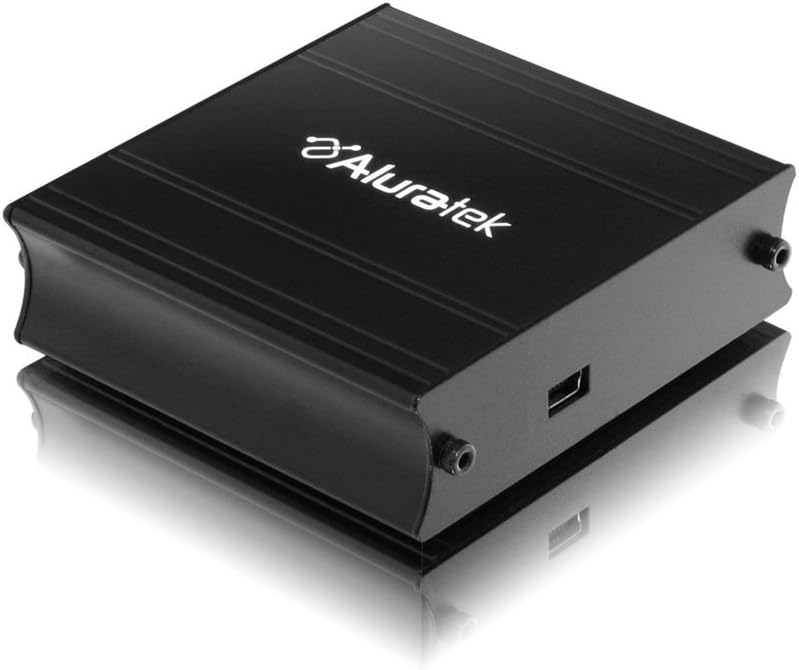
This image shows the Aluratek AUV200F USB to VGA Adapter. It is a compact, black rectangular device designed to connect a computer's USB port to a VGA monitor. The top surface displays the Aluratek logo, and one side features a USB input port, while the opposite side has screw holes for securing a VGA cable.
Nøkkelfunksjoner:
- Supports Primary, Extended, and Mirror display modes.
- Supports widescreen monitor resolutions up to 1680 x 1050.
- Supports standard monitor resolutions up to 1600 x 1200.
- Aktiverer viewing data across multiple screens or with display continuity.
- Facilitates more effective multitasking by reducing overlapping windows.
2. Pakkens innhold
Før du fortsetter med installasjonen, må du kontrollere at pakken inneholder følgende:
- Aluratek AUV200F USB to VGA Adapter
- Driver Installation CD (or download instructions)
- Hurtigstartguide
3. Systemkrav
For å sikre riktig funksjonalitet må datasystemet ditt oppfylle følgende minimumskrav:
- Operativsystem: Windows XP-SP2/3, Vista, Windows 7, or Mac OS 10.4.11 or later (Intel-based only).
- Tilgjengelige porter: One available USB port and one available VGA port on the monitor.
- Prosessor: Recommended 1.2 GHz or higher.
- VÆR: Recommended 512 MB or higher.
4. Oppsett og installasjon
4.1 Driverinstallasjon
- Sett inn driver-CD: Place the provided driver installation CD into your computer's optical drive. If your computer does not have an optical drive, download the latest drivers from the official Aluratek webnettstedet.
- Kjør installasjonsprogrammet: Follow the on-screen instructions to install the necessary drivers. It is recommended to restart your computer after the driver installation is complete.
4.2 Maskinvaretilkobling
- Connect VGA Cable: Connect one end of a VGA cable (not included) to the VGA port on your external monitor and the other end to the VGA port on the Aluratek AUV200F adapter. Secure the screws on the VGA connector for a stable connection.
- Koble til USB-kabel: Plug the USB connector of the Aluratek AUV200F adapter into an available USB 2.0 port on your computer.
- Strøm på: Ensure your external monitor is powered on.
5. Bruksanvisning
Once the adapter is connected and drivers are installed, your operating system should detect the new display. You can configure the display settings through your computer's display control panel.
5.1 Configuring Display Modes (Windows)
- Tilgang til skjerminnstillinger: Right-click on an empty area of your desktop and select "Screen resolution" (Windows 7/Vista) or "Display settings" (Windows 10).
- Identify Displays: Click "Identify" to see which number corresponds to each monitor.
- Choose Display Mode: In the "Multiple displays" dropdown menu, select one of the following options:
- Utvid disse skjermene: This creates an extended desktop, allowing you to drag windows between monitors.
- Dupliser disse skjermene: This mirrors your primary display onto the second monitor.
- Show desktop only on 1/2: This disables one of the displays.
- Adjust Resolution: Select the desired resolution for each monitor. The Aluratek AUV200F supports up to 1680x1050 for widescreen and 1600x1200 for standard monitors.
- Bruk innstillinger: Click "Apply" and then "OK" to save your changes.
5.2 Configuring Display Modes (Mac OS)
- Access Display Preferences: Go to "System Preferences" > "Displays".
- Arrangement Tab: In the "Arrangement" tab, you can drag the monitor icons to arrange them as desired for an extended desktop. To mirror displays, check the "Mirror Displays" box.
- Resolution Tab: In the "Display" tab for each monitor, select the desired resolution.
6. Feilsøking
If you encounter issues with your Aluratek AUV200F adapter, please refer to the following common solutions:
- No Display on Second Monitor:
- Ensure all cables (USB and VGA) are securely connected.
- Verify that the external monitor is powered on and set to the correct input source (VGA).
- Check your computer's display settings to ensure the second monitor is detected and configured for "Extend" or "Duplicate" mode.
- Reinstall the device drivers from the Aluratek webnettstedet.
- Poor Display Quality or Lag:
- Sørg for at datamaskinen din oppfyller de anbefalte systemkravene.
- Adjust the display resolution to a lower setting to see if performance improves.
- Note that USB-to-VGA adapters are generally not recommended for high-motion video playback or demanding graphic applications like gaming due to potential latency.
- Problemer med driverinstallasjon:
- Download the latest drivers directly from the official Aluratek support webnettstedet.
- Deaktiver antivirusprogramvaren midlertidig under installasjonen hvis den forstyrrer.
- Try installing the drivers in Safe Mode if standard installation fails.
- Adapteren gjenkjennes ikke:
- Prøv å koble adapteren til en annen USB-port på datamaskinen.
- Ensure the USB port is functional by testing it with another USB device.
7. Spesifikasjoner
| Modell | AUV200F |
| Merke | Aluratek |
| Koblingstype | USB 2.0 til VGA |
| Supported Resolutions (Widescreen) | Opptil 1680 x 1050 |
| Supported Resolutions (Standard) | Opptil 1600 x 1200 |
| Kompatible operativsystemer | Windows XP-SP2/3, Vista, Windows 7, Mac OS 10.4.11 or later (Intel-based) |
| Kompatible enheter | Bærbare datamaskiner, stasjonære datamaskiner |
| Produktdimensjoner | 23.62 x 14.73 x 6.35 cm |
| Varevekt | 181.44 g |
8. Vedlikehold
To ensure the longevity and optimal performance of your Aluratek AUV200F adapter, follow these maintenance guidelines:
- Rengjøring: Bruk en myk, tørr klut til å rengjøre adapteren. Unngå å bruke flytende rengjøringsmidler eller løsemidler.
- Lagring: Oppbevar adapteren på et kjølig og tørt sted, unna direkte sollys og ekstreme temperaturer.
- Håndtering: Handle the adapter with care. Avoid dropping it or subjecting it to strong impacts. Do not force connectors.
9. Garanti og støtte
The Aluratek AUV200F USB to VGA Adapter comes with a 1 års begrenset garanti fra kjøpsdatoen. Denne garantien dekker defekter i materialer og utførelse ved normal bruk.
For technical support, warranty claims, or further assistance, please visit the official Aluratek webnettstedet eller kontakt kundeserviceavdelingen deres. Ta vare på kjøpsbeviset for garantivalidering.
Aluratek Official Webnettsted: www.aluratek.com