
1. Introduksjon
Welcome to the user manual for your Logitech M705 Marathon Wireless Mouse. This document provides essential information for setting up, operating, and maintaining your device, ensuring optimal performance and longevity. The M705 mouse is designed for comfort and efficiency, featuring a long battery life and customizable controls for enhanced productivity.
2. Produktet er overview
Nøkkelfunksjoner
- Forlenget batterilevetid: Enjoy up to 3 years of battery life, reducing the need for frequent replacements.
- Ergonomisk design: Sculpted to fit the natural curve of your right hand, providing comfort during prolonged use.
- Hyperrask rulling: Navigate through long documents and web pages with a single spin of the scroll wheel, or switch to click-to-click scrolling for precision.
- Programmerbare knapper: Five customizable buttons, including forward/back thumb buttons, allow for personalized shortcuts and enhanced control.
- Samlende mottaker: A small USB Unifying receiver connects up to six compatible Logitech devices, freeing up USB ports.
- Bred kompatibilitet: Kompatibel med operativsystemene Windows, macOS, Chrome OS og Linux.
Pakkeinnhold
The Logitech M705 Marathon Wireless Mouse package typically includes:
- Logitech M705 trådløs mus
- Logitech Unifying USB Receiver
- 2 AA Alkaline Batteries (may vary by region/packaging)

3. Installasjonsinstruksjoner
3.1. Installere batterier
- Turn the mouse over and locate the battery compartment cover on the underside.
- Press the release button or slide the cover to open the compartment.
- Sett inn de to AA-batteriene, og sørg for at polariteten (+/-) er riktig.
- Sett på plass batteridekselet.

3.2. Connecting the USB Unifying Receiver
- Locate the small USB Unifying receiver. It may be stored inside the battery compartment of the mouse.
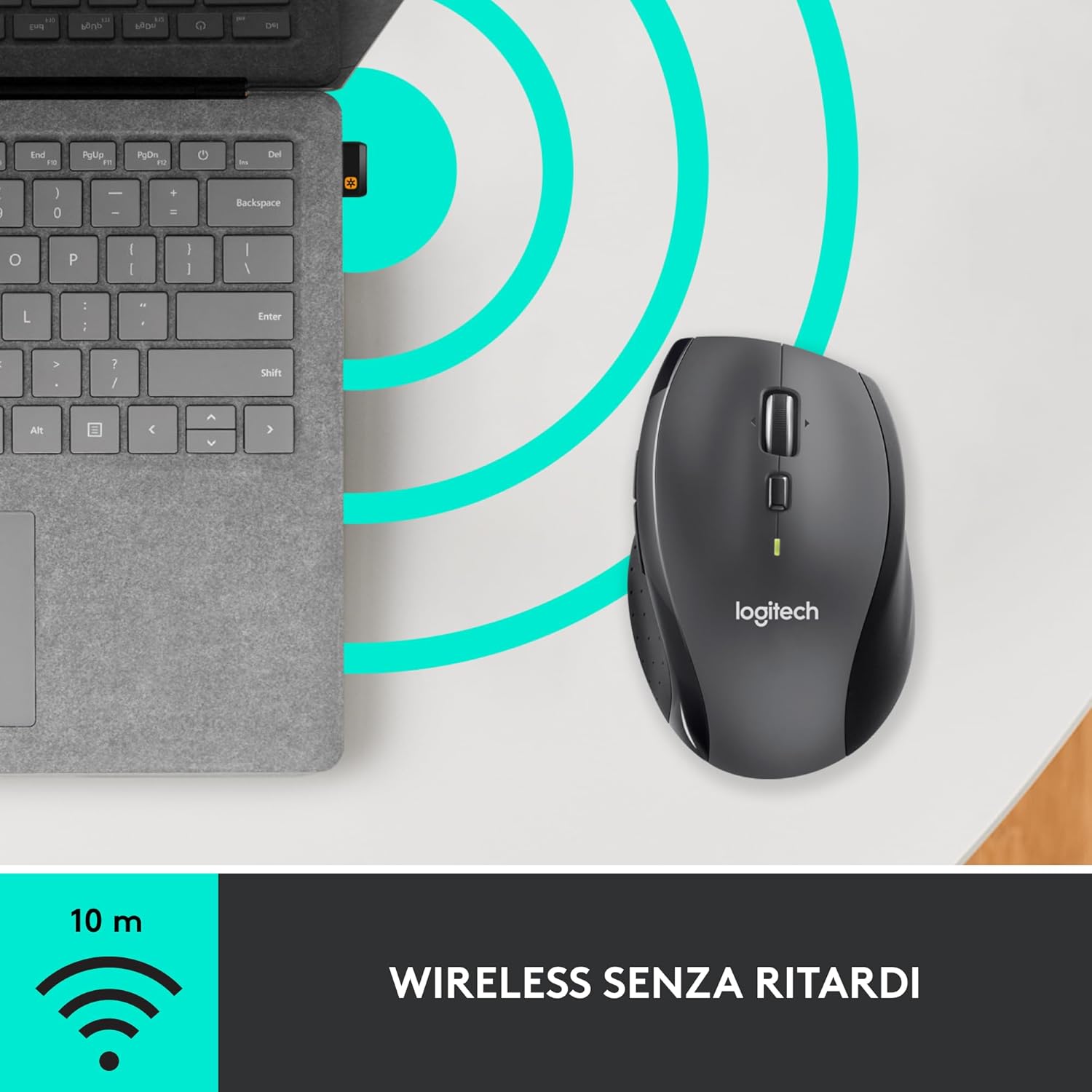
- Koble USB-mottakeren til en ledig USB-port på datamaskinen.
- Slå på musen med av/på-bryteren som er plassert på undersiden.
- Your computer should automatically detect the mouse. If not, visit the Logitech support webNettsted for driverinstallasjon.
4. Bruksanvisning
4.1. Grunnleggende musefunksjoner
The M705 mouse features standard left and right-click buttons, a scroll wheel, and additional programmable buttons.

4.2. Hyperrask rulling
Rullehjulet tilbyr to moduser:
- Hyperrask modus: Press the button directly below the scroll wheel to unlock it for smooth, rapid scrolling through long documents or web sider.
- Click-to-Click Mode: Press the button again to engage precise, stepped scrolling, ideal for navigating lists or image galleries.

4.3. Programmerbare knapper
The M705 features five programmable buttons, including two thumb buttons and tilt-scroll functionality. These can be customized using the Logitech Options software.

5. Tilpasning
To unlock the full potential of your M705 mouse, download and install the Logitech Options software from the official Logitech webnettsted. Denne programvaren lar deg:
- Assign custom functions to the five programmable buttons.
- Adjust tracking speed (DPI).
- Konfigurer applikasjonsspesifikke innstillinger.
- Kontroller batteristatus.

6. Vedlikehold
6.1. Rengjøring
Bruk en myk, lofri klut for å rengjøre musen. Tørk litt av gjenstridig smuss.ampen the cloth with water. Avoid using harsh chemicals or abrasive materials, as these can damage the mouse surface or internal components.
6.2. Batteribytte
When the battery indicator light on your mouse begins to flash or if performance degrades, it's time to replace the batteries. Follow the steps in Section 3.1 to replace the two AA batteries. Dispose of old batteries responsibly according to local regulations.
7. Feilsøking
7.1. Musen svarer ikke
- Sørg for at musen er slått på.
- Sjekk batterinivået og bytt batterier om nødvendig.
- Verify the USB Unifying receiver is securely plugged into a working USB port.
- Try plugging the receiver into a different USB port or a different computer to isolate the issue.
- Hvis du bruker en USB-hub, kan du prøve å koble den direkte til datamaskinen.
7.2. Uregelmessig markørbevegelse
- Rengjør den optiske sensoren på undersiden av musen.
- Ensure you are using the mouse on a suitable surface. Highly reflective or transparent surfaces may cause tracking issues. A mouse pad is recommended.
- Check for interference from other wireless devices. Move the mouse closer to the USB receiver.
7.3. Unifying Receiver Issues
If the mouse loses connection or you need to pair it with a new receiver, download the Logitech Unifying Software from the Logitech support website. This software guides you through the pairing process.
8. Spesifikasjoner
| Trekk | Detalj |
|---|---|
| Merke | Logitech |
| Modellnavn | M705 |
| Modellnummer | 910-001949 |
| Tilkoblingsteknologi | Wireless (2.4 GHz USB Unifying Receiver) |
| Bevegelsesdeteksjonsteknologi | Laser |
| Bevegelsesoppløsning | 1000 DPI (up to 3200 DPI maximum resolution) |
| Antall knapper | 5 programmerbare knapper |
| Strømkilde | Battery (2 x AA Alkaline) |
| Gjennomsnittlig batterilevetid | Opptil 3 år |
| Wireless Range | Opp til 10 meter |
| Formfaktor | Høyrehånds ergonomisk |
| Dimensjoner (L x B x H) | 20 x 13 x 12 cm (mål på produktemballasje) |
| Vekt | 136 gram |
| Kompatible operativsystemer | Windows 7, 8, 10; macOS 10.11 or later; Chrome OS; Linux |
9. Garanti og støtte
For detaljert garantiinformasjon og teknisk støtte, se den offisielle Logitech-versjonen. webnettstedet eller kontakt Logitechs kundeservice. Ta vare på kjøpsbeviset for garantikrav.