
Introduksjon
The ADATA S102PRO is a high-performance USB 3.0 flash drive designed for fast and reliable data storage and transfer. Its durable design and high-speed interface make it ideal for everyday use, allowing you to carry important files, documents, photos, and videos with ease.
Oppsett
Follow these steps to begin using your ADATA S102PRO USB Flash Drive:
- Identifiser en USB-port: Locate an available USB port on your computer. For optimal performance, use a USB 3.0 port (often colored blue internally). The ADATA S102PRO is backward compatible with USB 2.0 ports, but data transfer speeds will be limited to USB 2.0 rates.
- Fjern lokket: Carefully remove the protective cap from the USB flash drive to expose the USB connector.
- Sett inn stasjonen: Insert the USB connector firmly into the USB port on your computer. Ensure it is inserted correctly; do not force it.
- Systemgjenkjenning: Your operating system (Windows, macOS, Linux) should automatically detect and install the necessary drivers. A notification may appear indicating that the device is ready for use. The drive will typically appear as a removable disk or volume in your file utforsker.
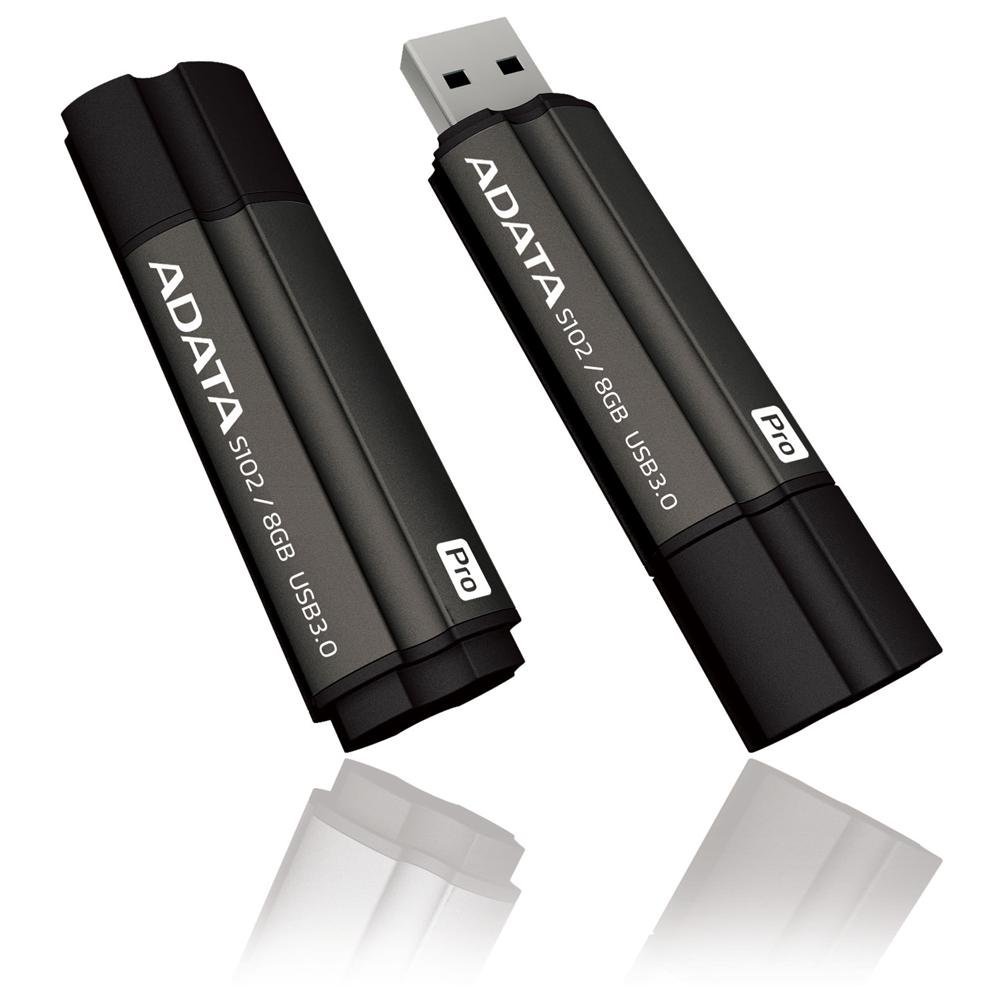
Image: The ADATA S102PRO USB Flash Drive shown with its protective cap on and with the cap removed, revealing the USB 3.0 connector. This illustrates the physical appearance and how to prepare the drive for insertion.
Drift
Once the ADATA S102PRO is recognized by your computer, you can begin transferring files:
- Tilgang til stasjonen:
- Windows: Open "This PC" or "My Computer" and locate the drive listed under "Devices and drives" (e.g., "Removable Disk" or a drive letter like E:).
- MacOS: The drive icon will appear on your desktop or in the Finder sidebar under "Locations."
- Overfører Files:
- Å kopiere files til the flash drive, drag and drop them from your computer's folders into the flash drive's window.
- Å kopiere files fra the flash drive, drag and drop them from the flash drive's window to a folder on your computer.
- You can also use the standard copy (Ctrl+C / Command+C) and paste (Ctrl+V / Command+V) functions.
- Trygg fjerning av stasjonen: Det er avgjørende å ta ut flash-stasjonen på en sikker måte før du fysisk fjerner den for å forhindre datakorrupsjon.
- Windows: Click the "Safely Remove Hardware and Eject Media" icon in the system tray (bottom-right corner), then select your flash drive and click "Eject." Wait for the "Safe to Remove Hardware" message.
- MacOS: Drag the drive icon from the desktop to the Trash, or click the Eject button next to the drive name in the Finder sidebar. Wait for the icon to disappear before removing the drive.
Vedlikehold
Proper care will help ensure the longevity and reliability of your ADATA S102PRO USB Flash Drive:
- Protect the Connector: Always keep the protective cap on the USB connector when the drive is not in use to prevent dust, dirt, and physical damage.
- Unngå ekstreme forhold: Do not expose the drive to extreme temperatures, direct sunlight, high humidity, or strong magnetic fields.
- Håndteres med forsiktighet: Unngå å miste harddisken eller utsette den for harde støt.
- Do Not Remove During Transfer: Never unplug the drive while data is being read from or written to it. Always follow the safe removal procedure.
- Vanlige sikkerhetskopier: While flash drives are reliable, it is always recommended to back up critical data to another storage device or cloud service.
Feilsøking
If you encounter issues with your ADATA S102PRO, try the following solutions:
- Stasjonen gjenkjennes ikke:
- Sørg for at stasjonen er satt helt inn i USB-porten.
- Prøv en annen USB-port på datamaskinen.
- Test harddisken på en annen datamaskin for å utelukke et datamaskinspesifikt problem.
- Sjekk datamaskinens Enhetsbehandling (Windows) eller Systeminformasjon (macOS) for å se om stasjonen er oppført, selv om den ikke vises i File Utforsker/Finner.
- Lave overføringshastigheter:
- Ensure you are connected to a USB 3.0 port for optimal performance. USB 2.0 ports will limit speeds.
- Overføring av mange små files kan være tregere enn å overføre noen få store files.
- Lukk andre programmer som kanskje bruker systemressurser eller utfører diskoperasjoner.
- Kan ikke skrive Files til stasjonen:
- Sjekk om harddisken er full. Slett unødvendige filer. fileeller flytte dem til et annet sted.
- Sørg for at file system (e.g., FAT32, NTFS, exFAT) is compatible with your operating system and allows writing. If formatted as NTFS on macOS, you may only have read access without third-party software.
- Check for any software-based write protection or permissions issues on your computer.
Spesifikasjoner
| Merke | ADATA |
| Modellnavn | S102PRO |
| Modellnummer | AT806-4G-CPK |
| Minnelagringskapasitet | 4 GB |
| Maskinvaregrensesnitt | USB 3.0 (bakoverkompatibel med USB 2.0) |
| Produsent | A-DATA TECHNOLOGY (USA) CO. L |
| UPC | 842243005080 |
| ASIN | B004AVOGW8 |
Garanti og støtte
For detailed warranty information, product registration, and technical support, please visit the official ADATA webnettsted. Du finner vanligvis støtteressurser, vanlige spørsmål og kontaktinformasjon for kundeservice der.
ADATA-offisiell Webnettsted: www.adata.com