
1. Introduksjon
This manual provides detailed instructions for the installation, operation, and maintenance of your BizCardReader DuplexScan 1210 scanner. Please read this manual thoroughly before using the device to ensure proper functionality and to maximize its lifespan. This scanner is designed for efficient scanning of medical insurance cards, ID cards, and other similar documents.
2. Produktet er overview
The BizCardReader DuplexScan 1210 is a compact, USB-powered duplex card scanner. It is fully TWAIN compliant, allowing integration with various scanning applications, including electronic healthcare and medical practice management systems. The scanner features a robust card transport mechanism with four independently powered rollers, designed to handle various card thicknesses, including embossed plastic cards and laminated IDs.

Image 1: BizCardReader DuplexScan 1210 scanner and Scan-ID LITE software interface.
Nøkkelfunksjoner:
- Tosidig skanning: Scans both sides of a card in a single pass.
- USB-drevet: No external power adapter required.
- TWAIN Compliant: Compatible with a wide range of imaging applications.
- Quad-Powered Rollers: Ensures smooth feeding for various card types, including thick and laminated cards.
- Scan-ID LITE Software: Included for card image management and database creation (manual data entry required).
- ScanToFile Søknad: Included for direct saving of scanned images to PDF, JPEG, or TIFF formats.
- Operativsystemkompatibilitet: Windows 11, 10, 8, 7, XP.
3. Pakkens innhold
Bekreft at alle varene er til stede i pakken:
- BizCardReader DuplexScan 1210 Scanner
- USB -tilkoblingskabel
- Installation CD (or download instructions for software)
- Hurtigstartguide
4. Systemkrav
- Operativsystem: Windows 11, Windows 10, Windows 8, Windows 7, Windows XP.
- Tilkobling: Tilgjengelig USB-port.
- Minimum oppløsning: 300 DPI (Optical).
- Note: This scanner is not compatible with Mac operating systems.
5. Oppsett
5.1. Installasjon av drivere og programvare
- Ikke koble skanneren til datamaskinen ennå.
- Insert the provided installation CD into your computer's optical drive, or navigate to the official BizCardReader support website to download the latest drivers and software (Scan-ID LITE and ScanToFile).
- Follow the on-screen instructions to install the scanner drivers and the included software applications. It is recommended to install both Scan-ID LITE and ScanToFile.
- Start datamaskinen på nytt hvis du blir bedt om det.
5.2. Koble til skanneren
- After the software installation is complete and your computer has restarted, connect one end of the USB cable to the USB port on the scanner.
- Koble den andre enden av USB-kabelen til en ledig USB-port på datamaskinen.
- The operating system should automatically detect the scanner and complete the driver installation.
6. Drift
6.1. Scanning with Scan-ID LITE
Scan-ID LITE is designed for managing scanned card images in a searchable database.
- Open the Scan-ID LITE application from your desktop or Start Menu.
- Place the card you wish to scan into the scanner's input slot. Ensure the card is inserted correctly, typically face up with the leading edge first.
- Within the Scan-ID LITE interface, locate the 'Scan' or 'Scan Options' button. You may have options for 'Single Side' or 'Double Side' scanning. Select 'Double Side' for duplex scanning.
- The scanner will pull the card through and display the scanned images (front and back) within the application.
- Viktig: Card information (e.g., name, ID number, address) must be manually keyed in to create a searchable record. Scan-ID LITE does not automatically read data from driver licenses or other cards.
- Save the record to the database.

Image 2: Scan-ID LITE interface, showing manual data entry fields and scanned card images.
6.2. Scanning with ScanToFile
ScanToFile allows you to quickly save scanned images directly to common file formater.
- Open the ScanToFile søknad.
- Place the card into the scanner's input slot.
- Select your desired output format (PDF, JPEG, or TIFF) and the destination folder for the scanned images.
- Initiate the scan. The scanner will process the card, and the images will be saved automatically to the specified location.
6.3. TWAIN Compatibility
The DuplexScan 1210 is TWAIN compliant, meaning it can be used with any third-party software that supports TWAIN drivers. When using other applications, select the BizCardReader DuplexScan 1210 as your scanner source within that application's scanning interface.
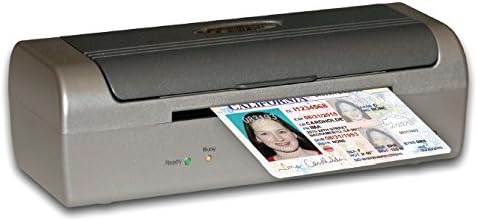
Image 3: Proper insertion of a card into the scanner.
7. Vedlikehold
7.1. Rengjøring av skanneren
Regular cleaning helps maintain scan quality and extends the life of your scanner.
- Slå av: Disconnect the scanner from the USB port before cleaning.
- Ytre: Tørk av utsiden med en myk, tørr og lofri klut. Ikke bruk slipende rengjøringsmidler eller løsemidler.
- Interior (Rollers and Glass): Refer to the detailed cleaning instructions in the full software manual or on the manufacturer's website. Typically, a soft cloth lightly dampened with isopropyl alcohol can be used for rollers and optical components. Ensure all components are dry before reconnecting power.
7.2. Utskifting av valser
Over time, the scanner rollers may wear out, affecting card feeding. Replacement kits are available from the manufacturer. Consult the full manual for instructions on how to replace the rollers.
8. Feilsøking
Vanlige problemer og løsninger:
- Skanner ikke oppdaget:
- Sørg for at USB-kabelen er ordentlig koblet til både skanneren og datamaskinen.
- Prøv en annen USB-port på datamaskinen.
- Kontroller at driverne er riktig installert. Installer på nytt om nødvendig.
- Start datamaskinen på nytt.
- Dårlig skannekvalitet (striper, uskarphet):
- Clean the scanner's optical components and rollers as described in the Maintenance section.
- Ensure the card is clean and free of debris.
- Check software settings for resolution and image enhancement options.
- Card Jamming or Not Feeding:
- Ensure the card is inserted straight and not at an angle.
- Clean the scanner rollers. Worn rollers may need replacement.
- Avoid scanning cards that are excessively bent, damaged, or thicker than recommended specifications.
- Scan-ID LITE Not Reading Data Automatically:
- This is expected behavior. Scan-ID LITE requires manual data entry for card information. It does not feature OCR for driver licenses or other documents.
9. Spesifikasjoner
| Trekk | Spesifikasjon |
|---|---|
| Modellnavn | DuplexScan 1210 |
| Vare modellnummer | SLB1 |
| Skannertype | Document, ID Card, Insurance Card, Photo |
| Tilkoblingsteknologi | USB |
| Optisk sensorteknologi | CIS |
| Oppløsning | 300 DPI |
| Arkstørrelse | Kredittkort |
| Produktdimensjoner | 7.7 x 2.4 x 3 tommer |
| Varevekt | 1.3 pund |
| Minimum systemkrav | Windows 7 |
| UPC | 719990001323 |

Bilde 4: Foran view of the DuplexScan 1210 scanner.
10. Garanti og støtte
10.1. Garantiinformasjon
The BizCardReader DuplexScan 1210 scanner includes a 1 års garanti på deler og arbeidskraft fra kjøpsdatoen. Denne garantien dekker material- og produksjonsfeil ved normal bruk. Den dekker ikke skader forårsaket av feilbruk, ulykker, uautoriserte endringer eller eksterne årsaker.
10.2. Kundestøtte
For technical assistance, troubleshooting, or warranty claims, please contact BizCardReader customer support through their official website or the contact information provided with your product documentation. Please have your product model number (DuplexScan 1210 or SLB1) and proof of purchase available when contacting support.