
Introduksjon
Takk for kjøpetasing the DIAFIELD 1byone Ultra-Thin Wireless Keyboard. This manual provides detailed instructions on how to set up, operate, and maintain your new keyboard. Please read this manual thoroughly before use to ensure optimal performance and longevity of your device.
Produkt overview
The DIAFIELD 1byone Ultra-Thin Wireless Keyboard is designed for versatility and convenience, featuring a compact design, a multi-function touchpad, and broad compatibility.

Figure 1: DIAFIELD 1byone Wireless Keyboard
Nøkkelfunksjoner:
- Ultraportabilitet: Designed for use anywhere, anytime, with your smartphone, tablet, or Smart TV. Its compact design ensures easy transport and quick setup.
- Integrert berøringsplate: Features an ultra-thin touchpad that functions as a mouse, supporting various pre-set gestures for convenient navigation. The touchpad can also be disabled if not needed.
- Holdbar batterilevetid: Equipped with a 500 mAh built-in battery, providing up to 4 months of standby time or 90 hours of continuous use on a single charge.
- Spanish QWERTY Layout: Specifically designed for Spanish speakers, including common Spanish symbols and the 'Ñ' key. Ensure your system's keyboard language is set to Spanish for proper functionality.
- Bluetooth 3.0-tilkobling: Ensures fast and stable connections with tablets and other devices, providing synchronous input without delay. Setup is quick and easy.

Figure 2: Touchpad and Function Keys

Figur 3: Type-C-lading og batterilevetid
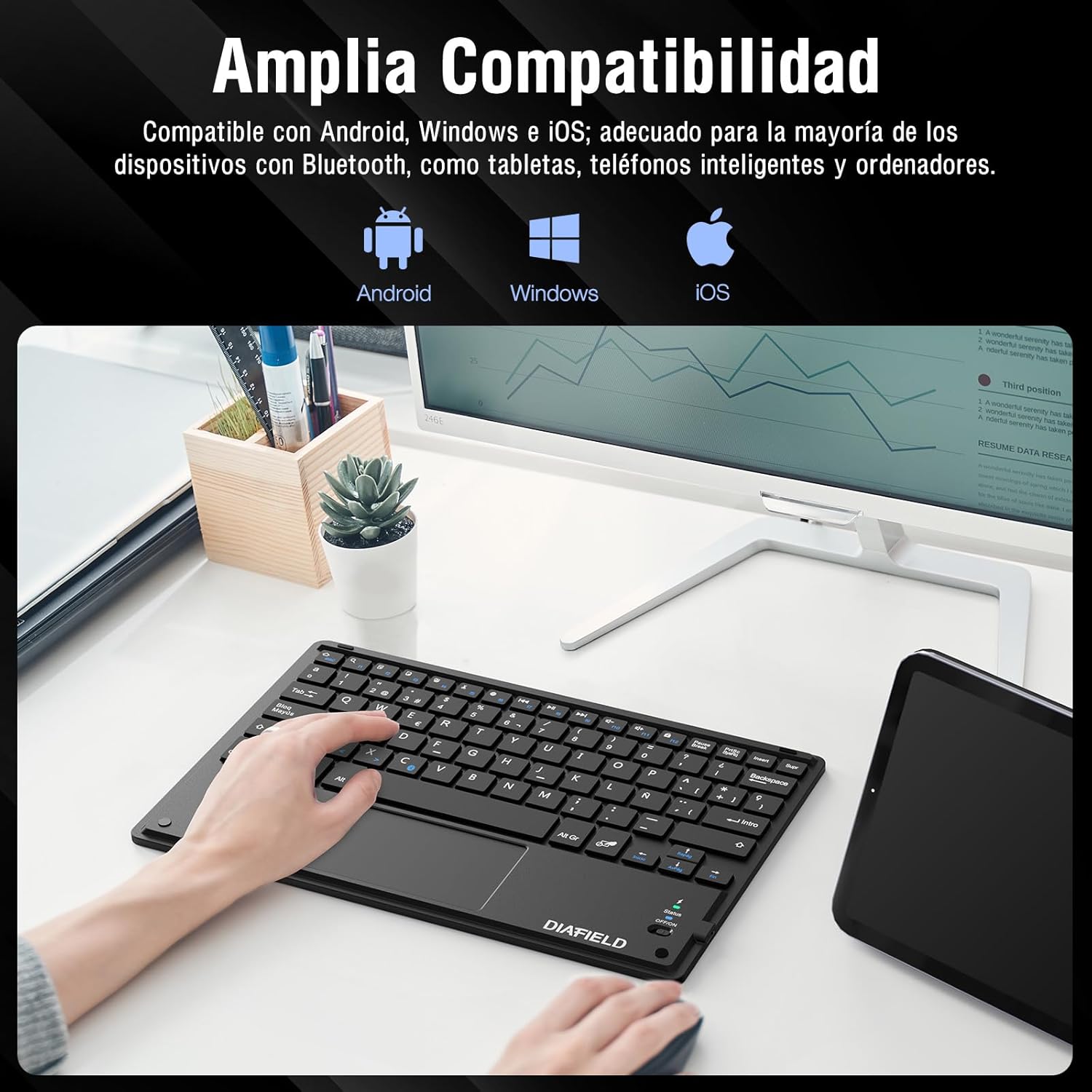
Figure 4: Broad Device Compatibility

Figure 5: Scissor-Type Key Mechanism

Figur 6: Kompakt og lett design

Figure 7: Multi-touch Gestures

Figure 8: Keyboard in Use with Tablet
Oppsettveiledning
1. Lade tastaturet
Before first use, ensure the keyboard is fully charged. Connect the provided USB-C cable to the keyboard's charging port and the other end to a USB power source (e.g., computer, wall adapter). The charging indicator light will show the charging status.
- Charging time: Less than 4 hours.
- Batterikapasitet: 500 mAh.

Figure 9: Charging the Keyboard
2. Bluetooth-paring
Follow these simple steps to pair your keyboard with your device:
- Turn on the keyboard by sliding the power switch to the "ON" position. The status indicator light will illuminate.
- Activate Bluetooth on your device (tablet, smartphone, computer, Smart TV).
- On your device, search for available Bluetooth devices. The keyboard will appear as "DIAFIELD KEYBOARD" or similar.
- Select the keyboard from the list to initiate pairing. Your device may prompt you to enter a pairing code displayed on the screen. Type this code on the keyboard and press Enter.
- Once paired, the status indicator light on the keyboard will turn off or change color, indicating a successful connection.
The keyboard supports quick connection and pairing with iOS, Android, and Windows systems.

Figure 10: Bluetooth Pairing on a Smartphone
Bruksanvisning
1. Using the Touchpad
The integrated touchpad supports various multi-touch gestures to enhance your productivity:
- Venstre klikk: Single tap with one finger.
- Høyreklikk: Trykk med to fingre.
- Zoom inn/ut: Pinch in or out with two fingers.
- Scroll/Explore: Drag two fingers up or down, or left or right.
- Bytt vindu: Swipe three fingers horizontally.
- Open Task Manager (Windows): Swipe three fingers upwards.
Figure 11: Touchpad Multi-touch Gestures
2. Funksjonstaster
The top row of keys (F1-F12) includes multimedia and shortcut functions. To use these functions, press the Fn tasten samtidig med ønsket funksjonstasten.
| Nøkkelkombinasjon | Funksjon |
|---|---|
| Fn + Esc | Hjem |
| Fn + F1 | Søk |
| Fn + F2 | Kopiere |
| Fn + F3 | Kutt |
| Fn + F4 | Lim inn |
| Fn + F5 | Volum ned |
| Fn + F6 | Volum opp |
| Fn + F7 | Forrige spor |
| Fn + F8 | Spill av/pause |
| Fn + F9 | Neste spor |
| Fn + F10 | Stum |
| Fn + F11 | Velg alle |
| Fn + F12 | Skjermlås |

Figure 12: Keyboard Function Keys
Vedlikehold
Riktig vedlikehold vil forlenge levetiden til tastaturet ditt:
- Rengjøring: Bruk en myk, tørr og lofri klut til å rengjøre tastaturoverflaten. For gjenstridig smuss, tørk littampSkyll kluten med vann eller et mildt rengjøringsmiddel. Unngå overdreven fuktighet.
- Lagring: Oppbevar tastaturet på et kjølig og tørt sted, unna direkte sollys og ekstreme temperaturer.
- Batteripleie: To preserve battery life, avoid fully discharging the keyboard frequently. If storing for a long period, charge it to about 50% and recharge every few months.
- Unngå væsker: Keep the keyboard away from liquids to prevent damage to internal components.
Feilsøking
Vanlige problemer og løsninger:
- Tastaturet kobler seg ikke til via Bluetooth:
- Sørg for at tastaturet er ladet og slått på.
- Sørg for at Bluetooth er aktivert på enheten din.
- Prøv å oppheve paringen og pare tastaturet på nytt fra enhetens Bluetooth-innstillinger.
- Restart both the keyboard (turn off/on) and your device.
- Characters typed do not match the keys (e.g., @ instead of "):
This often happens when the keyboard layout setting on your device does not match the physical layout of the keyboard (Spanish QWERTY). You need to change your device's keyboard input language to Spanish.
For Android devices, follow these general steps (may vary slightly by device model):
- Gå til Innstillinger.
- Naviger til Generell ledelse (or System).
- Velge Språk og input.
- Under "Physical keyboard" or "Keyboards," find your connected keyboard (e.g., "DIAFIELD KEYBOARD").
- Tap on the keyboard name and then select Sett opp tastaturoppsett or Configure keyboard layouts.
- Ensure "Spanish (ES)" is selected or enabled. You might need to disable other languages.
- Alternatively, you can often switch layouts by pressing Ctrl + Spacebar på tastaturet.

Figure 13: Resolving Keyboard Layout Mismatch
- Berøringsplaten svarer ikke:
- Ensure the touchpad is not accidentally disabled (check for a function key combination that toggles the touchpad).
- Clean the touchpad surface.
- Reconnect the keyboard via Bluetooth.
Spesifikasjoner
| Trekk | Detalj |
|---|---|
| Merke | 1 BY ONE |
| Produsent | DIAFIELD |
| Modellnummer | O0000-0713 |
| Produktdimensjoner | 25.8 x 17.2 x 0.4 cm |
| Vekt | 259 g |
| Farge | Svart |
| Strømkilde | Batteri |
| Batteritype | Integrert litiumbatteri |
| Batteri voltage | 4.2 volt |
| Antall batterier | 1 |
| Maskinvareplattform | Computer, Laptop, Smartphone, Tablet, Television |
| Operativsystemkompatibilitet | iOS, Android, Windows |
| Tilkoblingsteknologi | Bluetooth 3.0 |
| Tastaturbeskrivelse | Multimedia |
| Anbefalt bruk | Daglig bruk |
| Spesialfunksjon | Styreflate |
| Antall nøkler | 81 |
| Keyboard Backlight Color | Enkel farge |
| Første tilgjengelige dato | 24. august 2015 |
Garanti og støtte
For warranty information and technical support, please refer to the contact details provided with your product packaging or visit the official 1 BY ONE webnettstedet. Ta vare på kjøpskvitteringen som kjøpsbevis for eventuelle garantikrav.
Hvis du støter på problemer som ikke er dekket i denne håndboken, kan du kontakte kundestøtte for å få hjelp.