
BenQ EX3501R
BenQ EX3501R Ultrawide Curved Gaming Monitor User Manual
Model: EX3501R
1. Oppsett
1.1 Pakke ut skjermen
Fjern alle komponentene forsiktig fra emballasjen. Sørg for at alle elementene som er oppført nedenfor er til stede:
- BenQ EX3501R Monitor
- Skjermstativ (base og hals)
- Strømadapter
- Strømledning
- HDMI-kabel
- DisplayPort-kabel
- USB-C-kabel
- Brukerhåndbok (dette dokumentet)
1.2 Montering av stativet
Følg disse trinnene for å feste stativet til skjermen:
- Plasser skjermen med forsiden ned på en myk, ren klut for å unngå riper.
- Fest stativhalsen til baksiden av skjermen. Sørg for at den klikker ordentlig på plass.
- Connect the stand base to the neck, tightening any screws as indicated in the quick start guide.

Figur 1: Foran view of the BenQ EX3501R monitor with its stand.
1.3 Tilkoblingskabler
Connect the necessary cables to the monitor and your computer. The monitor supports various input options:
- Makt: Koble strømadapteren til skjermen og deretter til en stikkontakt.
- Videoinngang: Use either the HDMI, DisplayPort, or USB-C cable to connect your computer to the monitor.
- USB-C: The USB-C port supports video, data transfer, and power delivery, allowing for a single-cable connection with compatible devices.
- USB 3.0-porter: Utilize the integrated USB 3.0 ports for connecting peripherals.
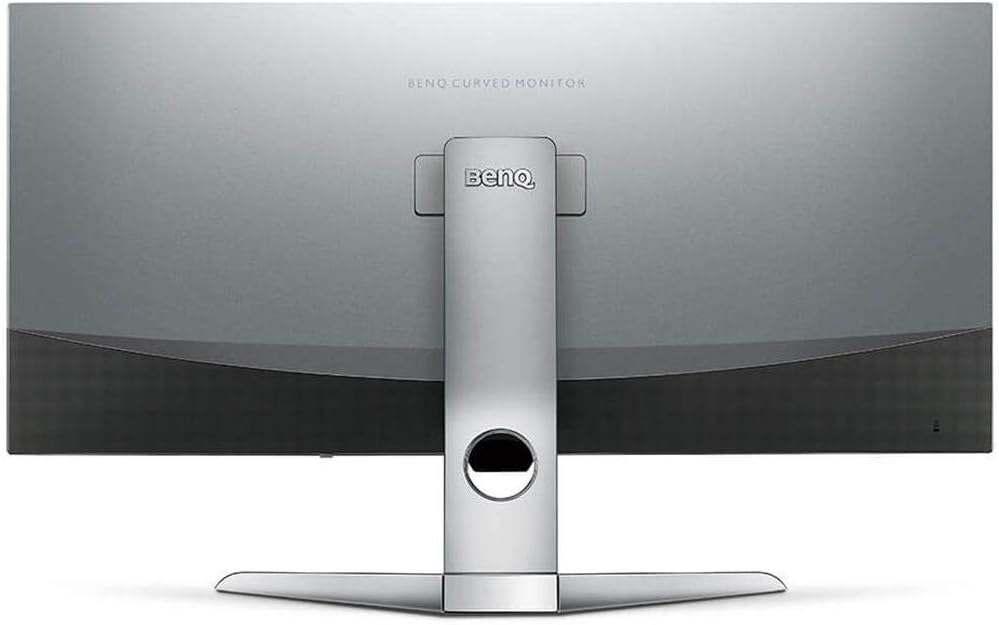
Figur 2: Bak view of the monitor displaying the connectivity ports.
2. Betjening av monitoren
2.1 Strøm på/av
Trykk på av/på-knappen, som vanligvis sitter nederst til høyre på skjermen, for å slå den av eller på. Av/på-indikatorlampen lyser når skjermen er aktiv.
2.2 Skjermvisning (OSD)-navigasjon
Use the joystick or buttons located on the monitor's underside to navigate the On-Screen Display (OSD) menu. This menu allows you to adjust various settings such as brightness, contrast, color modes, and input sources.
2.3 Display Features and Eye-Care Technology
The BenQ EX3501R incorporates several technologies designed to enhance viewing experience and reduce eye strain:
- Lysstyrkeintelligens pluss (BI+): This patented technology automatically senses ambient lighting conditions and adjusts the screen's brightness and color temperature to provide optimal viewing comfort and protect your eyes during extended use.
- Lite blått lys: Filters out harmful blue light emissions to reduce eye fatigue. Multiple levels of blue light reduction are available.
- ZeroFlicker™: Eliminates screen flickering at all brightness levels, further reducing eye strain and discomfort.
- HDR (høyt dynamisk område): Offers enhanced brightness and contrast, bringing greater detail and vibrancy to HDR video content.
Video 1: En overview of BenQ's Eye-Care technology, including Low Blue Light, ZeroFlicker, and Brightness Intelligence Plus, demonstrating how these features work to reduce eye strain and adjust screen settings automatically based on ambient light.
2.4 Oppløsning og oppdateringsfrekvens
The monitor features a QHD (3440x1440) resolution and a 100Hz refresh rate, providing a smooth and detailed visual experience. The 21:9 ultrawide aspect ratio offers ample screen space for multitasking, such as viewing multiple documents side-by-side without needing a second monitor.
2.5 AMD FreeSync
For a fluid gaming experience, the monitor supports AMD FreeSync technology, which synchronizes the monitor's refresh rate with your graphics card's frame rate to eliminate screen tearing and stuttering.
3. Vedlikehold
3.1 Rengjøre skjermen
To maintain optimal performance and appearance, regularly clean your monitor:
- Skjerm: Tørk forsiktig av skjermen med en myk, lofri klut. For gjenstridige flekker, bruk en skjermspesifikk rengjøringsløsning på kluten, ikke direkte på skjermen.
- Ytre: Use a soft, dry cloth to wipe dust and debris from the monitor casing and stand.
Avoid using abrasive cleaners, waxes, or solvents as they can damage the monitor's surface.
3.2 General Care Tips
- Ikke blokker ventilasjonsåpningene på skjermen.
- Unngå å plassere skjermen i direkte sollys eller i nærheten av varmekilder.
- Håndter monitoren med forsiktighet for å unngå fysisk skade.
4. Feilsøking
If you encounter issues with your BenQ EX3501R monitor, refer to the following common troubleshooting steps:
4.1 No Display or Black Screen
- Sørg for at strømkabelen er ordentlig koblet til både skjermen og strømuttaket.
- Verify that the video cable (HDMI, DisplayPort, or USB-C) is firmly connected to both the monitor and your computer.
- Sjekk om riktig inngangskilde er valgt i skjermens OSD-meny.
- Start datamaskinen på nytt.
4.2 Flickering or Unstable Image
- Ensure the ZeroFlicker™ feature is enabled in the OSD menu.
- Sjekk om videokabelen er løs.
- Oppdater grafikkortdriverne til den nyeste versjonen.
- Hvis du bruker AMD FreeSync, må du sørge for at det er riktig konfigurert i grafikkortinnstillingene.
4.3 Color or Brightness Issues
- Juster lysstyrke-, kontrast- og fargeinnstillinger via OSD-menyen.
- Enable or disable Brightness Intelligence Plus (B.I.+) to see if it resolves the issue.
- Utfør en fabrikkinnstilling via OSD-menyen.
5. Spesifikasjoner
Key technical specifications for the BenQ EX3501R monitor:
| Trekk | Spesifikasjon |
|---|---|
| Skjermstørrelse | 35 tommer |
| Maks skjermoppløsning | 3440 x 1440 Pixels (QHD Ultrawide) |
| Aspektforhold | 21:9 |
| Oppdateringsfrekvens | 100 Hz |
| Krumning | 1800R |
| Paneltype | VA (vertikal justering) |
| Tilkobling | USB-C, HDMI, DisplayPort |
| Spesielle funksjoner | AMD FreeSync, Brightness Intelligence Plus, Low Blue Light, ZeroFlicker |
| Varevekt | 21.3 pund |
| Produktdimensjoner | 6.88 x 3.47 x 12.93 tommer |
6. Garanti og støtte
6.1 Produktgaranti
The BenQ EX3501R monitor typically comes with a 3-year manufacturer's warranty. Please refer to the warranty card included in your product packaging for specific terms and conditions, or visit the official BenQ webnettsted for detaljert garantiinformasjon.
6.2 Kundestøtte
For further assistance, technical support, or warranty claims, please contact BenQ customer service. You can find contact information and support resources on the official BenQ webnettsted: www.benq.com/en-us/support.html