
Bytech BYTECH Wireless Optical Mouse
BYTECH Wireless Optical Mouse User Manual
Model: BYTECH Wireless Optical Mouse
Introduksjon
This manual provides detailed instructions for the setup, operation, maintenance, and troubleshooting of your BYTECH Wireless Optical Mouse. Please read this manual thoroughly before using the device to ensure optimal performance and longevity.
Produkt overview
The BYTECH Wireless Optical Mouse is designed for comfortable and efficient navigation. It features a precise optical sensor, a scroll wheel, and a DPI adjustment button for customizable sensitivity. Its ergonomic design and wireless connectivity provide a clutter-free workspace.

Figur 1: Ovenfra og ned view of the BYTECH Wireless Optical Mouse. The mouse is black with a silver stripe along its sides. A scroll wheel and a DPI button are visible on the top surface.
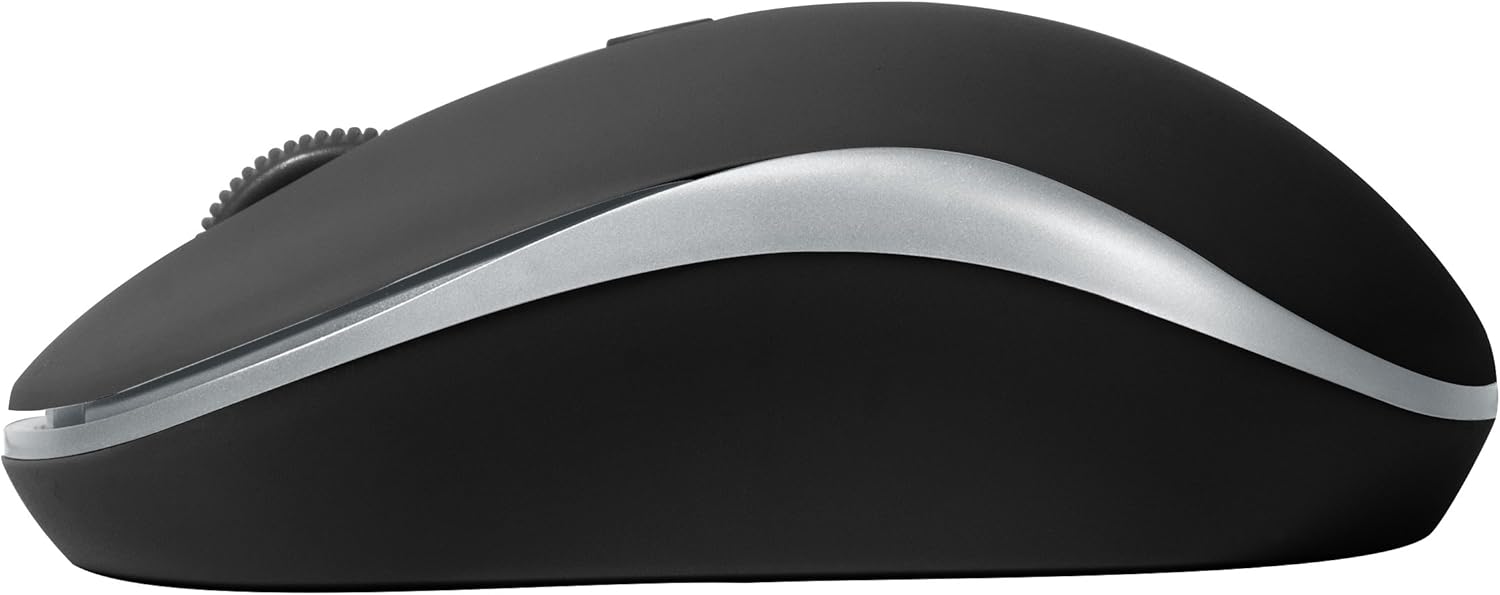
Figur 2: Side view of the BYTECH Wireless Optical Mouse. This angle highlights the ergonomic curve and the silver accent line that runs along the side of the mouse.
Oppsett
1. Installasjon av batteri
- Finn batterirommet på undersiden av musen.
- Åpne batteridekselet.
- Insert one AA battery (not included) into the compartment, ensuring the correct polarity (+/-) as indicated inside.
- Lukk batteridekselet godt.
2. Tilkobling av USB-mottaker
- Remove the USB receiver from its storage slot, usually located inside the battery compartment or near it.
- Koble USB-mottakeren til en ledig USB-port på datamaskinen eller bærbar PC.
- Operativsystemet ditt skal automatisk oppdage og installere de nødvendige driverne. Dette kan ta noen minutter.
3. Slå på
- Locate the On/Off switch on the underside of the mouse.
- Slide the switch to the "On" position. The mouse should now be ready for use.
Bruksanvisning
Grunnleggende funksjoner
- Venstre klikk: Press the left button to select items, open links, or activate functions.
- Høyreklikk: Trykk på høyre knapp for å åpne hurtigmenyer eller få tilgang til flere alternativer.
- Rullehjul: Roll the wheel up or down to scroll through documents or web sider. Trykk på rullehjulet for å bruke midtklikkfunksjonaliteten (f.eks. åpne lenker i nye faner).
DPI-justering
The mouse features a DPI (Dots Per Inch) button, typically located behind the scroll wheel. Press this button to cycle through different sensitivity settings. Each press will change the cursor speed, allowing you to find the optimal setting for your task.
- Trykk på DPI-knapp once to switch to the next sensitivity level.
- Repeat until you find your preferred cursor speed.
Strømsparingsmodus
To conserve battery life, the BYTECH Wireless Optical Mouse is designed to automatically enter a sleep mode after a period of inactivity. To wake the mouse, simply move it or click any button.
Vedlikehold
Rengjøring
- Sørg for at musen er slått av før rengjøring.
- Bruk en myk, lofri klut litt dampavsluttes med vann eller en mild rengjøringsløsning.
- Wipe the surface of the mouse gently. Avoid excessive moisture.
- For den optiske sensoren, bruk en tørr bomullspinne til å forsiktig fjerne støv eller rusk.
- Ikke bruk slipende rengjøringsmidler, alkohol eller løsemidler, da disse kan skade overflaten.
Batteribytte
When the mouse performance degrades or the cursor becomes erratic, it may be time to replace the battery. Follow the battery installation steps outlined in the "Setup" section.
Lagring
When not in use for an extended period, it is recommended to turn off the mouse to conserve battery life. The USB receiver can be stored in its dedicated slot on the mouse's underside to prevent loss.
Feilsøking
- Musen svarer ikke:
- Sørg for at musen er slått på.
- Kontroller batterinivået og skift ut om nødvendig.
- Kontroller at USB-mottakeren er ordentlig koblet til en fungerende USB-port. Prøv en annen USB-port.
- Start datamaskinen på nytt.
- Cursor erratic or jumping:
- Rengjør den optiske sensoren på undersiden av musen.
- Ensure you are using the mouse on a suitable surface (non-reflective, non-transparent). A mouse pad is recommended.
- Sjekk for sterk elektromagnetisk interferens fra andre enheter.
- Tilkoblingsproblemer:
- Reduser avstanden mellom musen og USB-mottakeren.
- Remove any large metal objects or electronic devices that might be obstructing the wireless signal.
- Hvis du bruker en USB-hub, kan du prøve å koble mottakeren direkte til datamaskinen.
Spesifikasjoner
| Trekk | Detalj |
|---|---|
| Merke | Bytech |
| Modell | BYTECH Wireless Optical Mouse |
| Tilkoblingsteknologi | Trådløs (USB-mottaker) |
| Bevegelsesdeteksjonsteknologi | Optisk |
| Farge | Svart |
| Strømkilde | Battery Powered (1x AA, not included) |
| Operativsystemkompatibilitet | macOS, Android (and generally Windows) |
| Varevekt | 3.56 unser |
| Produktdimensjoner (LxBxH) | 1 x 1 x 1 tommer (omtrentlig) |
Merk: Spesifikasjonene kan endres uten varsel.
Garanti og støtte
Bytech products are manufactured to the highest quality standards. For information regarding warranty coverage, technical support, or service, please refer to the warranty card included with your product or visit the official Bytech webnettstedet. Ta vare på kjøpskvitteringen som kjøpsbevis for garantikrav.
For further assistance, please contact Bytech customer support through their official channels.
Ask a question about this manual
Ask about setup, troubleshooting, compatibility, parts, safety, or missing instructions. Manuals+ will review the question and use this page’s manual context to help answer it.