
1. Introduksjon
The GameMax Mirage 120mm PC Cooling Fan is designed to provide efficient cooling for computer components while offering customizable RGB lighting. This fan features a dual-ring Rainbow LED design, a hydraulic bearing for quiet operation, and a 7-blade fan structure. It is compatible with 5V addressable 3-pin Aura Sync systems, allowing for synchronized lighting effects with compatible motherboards or controllers.

Bilde 1.1: Foran view of the GameMax Mirage fan with active Rainbow LED lighting.
2. Sikkerhetsinformasjon
- Sørg for at datasystemet er slått av og koblet fra stikkontakten før installasjon eller vedlikehold.
- Handle components with care to avoid damage from static electricity. Consider using an anti-static wrist strap.
- Do not force connectors. Ensure correct orientation before plugging in cables.
- Hold viften unna væsker og overdreven fuktighet.
- Do not attempt to disassemble the fan unit beyond what is described in this manual.
3. Pakkens innhold
Bekreft at alle varene er til stede i pakken din:
- 1 x GameMax Mirage 120mm PC Cooling Fan
- 4 x monteringsskruer
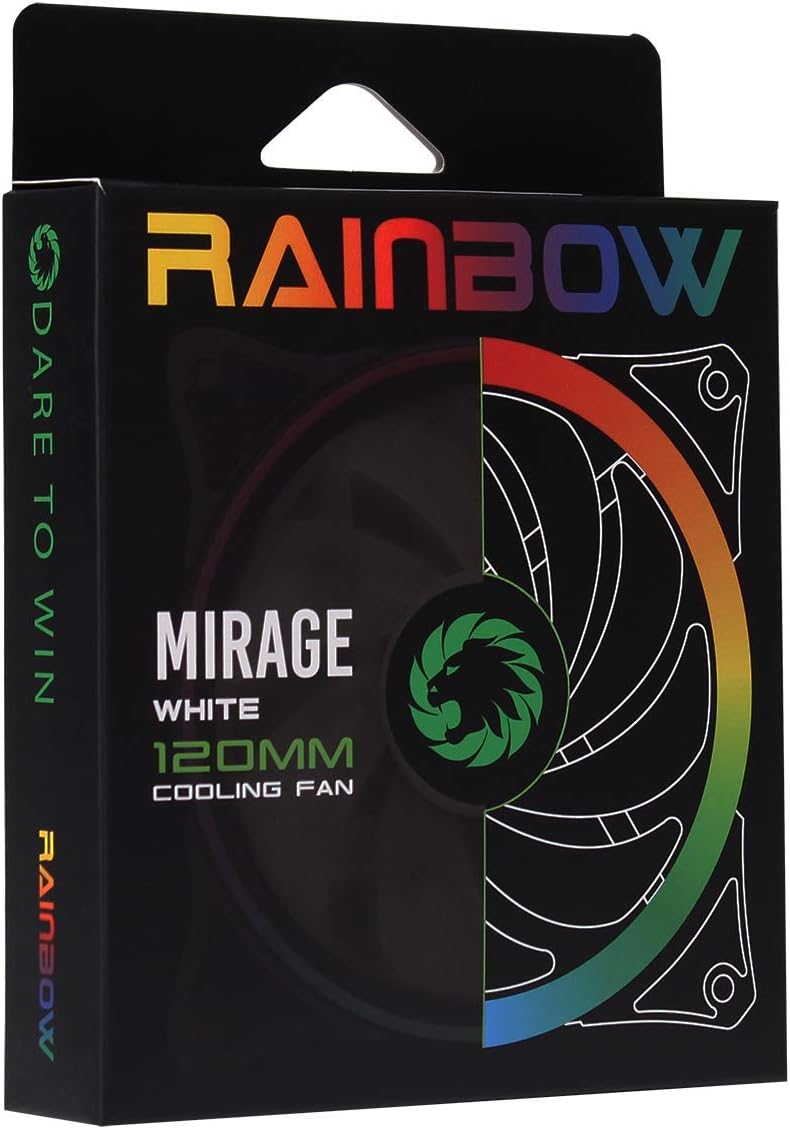
Image 3.1: Retail packaging for the GameMax Mirage fan.
4. Oppsett og installasjon
Follow these steps to install your GameMax Mirage 120mm PC Cooling Fan:
- Klargjør systemet ditt: Power off your computer and unplug it from the power outlet. Open your computer case to access the fan mounting locations.
- Monter viften: Position the fan in your desired location (e.g., case front, rear, top, or radiator). Ensure the airflow direction is correct for your cooling setup. Use the four included mounting screws to secure the fan to the chassis or radiator. The fan features rubber pads on the corners to help reduce vibration.
- Connect Fan Power: Locate the 3-pin power connector on the fan cable. Connect this cable to an available 3-pin fan header on your motherboard or a fan controller.
- Koble til RGB-belysning: Locate the 5V addressable 3-pin Aura connector on the fan cable. Connect this to a compatible 5V ARGB header on your motherboard (often labeled 'VDG' or 'ARGB') or an external RGB controller/hub. Warning: Do not connect this to a 12V RGB header, as it will damage the LEDs.

Image 4.1: The 3-pin power connector (top) and 5V addressable 3-pin Aura connector (bottom).
The fan cables are braided for improved aesthetics and durability, helping to keep your build neat and tidy.
5. Bruksanvisning
Once installed, the GameMax Mirage fan operates as follows:
- Viftehastighetskontroll: The fan speed is controlled via the 3-pin power connector. If connected to a motherboard fan header, the speed can typically be adjusted through your motherboard's BIOS/UEFI settings or dedicated software.
- RGB lyskontroll: The Rainbow LED lighting is controlled via the 5V addressable 3-pin Aura connector.
- If connected to a compatible motherboard (e.g., ASUS Aura Sync, MSI Mystic Light, Gigabyte RGB Fusion, ASRock Polychrome Sync), you can use the motherboard's software to customize lighting effects, colors, and synchronization with other ARGB components.
- If connected to an external RGB hub/controller, refer to the instructions provided with your specific hub/controller for lighting customization options.

Bilde 5.1: Vinklet view of the GameMax Mirage fan showcasing its dual-ring Rainbow LED lighting.
6. Vedlikehold
Regular maintenance helps ensure optimal performance and longevity of your cooling fan:
- Støvrengjøring: Kontroller viftebladene og rammen regelmessig for støvansamling. Bruk trykkluft eller en myk børste til å forsiktig fjerne støv. Sørg for at viften er slått av og koblet fra strømnettet før rengjøring.
- Kabelinspeksjon: Occasionally check the power and RGB cables for any signs of wear or damage.
7. Feilsøking
- Viften snurrer ikke:
- Ensure the 3-pin power connector is securely plugged into a functional fan header on the motherboard or controller.
- Check motherboard BIOS/UEFI settings to ensure the fan header is enabled and configured correctly.
- LEDs Not Lighting Up or Incorrect Colors:
- Verify the 5V addressable 3-pin Aura connector is securely connected to a compatible 5V ARGB header (not 12V RGB).
- Ensure your motherboard's RGB software or external controller is properly installed and configured.
- If using a splitter or hub, ensure it is powered and functioning correctly.
- Overdreven støy:
- Check for any cables or obstructions interfering with the fan blades.
- Ensure the fan is securely mounted and the rubber pads are properly seated to absorb vibrations.
- Dust accumulation can cause imbalance and noise; clean the fan as described in the Maintenance section.
8. Spesifikasjoner
| Trekk | Spesifikasjon |
|---|---|
| Modell | MIRAGEWHITE FINS |
| Viftestørrelse | 120 mm x 120 mm x 25 mm (0.98 x 4.72 x 4.72 tommer) |
| Lagertype | Hydraulisk lager |
| Vifteblad | 7 kniver |
| LED Type | Addressable Rainbow LED (Dual-Ring) |
| Vifte strømkontakt | 3-pin |
| RGB-kontakt | 5V Addressable 3-Pin Aura Connector |
| Driftsvoltage | 5 Volts (for RGB) / 12 Volts (for fan motor, typical for 3-pin) |
| Vurdert Wattage | 3 watt |
| Maksimal rotasjonshastighet | 1800 RPM |
| Støynivå | Omtrent 25 dB(A) |
| Materiale | Rubber (for vibration dampening) |

Bilde 8.1: Bakside view of the GameMax Mirage fan, displaying the product label with model and electrical specifications.
9. Garanti og støtte
For garantiinformasjon og teknisk støtte, se den offisielle GAMEMAX-versjonen webnettstedet eller kontakt forhandleren din. Ta vare på kjøpsbeviset for garantikrav.