
SIIG CE-DP0H11-S1
SIIG 1x2 DisplayPort 1.2 til 2x DisplayPort MST-splitter brukerhåndbok
Model: CE-DP0H11-S1
Introduksjon
This manual provides detailed instructions for the installation and operation of your SIIG 1x2 DisplayPort 1.2 to 2x DisplayPort MST Splitter. This device allows you to connect up to two DisplayPort monitors to a single DisplayPort 1.2 output from your source device, enabling various multi-display configurations.
Viktig merknad: This MST Splitter is designed for Windows operating systems. It does not support macOS, which will only mirror displays instead of extending them.

Funksjoner
- Connects up to two DisplayPort displays to a single DisplayPort 1.2 output.
- Supports multiple display modes: Mirror, Extended, and Panoramic Video Wall.
- Offers a true 21.6Gbps video bandwidth.
- Supports 7.1 surround sound up to 192KHz samplang hastighet.
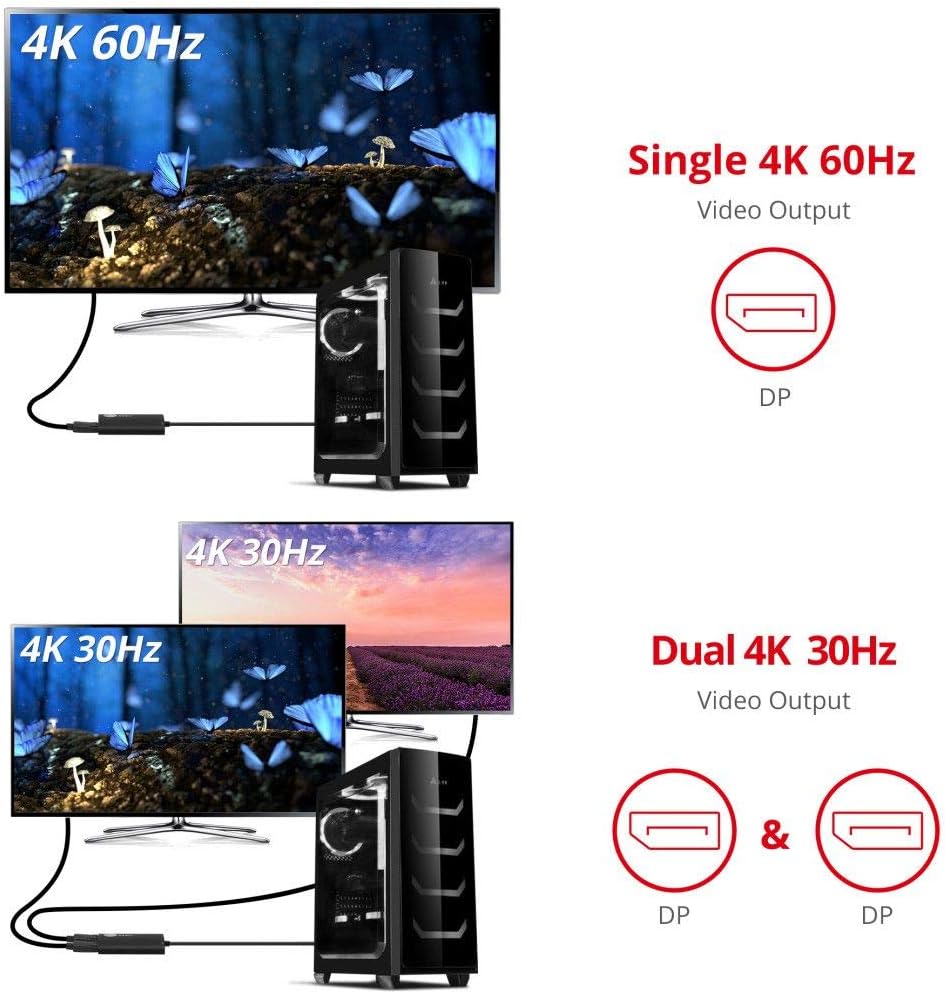
- Supports single 4K@60Hz or dual 4K@30Hz resolutions.
- Compatible with Microsoft Surface Pro 4, Pro 5th Gen, and Pro 6.
- Metal housing design for improved heat dissipation.

Pakkeinnhold
Pakken inkluderer vanligvis:
- SIIG 1x2 DisplayPort 1.2 to 2x DisplayPort MST Splitter
- USB strømkabel
- Hurtigstartguide

Oppsettinstruksjoner
Follow these steps to connect your MST Splitter and configure your displays:
- Koble til strøm: Connect the provided USB power cable to the Micro USB port on the MST Splitter and to a USB power source (e.g., a USB port on your computer or a USB wall adapter). This device requires external power to function correctly.
- Koble til kilde: Plug the integrated DisplayPort cable from the MST Splitter into the DisplayPort output of your computer or laptop. Ensure your source device has a DisplayPort 1.2 or higher graphics card to support MST functionality.
- Koble til skjermer: Connect your two DisplayPort monitors to the DisplayPort output ports on the MST Splitter using DisplayPort cables.
- Configure Displays (Windows): Once connected, your Windows operating system should detect the multiple displays. You can then configure the display modes (Extended, Mirror, or Video Wall) through your operating system's display settings.


Driftsmoduser
The MST Splitter supports the following display configurations:
- MirrorMode: Displays the same content on all connected monitors.
- Utvidet modus: Extends your desktop across multiple monitors, allowing for individual content on each display.
- Panoramic Video Wall Mode: Combines multiple monitors to function as a single, large display.


Støttede skjermkonfigurasjoner
The MST Splitter supports various resolutions and refresh rates depending on the number of connected displays and the total bandwidth used. Below are examples of supported configurations:
- Enkeltskjerm: Up to 4K (3840x2160) at 60Hz.
- Doble skjermer: Up to 4K (3840x2160) at 30Hz for each monitor.

Kompatibilitet
This MST Splitter is compatible with systems running Microsoft Windows that have a DisplayPort 1.2 or higher output. It is specifically compatible with Microsoft Surface Pro 4, Pro 5th Gen, and Pro 6.
Note: macOS does not support Multi-Stream Transport (MST) technology. When used with macOS, the splitter will only mirror the displays, providing two identical screens instead of extended independent displays.

Spesifikasjoner
| Trekk | Spesifikasjon |
|---|---|
| Produktdimensjoner | 3.5 x 2.4 x 0.6 tommer |
| Varevekt | 3.35 unser |
| Modellnummer | CE-DP0H11-S1 |
| Produsent | SIIG |
| Kompatible enheter | Følge |
| Koblingstype | DisplayPort to DisplayPort |
| Farge | Svart |
| Video båndbredde | 21.6 Gbps |
| Lydstøtte | 7.1 surround sound up to 192KHz |

Feilsøking
- Ingen skjerm/flimring:
- Ensure the MST Splitter is properly powered via the USB cable.
- Verify all DisplayPort cables are securely connected to both the splitter and the monitors.
- Check your computer's display settings to ensure monitors are detected and configured correctly (Extended, Mirror).
- Confirm your graphics card supports DisplayPort 1.2 or higher and MST functionality.
- Reduce the resolution or refresh rate of your monitors if experiencing flickering, as this may indicate exceeding available bandwidth.
- Monitors are Mirrored on macOS:
- This is expected behavior. macOS does not support MST for extended displays; it will only mirror the output.
- Only One Monitor Displays:
- Ensure your source DisplayPort output is version 1.2 or higher.
- Check the total bandwidth usage for your desired resolution and refresh rate (refer to "Supported Monitor Configurations"). If exceeding 100%, one monitor may not display.
- Try connecting monitors one at a time to isolate the issue.
Vedlikehold
To ensure the longevity and optimal performance of your MST Splitter:
- Oppbevar enheten på et kjølig og tørt sted, unna direkte sollys og ekstreme temperaturer.
- Unngå å utsette enheten for vann eller overdreven fuktighet.
- Rengjør enheten med en myk, tørr klut. Ikke bruk flytende rengjøringsmidler eller aerosoler.
- Håndter kabler og kontakter forsiktig for å unngå skade.
Garanti og støtte
SIIG provides a manufacturer warranty for its products. For specific warranty details or technical support, please contact SIIG directly through their official channels or via Amazon's messaging system if purchased there.
Manufacturer: SIIG
For mer informasjon, besøk SIIG Store on Amazon.