
Avision AD340G

Avision AD340G Compact High Speed Duplex Document Scanner User Manual
Model: AD340G
Introduksjon
This manual provides comprehensive instructions for the setup, operation, maintenance, and troubleshooting of your Avision AD340G Compact High Speed Duplex Document Scanner. Please read this manual thoroughly before using the scanner to ensure proper and safe operation.
Sikkerhetsinformasjon
Følg følgende sikkerhetsregler for å forhindre skader på skanneren:
- Bruk kun strømadapteren som følger med skanneren.
- Ikke utsett skanneren for vann eller høy fuktighet.
- Plasser skanneren på en stabil, jevn overflate.
- Hold skanneren unna direkte sollys og varmekilder.
- Unplug the scanner before cleaning or if it will not be used for an extended period.
Pakkeinnhold
Bekreft at alle varene er til stede i pakken:
- Avision AD340G Document Scanner
- Strømadapter
- USB-kabel
- Hurtigstartguide
- Programvare-CD (eller nedlastingsinstruksjoner)
Produkt overview
Familiarize yourself with the main components of the Avision AD340G scanner.
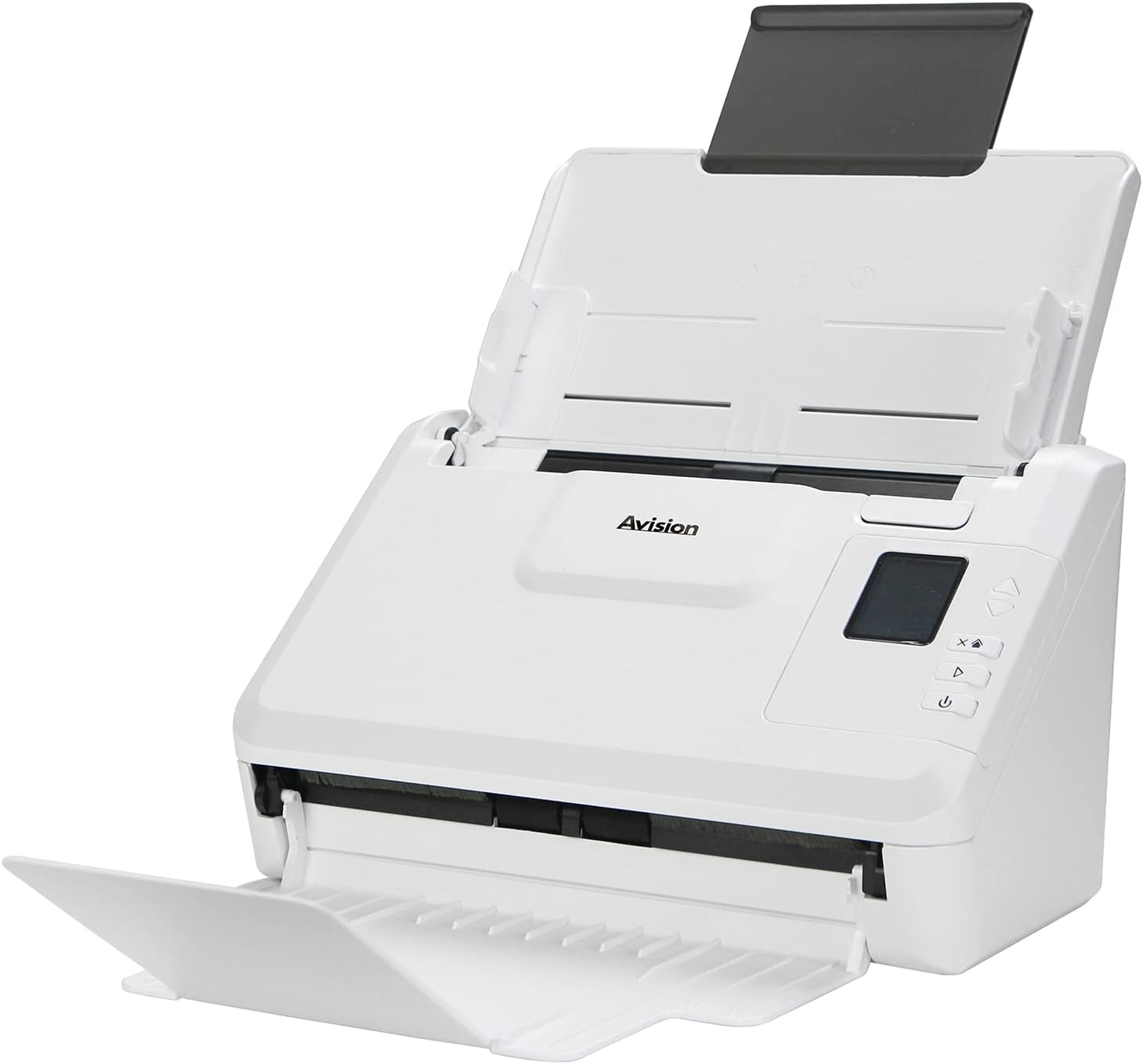
Bilde: The Avision AD340G scanner shown with its input and output trays extended, ready for document feeding. This view highlights the compact design and accessible paper path.
- Document Feeder Tray: Where documents are loaded for scanning.
- Utskuff: Where scanned documents are ejected.
- Kontrollpanel: Buttons and display for scanner operation.
- USB-port: For tilkobling til en datamaskin.
- Strømport: For tilkobling av strømadapter.
Oppsett
1. Fysisk oppsett
- Pakk ut skanneren: Ta skanneren og alt tilbehør forsiktig ut av emballasjen.
- Plasser skanneren: Position the scanner on a flat, stable surface with adequate space for the input and output trays.
- Koble til strøm:
- Connect the power adapter to the scanner's power port.
- Koble strømadapteren til en stikkontakt.
- Koble til datamaskin:
- Connect one end of the USB cable to the scanner's USB port.
- Koble den andre enden av USB-kabelen til en ledig USB-port på datamaskinen.
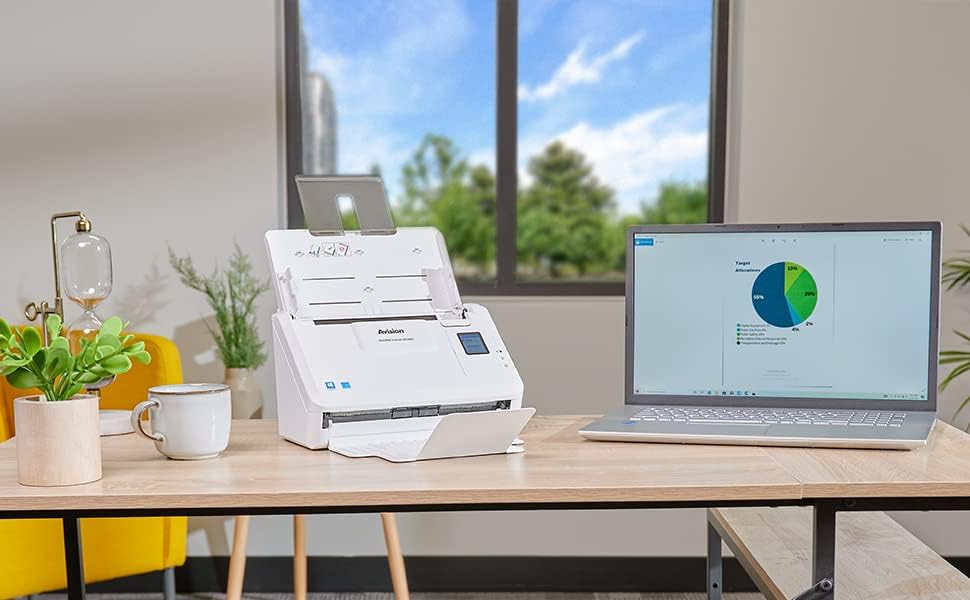
Bilde: The Avision AD340G scanner set up on a desk next to a laptop, illustrating a typical connected environment. This shows the scanner's compact footprint when in use.
2. Programvareinstallasjon
Install the necessary drivers and scanning software from the provided CD or by downloading them from the official Avision webnettstedet.
- Insert the software CD into your computer's CD/DVD drive, or navigate to the Avision support website to download the latest drivers and utilities for the AD340G model.
- Follow the on-screen instructions to complete the installation. This typically includes installing the TWAIN/ISIS drivers and the Avision scanning utility software.
- Start datamaskinen på nytt hvis du blir bedt om det.
Bruke skanneren
1. Laste inn dokumenter
- Open the document feeder tray and extend the output tray.
- Juster papirføringene slik at de samsvarer med bredden på dokumentene.
- Place the documents face-down in the input tray, ensuring they are neatly stacked and aligned. The scanner supports up to 50 sheets.

Bilde: A hand carefully placing a stack of documents into the input tray of the Avision AD340G scanner, demonstrating the correct loading procedure.
2. Scanning Procedure
- Slå på skanneren ved å trykke på strømknappen.
- Launch the Avision scanning software on your computer.
- Velg ønsket skanneprofffile (e.g., color, grayscale, black & white, resolution). The AD340G supports duplex scanning (both sides simultaneously).
- Click the "Scan" button in the software or press the scan button on the scanner's control panel.
- The scanner will feed and process the documents. Once scanning is complete, the images will appear in the software.
- Review the scanned images, make any necessary adjustments (e.g., rotate, crop), and save them to your desired location and format (e.g., PDF, JPEG, TIFF).
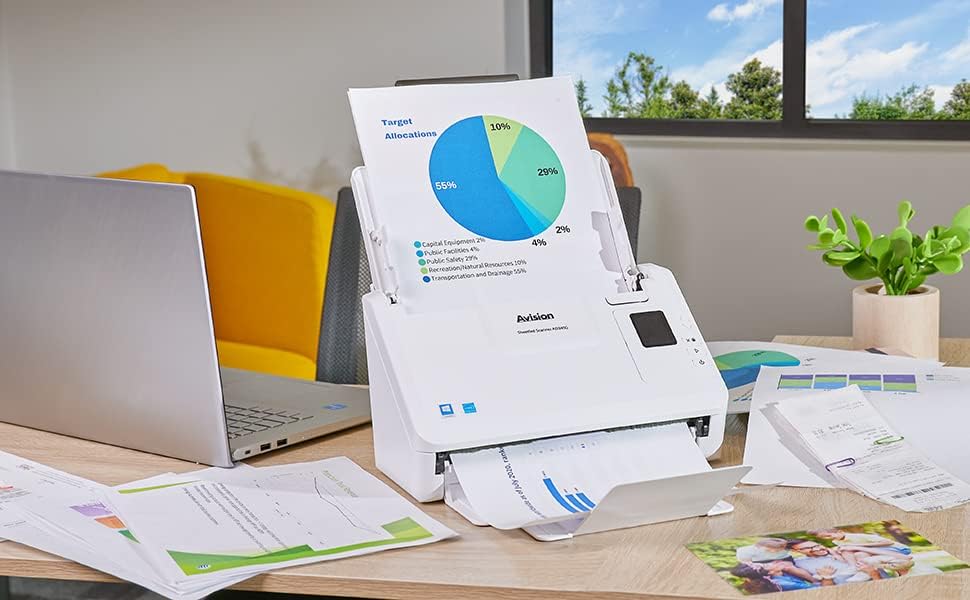
Bilde: The Avision AD340G scanner in operation, feeding a document with a pie chart. This illustrates the scanner's ability to handle various document types efficiently.
Vedlikehold
Rengjøring av skanneren
Regelmessig rengjøring sikrer optimal ytelse og forlenger skannerens levetid.
- Slå av og koble fra: Always turn off the scanner and disconnect the power adapter and USB cable before cleaning.
- Rent utvendig: Wipe the exterior of the scanner with a soft, lint-free cloth lightly damprengjøres med vann eller et mildt, ikke-slipende rengjøringsmiddel.
- Clean Interior (Rollers and Glass):
- Open the scanner cover to access the rollers and glass scanning surfaces.
- Gently wipe the feed rollers with a clean, lint-free cloth. If necessary, use a small amount of isopropyl alcohol on the cloth for stubborn residue.
- Clean the glass scanning strips with a soft cloth and glass cleaner (non-ammonia based).
- Allow all components to dry completely before closing the cover and reconnecting power.
Feilsøking
| Problem | Mulig årsak | Løsning |
|---|---|---|
| Skanneren slår seg ikke på. | Strømkabelen er ikke tilkoblet; problem med strømuttaket. | Sørg for at strømkabelen er ordentlig tilkoblet. Prøv en annen stikkontakt. |
| Documents jam frequently. | Misaligned paper guides; worn rollers; dirty rollers. | Adjust paper guides. Clean the feed rollers. If problem persists, rollers may need replacement. |
| Skannede bilder er uskarpe eller har linjer. | Dirty scanning glass; incorrect resolution settings. | Clean the scanning glass. Adjust scanning resolution in the software. |
| Skanneren ble ikke oppdaget av datamaskinen. | USB cable disconnected; driver not installed or corrupted. | Sjekk USB-kabeltilkoblingen. Installer skannerdriverne på nytt. Prøv en annen USB-port. |
Spesifikasjoner
Key technical specifications for the Avision AD340G Document Scanner:
- Modell: AD340G
- Skannertype: ADF Duplex Document Scanner
- Tilkobling: USB
- Oppløsning: 600 dpi (optisk)
- Skannehastighet: 40 ppm (pages per minute) / 80 ipm (images per minute)
- Fargedybde: 48 bits input / 24 bits output
- Standard arkkapasitet: 50 XNUMX ark
- Optisk sensorteknologi: CIS (Contact Image Sensor)
- Produktdimensjoner: 11 x 6.1 x 6.5 tommer
- Varevekt: 8 pund
- Minimum systemkrav: Windows XP/7/8/10
Garanti og støtte
For warranty information, technical support, or service inquiries, please refer to the warranty card included with your product or visit the official Avision website. Contact information for customer support can typically be found on the manufacturer's webnettstedet.
Avision Official Webnettsted: www.avision.com