
1. Produktet er overview
The iTOMA CKS209 is a versatile alarm clock radio designed to enhance your bedside experience. It features dual wireless charging capabilities for your smartphone and earbuds, along with two additional USB ports for other devices. Enjoy your favorite music via Bluetooth 5.1 technology or tune into digital FM radio. The clock includes dual alarms with customizable wake-up modes, a large 1.4-inch orange LED display with auto and manual dimmer control, and a 2-level orange night light.
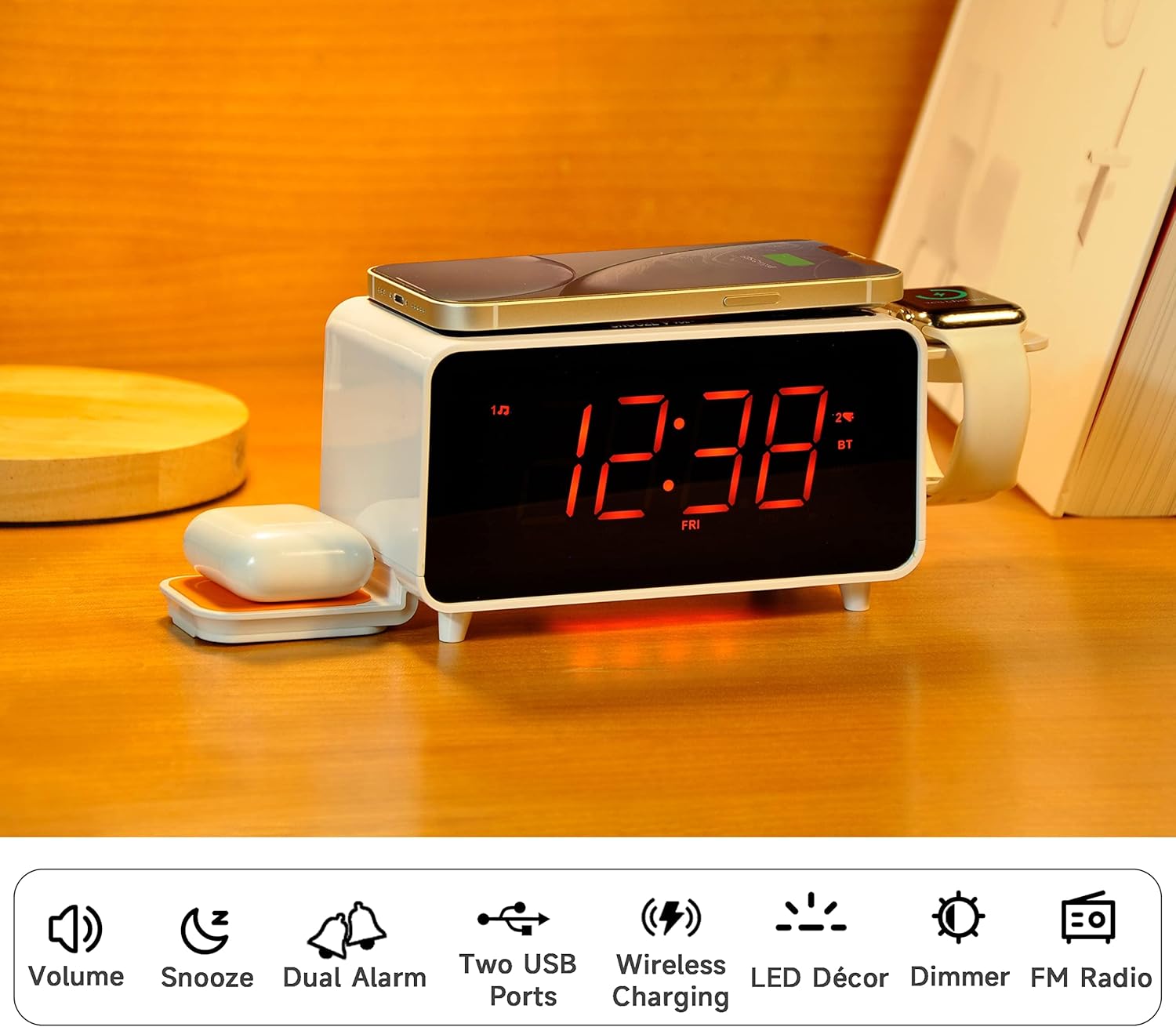
Image: The iTOMA CKS209 alarm clock radio displaying the time, with a smartphone wirelessly charging on top, earbuds on a side wireless charging pad, and a smartwatch on its holder.
Nøkkelfunksjoner:
- Trådløs lading: 15W ultra-fast wireless charger for smartphones and 3W foldable earphone wireless charger. Includes a watch wireless charging support holder (charging cable not included).
- Bluetooth 5.1: Seamless audio streaming from your Bluetooth-enabled devices.
- To USB-porter: One USB-A and one USB-C port (5V 2.1A) for additional device charging.
- Smart Dual Alarm: Set two independent alarms with options to wake to radio or buzzer. Features snooze, crescendo wake-up, 15-level volume control, and 4 alarm week modes (Every day, single day, weekdays, weekends).
- 1.4" Orange LED Display: Clear 12/24-hour format display with 3-level dimmer brightness and auto-dimmer function.
- Nattlys: 2-level orange night light for ambient illumination.
- Digital FM-radio: 20 programmable preset stations with external wire antenna for enhanced reception.
- Reservebatteri: Maintains time and alarm settings during power interruptions.
2. Oppsett
2.1 Strømtilkobling
- Unpack the iTOMA CKS209 unit and all accessories.
- Connect the provided AC adapter to the DC IN jack on the back of the unit.
- Plug the AC adapter into a standard wall outlet. The display will light up, and the clock will automatically set the time.
2.2 Initial Time Setting (Manual)
While the clock features auto-time setting, you can manually adjust the time, date, and year if needed.
- Trykk og hold inne KLOKKESETT button located on the top panel until the year flashes on the display.
- Bruk TUNE +/- buttons (or rotate the SNOOZE/VOL dial) to adjust the year.
- Pressen KLOKKESETT again to confirm and move to the month setting. Repeat the process for month, day, hour, and minute.
- Pressen KLOKKESETT one last time to save your settings.
2.3 Time Zone and Daylight Saving Time (DST)
- Trykk og hold inne SØVN/TIDSONE button to enter time zone setting.
- Bruk TUNE +/- buttons (or rotate the SNOOZE/VOL dial) to select your desired time zone.
- Pressen SØVN/TIDSONE again to toggle DST ON or OFF.
- Pressen SØVN/TIDSONE one last time to confirm and exit.
Video: This video demonstrates the time setting and Bluetooth operation for a similar iTOMA CKS207 model, which shares similar functionalities with the CKS209.
3. Bruksanvisning
3.1 Trådløs lading
The iTOMA CKS209 features multiple wireless charging options:
- Smartphone Wireless Charging: Place your Qi-compatible smartphone on the top charging pad. The charging indicator on the display will illuminate to confirm charging.
- Earbud Wireless Charging: Place your Qi-compatible earbuds on the foldable 3W wireless charging pad located on the side.
- Smartwatch Holder: Utilize the integrated holder for your smartwatch. Note: A separate smartwatch charging cable (not included) is required and connects to one of the USB ports.
Image: A smartphone is placed on the top surface of the iTOMA CKS209, indicating wireless charging in progress.
Image: A close-up of the side of the iTOMA CKS209 showing the integrated holder designed for a smartwatch.
3.2 USB-ladeporter
In addition to wireless charging, the unit provides two USB ports (one Type-A and one Type-C) on the back for wired charging of other devices.
- Connect your device's USB charging cable to either the USB-A or USB-C port on the back of the alarm clock.
- Ensure your device is properly connected and charging.
Image: A smartphone is connected via a USB cable to one of the charging ports on the back of the iTOMA CKS209.
3.3 Bluetooth Speaker
Strøm lyd trådløst fra Bluetooth-aktiverte enheter.
- Trykk på PÅ/AV for å slå på enheten.
- Trykk på MODUS button repeatedly until 'BT' appears on the display and starts flashing, indicating pairing mode.
- On your mobile device, enable Bluetooth and search for 'iTOMA CKS209' (or similar model name).
- Select the device to pair. Once connected, 'BT' will stop flashing and remain solid.
- You can now play audio from your device through the alarm clock speaker. Adjust volume using the VOL +/- buttons or your mobile device.

Image: A smartphone displaying music playback is positioned near the iTOMA CKS209, indicating a Bluetooth connection.
3.4 FM-radio
Lytt til dine favoritt FM-radiostasjoner.
- Trykk på PÅ/AV for å slå på enheten.
- Trykk på MODUS button repeatedly until the FM frequency appears on the display.
- For automatisk stasjonssøk, trykk og hold inne TUNE +/- buttons. The radio will scan and save available stations.
- For manual tuning, short press the TUNE +/- knapper for å justere frekvensen trinn for trinn.
- Juster volumet med VOL +/- knapper.
3.5 Dobbel vekkerklokke
Sett opp opptil to uavhengige alarmer.
- Trykk på AL1 or AL2 button to select the desired alarm. The alarm time will flash on the display.
- Bruk TUNE +/- buttons (or rotate the SNOOZE/VOL dial) to set the desired alarm hour and minute.
- Pressen AL1 or AL2 again to select the wake-up source (Buzzer or FM Radio).
- Pressen AL1 or AL2 again to select the alarm week mode (Every day, single day, weekdays, or weekends).
- Pressen AL1 or AL2 one last time to confirm and activate the alarm. The alarm indicator will appear on the display.
- For å deaktivere en alarm, trykk på den tilhørende AL1 or AL2 button until the alarm indicator disappears from the display.
- Snooze-funksjon: Når alarmen går, trykker du på SLUM button to temporarily silence the alarm for 9 minutes.

Image: The iTOMA CKS209 alarm clock radio displaying the time on a bedside table, ready for use.
3.6 Display & Dimmer Control
Adjust the brightness of the 1.4-inch orange LED display.
- Trykk kort på MØRKERE button to cycle through 3 brightness levels (High, Medium, Low).
- The unit also features an auto-dimmer function that adjusts display brightness based on ambient light conditions.
Image: A visual representation of the iTOMA CKS209 display at different brightness levels, from bright to invisible, and the auto-dimmer setting.
3.7 Nattlys
Activate the ambient orange night light.
- Trykk på LED button to turn the night light ON.
- Trykk på LED button again to cycle through 2 brightness levels.
- Trykk på LED button a third time to turn the night light OFF.
4. Vedlikehold
To ensure the longevity and optimal performance of your iTOMA CKS209, follow these maintenance guidelines:
- Rengjøring: Use a soft, dry cloth to clean the exterior of the unit. Do not use liquid cleaners or abrasive materials, as they may damage the finish.
- Ventilasjon: Sørg for at enheten er plassert i et godt ventilert område for å forhindre overoppheting. Ikke blokker noen ventilasjonsåpninger.
- Strømledning: Sjekk strømledningen regelmessig for skader. Hvis den er skadet, må du slutte å bruke den og kontakte kundestøtte.
- Lagring: Hvis du oppbevarer enheten over lengre tid, må du trekke ut støpselet fra stikkontakten og oppbevare den på et kjølig og tørt sted.
5. Feilsøking
If you encounter any issues with your iTOMA CKS209, please refer to the following common troubleshooting steps:
- Ingen strøm/skjerm av:
- Sørg for at strømadapteren er ordentlig koblet til både enheten og en fungerende stikkontakt.
- Sjekk om strømuttaket fungerer ved å koble til en annen enhet.
- Trådløs lading fungerer ikke:
- Bekreft at enheten din er Qi-kompatibel.
- Sørg for at enheten er riktig sentrert på ladeplaten.
- Fjern tykke telefondeksler eller metallgjenstander som kan forstyrre ladingen.
- Bekreft at enheten er slått på.
- Problemer med Bluetooth-paring:
- Ensure the alarm clock is in Bluetooth pairing mode ('BT' flashing).
- Sørg for at Bluetooth er aktivert på mobilenheten din.
- Move your mobile device closer to the alarm clock.
- Hvis enheten har vært paret tidligere, kan du prøve å oppheve paringen og pare den på nytt.
- FM Radio Static/Poor Reception:
- Extend the external wire antenna fully for better reception.
- Reposition the antenna or the unit to find a location with better signal strength.
- Alarmen går ikke:
- Ensure the alarm (AL1 or AL2) is activated and its indicator is visible on the display.
- Kontroller innstillingen for alarmvolum.
- Verify the alarm time and day settings are correct.
6. Spesifikasjoner
| Trekk | Detalj |
|---|---|
| Merke | iTOMA |
| Modellnummer | CKS209-CA |
| Farge | Orange Led Display |
| Produktdimensjoner | 16.8 x 3.81 x 9.1 cm |
| Varevekt | 820 g |
| Materiale | Plast |
| Visningstype | LED |
| Spesielle funksjoner | Auto Dimmable, Charging Port, Charging Station, Foldable, Multiple Time Zone |
| Trådløs lading | 15W (Phone), 3W (Earbuds) |
| USB-lading | USB-A, USB-C (5V 2.1A) |
| Bluetooth-versjon | 5.1 |
| FM-frekvens | 87.5-108 MHz |
7. Garanti og støtte
For warranty information, technical support, or any inquiries regarding your iTOMA CKS209, please refer to the documentation included in your product packaging or visit the official iTOMA webnettsted. Du kan også kontakte selgeren direkte for å få hjelp.