
Provision ISR WP-919
Brukerhåndbok for Provision CAM-WiFi 2MP HD-sikkerhetskamera
Modell: WP-919
1. Produktet er overview
The Provision CAM-WiFi 2MP HD Security Camera (Model WP-919) is a high-definition outdoor surveillance device designed for reliable monitoring. It features 2-megapixel resolution, infrared night vision up to 10 meters, and two-way audio communication with a built-in speaker and microphone. The camera supports Wi-Fi connectivity for easy integration into your network and can be managed via a mobile application on iOS and Android devices.

Figur 1.1: Forside og side view of the Provision CAM-WiFi 2MP HD Security Camera, showing the lens, antenna, and mounting bracket.

Figure 1.2: Key features of the camera including 2MP resolution, Day & Night (ICR), 10m IR, SD card support, 2-Way Audio, WiFi connectivity, and mobile app compatibility.
2. Sikkerhetsinformasjon
- Ensure the power supply matches the camera's requirements to prevent damage.
- Do not expose the camera to extreme temperatures, humidity, or strong magnetic fields.
- Avoid direct exposure of the lens to strong light sources, as this may affect image quality or damage the sensor.
- Handle the camera with care. Do not drop or subject it to strong vibrations.
- Keep the camera away from children and pets.
- For outdoor installation, ensure proper waterproofing of all connections.
3. Pakkens innhold
Vennligst sjekk pakken for følgende varer:
- Provision CAM-WiFi 2MP HD Security Camera (WP-919)
- Monteringsskruer og veggplugger
- Strømadapter (kan selges separat i enkelte regioner)
- Hurtigstartguide
4. Oppsett
4.1 Fysisk installasjon
- Velg en plassering: Select a suitable outdoor location for installation, ensuring a clear view og sterkt Wi-Fi-signal.
- Montering:
- Mark the drilling points using the camera's mounting base as a template.
- Bor hull og sett inn veggplugger hvis du monterer på mur.
- Secure the camera's mounting base to the wall or ceiling using the provided screws.
- Juster kameravinkelen etter behov.
- Koble til strøm: Connect the power adapter to the camera's power input port and plug it into a power outlet.
- SD Card Installation (Optional):

Figur 4.1: Side view of the camera showing the cover for the SD card slot and the integrated speaker.
- Locate the SD card slot cover on the side of the camera.
- Åpne dekselet forsiktig.
- Insert a compatible microSD card (up to 128GB, Class 10 recommended) into the slot with the contacts facing down.
- Close the cover securely to maintain weather resistance.
- Kablet tilkobling (valgfritt): If a wired connection is preferred, connect an Ethernet cable to the camera's RJ45 port and to your router.

Figure 4.2: The camera's connection cables, including power input, Ethernet (RJ45), and a reset button.
4.2 Oppsett av mobilapp
- Last ned appen: Søk etter the "Provision Cam2" or "Provision PnV" app (refer to your Quick Start Guide for the exact app name) on the Apple App Store (for iOS) or Google Play Store (for Android).
- Registrer en konto: Open the app and follow the on-screen instructions to register a new user account.
- Legg til kamera:
- Trykk på «+»-ikonet eller alternativet «Legg til enhet» i appen.
- Select "Wi-Fi Camera" or scan the QR code on the camera (if available).
- Follow the in-app prompts to connect the camera to your Wi-Fi network. This usually involves entering your Wi-Fi password and allowing the camera to connect.
- Once connected, give your camera a name and set a password for security.
5. Betjening av kameraet
5.1 Live View
After adding the camera, tap on its name in the app to access the live video feed. You can view sanntids footage fra kameraet ditt.
5.2 Toveis lyd
The camera is equipped with a built-in speaker and microphone, enabling two-way audio communication.
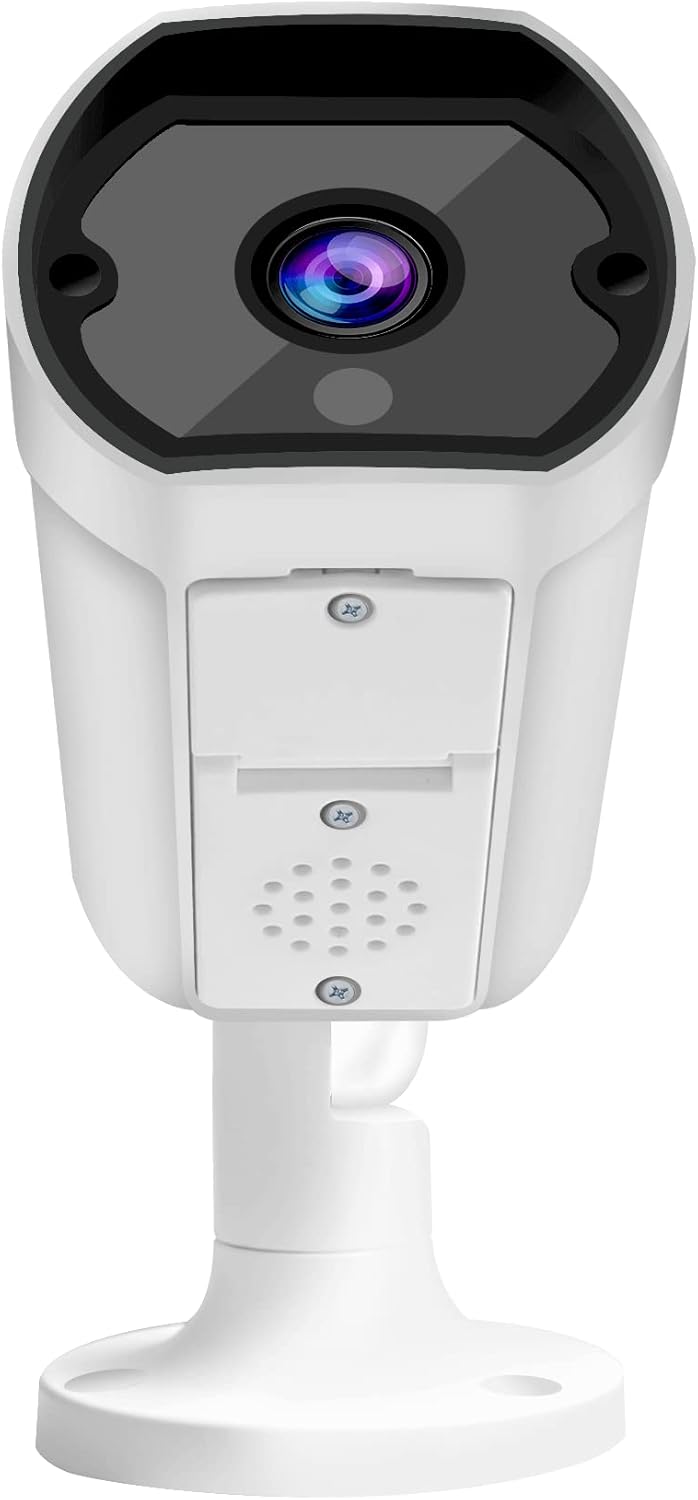
Figur 5.1: Foran view of the camera, highlighting the lens and the integrated speaker/microphone area below it.
- To Listen: Ensure the speaker icon in the app is enabled to hear audio from the camera's location.
- To Speak: Press and hold the microphone icon in the app to transmit your voice through the camera's speaker. Release to stop speaking.
5.3 Nattesyn
The camera automatically switches to infrared (IR) night vision mode in low-light conditions, providing clear black-and-white images up to 10 meters.
5.4 Opptak og avspilling
- Kontinuerlig innspilling: If an SD card is installed and configured, the camera can record continuously.
- Opptak av bevegelsesdeteksjon: Configure motion detection settings in the app to record only when movement is detected.
- Avspilling: Få tilgang til innspilt footage through the app's playback feature, typically found in the camera's settings or timeline view.
5.5 Mobile Notifications
Enable push notifications in the app settings to receive alerts on your mobile device when motion or other events are detected by the camera.
6. Vedlikehold
- Rengjøring: Bruk en myk, tørr klut til å rengjøre kameralinsen og -huset. Ikke bruk sterke kjemikalier eller slipende rengjøringsmidler.
- Fastvareoppdateringer: Regularly check for and install firmware updates via the mobile app to ensure optimal performance and security.
- Nettverksstabilitet: Ensure your Wi-Fi network is stable and strong for uninterrupted camera operation.
- Lagringsadministrasjon: Periodically check the SD card storage status and format it if necessary (this will erase all recorded data).
7. Feilsøking
| Problem | Mulig årsak | Løsning |
|---|---|---|
| Kameraet kobler ikke til Wi-Fi | Incorrect Wi-Fi password; Weak Wi-Fi signal; Camera too far from router; Router firewall settings. |
|
| Ingen direktesendt videostrøm | Camera offline; Network issue; App glitch. |
|
| Dårlig bildekvalitet | Skittent objektiv; Dårlige lysforhold; Nettverksbåndbredde. |
|
| Toveis lyd fungerer ikke | Microphone/speaker blocked; App volume settings; Network delay. |
|
| SD-kort tar ikke opp | SD card full; SD card corrupted; Incorrect recording settings. |
|
8. Spesifikasjoner
| Trekk | Detalj |
|---|---|
| Modellnummer | WP-919 |
| Oppløsning | 2MP (1080p video capture resolution) |
| Tilkobling | Trådløs (Wi-Fi), Kablet (Ethernet) |
| Nattsyn | IR-10M (Infrared up to 10 meters), Day & Night (ICR) |
| Lyd | Two-Way Audio with Built-in Speaker/Microphone |
| Lagring | Supports MicroSD card (details not specified, typically up to 128GB) |
| Bruksmiljø | Utendørs |
| Strømkilde | Elektrisk kabel |
| Materiale | Metall |
| Dimensjoner (L x B x H) | 49.99 x 30 x 19 cm |
| Vekt | 640 g |
| Mobilappkompatibilitet | iOS/Android Mobile App |
9. Støtte
For technical assistance, warranty claims, or further inquiries, please contact Provision ISR customer support. Refer to the contact information provided with your product packaging or visit the official Provision ISR webnettstedet.
Note: This manual provides general instructions. Specific features and app interfaces may vary with firmware updates.