
1. Produktet er overview og funksjoner
The XINMENG K61 60% Gaming Keyboard and Mouse Combo offers a compact and efficient setup for gaming and typing. This combo includes a mini RGB backlit keyboard, a high-precision RGB 6400 DPI honeycomb optical mouse, and a gaming mouse pad. Designed for space-saving and enhanced performance, it provides a comfortable and responsive user experience.

Image: The XINMENG K61 60% Gaming Keyboard and Mouse Combo, showcasing dens kompakte design og RGB-belysning.
Nøkkelfunksjoner:
- 60 % kompakt oppsett: Ultra-compact design saves desktop space, ideal for gamers requiring more mouse movement area.
- RGB-bakgrunnsbelysning: Keyboard and mouse feature customizable RGB backlighting with multiple effects and brightness levels.
- Mechanical Feel Keyboard: Utilizes advanced imitation mechanical technology for a responsive and relatively quiet typing experience.
- Ergonomisk design: Scientific stair-up keycap design and ergonomic mouse housing ensure maximum comfort during extended use.
- High Precision Mouse: 6400 DPI honeycomb optical mouse with 6 adjustable levels, capable of withstanding 20g acceleration.
- Holdbare nøkkelhetter: ABS two-color injection keycaps provide strong light transmittance and clear lighting.
- Bred kompatibilitet: Compatible with Windows XP, WIN 7/8/10, and MAC OS 2.0.

Image: Diagram illustrating the 60% compact layout of the keyboard, measuring approximately 11.8 inches in width and 4.3 inches in height.

Image: The compact keyboard being easily stored in a backpack, highlighting its portability for travel, office, and home use.
2. Installasjonsinstruksjoner
2.1 Koble til tastaturet
- Finn en ledig USB-port på datamaskinen.
- Koble USB-kontakten på tastaturet til USB-porten.
- Tastaturet er plug-and-play og skal gjenkjennes automatisk av operativsystemet ditt.
2.2 Koble til musen
- Finn en ledig USB-port på datamaskinen.
- Plug the USB connector of the mouse into the USB port.
- The mouse is plug-and-play and should be recognized automatically by your operating system.
For optimal performance, ensure both devices are connected directly to your computer's USB ports rather than through unpowered USB hubs.
3. Bruksanvisning
3.1 Tastaturfunksjoner
The 60% keyboard layout utilizes function (Fn) key combinations to access keys typically found on a full-size keyboard.
- Standard skriving: Bruk tastene som merket for alfanumerisk inndata.
- FN Key Combinations: Trykk og hold inne Fn key, then press the desired key to activate its secondary function (e.g., F1-F12, arrow keys, Home, End, Delete).
- Shift Key Combinations: Bruk Skifte key with other keys to access uppercase letters and symbols.
- WASD and Arrow Key Swap: The keyboard supports swapping WASD keys with arrow keys. Refer to the specific key combination on your keyboard (often Fn + W) to toggle this function.
- Windows-tastlås: To prevent accidental presses during gaming, the Windows key can be locked. Look for a key combination (e.g., Fn + Win) to activate/deactivate this feature.
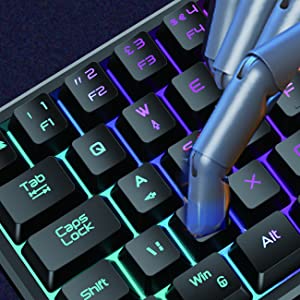
Image: A hand demonstrating key presses on the keyboard, highlighting the ergonomic design.

Image: An icon indicating the Windows key lock feature, useful for uninterrupted gaming.
3.2 Musefunksjoner
The honeycomb optical mouse provides precise tracking and customizable settings.
- Venstre/høyre klikk: Standard mouse buttons for primary and secondary actions.
- Rullehjul: For vertikal rulling og mellomklikk-funksjonalitet.
- DPI-knapp: Press the DPI button (usually located behind the scroll wheel) to cycle through 6 different DPI levels (up to 6400 DPI). This allows for on-the-fly sensitivity adjustments.
- Fremover/bakover-knapper: Side buttons for navigation in web browsers or other applications.
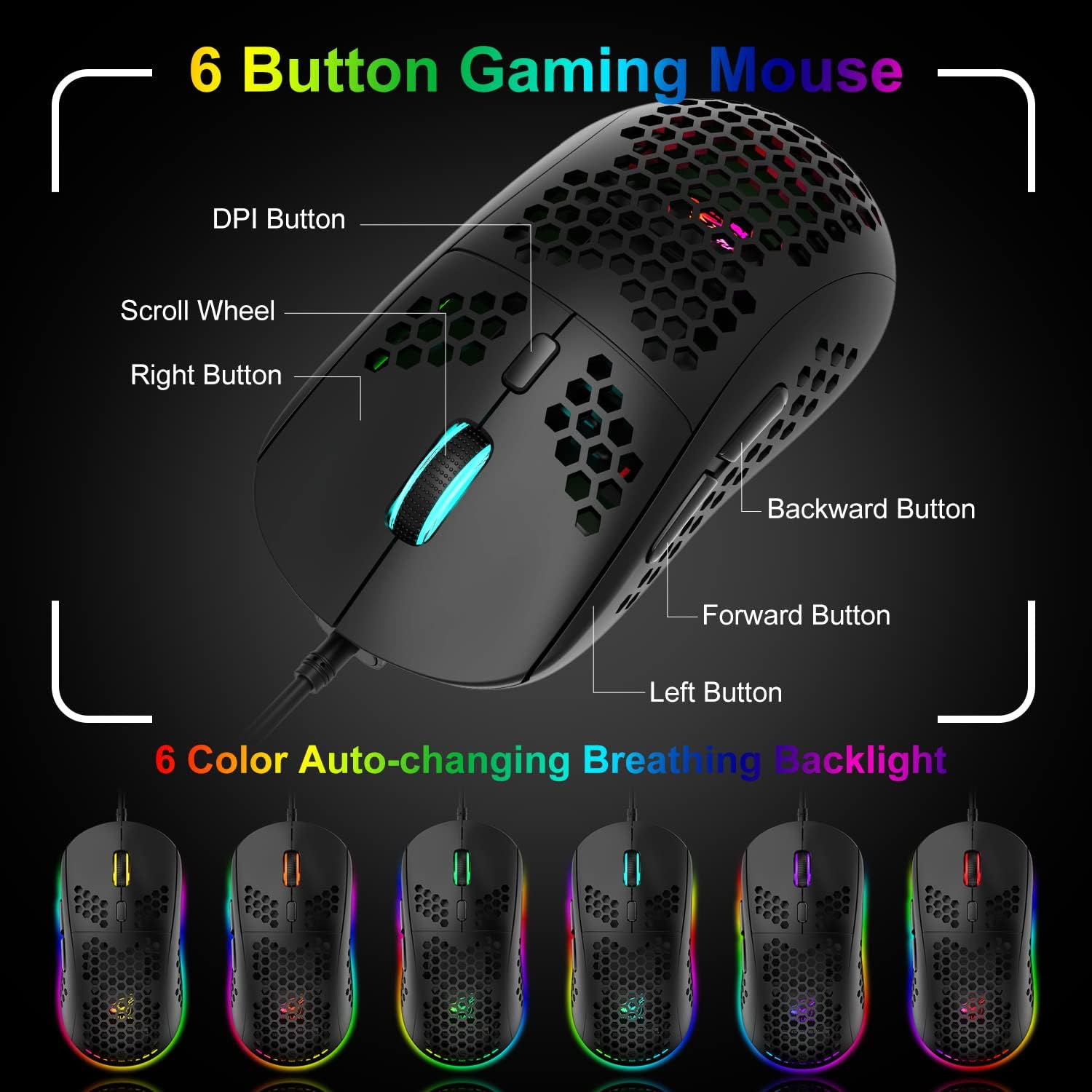
Image: A detailed diagram labeling the 6 buttons on the gaming mouse, including DPI, scroll wheel, left/right, forward, and backward buttons.
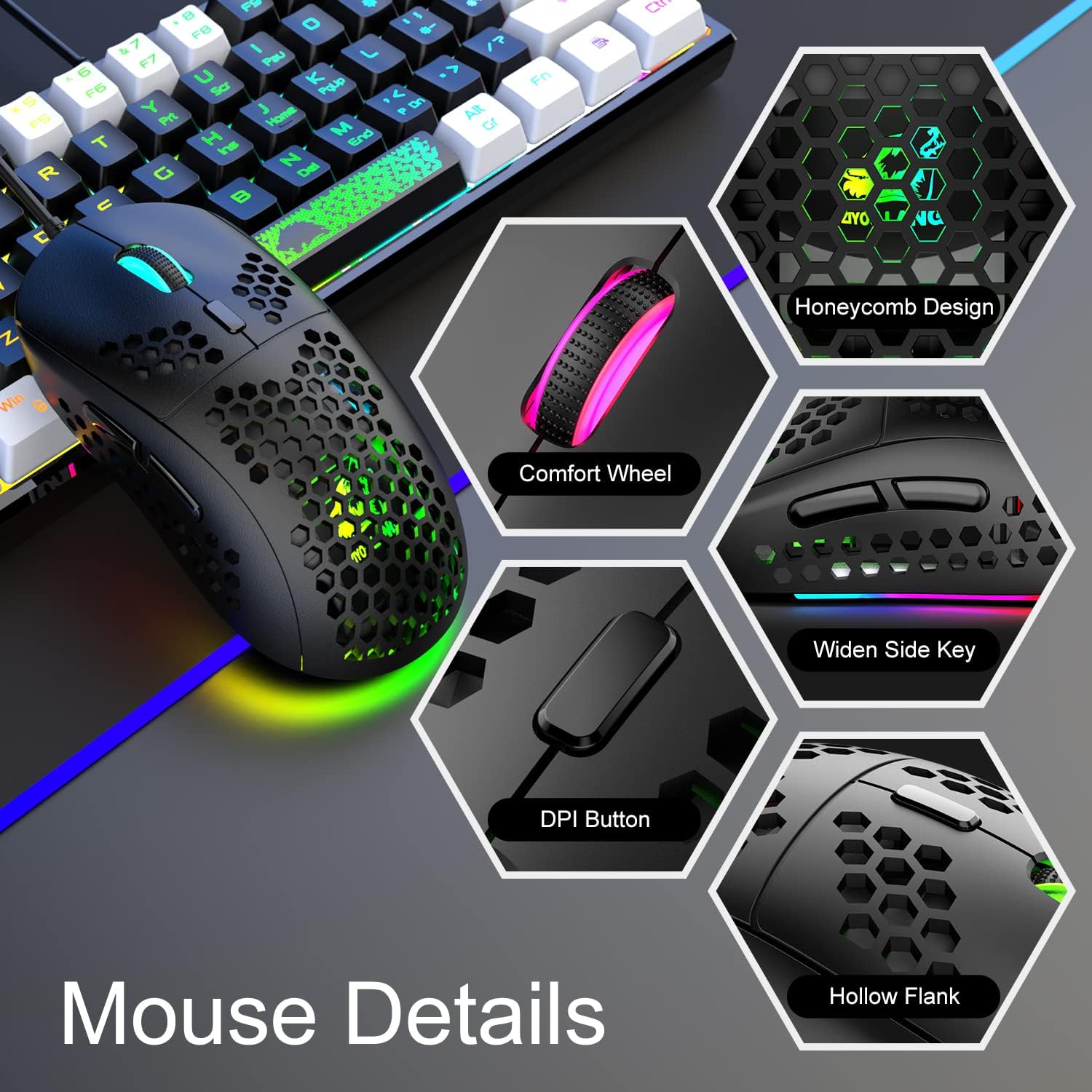
Bilde: Nærbilde views of the mouse's features, including honeycomb design, comfort wheel, widen side key, DPI button, and hollow flank.
4. RGB-lyskontroll
4.1 Keyboard RGB Backlight
The keyboard features dynamic RGB backlighting with various effects.
- Endre lyseffekter: Pressen Fn + P to cycle through different RGB lighting modes and effects.
- Juster lysstyrke: The keyboard offers 5 levels of brightness. Use specific key combinations (refer to your keyboard's markings, often Fn + Up/Down arrow or similar) to adjust.
- Monochromatic Light Effect: In addition to RGB, the keyboard can display monochromatic light effects.

Image: The keyboard displaying various cool RGB backlit effects, with instructions to press Fn+P to change them.
4.2 Mouse RGB Backlight
The mouse features 6-color auto-changing breathing backlight.
- The mouse's RGB lighting automatically cycles through 6 different colors, creating a breathing effect.
- This lighting enhances the aesthetic appeal and competitive atmosphere during gaming.
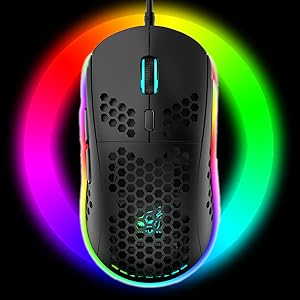
Image: The gaming mouse illuminated with vibrant RGB lighting, showcasindens estetiske appell.
5. Vedlikehold
5.1 Rengjøring av tastaturet
- Koble tastaturet fra datamaskinen.
- Use a can of compressed air to blow out dust and debris from between the keys.
- Wipe the keycaps and surface with a soft, slightly damp klut. Unngå overdreven fuktighet.
- For deeper cleaning, keycaps can be carefully removed using a keycap puller (if included) and cleaned separately. Ensure they are completely dry before reattaching.
5.2 Rengjøring av musen
- Koble musen fra datamaskinen.
- Bruk en myk, tørr klut til å tørke av overflaten på musen.
- For the honeycomb shell, use compressed air to clear any dust.
- Clean the optical sensor on the bottom of the mouse with a cotton swab lightly dampened med sprit.
5.3 Generell pleie
- Avoid spilling liquids on the keyboard or mouse.
- Do not expose the devices to extreme temperatures or direct sunlight.
- Handle cables carefully to prevent damage.
6. Feilsøking
6.1 Tastatur/mus reagerer ikke
- Sørg for at USB-kabelen er ordentlig koblet til en fungerende USB-port på datamaskinen.
- Prøv å koble enheten til en annen USB-port.
- Start datamaskinen på nytt.
- Test the device on another computer to determine if the issue is with the device or your system.
6.2 RGB Lights Not Working or Incorrectly Displaying
- For the keyboard, ensure it is properly connected. Press Fn + P for å veksle mellom lysmoduser.
- Check brightness settings using the appropriate Fn key combination.
- For the mouse, ensure it is connected. The mouse lighting is typically automatic.
- If the issue persists, try reconnecting the device or restarting your computer.
6.3 Mouse Tracking Issues or Incorrect DPI
- Ensure the mouse sensor is clean and free of debris.
- Press the DPI button on the mouse to cycle through different sensitivity levels.
- Ensure you are using the mouse on a suitable surface, preferably the included mouse pad.
7. Spesifikasjoner
| Merke | XINMENG |
| Modell | K61 |
| Farge | Svart og hvit |
| Tilkoblingsteknologi | USB kablet |
| Spesielle funksjoner | Bakgrunnsbelyst, ergonomisk |
| Kompatible enheter | Spillkonsoll, personlig datamaskin |
| Movement Detection (Mouse) | Optisk |
| Tastaturbakgrunnsbelysning Fargestøtte | RGB |
| Batterier påkrevd | Ingen |
| Strømkilde | Elektrisk med ledning |
| Tastaturoppsett | QWERTY |
| Håndorientering (mus) | Ambidekstrøs |
| Operativsystem | Mac OS, Windows XP, WIN 7/8/10 |
| Number of Keys (Keyboard) | 61 |
| Tastaturbeskrivelse | Ergonomic, Mechanical Feel |
| Mus DPI | Up to 6400 DPI (6 levels) |
8. Garanti og støtte
8.1 Garantiinformasjon
This XINMENG product comes with a 1-year warranty from the date of purchase, covering manufacturing defects. Please retain your proof of purchase for warranty claims.
8.2 Kundestøtte
For technical assistance, troubleshooting, or warranty inquiries, please contact XINMENG customer support through the retailer where the product was purchased or visit the official XINMENG webnettsted for kontaktinformasjon.