
1. Introduksjon
This manual provides detailed instructions for the setup, operation, and maintenance of your XINMENG 60% Gaming Keyboard and Mouse Combo. Please read this manual thoroughly before use to ensure optimal performance and longevity of your product.
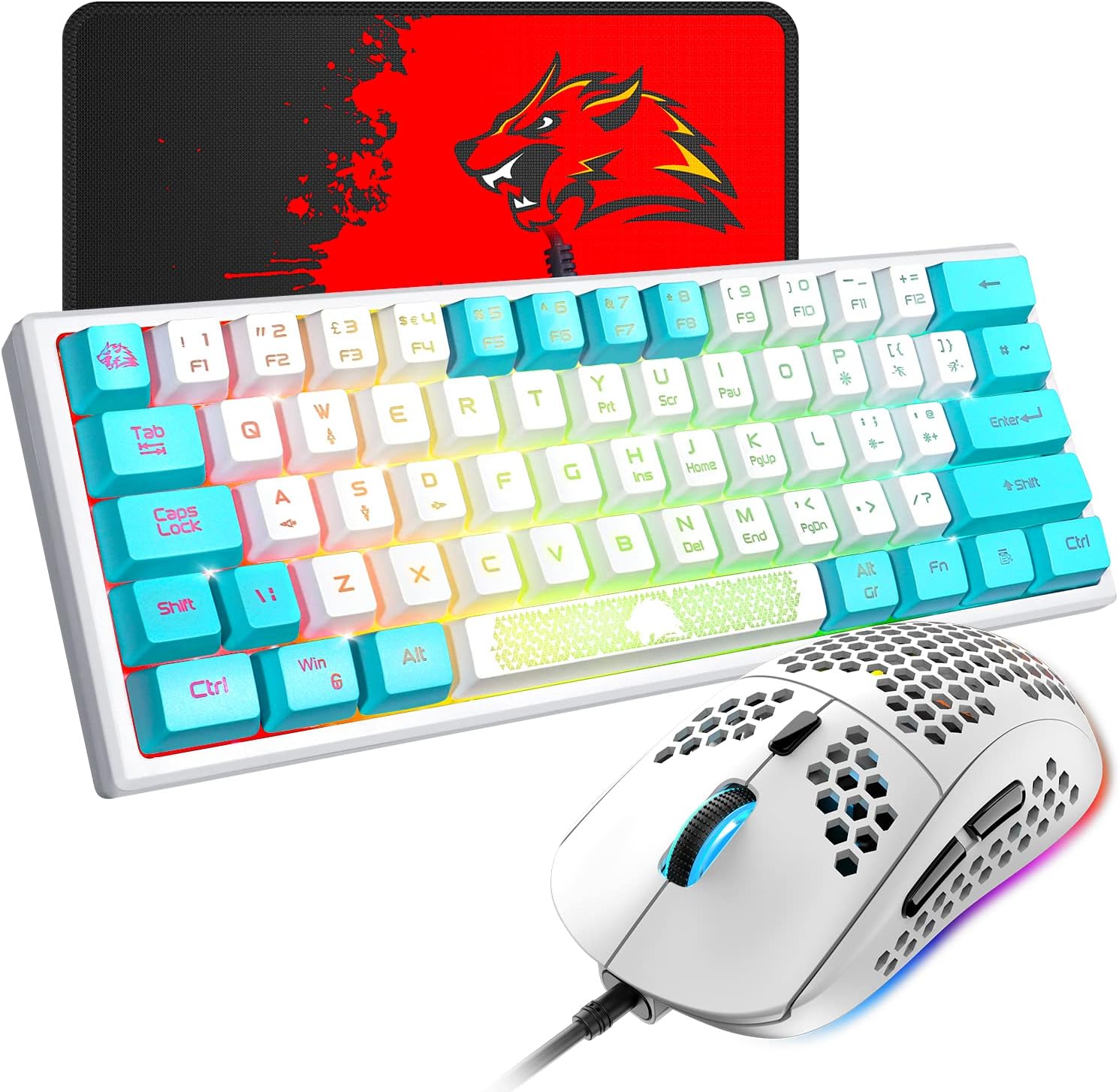
Image 1.1: The XINMENG 60% Gaming Keyboard and Mouse Combo, featuring a compact keyboard with RGB backlighting and a lightweight honeycomb optical mouse.
2. Produktfunksjoner
- 60% Compact Layout Keyboard: Designed for space-saving, ideal for gaming setups and portability.
- RGB-bakgrunnsbelysning: Customizable lighting effects for both keyboard and mouse, enhancing the user experience.
- Mechanical Feel Keyboard: Provides a tactile typing experience with reduced noise compared to traditional mechanical keyboards.
- Honeycomb Optical Mouse: Lightweight design (approximately 65 grams) with a perforated shell for improved heat dissipation and ergonomic comfort.
- Justerbar DPI-mus: Up to 6400 DPI (6 levels, editable) for precise cursor control.
- FN Function Keys: The 61-key mini keyboard includes FN key combinations to access full-size 104-key keyboard functions.
- Bred kompatibilitet: Compatible with Windows XP, WIN 7/8/10, and MAC OS 2.0.

Image 2.1: Diagram illustrating the compact 60% layout of the keyboard, measuring approximately 11.8 inches in width and 4.3 inches in height.

Image 2.2: The compact keyboard being placed into a backpack, demonstrating its portability for travel, office, or home use.
3. Installasjonsinstruksjoner
- Utpakking: Ta tastaturet og musen forsiktig ut av emballasjen.
- Forbindelse: Connect the USB cable of the keyboard to an available USB port on your computer. Connect the USB cable of the mouse to another available USB port on your computer.
- Driverinstallasjon: Tastaturet og musen er plug-and-play-enheter. Operativsystemet ditt skal automatisk oppdage og installere de nødvendige driverne. Ingen ekstra programvareinstallasjon er vanligvis nødvendig.
- Innledende test: After connection, test the keyboard by typing and the mouse by moving the cursor and clicking buttons to ensure they are functioning correctly.
4. Bruksanvisning
4.1 Tastaturfunksjoner

Bilde 4.1: Eks.amples of various RGB backlight effects available on the keyboard, showcasing different color patterns.
- RGB-bakgrunnsbelysningskontroll: Pressen FN + P to cycle through different backlight effects. The keyboard offers various cool backlight effects and monochromatic light options with 5 levels of brightness.
- FN Key Combinations: The keyboard utilizes FN key combinations to access secondary functions. Refer to the keycap legends for specific functions. For exampde:
- Pressen FN + W. to switch between W, S, A, D keys and the Up, Down, Left, Right arrow keys. Press again to toggle back.
- The ESC key and space bar may have luminous patterns or secondary functions accessible via the FN key.

Image 4.2: Diagram illustrating the FN multi-function shortcut keys, showing how FN + W toggles between WASD and arrow key functions.
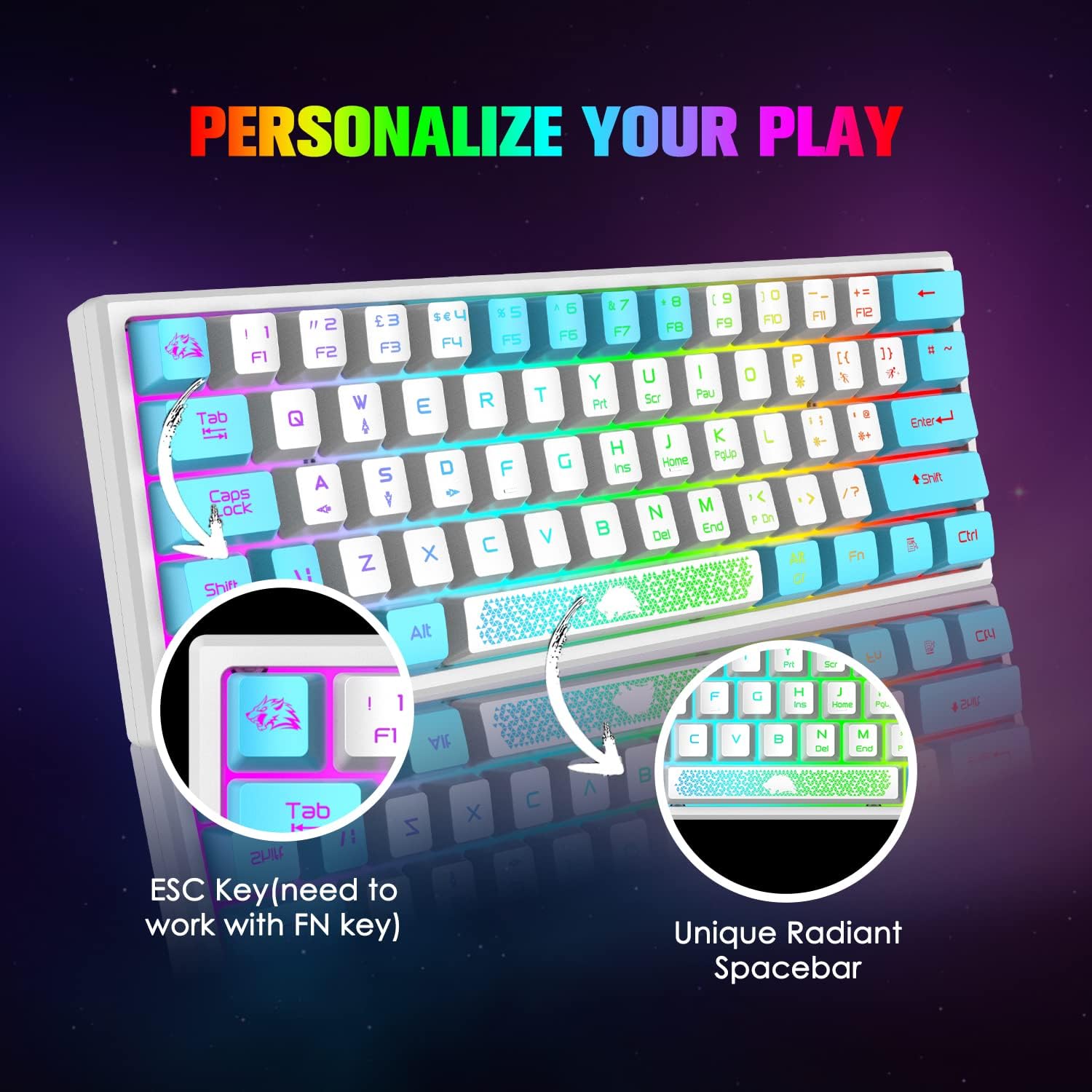
Bilde 4.3: Nærbilde view of the keyboard's ESC key and the unique radiant spacebar, highlighting their design and potential FN key functions.
4.2 Musefunksjoner

Image 4.4: Diagram of the 6-button gaming mouse, labeling the DPI button, scroll wheel, left/right buttons, and forward/backward buttons. It also shows the 7-color auto-changing breathing backlight.
- DPI-justering: Use the dedicated DPI button (usually located behind the scroll wheel) to cycle through different DPI settings. The mouse supports up to 6400 DPI with 6 editable levels.
- Knapper: The mouse features 6 buttons: Left Click, Right Click, Scroll Wheel Click, DPI Button, Forward Button, and Backward Button.
- RGB-bakgrunnsbelysning: The mouse features a 7-color auto-changing breathing backlight. This lighting effect is typically automatic and cannot be manually adjusted.

Bilde 4.5: Side view of the mouse illustrating its DPI range, from 800 to 10000, with an indicator showing the current setting around 5000 DPI.

Image 4.6: The lightweight honeycomb shell design of the mouse, highlighting its ergonomic shape and perforated structure for comfort and heat dissipation.
5. Vedlikehold
- Rengjøring: Bruk en myk, tørr klut til å rengjøre overflatene på tastaturet og musen. For grundigere rengjøring, bruk en lett tørr klut.amp klut kan brukes, slik at det ikke kommer væske inn i de indre komponentene.
- Støvfjerning: Use compressed air to remove dust and debris from between the keycaps and from the mouse's optical sensor.
- Kabelpleie: Unngå skarpe bøyninger eller overdreven trekking i USB-kablene for å forhindre skade.
- Lagring: Når den ikke er i bruk, oppbevar kombinasjonsenheten på et rent og tørt sted, unna direkte sollys og ekstreme temperaturer.
6. Feilsøking
- Tastatur/mus svarer ikke:
- Ensure the USB cables are securely connected to your computer's USB ports.
- Try connecting the devices to different USB ports.
- Start datamaskinen på nytt.
- Bakgrunnsbelysningen fungerer ikke:
- For the keyboard, ensure the backlight is not turned off or set to the lowest brightness. Press FN + P to cycle through modes.
- For the mouse, the backlight is automatic. If it's not working, try reconnecting the mouse.
- Nøkler registreres ikke riktig:
- Clean the affected key to ensure no debris is obstructing its mechanism.
- Verify that no FN key combination is active that might alter key functions (e.g., WASD/arrow key toggle).
- Musepekeren hopper eller er unøyaktig:
- Rengjør musens optiske sensor.
- Ensure you are using the mouse on a suitable surface, preferably a mouse pad.
- Juster DPI-innstillingen med DPI-knappen.
7. Spesifikasjoner
| Trekk | Detalj |
|---|---|
| Merke | XINMENG |
| Modell | B09TDCBSJD |
| Farge | Hvit og blå |
| Tilkoblingsteknologi | USB kablet |
| Tastaturoppsett | 60 % (61 nøkler) |
| Tastatur Bakgrunnsbelysning | RGB, 5 brightness levels |
| Mus DPI | Opptil 6400 DPI (6 justerbare nivåer) |
| Museknapper | 6 knapper |
| Mus design | Lightweight Honeycomb Optical |
| Kompatible enheter | Spillkonsoll, personlig datamaskin |
| Operativsystemkompatibilitet | Windows XP, WIN 7/8/10, MAC OS 2.0 |
| Varevekt | 2.05 pounds (approximate for combo) |
| Pakkedimensjoner | 17.13 x 6.46 x 2.44 tommer |
8. Garanti og støtte
For warranty information and customer support, please refer to the documentation included with your purchase or contact the retailer/manufacturer directly. Protection plans may be available for extended coverage; consult your purchase options for details.