
Introduksjon
This manual provides essential information for setting up, operating, maintaining, and troubleshooting your Acer Aspire 3 A315-58-79LA laptop. Please read this guide thoroughly to ensure proper use and longevity of your device.
1. Oppsett
1.1 Utpakking og første inspeksjon
Carefully remove the laptop and all accessories from the packaging. Inspect the device for any signs of damage. Retain the packaging for future transport or service needs.
1.2 Koble til strøm
Connect the AC adapter to the laptop's power input port and then plug the adapter into a power outlet. The battery will begin charging automatically. It is recommended to fully charge the battery before the first use.
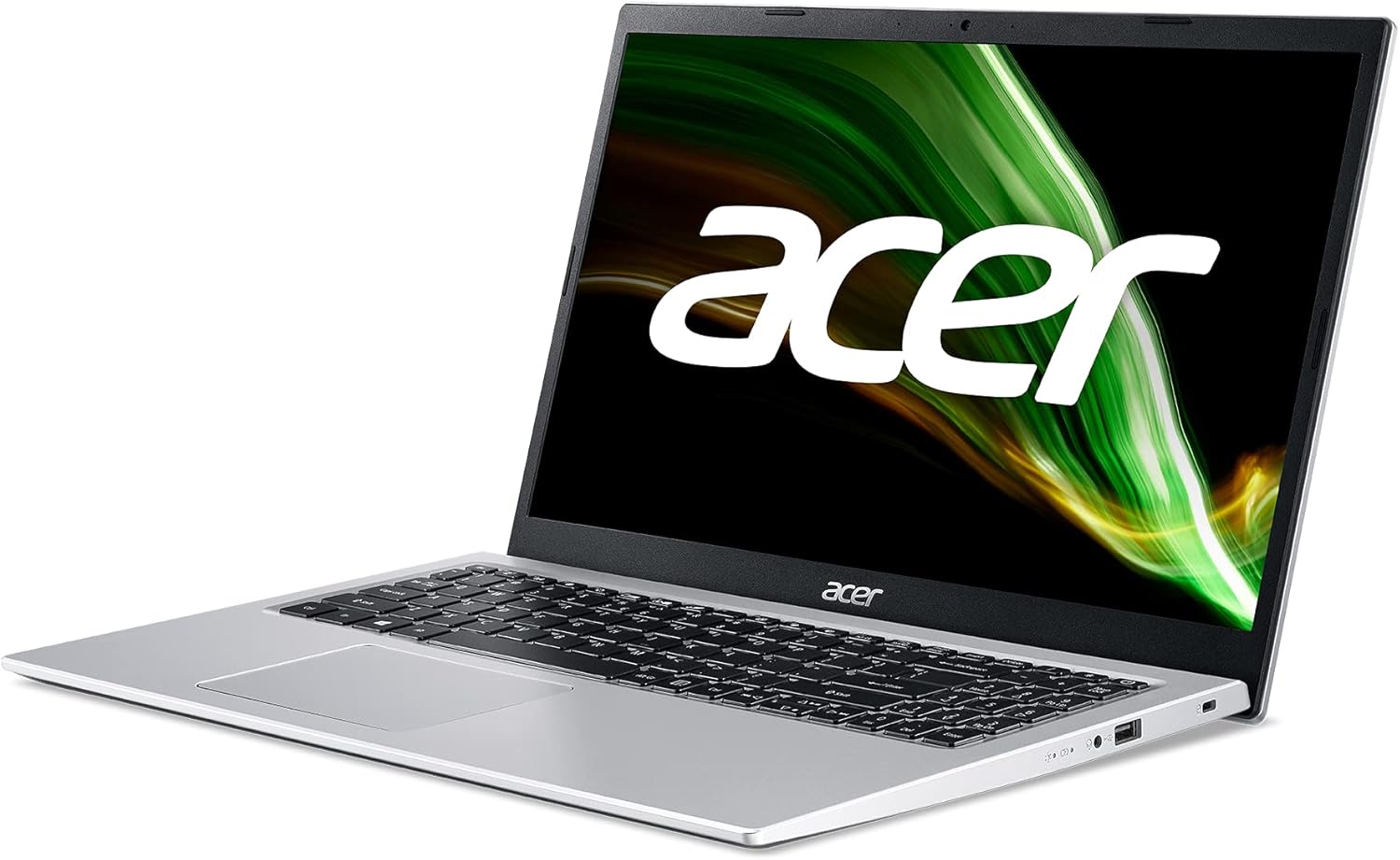
Bilde: Høyre side view of the Acer Aspire 3 laptop, showing the power input port.
1.3 Første oppstart og Windows-oppsett
Press the power button to turn on the laptop. Follow the on-screen instructions to complete the Windows 11 Home setup process. This includes selecting your language, region, connecting to a network, and creating a user account.
1.4 Koble til eksterne enheter
You can connect external devices such as a mouse, keyboard, or external storage via the available USB ports. For external displays, use the HDMI port.

Bilde: Venstre side view of the Acer Aspire 3 laptop, highlighting the HDMI and USB ports for connecting external devices.
2. Bruk av den bærbare datamaskinen
2.1 Av/på- og hvilemodus
- Strøm på: Trykk på av/på-knappen som er plassert på tastaturet.
- Slå av: Klikk på Start-knappen, deretter på Av/på, og velg «Slå av».
- Sove: Lukk lokket på den bærbare datamaskinen, eller klikk på Start-knappen, deretter på Av/på, og velg «Hvilemodus».
2.2 Tastatur og pekeplate
The laptop features a QWERTY Spanish keyboard layout and a precision touchpad. Use the touchpad for navigation and gestures. Refer to Windows settings for touchpad customization.

Bilde: Ovenfra og ned view of the Acer Aspire 3 laptop, showing the QWERTY Spanish keyboard and the integrated touchpad.
2.3 Nettverkstilkobling
- Wi-Fi: Access Wi-Fi settings through the Windows taskbar network icon to connect to available wireless networks. The laptop supports Wi-Fi 5 (802.11a/b/g/n/ac).
- Bluetooth: Enable Bluetooth in Windows settings to pair with compatible devices like headphones or mice (Bluetooth version 5.0).
- Ethernet: Connect an Ethernet cable to the LAN port for a wired internet connection (up to 1000 Mbps).
3. Vedlikehold
3.1 Rengjøring av den bærbare datamaskinen
Bruk en myk, lofri klut dampened with a small amount of water or a specialized screen cleaner to clean the display and exterior surfaces. Avoid harsh chemicals or abrasive materials. For the keyboard, use compressed air to remove dust and debris.
3.2 Batteristell
To maximize battery life, avoid extreme temperatures. Do not leave the laptop plugged in constantly after it is fully charged for extended periods. Periodically discharge and recharge the battery. The laptop uses a 1-cell Lithium Ion battery with an estimated life of 8 hours.
3.3 Programvareoppdateringer
Regularly check for and install Windows updates to ensure your system has the latest security patches and performance improvements. Acer may also provide driver updates through their support webnettstedet.
3.4 Lagringshåndtering
Periodisk vedrview og slett unødvendig files to free up storage space on the 512GB SSD. Consider using cloud storage for large files to optimize local performance.
4. Feilsøking
4.1 Vanlige problemer og løsninger
- Den bærbare datamaskinen slår seg ikke på: Ensure the AC adapter is securely connected and the power outlet is functional. Try a different power outlet. If the battery is completely drained, it may take a few minutes to show signs of life after plugging in.
- Display problems (no image, flickering): Connect an external monitor via HDMI to check if the issue is with the laptop's internal display. Restart the laptop. Update graphics drivers.
- Ingen Wi-Fi-tilkobling: Sjekk om Wi-Fi er aktivert i Windows-innstillingene. Start ruteren og den bærbare datamaskinen på nytt. Sørg for at driverne er oppdaterte.
- Treg ytelse: Close unnecessary applications. Check for malware. Ensure sufficient free storage space. Update Windows and drivers.
4.2 Restoring System
Windows 11 offers recovery options to reset your PC or restore from a previous point. Access these options via Windows Settings > System > Recovery.
4.3 Når du skal kontakte kundestøtte
If you encounter persistent issues that cannot be resolved with the above steps, or if you suspect a hardware malfunction, contact Acer customer support or an authorized service center.
5. Spesifikasjoner
| Trekk | Detalj |
|---|---|
| Modellnavn | A315-58 |
| Produktmodellnummer | NX.ADDEB.01L |
| Prosessor | Intel Core i7-1165G7 (4C/Quadcore 2.80GHz) |
| Grafikk | Intel Iris Xe-grafikk (integrert) |
| VÆR | 16 GB DDR4 SDRAM (2800 MHz, Max 64 GB, 3 total slots) |
| Lagring | 512 GB SSD PCI Express (Solid State) |
| Operativsystem | Windows 11 Home |
| Utstilling | 15.6 inches, FullHD (1920 x 1080 pixels), LED LCD |
| Trådløs tilkobling | Wi-Fi 5 (802.11a/b/g/n/ac), Bluetooth 5.0 |
| Kablet tilkobling | Ethernet (1000 Mbps), HDMI (1 port), USB (3 ports) |
| Tastaturoppsett | QWERTY spansk |
| Pekeenhet | Touchpad |
| Webkam | Integrert |
| Mikrofon | Ja |
| Høyttalere | Integrerte stereohøyttalere |
| Batteri | 1-cell Lithium Ion, 36 Watt-hours, approx. 8 hours life |
| Dimensjoner (L x B x H) | 36.3 cm x 2 cm x 23.8 cm |
| Vekt | 1.7 kg |
| Farge | Sølv |
| Årsmodell | 2022 |
6. Garantiinformasjon
This Acer Aspire 3 laptop comes with a 3 års begrenset garanti. For detailed terms and conditions, including coverage, exclusions, and how to make a claim, please refer to the warranty documentation included with your product or visit the official Acer support webnettstedet.
7. Støtte
For further assistance, technical support, or to download the latest drivers and software, please visit the official Acer support webnettsted. Du finner vanligvis vanlige spørsmål, feilsøkingsguider og kontaktinformasjon for kundeservice der.
Acer-støtte Webnettsted: www.acer.com/support