
1. Introduksjon
This manual provides essential information for the safe and efficient use of your Skyworth 75SUE9350F 75-inch 4K UHD Google TV. Please read it thoroughly before operating the device and retain it for future reference.
The Skyworth 75SUE9350F is a 75-inch 4K UHD Smart LED TV designed to deliver an immersive viewing experience. It features a Chameleon Extreme 2.0 processor for exceptional clarity and detail, complemented by MEMC technology for smooth motion handling. The television supports Dolby Vision IQ, which intelligently optimizes picture quality based on the content and ambient light conditions. Powered by Google TV, it offers access to a vast library of streaming content, including movies, TV shows, music, and games. The integrated Google Assistant allows for convenient voice control, while built-in Chromecast enables seamless content casting from your mobile devices. Additional features include a dedicated Game Mode for enhanced gaming performance, a Health Platform for fitness and wellness content, and a built-in web nettleser for internettilgang.
2. Sikkerhetsinformasjon
Følg alltid disse grunnleggende sikkerhetsreglene når du bruker TV-en:
- Strømkilde: Sørg for at TV-en er koblet til en strømforsyning innenfor det angitte volumområdet.tage range (100-240V AC, 50/60Hz).
- Ventilasjon: Ikke blokker ventilasjonsåpningene. Sørg for tilstrekkelig plass rundt TV-en for riktig luftstrøm for å forhindre overoppheting.
- Vann og fuktighet: Do not expose the TV to rain, moisture, or excessive humidity. Keep liquids away from the device.
- Rengjøring: Trekk ut støpselet til TV-en før rengjøring. Bruk en myk, tørr klut. Unngå flytende rengjøringsmidler eller aerosolspray.
- Plassering: Place the TV on a stable, level surface or mount it securely to a wall using a VESA-compliant bracket (800 x 400 mm). Ensure children cannot climb on or pull down the TV.
- Lyn: Trekk ut støpselet til TV-en under tordenvær eller når den ikke brukes over lengre tid.
- Service: Ikke forsøk å utføre service på TV-en selv. Overlat all service til kvalifisert servicepersonell.
3. Hva er i esken
Pakk forsiktig ut TV-en og sjekk at alle følgende deler er inkludert:
- Skyworth 75SUE9350F 75-inch 4K UHD Google TV
- Remote Control (requires AAA batteries)
- Strømkabel
- Base Stand (2 pieces)
- Brukerhåndbok (dette dokumentet)
- Screws for Base Stand
4. Oppsett
4.1 Feste stativet
If you are not wall-mounting the TV, attach the included base stand:
- Place the TV screen-down on a soft, clean surface to prevent damage.
- Juster hvert stativ med de tilsvarende sporene på undersiden av TV-en.
- Fest hvert stativ med de medfølgende skruene. Sørg for at de er godt strammet.
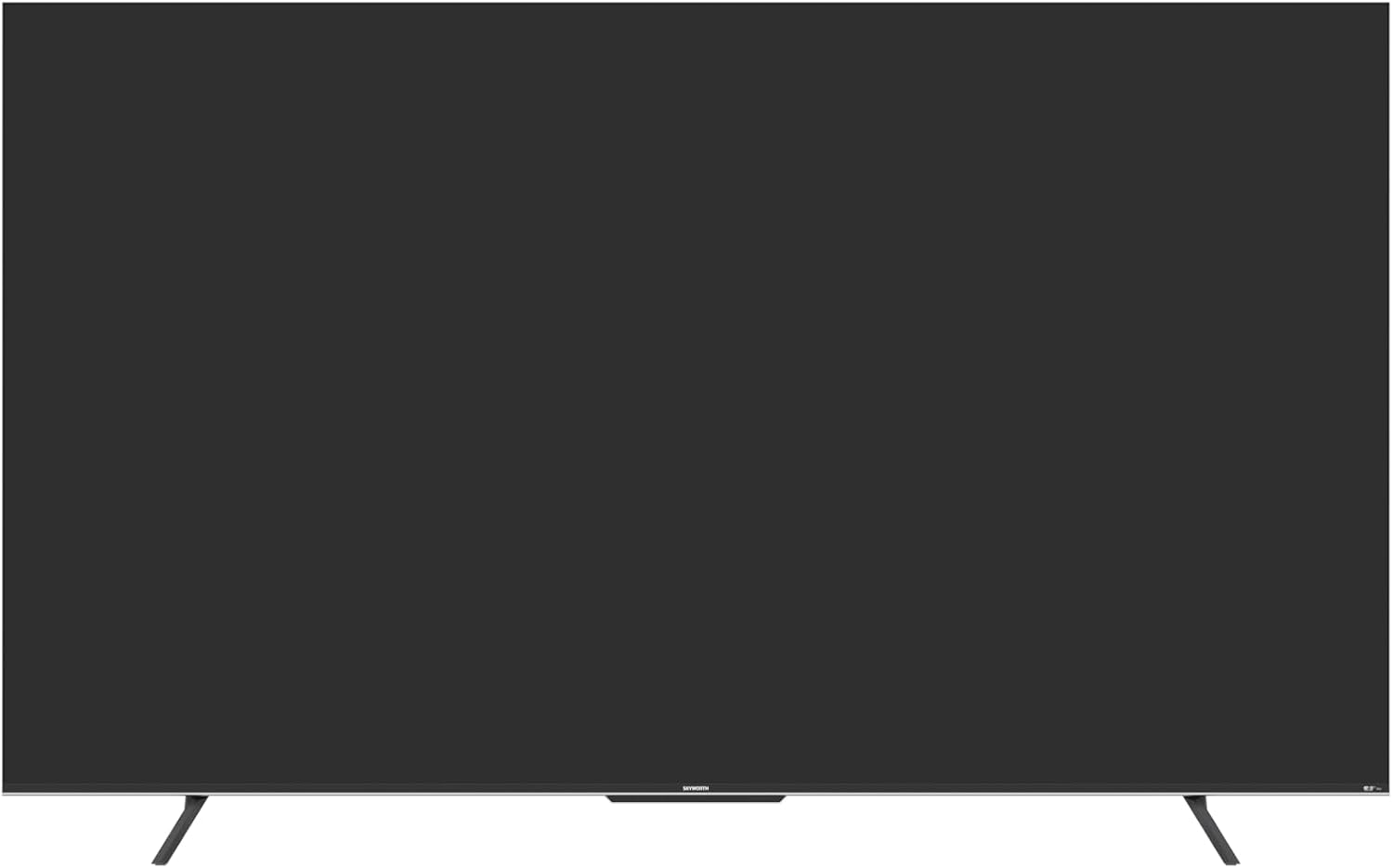
Figur 4.1: Foran view of the Skyworth 75SUE9350F TV with the base stand attached.
4.2 Veggmontering (valgfritt)
If you choose to wall-mount your TV, ensure you use a VESA-compliant wall mount (800 x 400 mm) and follow the instructions provided with your wall mount. Remove the base stand before wall mounting.

Figure 4.2: Dimensional diagram of the Skyworth 75SUE9350F TV, useful for planning wall mount placement.
4.3 Koble til enheter
Connect your external devices (e.g., Blu-ray player, game console, soundbar) to the TV's ports. Refer to the side view bilde for havneplasseringer.

Figur 4.3: Side view of the Skyworth 75SUE9350F TV, highlighting the various connectivity ports including HDMI, USB, and Ethernet.
- HDMI-porter: Connect high-definition devices like game consoles or streaming boxes. This TV features multiple HDMI ports.
- USB-porter: Connect USB storage devices for media playback. This TV has 2 USB ports.
- Ethernet-port: For en kablet internettforbindelse.
- Optisk lydutgang: For tilkobling til en lydplanke eller lydmottaker.
4.4 Første oppstart og Google TV-oppsett
- Koble strømkabelen til TV-en og deretter til en stikkontakt.
- Trykk på strømknappen på fjernkontrollen eller selve TV-en.
- Follow the on-screen instructions to complete the initial setup, including language selection, network connection (Wi-Fi or Ethernet), and Google account sign-in for Google TV features.
5. Betjene TV-en
5.1 Fjernkontrollfunksjoner
The included Bluetooth remote control allows you to navigate the Google TV interface and control your television. Insert two AAA batteries into the remote control.
- Strømknapp: Slår TV-en på eller av.
- Google Assistant-knapp: Activates voice control. Press and hold to speak commands.
- Navigasjonsplate: Use up, down, left, right to move through menus. Press the center button to select.
- Tilbake-knapp: Går tilbake til forrige skjermbilde.
- Hjem-knapp: Går tilbake til Google TV-startskjermen.
- Volum +/-: Justerer volumnivået.
- Kanal +/-: Endrer TV-kanaler.
- Snarveisknapper for apper: Dedicated buttons for popular streaming services like Netflix, Prime Video, Disney+, and YouTube.
5.2 Google TV-grensesnitt
Google TV organizes your favorite content from various streaming services into one personalized home screen. You can browse recommendations, search for titles, and access your installed apps.
5.3 Innstillinger for bilde og lyd
Gå til innstillingsmenyen for å tilpasse viewlytte- og lytteopplevelse:
- Bildemoduser: Select from various preset modes (e.g., Standard, Vivid, Movie, Game) or customize settings like brightness, contrast, and color.
- Dolby Vision IQ: This feature automatically adjusts picture settings based on ambient light and content type for optimal viewing.
- Lydmoduser: Velg mellom forhåndsinnstilte lydprofferfiles (e.g., Standard, Music, Movie) or adjust equalizer settings. The TV supports Dolby Vision and DTS Virtual X for enhanced audio.
- MEMC (bevegelsesestimering, bevegelseskompensasjon): Improves motion clarity in fast-moving scenes.
5.4 Chromecast innebygd
Cast content directly from your compatible smartphone, tablet, or computer to your TV. Look for the Cast icon within supported apps.
5.5 Spillmodus
Activate Game Mode for reduced input lag and optimized picture settings when playing video games.
6. Vedlikehold
Proper care ensures the longevity of your TV:
- Rengjøring av skjermer: Tørk forsiktig av skjermen med en myk, lofri klut. For gjenstridige merker, tørk littampRengjør kluten med vann eller et spesialisert skjermrensemiddel (spray aldri direkte på skjermen).
- Skap rengjøring: Tørk av TV-kabinettet med en myk, tørr klut.
- Tørke støv: Regularly dust the ventilation openings to prevent dust buildup.
- Unngå sterke kjemikalier: Ikke bruk slipende rengjøringsmidler, voks eller løsemidler, da disse kan skade TV-ens overflate.
7. Feilsøking
Før du kontakter kundestøtte, kan du prøve disse vanlige feilsøkingstrinnene:
| Problem | Mulig årsak/løsning |
|---|---|
| Ingen strøm | Sjekk om strømkabelen er ordentlig koblet til TV-en og stikkontakten. Sørg for at stikkontakten fungerer. Prøv en annen stikkontakt. |
| Ikke noe bilde, men det er lyd | Ensure the correct input source is selected. Check HDMI/AV cable connections. Try a different HDMI port or cable. |
| Ingen lyd, men bildet er der | Check the volume level and ensure the TV is not muted. Verify audio cable connections. If using external speakers, check their power and connections. |
| Fjernkontrollen virker ikke | Replace the AAA batteries in the remote. Ensure there are no obstructions between the remote and the TV. Re-pair the Bluetooth remote if necessary (refer to TV settings). |
| Kan ikke koble til Wi-Fi | Check your router and modem. Ensure the Wi-Fi password is correct. Try restarting your router. Move the TV closer to the router or use a wired Ethernet connection. |
| Bildet er forvrengt eller uskarpt | Check the resolution settings of your connected device. Ensure the input source is providing a high-quality signal. Adjust picture settings on the TV. |
8. Spesifikasjoner
Below are the technical specifications for the Skyworth 75SUE9350F TV:
| Modellnavn | 75SUE9350F |
| Merke | Skyworth |
| Skjermstørrelse | 75 tommer |
| Skjermteknologi | LED |
| Oppløsning | 4K UHD (3840 x 2160) |
| Oppdateringsfrekvens | 60 Hz |
| Operativsystem | Google TV |
| Prosessor | Chameleon Extreme 2.0 |
| Bildeforbedring | Dolby Vision IQ, MEMC |
| HDR-støtte | Dolby Vision, HDR10 |
| Lyd utgang | 2.0 Channel, 16W per channel |
| Lydteknologi | Dolby Vision, DTS Virtual X |
| Tilkobling | HDMI (multiple ports), USB (2 ports), Ethernet, Bluetooth |
| Trådløs tilkobling | Wi-Fi, Bluetooth |
| Minnelagring | 16 GB |
| Strømforsyning | AC 100-240V, 50/60Hz |
| Produktmål (med stativ) | 166.7 cm (B) x 96.4 cm (H) x 36.31 cm (D) |
| Produktmål (uten stativ) | 166.7 cm (B) x 96.4 cm (H) x 8.3 cm (D) |
| Vekt (med stativ) | 29.4 kg |
| Vekt (uten stativ) | 28.8 kg |
| VESA monteringsstandard | 800 x 400 mm |
| Spesielle funksjoner | Parental Control, Wide Viewing Angle, Chromecast Built-in, Built-in Speaker, Google Assistant, Game Mode, Health Platform, Web Nettleser |
Merk: Spesifikasjonene kan endres uten varsel for produktforbedring.
9. Garanti og støtte
Your Skyworth 75SUE9350F TV comes with a 2 års produsentgarantiVennligst ta vare på kjøpsbeviset for garantikrav.
For technical support, service, or warranty inquiries, please contact Skyworth customer service through their official website or the contact information provided with your purchase documentation. Do not attempt to repair the TV yourself, as this may void your warranty.