
1. Produktet er overview
The Dpofirs Dash Cam is a dual-channel car recording system designed to capture video footage from the front and rear of your vehicle. It features 1080P Full HD front recording, a 2-inch display, wide-angle lenses, loop recording, and G-sensor functionality for comprehensive vehicle monitoring.
Nøkkelfunksjoner inkluderer:
- Synchronized HD recording from front, interior, and rear cameras.
- Loop recording to ensure continuous recording by overwriting older files.
- 6-layer high transparency glass lens for clear image quality.
- Wide vision angles: 170° front, 110° cabin, and 110° rear.
- Wide Dynamic Range (WDR) image processing for optimal recording in various lighting conditions.
2. Pakkens innhold
Vennligst sjekk at alle varene som er oppført nedenfor er inkludert i pakken din:
- 1 x Dpofirs Dash Cam (Main Unit)
- 1 x bakview Kamera med kabel
- 1 x Car Charger with Cable
- 1 x sugekoppbrakett
- 2 x Screws (for rear camera mounting)
- 1 x Adhesive Tape (for rear camera mounting)
- 1 x brukerhåndbok
Note: A Micro SD memory card (up to 32GB) is required for recording and is not included in the package.

Image: Dpofirs Dash Cam main unit, rear camera, car charger, suction cup mount, screws, and adhesive tape.
3. Oppsett og installasjon
3.1 Sette inn minnekortet
- Sørg for at dashkameraet er slått av.
- Locate the Micro SD card slot on the side of the main unit.
- Insert a Class 10 or higher Micro SD card (up to 32GB) into the slot until it clicks into place.
- For å ta ut, skyv kortet forsiktig inn igjen til det spretter ut.
3.2 Montering av dashbordkameraet foran
- Rengjør frontruten der du har tenkt å montere dashkameraet.
- Attach the suction cup bracket to the dash cam.
- Press the suction cup firmly against the windshield, ensuring it does not obstruct your view.
- Juster kameravinkelen for å sikre et klart bilde view av veien videre.

Bilde: Foran view of the Dpofirs Dash Cam with its suction cup mount.
3.3 Installere det bakre kameraet
- Identify a suitable location on your rear windshield or license plate area for the rear camera.
- Use the provided adhesive tape or screws to securely mount the rear camera.
- Connect the rear camera cable to the main dash cam unit. Route the cable neatly along the vehicle's interior trim to avoid interference.

Image: Dpofirs Dash Cam main unit and the rear camera, illustrating the dual camera setup.
3.4 Koble til strøm
- Koble billaderen til bilens 12V-strømuttak (sigarettenneruttak).
- Connect the other end of the car charger cable to the USB power input port on the dash cam.
- Dashkameraet slår seg automatisk på og begynner å ta opp når bilens tenning slås på.
4. Bruksanvisning
4.1 Grunnleggende kontroller
The dash cam features several buttons for navigation and control:
- Strømknapp: Press and hold to turn the device on/off. Short press to toggle screen display.
- Menyknapp (M): Press to enter the menu settings. Press again to cycle through menu options.
- OK -knapp: Confirm selections in the menu or start/stop recording.
- Opp/Ned -knapper: Naviger gjennom menyalternativer eller juster innstillinger.

Bilde: Foran view of the Dpofirs Dash Cam showing the display screen and control buttons (OK, M, Power, Up, Down).
4.2 Opptaksmoduser
The dash cam supports various recording functionalities:
- Sløyfeopptak: This feature automatically overwrites the oldest video files when the memory card is full, ensuring continuous recording without manual intervention. Video segments are typically recorded in 1, 3, or 5-minute intervals.
- G-sensor (nødlås): The built-in G-sensor detects sudden impacts or collisions. When triggered, the current video segment is automatically locked and saved to prevent it from being overwritten by loop recording.
- Parkeringsmonitor: When enabled, the dash cam will automatically start recording if it detects motion or impact while the vehicle is parked. This feature requires a constant power supply (e.g., hardwire kit, not included) to function continuously.

Image: Visual explanation of Loop Recording, Emergency Lock (G-Sensor), and Parking Monitor functions.

Image: Icons representing Gravity Sensor (G-Sensor) and Loop Recording features.
4.3 Stille inn dato og klokkeslett
- Trykk på Meny (M) for å gå inn i innstillingsmenyen.
- Bruk Opp/Ned buttons to navigate to the 'Date/Time' setting.
- Pressen OK for å gå inn i innstillingen.
- Bruk Opp/Ned to adjust values and OK for å gå til neste felt.
- Når det er satt, trykk på Meny (M) å gå ut.
4.4 Videoavspilling
- Stop recording by pressing the OK button if currently recording.
- Trykk på Modus button (often labeled 'M' or a specific mode button) to switch to playback mode.
- Bruk Opp/Ned buttons to select the desired video file.
- Pressen OK for å spille av den valgte videoen.
4.5 Understanding Camera Views

Image: Illustration of the comprehensive recording capabilities from the front, interior, and rear lenses.
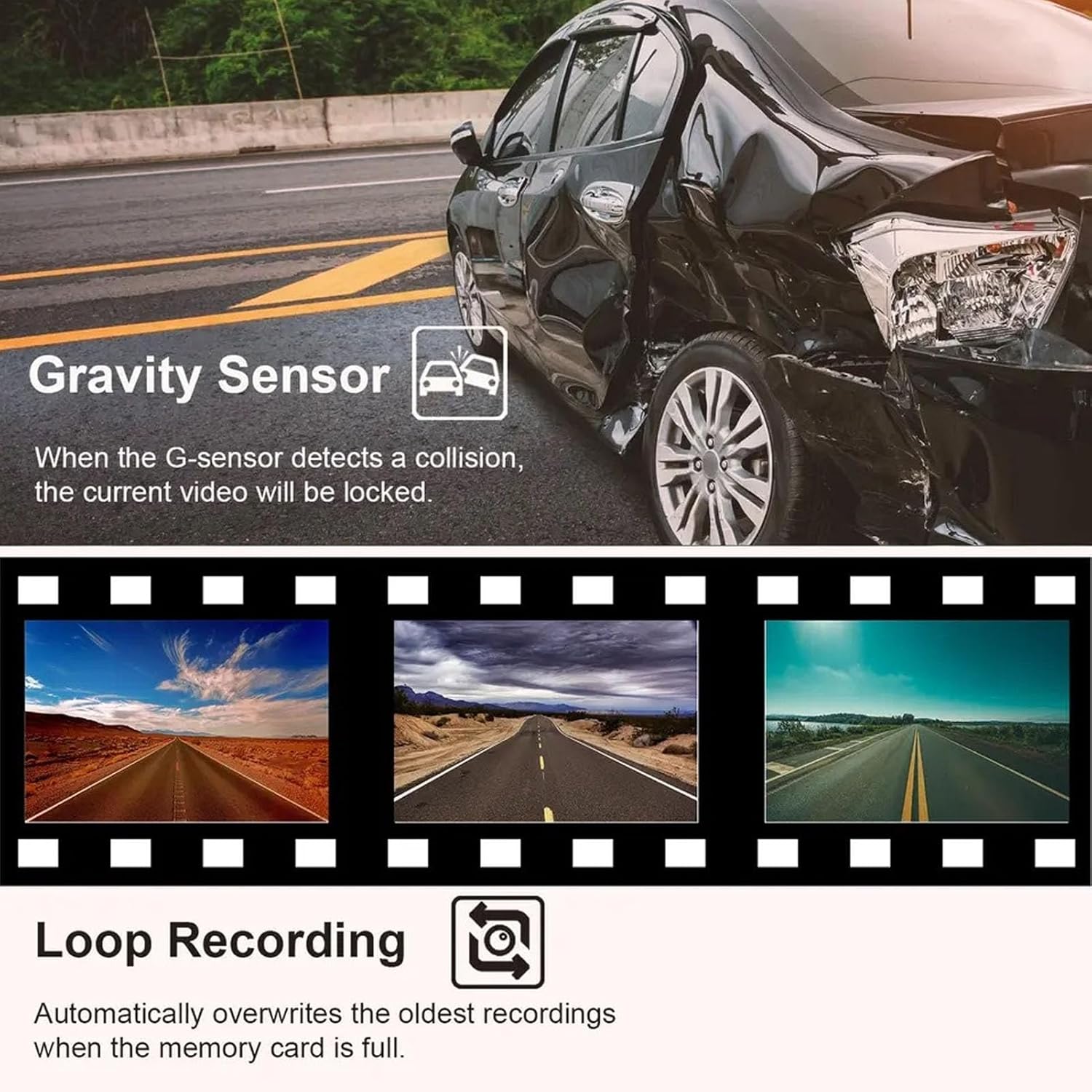
Image: Specific details on the 170° front (1080P), 110° inside (480P), and 110° rear (480P) camera views.
5. Vedlikehold
5.1 Rengjøring av linser og skjerm
- Use a soft, lint-free cloth to gently wipe the camera lenses and the display screen.
- For gjenstridige flekker, litt dampen the cloth with lens cleaning solution. Avoid harsh chemicals.
- Ensure lenses are clean for optimal video quality.
5.2 Minnekorthåndtering
- It is recommended to format the Micro SD card periodically (e.g., once a month) to maintain optimal performance and prevent data corruption.
- To format, navigate to the 'Format' option in the dash cam's menu settings and confirm.
- Replace the memory card if you experience frequent recording errors or data loss.
6. Feilsøking
6.1 Dash Cam Not Powering On
- Ensure the car charger is securely plugged into both the dash cam and the vehicle's 12V power outlet.
- Check if the vehicle's 12V power outlet is functioning correctly (e.g., by testing with another device).
- Verify that the vehicle's ignition is on, as the dash cam typically powers on with the ignition.
6.2 Recording Stops or Fails
- Check if the Micro SD card is full. Format the card if necessary (back up important fileførst).
- Ensure you are using a Class 10 or higher Micro SD card. Lower class cards may not support continuous recording.
- The memory card may be faulty. Try replacing it with a new, compatible card.
- Ensure loop recording is enabled in the settings.
6.3 Dårlig videokvalitet
- Clean the camera lenses to remove any dirt or smudges.
- Sørg for at beskyttelsesfilmen er fjernet fra linsene.
- Check video resolution settings in the menu; ensure it is set to 1080P FHD for the front camera.
- Verify that the camera is securely mounted and not vibrating excessively.
7. Spesifikasjoner
| Main Control Model | 3292 |
| Bildesensor | GC1054 / 0308 |
| Utstilling | 2.0 inch Color Display |
| Videooppløsning | Front: 1080P FHD; Interior/Rear: 480P |
| Video File Format | AVI |
| Bildeformat | JPG |
| Bevegelsesdeteksjon | Støttes |
| Opptaksfunksjon | Støttes |
| Parking Wake Up | Støttes |
| Tid Tag | Støttes |
| Minnekortstøtte | Micro SD, up to 32GB (Class 10 or higher recommended) |
| Batteritype | Innebygd 180mAh polymer litiumbatteri |
| Tilkoblingsteknologi | USB |
| Pakkedimensjoner | 5.91 x 4.33 x 2.76 tommer |
8. Garanti og støtte
Garantiinformasjon: Se kjøpsdokumentasjonen eller forhandlerens website for specific warranty details and terms applicable to your Dpofirs Dash Cam.
Kundestøtte: For technical assistance, troubleshooting not covered in this manual, or any other inquiries, please contact Dpofirs customer service through the retailer's platform or the official Dpofirs webnettstedet.