
Introduksjon
This manual provides detailed instructions for the installation, operation, maintenance, and troubleshooting of your wisecoco 12.6 Inch Bar LCD Screen HDMI Display Monitor. This monitor is specifically designed to integrate seamlessly with the Hyte Y60 PC case, serving as an excellent secondary display for monitoring system performance, displaying custom visuals, or extending your desktop.

Figure 1: The 12.6-inch bar LCD screen displaying real-time system performance data.
Oppsett og installasjon
The wisecoco 12.6 Inch Bar LCD Screen is designed for easy installation, particularly within the Hyte Y60 PC case. The package includes all necessary components for a straightforward setup.
Pakkeinnhold
Før du starter installasjonen, må du kontrollere at alle delene er til stede i pakken:
- 12.6-inch Bar LCD Screen
- 3.5mm DC Power Cable
- HDMI til Mini HDMI-kabel
- Kryss skrutrekker

Figure 2: Included accessories: DC power cable, HDMI to Mini HDMI cable, and a screwdriver.
Installation Steps (for Hyte Y60 PC Case)
- Klargjør PC-kabinettet: Ensure your Hyte Y60 PC case is powered off and unplugged. Carefully remove the side panel where the monitor will be installed.
- Monter skjermen: The screen features a bracket specifically designed to fit the Y60 case panel. Align the screen with the designated slot on the case. Use the provided screwdriver to secure the screen in place. No additional screws are typically required.
- Koble til videokabel: Connect one end of the HDMI to Mini HDMI cable to the Mini HDMI port on the monitor. Connect the other end to an available HDMI port on your graphics card (GPU) or motherboard.
- Koble til strømkabel:
- Connect the 3.5mm DC power cable to the DC 3.5mm port on the monitor. The other end of this cable typically connects to a power source within your PC.
- Alternatively, the screen can be powered via a Micro USB A cable (not included). If using Micro USB A, ensure the input is 5V500mA. If using the DC cable, the input should be 5V2A.
- Kabeladministrasjon: Route the cables neatly within your PC case to avoid interference with fans or other components.
- Strøm på: Once all connections are secure, replace the PC case panel, plug in your PC, and power it on. The monitor should be detected as a secondary display.

Figure 3: Visual guide for installing the secondary monitor into the Hyte Y60 PC case.

Figure 4: The monitor seamlessly integrated into a Hyte Y60 PC case, displaying custom visuals.

Figure 5: Dimensions and port layout of the 12.6-inch bar LCD screen.
Bruksanvisning
The wisecoco 12.6 Inch Bar LCD Screen functions as a standard secondary display, compatible with PCs and laptops. It offers versatile display options and user-friendly controls.
Skjermfunksjoner
- Oppløsning: 1920x515 IPS panel for clear and vibrant visuals.
- Responstid: 3-5ms for smooth motion.
- Viewvinkel: 178 ° bred viewvinkel sikrer jevn bildekvalitet fra ulike perspektiver.
- Oppdateringsfrekvens: 60Hz standard refresh rate.
- Kontrastforhold: 1000:1 for dype svarte og lyse hvite.
- Innebygde høyttalere: Integrated dual speakers provide audio output.

Figure 6: The monitor features a 178° full viewing angle and IPS technology for superior image quality.
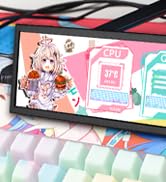
Figure 7: The Wisecoco monitor includes built-in speakers for convenience.
Visningsmoduser
The monitor supports both landscape and portrait modes, allowing for flexible integration into your setup. You can adjust the display orientation through your operating system's display settings.

Figure 8: The monitor supports both portrait and landscape display orientations.
Skjermkontroller (OSD)
The monitor features physical buttons on the back for accessing the OSD menu and controlling basic functions:
- Kilde: Switches between available video inputs (e.g., Mini HDMI 1, Mini HDMI 2).
- Volum +/-: Adjusts the audio output level of the built-in speakers.
- Meny: Accesses the OSD menu for advanced settings (brightness, contrast, color, etc.).
- Makt: Slår skjermen på eller av.
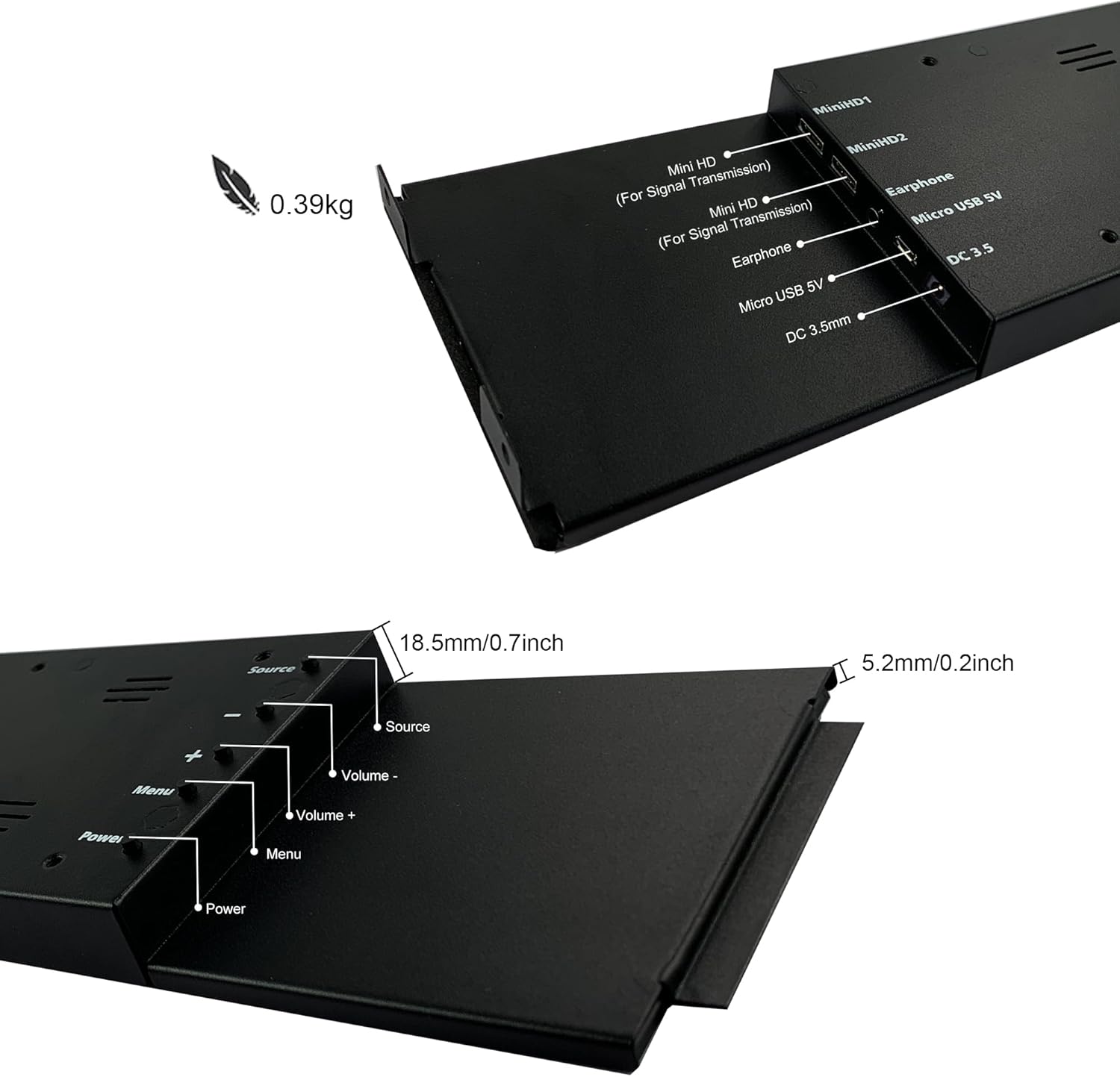
Figure 9: Location of control buttons and ports on the side of the monitor.
Vedlikehold
Riktig vedlikehold sikrer skjermens levetid og optimale ytelse.
- Rengjøring av skjermen: Use a soft, lint-free cloth specifically designed for electronics. For stubborn marks, lightly dampen the cloth with water or a screen-cleaning solution. Avoid harsh chemicals, abrasive materials, or spraying liquid directly onto the screen.
- Generell rengjøring: Tørk av skjermens casinmed en myk, tørr klut.
- Ventilasjon: Sørg for at skjermens ventilasjonsåpninger ikke er blokkert for å forhindre overoppheting.
- Miljøforhold: Avoid exposing the monitor to extreme temperatures, high humidity, or direct sunlight.
- Slå av når den ikke er i bruk: For extended periods of inactivity, it is recommended to power off the monitor.
Feilsøking
If you encounter issues with your wisecoco monitor, refer to the following common problems and solutions:
| Problem | Mulig årsak | Løsning |
|---|---|---|
| No display / "No Signal" message |
|
|
| Screen flashes red, blue, or green when PC sleeps | Specific display settings or driver interaction. | Access the monitor's OSD menu and navigate through settings. Sometimes simply accessing and exiting the menu can resolve this. Ensure GPU drivers are updated. |
| Ingen lyd fra innebygde høyttalere |
|
|
| Half of the screen not working | Hardware defect or severe connection issue. |
|
Produktspesifikasjoner
Detailed technical specifications for the wisecoco 12.6 Inch Bar LCD Screen HDMI Display Monitor:
| Trekk | Spesifikasjon |
|---|---|
| Produktdimensjoner | 1 x 4 x 13 tommer |
| Varevekt | 1.74 pund |
| Produsent | Wisecoco |
| Vare modellnummer | R126F01-HB |
| Stående skjermstørrelse | 12.6 tommer |
| Aspektforhold | 32:9 |
| Voltage | 5 volt (DC) |
| Oppløsning | 1920 x 515 |
| Merke | wisecoco |
| Skjermstørrelse | 12.6 tommer |
| Beskrivelse av skjermoverflaten | Blank |
Garanti og støtte
Wisecoco is committed to providing high-quality products and customer satisfaction.
- Garanti: Dette produktet leveres med 12 måneders garanti fra kjøpsdatoen.
- Pengene tilbake-garanti: A 30-day money-back guarantee is offered.
- Kundestøtte: 24-hour customer support is available for any inquiries or assistance.
For warranty claims, technical support, or any other questions, please contact Wisecoco customer service through the official channels provided at the point of purchase or on the Wisecoco brand webnettstedet.

Figure 10: Wisecoco's commitment to customer satisfaction.