
1. Introduksjon
Thank you for choosing the Mecer 23.8 Inch Full HD LED Monitor. This manual provides essential information for setting up, operating, and maintaining your monitor. Please read it thoroughly before use to ensure proper functionality and longevity of your device.
This monitor features a 23.8-inch Full HD (1920 x 1080) display, offering crisp and clear visuals. It incorporates TFT LED panel technology for energy efficiency and vibrant colors, with a 16:9 aspect ratio suitable for widescreen viewing. Connectivity options include VGA and HDMI, making it compatible with various devices. Built-in speakers provide basic audio, and wide 178° viewing angles ensure comfortable use. With a 2ms response time, it is suitable for general computing and multimedia consumption.
2. Sikkerhetsinformasjon
- Strømkilde: Bruk kun strømadapteren som følger med skjermen. Sørg for at strømuttaket er skikkelig jordet.
- Ventilasjon: Ikke blokker ventilasjonsåpningene. Sørg for tilstrekkelig plass rundt skjermen for riktig luftstrøm for å forhindre overoppheting.
- Plassering: Plasser skjermen på en stabil, flat overflate. Unngå å plassere den i direkte sollys, i nærheten av varmekilder eller i omgivelser med mye støv eller fuktighet.
- Rengjøring: Disconnect the power cord before cleaning. Use a soft, dry cloth for the screen and a slightly damp cloth for the casing. Unngå bruk av slipende rengjøringsmidler eller løsemidler.
- Væskeeksponering: Keep liquids away from the monitor. If liquid enters the monitor, disconnect power immediately and contact qualified service personnel.
- demontering: Ikke forsøk å demontere eller reparere skjermen selv. Overlat all service til kvalifisert servicepersonell.
3. Pakkens innhold
Vennligst sjekk innholdet i pakken for å sikre at alle varene er til stede:
- Mecer 23.8 Inch LED Monitor
- Skjermstativ (base og hals)
- Strømadapter og kabel
- HDMI-kabel
- VGA-kabel
- Brukerhåndbok (dette dokumentet)
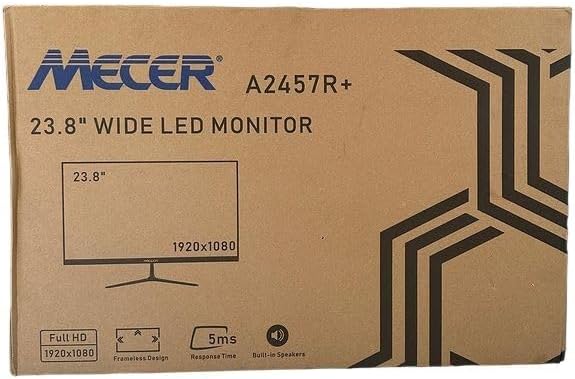
Bilde 3.1: The monitor packaging box, indicating the model A2457R+ and key features like 23.8" display, Full HD 1920x1080 resolution, frameless design, 5ms response time, and built-in speakers.
4. Oppsett
4.1. Montering av skjermstativet
- Ta forsiktig ut komponentene til skjermen og stativet fra emballasjen.
- Attach the stand neck to the monitor panel by aligning the tabs and pushing firmly until it clicks into place.
- Attach the stand base to the stand neck, securing it with the provided screw (usually hand-tightened).
- Plasser den monterte skjermen på en stabil, flat overflate.

Bilde 4.1: Front view of the Mecer 23.8 Inch LED Monitor with its stand assembled, ready for connection.
4.2. Koble til en datamaskin
The monitor supports both HDMI and VGA connections. Choose the appropriate cable for your computer.
- HDMI-tilkobling: Connect one end of the HDMI cable to the HDMI port on your computer's graphics card and the other end to the HDMI port on the monitor. HDMI transmits both video and audio signals.
- VGA-tilkobling: Connect one end of the VGA cable to the VGA port on your computer's graphics card and the other end to the VGA port on the monitor. VGA transmits only video signals.

Bilde 4.2: Bak view of the Mecer 23.8 Inch LED Monitor, showing the input ports including HDMI and VGA, as well as the power input.
4.3. Strømtilkobling
- Connect the power adapter cable to the DC IN port on the back of the monitor.
- Koble strømadapteren til en stikkontakt.
5. Bruksanvisning
5.1. Slå på/av
Press the power button, typically located on the bottom right side or rear of the monitor, to turn the monitor on or off. The power indicator light will illuminate when the monitor is on.
5.2. Valg av inngangskilde
If you have multiple devices connected, you may need to manually select the input source. Use the monitor's control buttons (usually located near the power button) to navigate to the input selection menu and choose between HDMI or VGA.
5.3. On-Screen Display (OSD)-meny
The OSD menu allows you to adjust various display settings. Use the monitor's control buttons to:
- Gå til OSD -menyen.
- Navigate through menu options (e.g., Brightness, Contrast, Color Settings, Input Source).
- Adjust values or select options.
- Gå ut av OSD-menyen.
Vanlige justerbare innstillinger inkluderer:
- Lysstyrke/kontrast: Juster den generelle lysstyrken og forskjellen mellom lyse og mørke områder.
- Fargeinnstillinger: Adjust color temperature, RGB values, or select preset color modes.
- Aspektforhold: Change between 16:9, 4:3, or other available options.
- Lyd: Adjust volume for the built-in speakers.
5.4. Innebygde høyttalere
The monitor includes built-in speakers for basic audio output. If using an HDMI connection, audio will be transmitted automatically. For VGA connections, ensure your computer's audio output is configured correctly. Adjust the volume through the OSD menu or your computer's operating system.
6. Vedlikehold
6.1. Rengjøre skjermen
- Trekk alltid ut skjermens strømledning fra stikkontakten før rengjøring.
- Skjerm: Tørk forsiktig av skjermen med en myk, lofri klut. Tørk forsiktig av gjenstridige flekker.ampen the cloth with water or a specialized screen cleaner (ensure it's alcohol-free and ammonia-free) and wipe carefully. Do not spray liquid directly onto the screen.
- Casing: Bruk en myk, tørr klut til å tørke av skjermenasing. Om nødvendig, en litt damp klut kan brukes, etterfulgt av en tørr klut.
6.2. Oppbevaring
Hvis skjermen skal oppbevares over lengre tid, må du koble fra alle kabler, pakke den i originalemballasjen (hvis tilgjengelig) og oppbevare den på et kjølig og tørt sted, unna direkte sollys og ekstreme temperaturer.
7. Feilsøking
Hvis du støter på problemer med skjermen, kan du se følgende vanlige problemer og løsninger:
- Ingen strøm:
- Sørg for at strømkabelen er ordentlig koblet til skjermen og stikkontakten.
- Kontroller at strømuttaket fungerer ved å koble til en annen enhet.
- Check if the power adapter is working correctly.
- Ingen signal:
- Ensure the video cable (HDMI or VGA) is securely connected to both the monitor and the computer.
- Verify that the correct input source is selected on the monitor (via the OSD menu).
- Check if your computer is powered on and outputting a video signal.
- Prøv en annen videokabel hvis tilgjengelig.
- Bildet er uskarpt eller forvrengt:
- Ensure the monitor's resolution is set to its native resolution (1920 x 1080) in your computer's display settings.
- Adjust the monitor's OSD settings for brightness, contrast, and sharpness.
- For VGA connections, use the 'Auto Adjust' function in the OSD menu if available.
- Ingen lyd fra innebygde høyttalere:
- Sørg for at skjermens volum ikke er dempet eller satt for lavt i OSD-menyen.
- Sjekk datamaskinens lydutgangsinnstillinger for å sikre at skjermen er valgt som avspillingsenhet.
- If using VGA, ensure your computer's audio is routed to an external speaker system, as VGA does not carry audio.
8. Spesifikasjoner
| Trekk | Spesifikasjon |
|---|---|
| Merke | Mecer |
| Modellnummer | A2457R+ |
| Skjermstørrelse | 23.8 tommer |
| Oppløsning | 1920 x 1080 piksler (Full HD) |
| Visningstype | LED (TFT LED Panel) |
| Aspektforhold | 16:9 |
| Responstid | 2 millisekunder |
| Oppdateringsfrekvens | 75 Hz |
| Viewi vinkler | 178° horisontal / 178° vertikal |
| Tilkobling | 1x HDMI, 1x VGA |
| Innebygde høyttalere | Ja |
| Farge | Svart |
| Produktdimensjoner (D x B x H) | 560D x 42W x 410H millimetres |
| Spesielle funksjoner | High performance intelligent multi-frequency scanning, Micro Computer digital technology control, no radiation, no glare, Comply with VESA DPMS international power saving regulation, Support DDC 1/2B and Windows PNP Plug and Play |
9. Garanti og støtte
This Mecer monitor comes with a 1 års begrenset garanti fra kjøpsdatoen. Vennligst ta vare på kjøpsbeviset for garantikrav.
For technical support, service, or warranty inquiries, please contact your retailer or the authorized Mecer service center in your region. Do not attempt to repair the product yourself, as this may void your warranty.