
Baseus USB-C Hub with 30W PD Charger
Baseus USB C Hub User Manual
Model: USB-C Hub with 30W PD Charger
1. Introduksjon
Thank you for choosing the Baseus USB C Hub. This manual provides detailed instructions for setting up, operating, maintaining, and troubleshooting your device to ensure optimal performance and longevity. Please read this manual thoroughly before using the product.
2. Produktet er overview
2.1 Pakkeinnhold
- Baseus USB C Hub
- 30W Dual Port USB C PD Charger Block
- Brukerhåndbok
2.2 Produktdiagram
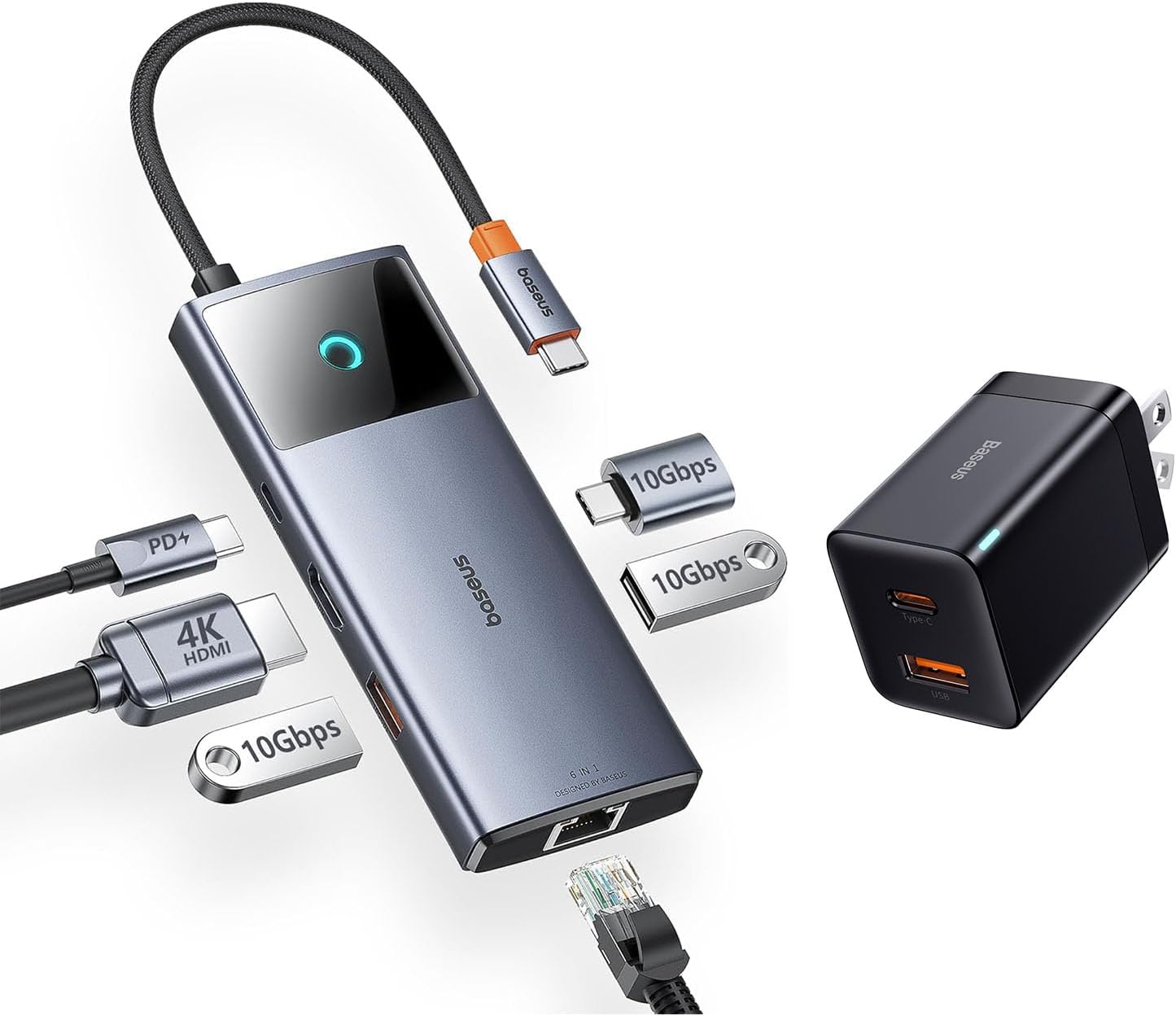
Image: The Baseus USB C Hub with its integrated cable, various ports, and the accompanying 30W dual-port charger.
The Baseus USB C Hub features multiple ports for expanded connectivity, including USB-A, USB-C data ports, an HDMI port, and an Ethernet port. The included 30W charger provides fast power delivery.
2.3 Nøkkelfunksjoner
- 4K@60Hz HDMI-utgang: Supports ultra-clear video mirroring or extension to an external display.
- 10 Gbps dataoverføring: Equipped with USB-C and USB-A data ports for high-speed file overføringer.
- Gigabit Ethernet-port: Gir en stabil og rask kablet internettforbindelse.
- 30W Dual-Port PD Charging: Fast charges up to two devices simultaneously (18W USB-C, 12W USB-A).
- Kompakt og bærbar design: Features a foldable plug for easy portability.
3. Oppsett
3.1 Koble til huben
- Connect the integrated USB-C cable of the Baseus USB C Hub to the USB-C port on your host device (e.g., laptop, iPad, iPhone 15 series).
- Ensure the connection is secure. The hub is plug-and-play and typically does not require driver installation.
3.2 Powering the Hub and Devices
- Plug the 30W Dual Port USB C PD Charger Block into a wall outlet.
- Connect your devices (e.g., smartphone, tablet) to the USB-C (18W) or USB-A (12W) output ports on the charger block using appropriate charging cables.
- For optimal performance of the hub and connected peripherals, ensure your host device is adequately powered.
4. Bruksanvisning
4.1 Dataoverføring

Image: Illustration of high-speed 10Gbps data transfer through the hub's USB-C and USB-A data ports.
Connect your USB-C or USB-A storage devices (e.g., external hard drives, flash drives) to the corresponding data ports on the hub. The hub supports data transfer speeds up to 10Gbps, allowing for rapid transfer of large files.
4.2 Video Output (HDMI)

Image: A laptop connected to an external monitor via the Baseus USB C Hub, displaying 4K@60Hz clarity.
Connect an HDMI cable from the hub's HDMI port to an external monitor or projector. The hub supports 4K resolution at 60Hz, providing a clear and smooth visual experience for presentations, video editing, or extended desktop use. Ensure your host device and display support 4K@60Hz for optimal performance.
4.3 Network Connection (Ethernet)

Image: A laptop connected to a network cable via the Baseus USB C Hub's Gigabit Ethernet port.
For a stable and high-speed internet connection, connect an Ethernet cable from your router or modem to the Gigabit Ethernet port on the hub. This provides a reliable wired connection, ideal for online gaming, video conferencing, or large downloads.
4.4 Ladeenheter

Image: An iPhone 14 Pro Max charging rapidly with the 30W PPS charger, showing significant charge in 30 minutes.

Image: A smartphone and a tablet simultaneously charging from the USB-C (18W) and USB-A (12W) ports of the Baseus charger.
The included 30W dual-port charger allows you to fast charge two devices concurrently. Use the USB-C port for up to 18W Power Delivery (PD) and the USB-A port for up to 12W charging. This is suitable for smartphones, tablets, and other compatible USB-powered devices.
5. Vedlikehold
To ensure the longevity and proper functioning of your Baseus USB C Hub and charger, follow these maintenance guidelines:
- Rengjøring: Use a soft, dry cloth to wipe the surfaces of the hub and charger. Do not use liquid cleaners or abrasive materials.
- Lagring: Oppbevar enheten på et kjølig og tørt sted, unna direkte sollys og ekstreme temperaturer.
- Håndtering: Unngå å miste enheten eller utsette den for harde støt. Ikke bøy den integrerte USB-C-kabelen for mye.
- Ventilasjon: Ensure the hub has adequate ventilation during use to prevent overheating.
6. Feilsøking
If you encounter issues with your Baseus USB C Hub, please refer to the following common solutions:
- Ingen skjermutgang:
- Sørg for at HDMI-kabelen er ordentlig koblet til både huben og skjermen.
- Kontroller at vertsenhetens USB-C-port støtter videoutgang (DisplayPort Alternative Mode).
- Prøv en annen HDMI-kabel eller skjerm.
- Start vertsenheten på nytt.
- Langsom dataoverføringshastighet:
- Ensure your connected storage device supports 10Gbps (USB 3.1 Gen 2) speeds.
- Check if other high-bandwidth devices are connected to the hub simultaneously.
- Ensure your host device's USB-C port supports USB 3.1 Gen 2 speeds.
- Ingen nettverkstilkobling:
- Verify the Ethernet cable is properly connected to the hub and your router/modem.
- Sjekk nettverksinnstillingene på vertsenheten din.
- Sørg for at ruteren/modemet fungerer som det skal.
- Enheter som ikke lader:
- Ensure the 30W charger is securely plugged into a live wall outlet.
- Prøv en annen ladekabel.
- Verify that your device is compatible with the charging specifications (18W USB-C PD, 12W USB-A).
7. Spesifikasjoner
| Trekk | Spesifikasjon |
|---|---|
| Modell | Baseus USB C Hub (ASIN: B0CZP5S4JS) |
| Maskinvaregrensesnitt | USB 3.0 Type C |
| HDMI-utgang | 4K@60Hz |
| USB-dataporter | 1x USB-C (10 Gbps), 2x USB-A (10 Gbps) |
| Ethernet-port | Gigabit Ethernet (10/100/1000 Mbps) |
| Charger Output (USB-C) | 18 W strømforsyning (PD) |
| Charger Output (USB-A) | 12W |
| Total USB Ports (Hub) | 4 (1x USB-C, 3x USB-A) |
| Kompatible enheter | iPad Pro, iPad Air, iPad Mini, iPhone 15, iPhone 15 Pro, iPhone 15 Pro Max, Laptops with USB-C |
| Spesialfunksjon | Rask lading |
8. Garanti og støtte
Baseus products are designed and manufactured to the highest quality standards. This product is covered by a limited warranty from the date of purchase. Please refer to the warranty card included in your package for specific terms and conditions.
For technical support, troubleshooting assistance, or warranty claims, please contact Baseus customer service through the official Baseus website or your point of purchase. When contacting support, please have your product model and purchase information ready.
Ask a question about this manual
Ask about setup, troubleshooting, compatibility, parts, safety, or missing instructions. Manuals+ will review the question and use this page’s manual context to help answer it.