
1. Introduksjon
Thank you for choosing the WALFRONT 12-Key One-Handed RGB Mechanical Gaming Keypad. This compact, hot-swappable keypad is designed for enhanced gaming and productivity, offering customizable macros and vibrant RGB lighting. This manual provides detailed instructions for setup, operation, maintenance, and troubleshooting to ensure optimal performance and longevity of your device.
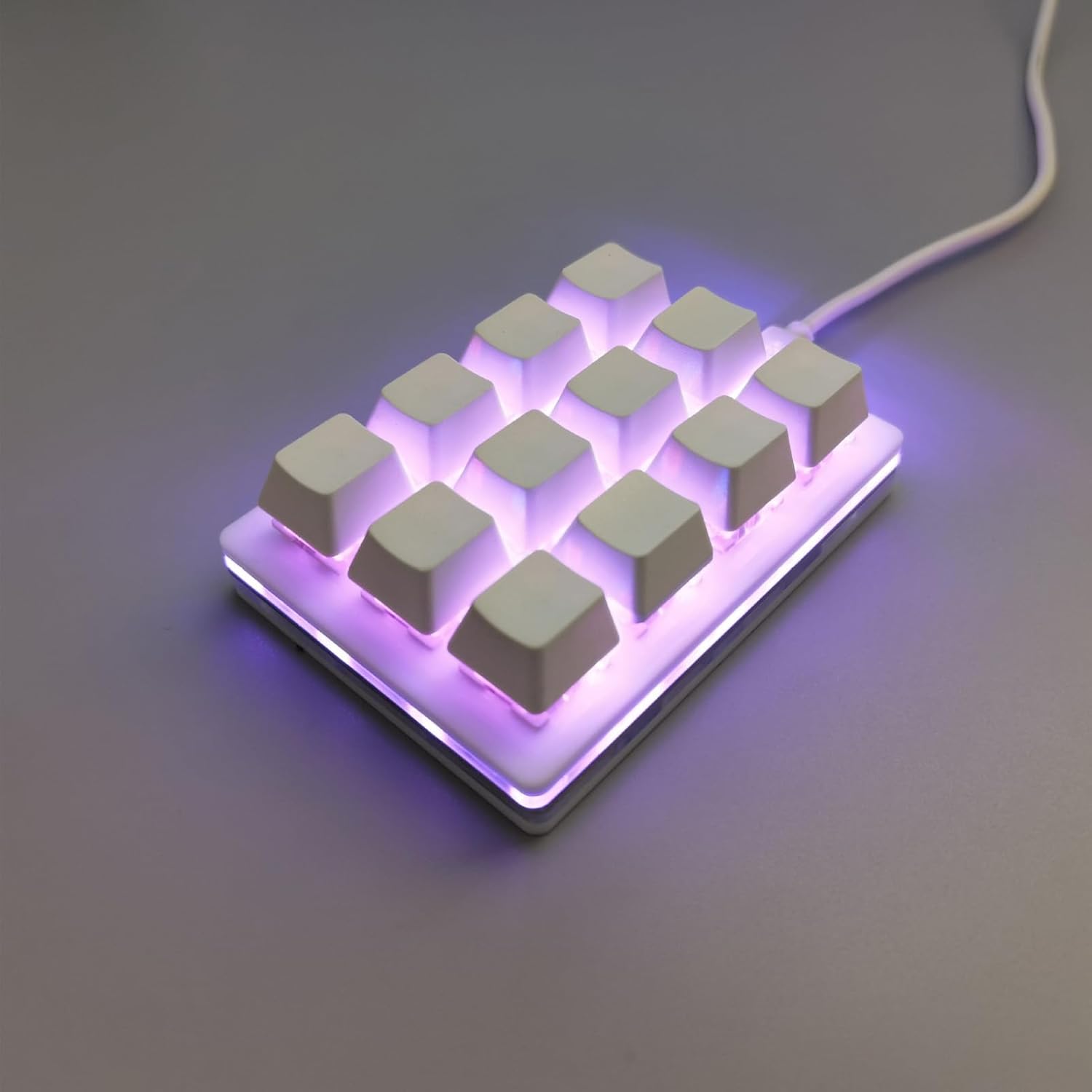
Figure 1: WALFRONT 12-Key One-Handed RGB Mechanical Gaming Keypad
2. Produktet er overview
2.1 Nøkkelfunksjoner
- ESD Protection Chip: Equipped with an ESD non-static chip to protect against static electricity, prolonging service life and ensuring data integrity.
- Injection Keycaps: Special injection molding process ensures wear resistance and prevents fading or slipping, offering enhanced longevity.
- Ergonomisk design: The keypad's layout and upper plug line are designed for comfort and aesthetics, improving the user experience.
- Hot-swap-brytere: Features a hot-swappable axle seat for high compatibility and simple insertion, allowing users to change switches for a customizable tactile feel.
- Professional Configuration Software: Dedicated software for full key customization, macro programming, and personalized setups.
- RGB belysning: Adjustable LED lighting effects for a dynamic visual experience.
- Bred kompatibilitet: Supports Windows, macOS, Linux, and mobile phones (requires an OTG converter).

Figure 2: Key features of the WALFRONT Gaming Keypad
2.2 Pakkeinnhold
Vennligst sjekk innholdet i pakken når du pakker ut:
- 1 x WALFRONT 12-Key Mechanical Gaming Keypad
- 1 x USB-kabel
3. Oppsett
3.1 Koble til tastaturet
- Locate the USB-C port on the keypad.
- Connect one end of the provided USB cable to the keypad's USB-C port.
- Connect the other end of the USB cable to an available USB port on your computer (Windows, macOS, Linux) or mobile device (requires an OTG converter, not included).
- The keypad is plug-and-play; no additional drivers are typically required for basic functionality.

Figure 3: USB-C port for connection
4. Bruksanvisning
4.1 Tilpasningsprogramvare
The WALFRONT 12-Key Keypad features professional configuration software for advanced customization. This software allows you to:
- Remap individual keys to any desired function.
- Create and assign complex macros.
- Juster RGB-lyseffekter og -farger.
- Lagre flere profferfiles for forskjellige applikasjoner eller spill.
Vennligst se produsentens website or included documentation for instructions on downloading and installing the specific customization software for your operating system.

Figure 4: Keypad features including custom key values and hot-swappable design
4.2 Macro Programming and Key Functions
The keypad supports full key customization, allowing any combination of shortcut keys and multi-key integration. Common functions that can be programmed include:
- Copy, Paste, Cut, Select All
- Undo, Save
- Spill, pause, volumkontroll
- Switch applications, Delete, Screenshot
- Multimedia control and mouse simulation
These functions can be modified at will through the customization software to suit various uses in office, industrial control, finance, customer service, gaming, and media.

Figure 5: Versatile applications and customization capabilities
4.3 Utskiftbare brytere
The hot-swappable design allows you to easily change the mechanical switches without soldering. This feature enables you to experiment with different switch types to find your preferred tactile feel and sound. The keypad supports five-pin axes.

Figure 6: Mechanical switch structure and hot-swappable design
5. Vedlikehold
5.1 Rengjøring
To maintain the keypad's appearance and functionality:
- Koble tastaturet fra datamaskinen før rengjøring.
- Bruk en myk, tørr klut til å tørke av overflaten på tastaturet.
- For gjenstridig smuss, litt dampRengjør kluten med vann eller et mildt, ikke-slipende rengjøringsmiddel. Unngå overdreven fuktighet.
- Bruk trykkluft til å fjerne støv og rusk mellom tastehettene.
5.2 Utskifting av bryter
Thanks to the hot-swappable design, you can replace individual switches if they become faulty or if you wish to change the typing experience. Use a switch puller (often included with replacement switches or sold separately) to gently remove the old switch and press the new one into place, ensuring the pins align correctly.
6. Feilsøking
6.1 Vanlige problemer og løsninger
- Keypad not recognized: Ensure the USB cable is securely connected to both the keypad and the computer. Try a different USB port or cable. Restart your computer.
- Taster svarer ikke: Check if the keycaps are properly seated. If a specific switch is faulty, replace it using the hot-swappable feature.
- RGB-belysningen fungerer ikke: Verify that the customization software is installed and configured correctly. Check for any software updates.
- Makroer kjører ikke: Ensure the macros are correctly programmed and saved within the customization software. Check if the correct profile er aktiv.
6.2 ESD-beskyttelse
The integrated ESD non-static chip helps prevent static electricity generation, which can damage electronic components. This feature increases the service life of the keypad and protects the stability of the keyboard chip and the integrity of transmitted data.

Figure 7: ESD protection chip for enhanced durability
7. Spesifikasjoner
| Trekk | Spesifikasjon |
|---|---|
| Produsent | WALFRONT |
| Modellnummer | WALFRONTa8kbiehovn |
| Varevekt | 6.2 unser |
| Pakkedimensjoner | 5.91 x 3.94 x 1.18 tommer |
| Farge | Hvit |
| Materiale | Akrylonitrilbutadienstyren |
| Antall varepakke | 1 |
| Spesielle funksjoner | Ergonomic, Hot-Swappable, Customizable Macros, RGB Lighting, ESD Chip |
| Inkluderte komponenter | USB-kabel |
| Bryterhus | Rød bryter |
| Kompatibelt system | Windows, macOS, Linux, Mobile (with OTG) |
8. Garanti og støtte
For warranty information and technical support, please refer to the documentation included with your product or visit the official Walfront webnettstedet. Ta vare på kjøpskvitteringen som kjøpsbevis for eventuelle garantikrav.