
1. Introduksjon
This manual provides instructions for the NYXI Striker Retro Mechanical Gaming Keyboard (Model: CA01). This keyboard features multi-device connectivity, hot-swappable switches, RGB backlighting, and a customizable display screen. It is compatible with Windows, macOS, and iOS systems.

Image 1.1: The NYXI Striker Retro Mechanical Gaming Keyboard, showcasing its GameCube-inspired design and full layout.
2. Pakkens innhold
Bekreft at alle varene er til stede i pakken:
- NYXI Striker Retro Mechanical Gaming Keyboard
- Keycap puller
- USB-kabel (USB-C til USB-A)
- Additional Switches (5x Red, 5x Blue)
- 2.4GHz Wireless Receiver (stored in keyboard compartment)

Image 2.1: All components included with the NYXI Striker Retro Mechanical Gaming Keyboard.
3. Produktet er overview
The NYXI Striker keyboard features a 97-key layout with several distinct components:
- Taster: Dual-color keycaps for a comfortable typing experience.
- Mekaniske brytere: Hot-swappable switches for customization.
- RGB-bakgrunnsbelysning: Per-key RGB illumination with various effects.
- Skjerm: A pixelated dot matrix screen for animations and status.
- Volumrulle: A dedicated roller for audio adjustment.
- Tilkoblingsbryter: Located on the side/back for switching between wired, 2.4G, and Bluetooth modes.
- USB-C-port: For kablet tilkobling og lading.
- 2.4GHz Receiver Compartment: A dedicated slot to store the wireless receiver.
- Justerbare føtter: Tre-stage tilt stands for ergonomic positioning.

Bilde 3.1: Topp view of the keyboard, showing the full key layout and integrated display screen.

Bilde 3.2: Sideprofffile av tastaturet.

Image 3.3: Location of the 2.4GHz wireless receiver compartment.

Image 3.4: Three-level adjustable tilt stand for ergonomic comfort.
4. Oppsett
4.1 Innledende lading
Before first use, connect the keyboard to a USB power source using the provided USB-C cable to ensure it is fully charged. The keyboard can be used while charging in wired mode.
4.2 Tilkoblingsmoduser
The NYXI Striker keyboard supports three connection modes: Bluetooth 5.0, 2.4GHz wireless, and USB wired. Use the switch located on the keyboard to select your desired mode.
- USB kablet modus:
- Set the mode switch on the keyboard to the wired (USB) position.
- Koble USB-C-enden av kabelen til tastaturet og USB-A-enden til datamaskinen.
- Tastaturet vil bli gjenkjent automatisk av operativsystemet ditt.
- 2.4 GHz trådløs modus:
- Retrieve the 2.4GHz USB receiver from its compartment on the keyboard.
- Set the mode switch on the keyboard to the 2.4G wireless position.
- Koble 2.4 GHz USB-mottakeren til en ledig USB-port på datamaskinen.
- Tastaturet skal koble til automatisk.
- Bluetooth 5.0-modus:
- Sett modusbryteren på tastaturet til Bluetooth-posisjon.
- The keyboard supports up to 5 Bluetooth channels. Press Fn + 1/2/3/4/5 to select a Bluetooth channel. The display screen will indicate the selected channel.
- For å gå inn i paringsmodus, trykk og hold Fn + 1/2/3/4/5 for 3-5 seconds until the indicator light flashes rapidly or the display screen shows a pairing icon.
- Gå til Bluetooth-innstillingene på enheten din (datamaskin, nettbrett, telefon) og søk etter nye enheter.
- Select "NYXI Striker" from the list of available devices to pair.
- Once paired, the indicator light will become solid, and the display screen will confirm the connection.

Image 4.1: Compatible operating systems for the keyboard.
5. Bruksanvisning
5.1 Strøm på/av
The keyboard powers on automatically when connected via USB or when a wireless mode is selected and the battery has charge. To conserve battery, ensure the keyboard is switched off when not in use for extended periods.
5.2 Switching Between Devices/Modes
To switch between connected Bluetooth devices, press Fn + 1/2/3/4/5 to select the desired paired channel. To switch between wired, 2.4G, and Bluetooth modes, use the physical switch on the keyboard.
5.3 RGB-bakgrunnsbelysningskontroll
The keyboard features 22 RGB lighting modes. Use the following key combinations to control the backlighting:
- Fn + venstre Ctrl: Bla gjennom forskjellige RGB-lyseffekter.
- Fn + Arrow Up/Down: Juster lysstyrkenivåer.
- Fn + Arrow Left/Right: Adjust lighting effect speed.

Image 5.1: RGB Hybrid Underglow lighting in action.
5.4 Display Screen Operation
The integrated display screen can show various animations and status indicators. Use the NYXI Driver App for advanced customization of the display screen content.
5.5-volumsrulle
Rotate the dedicated roller on the top right of the keyboard to adjust the system volume. Pressing the roller typically mutes/unmutes audio.
6. Nøkkelfunksjoner
The NYXI Striker keyboard is designed with several advanced features to enhance your user experience:
- Tilkobling for flere enheter: Supports Bluetooth 5.0, 2.4GHz wireless, and USB wired modes. It also features a built-in five-channel mode for seamless switching between multiple devices (Windows, Android, macOS, iOS, iPad systems).
- Hot-Swappable and Gasket Structure: The keyboard supports hot-swappable switches, allowing for easy replacement without soldering. Its gasket structure, constructed with PC+ABS material, provides a soft and elastic typing feel, reducing noise and improving overall acoustics.
- Personlig estetikk: Features 22-color RGB backlighting with various glow modes and effects. The display screen supports 4 dynamic matrix display modes, which can be customized further via software.
- NYXI Driver App - Macro Customization: A dedicated software application allows for extensive macro customization, key remapping, and lighting management. This app supports wired, 2.4G, and Bluetooth connections for flexible setup.
- Komfortdesign: Integrates a precision volume roller, anti-slip silicone pads for stability, and a three-stage tilt stand for adjustable ergonomic comfort during extended use.

Image 6.1: Gasket structure for enhanced typing experience.

Image 6.2: Hot-swappable PCB for easy switch replacement.
6.1 Using the NYXI Driver App
The NYXI Driver App provides advanced customization options for your keyboard. Download the application from the official NYXI webnettstedet.
- Makrotilpasning: Opprett og tilordne komplekse makroer til taster.
- Lysinnstillinger: Fine-tune RGB effects, colors, and animations.
- Display Screen Customization: Upload custom images or animations to the dot matrix display.

Image 6.3: NYXI Driver App interface for macro customization.
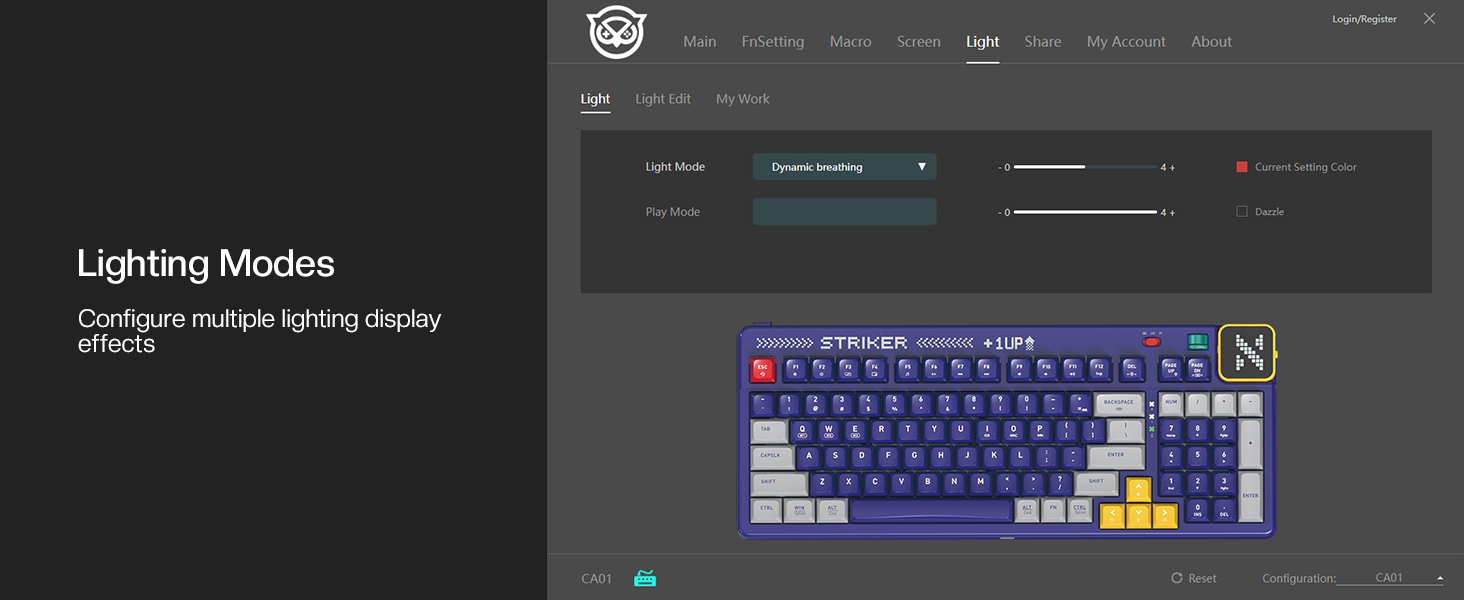
Image 6.4: NYXI Driver App interface for lighting mode configuration.

Image 6.5: NYXI Driver App interface for dot matrix screen customization.
7. Vedlikehold
7.1 Rengjøring
- Bruk en myk, tørr klut til å tørke av tastaturoverflaten.
- For deeper cleaning, use the provided keycap puller to remove keycaps and clean dust or debris with compressed air.
- Avoid using harsh chemicals or abrasive materials that could damage the keyboard finish or keycap legends.
7.2 Oppbevaring
Store the keyboard in a cool, dry place away from direct sunlight and extreme temperatures. If storing for an extended period, ensure the keyboard is fully charged and then powered off.
8. Feilsøking
- Tastaturet svarer ikke:
- Ensure the keyboard is powered on and the correct connectivity mode (wired, 2.4G, or Bluetooth) is selected.
- For wireless modes, check battery level. Recharge if necessary.
- For 2.4GHz, ensure the receiver is properly plugged into a USB port.
- For Bluetooth, ensure it is paired correctly and the selected channel (Fn + 1-5) matches the paired device. Try re-pairing.
- Try connecting via USB wired mode to rule out wireless issues.
- RGB lights not working/displaying correctly:
- Ensure RGB is enabled (check the NYXI Driver App if installed).
- Bla gjennom lysmoduser med Fn + venstre Ctrl.
- Juster lysstyrken ved hjelp av Fn + Arrow Up.
- Nøkler registreres ikke:
- If a specific key is not working, the switch might be faulty. Utilize the hot-swappable feature to replace the switch with one of the spares provided.
- Sørg for at det ikke sitter igjen rusk under tastehetten eller bryteren.
- Tilkoblingsproblemer (forsinkelser, frakoblinger):
- For wireless modes, ensure the keyboard is within range of the receiver/device and there are no significant obstructions.
- Minimer interferens fra andre trådløse enheter.
- Ensure the keyboard's battery is sufficiently charged.
If issues persist, please refer to the Warranty & Support section for further assistance.
9. Spesifikasjoner
| Trekk | Detalj |
|---|---|
| Modellnummer | CA01 |
| Tilkoblingsteknologi | 2.4G trådløs, Bluetooth 5.0, USB-C kablet |
| Tastaturbeskrivelse | Mekanisk |
| Antall nøkler | 97 nøkler |
| Kompatible enheter | macOS, Windows 7 or later, iOS |
| Spesielle funksjoner | Backlit (RGB), Customizable Display Keys, Gasket Structure, Hot-Swappable |
| Tastaturbakgrunnsbelysning Fargestøtte | RGB (22 moduser) |
| Stil | NGC Retro |
| Produktdimensjoner | 38.91 x 15.44 x 3.3 cm (L x B x H) |
| Varevekt | 3.56 pund (1.61 kg) |
| Produsent | NYXI |
10. Garanti og støtte
10.1 Garantiinformasjon
NYXI products are covered by a limited warranty against defects in materials and workmanship. Please refer to the official NYXI website or your purchase documentation for specific warranty terms and conditions, including duration and coverage details.
10.2 Kundestøtte
For technical assistance, troubleshooting, or warranty claims, please contact NYXI customer support through their official website. You may need to provide your product model number (CA01) and proof of purchase.
Thank you for choosing the NYXI Striker Retro Mechanical Gaming Keyboard.