
1. Introduksjon
Takk for kjøpetasing the Womier SK80 Wired Gaming Keyboard. This mechanical keyboard features a 75% compact layout, an integrated LCD screen, hot-swappable switches, and customizable RGB backlighting. Designed for both gaming and daily use, it offers a comfortable and responsive typing experience. This manual provides detailed instructions for setup, operation, maintenance, and troubleshooting to ensure optimal performance of your keyboard.

Figure 1: Womier SK80 Wired Gaming Keyboard (Black)
2. Oppsett
2.1 Pakkeinnhold
- Womier SK80 Keyboard Unit
- USB-C-kabel
- Keycap puller
- Brukerhåndbok
2.2 Koble til tastaturet
- Finn USB-C-porten på baksiden av tastaturet.
- Koble den ene enden av den medfølgende USB-C-kabelen til tastaturet.
- Connect the other end of the USB-C cable to an available USB port on your computer (Windows PC or Mac).
- Tastaturet vil automatisk bli gjenkjent av operativsystemet ditt.

Figure 2: USB-C Cable Connection
2.3 Systemkompatibilitetsbryter
The keyboard features a switch to toggle between Windows and Mac operating system modes. Locate the switch on the back or side of the keyboard and set it to the appropriate position for your system.

Figure 3: Windows/Mac System Switch
2.4 Justerbare føtter
The keyboard is equipped with adjustable feet on the underside. You can extend these feet to change the typing angle for improved ergonomics and comfort.

Figur 4: Justerbare tastaturføtter
3. Drift
3.1 LCD Multimedia Display
The Womier SK80 features a vibrant color multimedia display on the upper right side. This screen provides visual feedback for various settings and functions:
- Tilpassede GIF-bilder: Vis personlige GIF-animasjoner.
- Caps Lock Status: Indicates whether Caps Lock is active.
- Tilkoblingsmodus: Shows the current connection status.
- WIN/MAC System: Confirms the selected operating system mode.
- Bakgrunnsbelysningens lysstyrke/hastighet: Juster og view current backlight settings.
- RGB-modus/farge: Velg og forhåndsvelgview RGB lighting effects and colors.
- Volum: Displays the current audio volume level.
- Språk: Shows the selected language setting.
The display screen is designed with an 11° tilt angle for optimal viewing ergonomics.

Figure 5: LCD Screen Displaying Various Settings
3.2 RGB-bakgrunnsbelysning
The keyboard offers extensive RGB backlighting customization:
- 19 Lyseffekter: Choose from a variety of pre-set lighting patterns.
- 9 lysfarger: Select your preferred color scheme.
- Justerbar lysstyrke og hastighet: Fine-tune the intensity and animation speed of the backlight.
- Musikksynkroniseringsmodus: In this mode, lighting patterns will dynamically respond to playing music.
All RGB backlight modes and settings can be customized using the dedicated keyboard driver software.
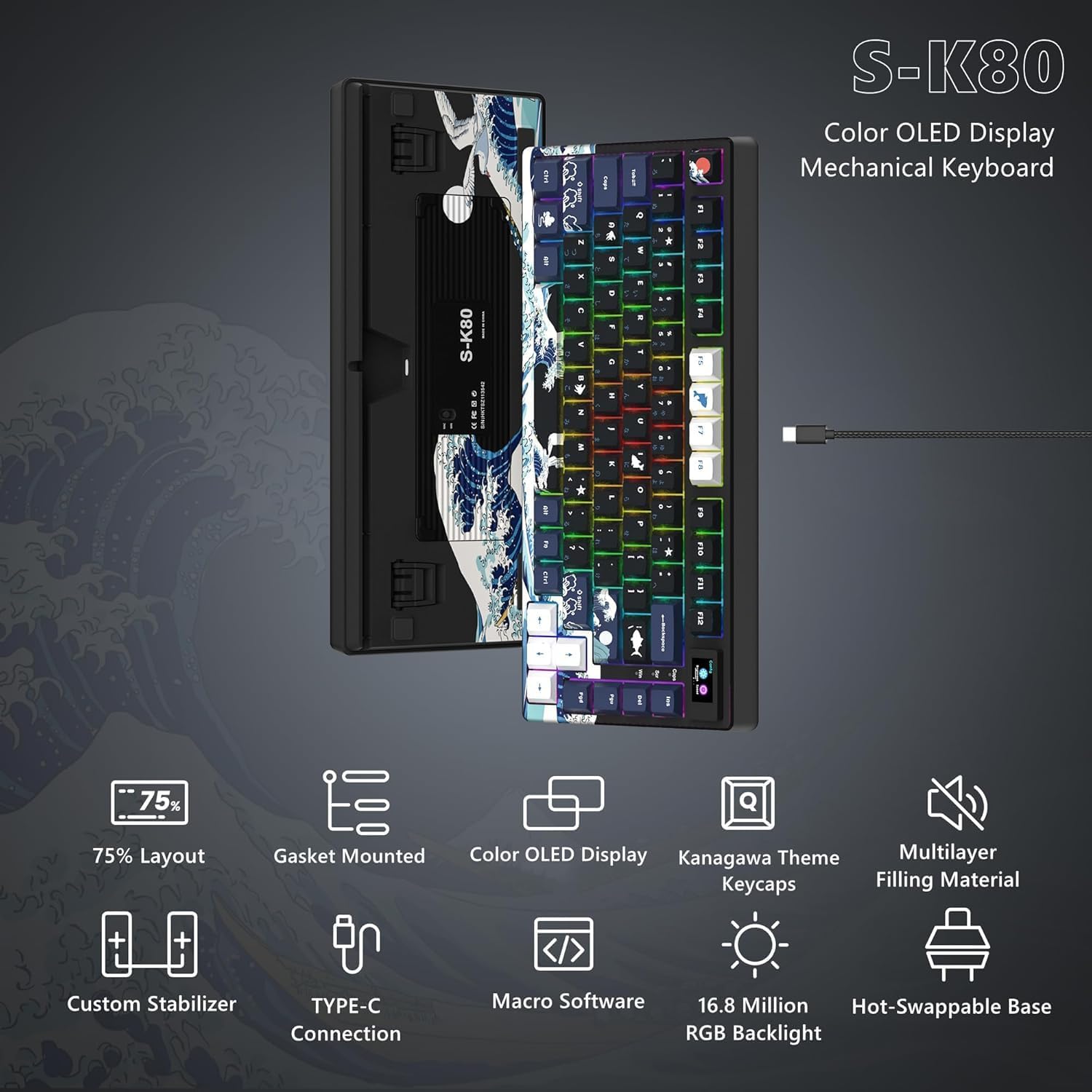
Figure 6: Customizable RGB Backlighting
3.3 Programmerbar programvare
The Womier SK80 keyboard is fully customizable through its dedicated driver software. This software allows users to:
- Set dynamic GIF animations for the LCD screen.
- Define custom lighting effects.
- Program macro functions for individual keys.
Refer to the software's interface for detailed instructions on customization options.

Figure 7: Keyboard Driver Software Interface
3.4 Utskiftbare brytere
The keyboard features a hot-swappable PCB, allowing you to easily change mechanical switches without soldering. It supports both 3-pin and 5-pin switches. This enables personalization of your typing feel and sound.
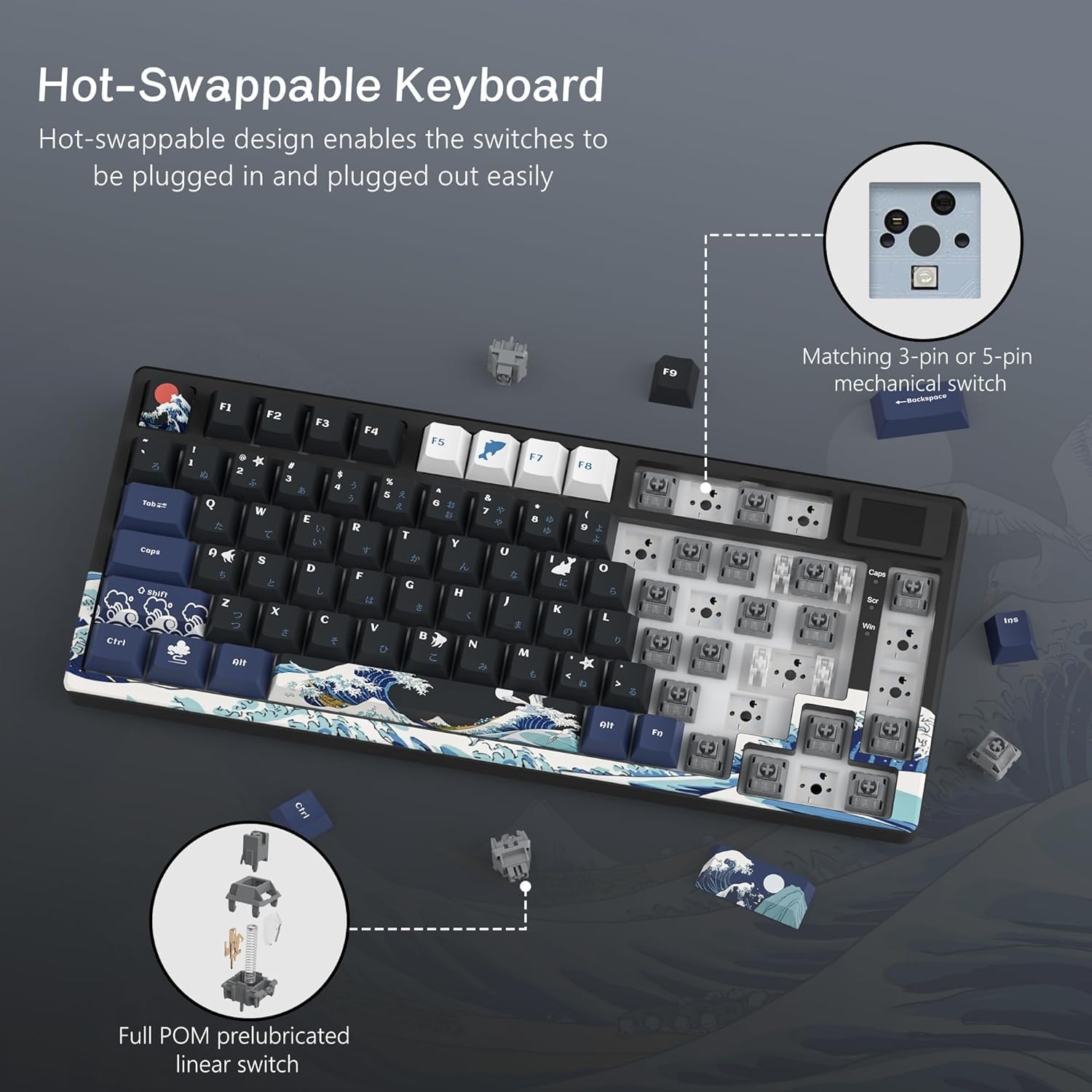
Figur 8: Brytermekanisme som kan byttes under drift
3.5 Gasket Mount Design and Keycaps
The SK80 utilizes a gasket mount design, which enhances typing stability and reduces noise, contributing to a more immersive experience. It comes with classic Cherry profile PBT keycaps, offering durability and a comfortable feel.

Figure 9: Gasket Mount Structure and Keycap Profile
4. Vedlikehold
4.1 Rengjøring av tastaturet
- Koble tastaturet fra datamaskinen før rengjøring.
- Bruk en myk, lofri klut dampened with a small amount of water or a mild cleaning solution to wipe the keycaps and keyboard surface.
- Bruk trykkluft eller en liten børste for å fjerne støv og rusk mellom tastene.
- To clean under the keycaps, use the provided keycap puller to carefully remove them. Clean the switches and plate, then reattach the keycaps.
- Unngå bruk av sterke kjemikalier eller slipende materialer, da disse kan skade tastaturets overflate eller tasteteksten.
4.2 Bryterutskifting (kan byttes under drift)
- Ensure the keyboard is disconnected from your computer.
- Use a keycap puller to remove the desired keycap.
- Use a switch puller (not included, but commonly available) to gently grip and pull the switch straight up from the PCB.
- Juster pinnene på den nye bryteren med hullene på kretskortet og trykk godt ned til den klikker på plass. Sørg for at pinnene ikke er bøyd.
- Sett på tastehetten.
5. Feilsøking
5.1 Tastaturet svarer ikke
- Sørg for at USB-C-kabelen er ordentlig koblet til både tastaturet og datamaskinen.
- Prøv å koble tastaturet til en annen USB-port på datamaskinen.
- Test tastaturet på en annen datamaskin for å utelukke et datamaskinspesifikt problem.
- Verify that the Windows/Mac compatibility switch is set correctly for your operating system.
5.2 Bakgrunnsbelysningen fungerer ikke eller er feil
- Check the backlight brightness settings via the LCD screen or the programmable software.
- Ensure no specific lighting profile is overriding your desired settings.
- If using the software, ensure it is up to date and correctly installed.
5.3 Nøkler registreres ikke eller dobbelttastes
- For hot-swappable switches, carefully remove the keycap and switch for the affected key. Reinsert the switch firmly to ensure proper contact.
- Clean any debris around the switch stem.
- If the issue persists, consider replacing the switch.
6. Spesifikasjoner
| Trekk | Beskrivelse |
|---|---|
| Merke | Womier |
| Modell | SK80 |
| Tilkobling | Kablet (USB-C) |
| Tastaturbeskrivelse | Mekanisk |
| Anbefalt bruk | Gaming, Office Work, Typing, Programming, Esports, General Computer Use |
| Spesielle funksjoner | LCD Screen, Hot-Swappable, RGB Backlight, 75% Compact Layout, Wired Connection, Windows/Mac Compatible, Gaming/Office Compatible, Japanese Layout, Programmable Keys, Customizable Display |
| Farge | Svart |
| Støtte for bakgrunnsbelysningsfarger | RGB |
| Stil | Gaming |
| Produktdimensjoner (L x B x H) | 34 x 17 x 3.5 cm |
| Kompatible enheter | Windows PC, Mac, Desktop Computers, Laptops, Gaming PCs |
| Brytertype | Mechanical Switch (Hot-Swappable) |
| Tastaturoppsett | QWERTY (Japanese Layout) |
| Antall nøkler | 80 (75% layout) |
| Waterproof Type | Ikke vanntett |
| Kompatibel OS-familie | Windows, Mac |
| Inkluderte komponenter | USB Cable, Keycap Puller, Keyboard Unit, User Manual |
| Product Exterior Material | ABS, Aluminum, Plastic, Polyethylene Terephthalate |
| Keyboard Plate Material | Aluminum Alloy, Polycarbonate |
7. Garantiinformasjon
The Womier SK80 Wired Gaming Keyboard comes with a 1 års produsentgaranti fra kjøpsdatoen. Denne garantien dekker material- og produksjonsfeil ved normal bruk. Vennligst ta vare på kjøpsbeviset for garantikrav.
Garantien dekker ikke:
- Skade forårsaket av ulykke, misbruk, misbruk, flom, brann, jordskjelv eller andre eksterne årsaker.
- Damage caused by operating the product outside the permitted or intended uses described by Womier.
- Damage caused by service performed by anyone who is not a representative of Womier.
- Products or parts that have been modified to alter functionality or capability without the written permission of Womier.
8. Kundestøtte
For technical assistance, warranty claims, or general inquiries, please contact Womier customer support through the following channels:
- Online støtte: Visit the official Womier webnettsted for vanlige spørsmål og støtteressurser.
- E-post: Se produktemballasjen eller den offisielle webnettsted for e-postadressen til support.
When contacting support, please have your product model (SK80) and proof of purchase readily available.