
1. Introduksjon
The 3Dconnexion SpaceMouse Wireless is an advanced 3D navigation device designed for professionals and enthusiasts working with 3D applications. It provides intuitive and precise control over digital content and camera positions, enhancing workflow efficiency in CAD and 3D modeling environments.
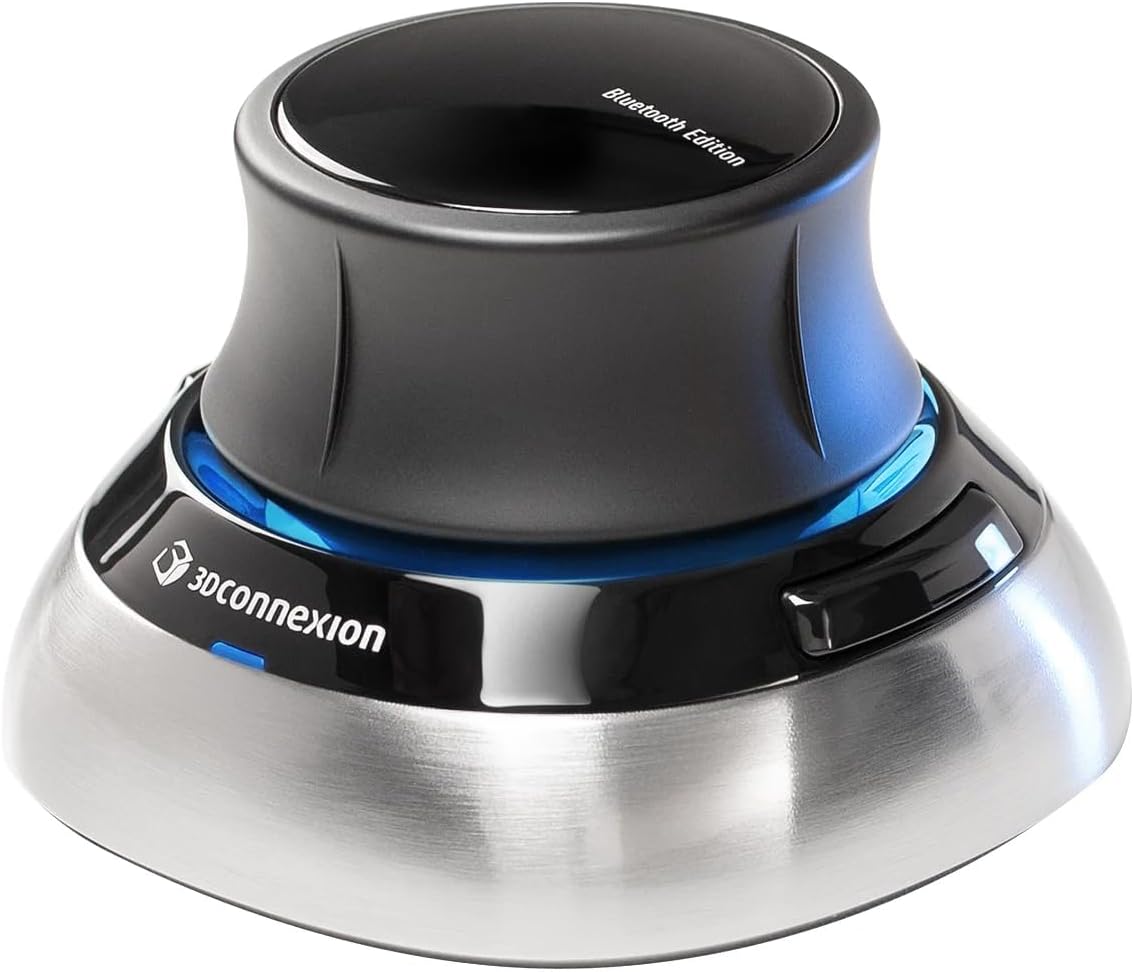
Figure 1: The 3Dconnexion SpaceMouse Wireless, a compact and ergonomic device for 3D navigation.
2. Oppsett
2.1. Pakkens innhold
- 3Dconnexion SpaceMouse Wireless
- 3Dconnexion universell mottaker
- USB-C-kabel (1.5 m)
- Bæreveske
2.2. Tilkoblingsalternativer
The SpaceMouse Wireless offers flexible connectivity:
- Wireless via Bluetooth: Connect directly to your computer's Bluetooth.
- Wireless via 3Dconnexion Universal Receiver: Plug the included USB receiver into an available USB port on your computer.
- Wired via USB-C Cable: Connect the device directly to your computer using the provided USB-C cable. This also charges the device.
For initial setup or if experiencing connectivity issues, a wired connection is recommended to ensure driver installation and proper device recognition.
3. Bruksanvisning
3.1. 6-Degrees-of-Freedom (6DoF) Sensor
The core of the SpaceMouse Wireless is its patented 6DoF sensor. This sensor allows for simultaneous panning, zooming, and rotating of 3D models. To operate:
- Skyv/trekk: Move the controller cap forward or backward to pan the model.
- Vri: Rotate the cap clockwise or counter-clockwise to rotate the model around its axis.
- Tilt: Lean the cap left, right, forward, or backward to tilt the model.
- Combine Movements: Apply multiple forces simultaneously for complex navigation.
Use your other hand with a standard mouse for selecting, creating, or editing models, creating a seamless dual-hand workflow.
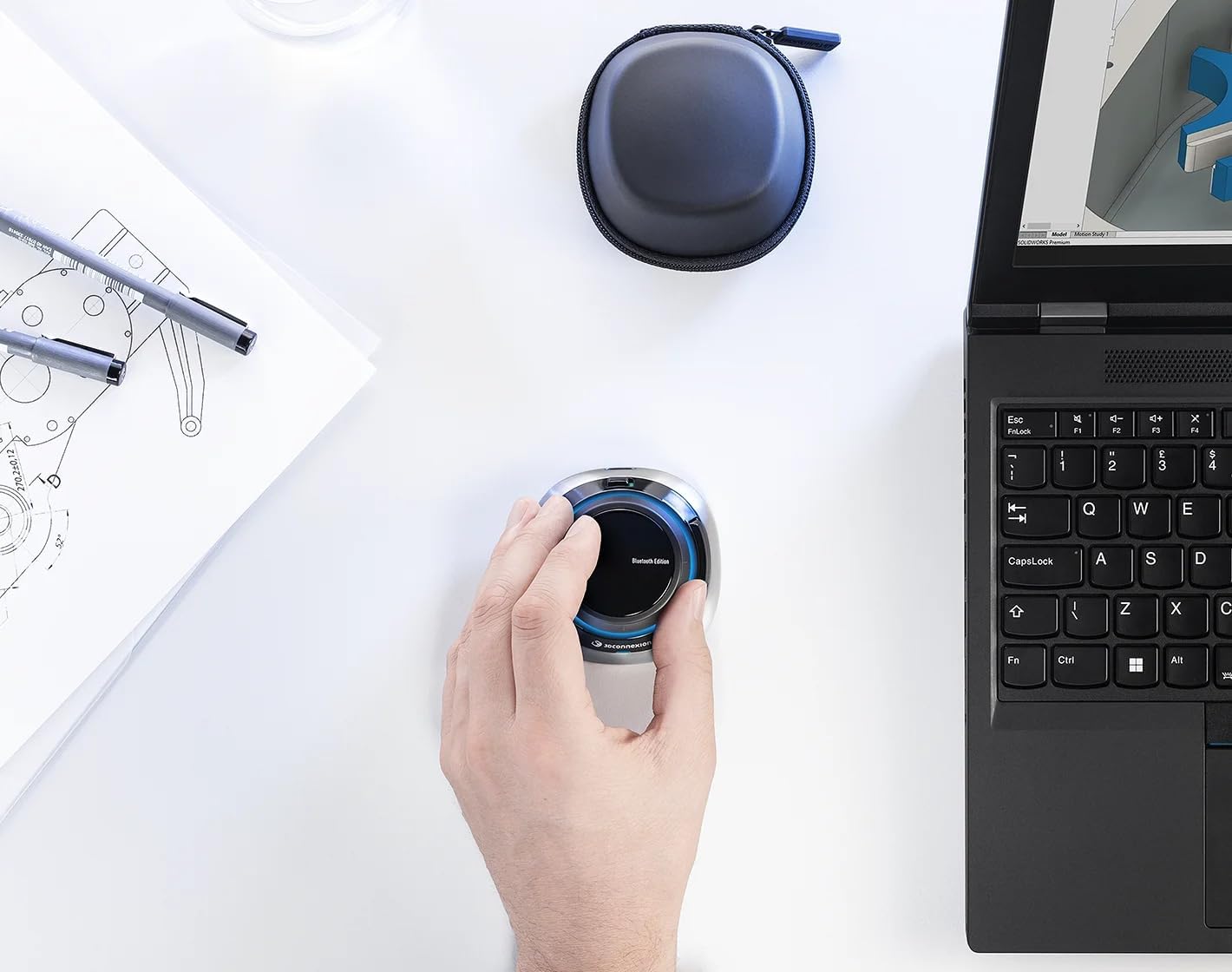
Figure 2: Demonstrates a user interacting with the SpaceMouse Wireless for 3D design on a laptop.
3.2. Programmable Buttons and Customization
The SpaceMouse Wireless features two programmable side buttons. These can be customized using the 3DxWare 10 software to assign application commands, create radial menus, or map custom macros. This allows for a personalized and efficient workflow tailored to your specific software applications.
The device also includes QuickView keys and intelligent function buttons for quick access to frequently used commands and keyboard modifiers (Ctrl, Alt, Shift, Esc).

Figur 3: En detaljert view of a hand manipulating the SpaceMouse Wireless, highlighting its ergonomic design and accessible buttons.
3.3. 3DxWare 10 Software
The 3DxWare 10 software is the unified driver for all 3Dconnexion devices. It provides a user-friendly interface to:
- Adjust sensitivity and speed settings for the 6DoF sensor.
- Program the two side buttons with application-specific commands.
- Create and manage radial menus for quick access to multiple functions.
- Map custom macros to streamline repetitive tasks.
Ensure 3DxWare 10 is installed and up-to-date for optimal performance and customization.
4. Vedlikehold
4.1. Lading av enheten
The SpaceMouse Wireless is equipped with a high-capacity rechargeable Lithium-Ion battery, providing up to one month of use on a single charge. To charge:
- Connect the included USB-C cable to the device and an available USB port on your computer or a USB wall adapter.
- Enheten kan brukes under lading.
4.2. Rengjøring
To clean the SpaceMouse Wireless, use a soft, damp cloth. Avoid using harsh chemicals or abrasive materials that could damage the device's surface.
4.3. Lagring og transport
When not in use or during transport, store the SpaceMouse Wireless in its compact, lightweight, and durable carry case to protect it from damage.
5. Feilsøking
5.1. Tilkoblingsproblemer
- Enheten gjenkjennes ikke: Ensure the 3Dconnexion Universal Receiver is securely plugged into a USB port, or that Bluetooth is enabled and the device is paired. Try connecting the device via the USB-C cable to confirm functionality and driver installation.
- Intermitterende tilkobling: Check for potential interference from other wireless devices. Ensure the device is within range of the receiver or Bluetooth connection.
5.2. Programvareproblemer
- Knapper som ikke svarer: Verify that the 3DxWare 10 software is installed and running. Check the button assignments within the software for your specific application.
- Navigation not working as expected: Adjust the sensitivity settings in the 3DxWare 10 software. Ensure the correct application profile er aktiv.
6. Spesifikasjoner
| Trekk | Detalj |
|---|---|
| Merke | 3D-tilkobling |
| Modellnummer | 3DX-700115 |
| Serie | SpaceMouse trådløs |
| Tilkoblingsteknologi | Bluetooth, USB, Trådløs |
| Bevegelsesdeteksjonsteknologi | Trackball/Sensor (6DoF) |
| Maskinvareplattform | PC, Mac |
| Operativsystem | Windows, macOS |
| Varevekt | 15.9 unser |
| Produktdimensjoner (LxBxH) | 78 x 78 x 0.1 tommer |
| Farge | Svart |
| Strømkilde | Batteridrevet |
| Batteritype | 1 litiumionbatteri (inkludert) |
| Gjennomsnittlig batterilevetid | Opptil 1 måned |
| Spesielle funksjoner | Bluetooth, Ergonomic Design, Portable, Programmable Buttons, Wireless |
7. Garanti og støtte
7.1. Garantiinformasjon
Specific warranty details for the 3Dconnexion SpaceMouse Wireless are typically provided with your purchase documentation or can be found on the official 3Dconnexion webnettsted. Se disse ressursene for omfattende garantivilkår.
7.2. Teknisk støtte
For technical assistance, driver downloads, and additional product information, please visit the official 3Dconnexion support webnettsted. Du kan også finne vanlige spørsmål og fellesskapsfora der.
Online støtte: www.3dconnexion.com/support