X9 Full-Size Bluetooth Keyboard with Phone Holder
Model: X9RBBLKBDOCKS | Brand: X9 Performance
Introduksjon
The X9 Full-Size Bluetooth Keyboard with Phone Holder is a versatile input device designed for enhanced productivity across multiple platforms. It features a full 110-key layout, integrated phone/tablet holder, and multi-device connectivity via 2.4G wireless and Bluetooth. This manual provides detailed instructions for setting up, operating, maintaining, and troubleshooting your keyboard.
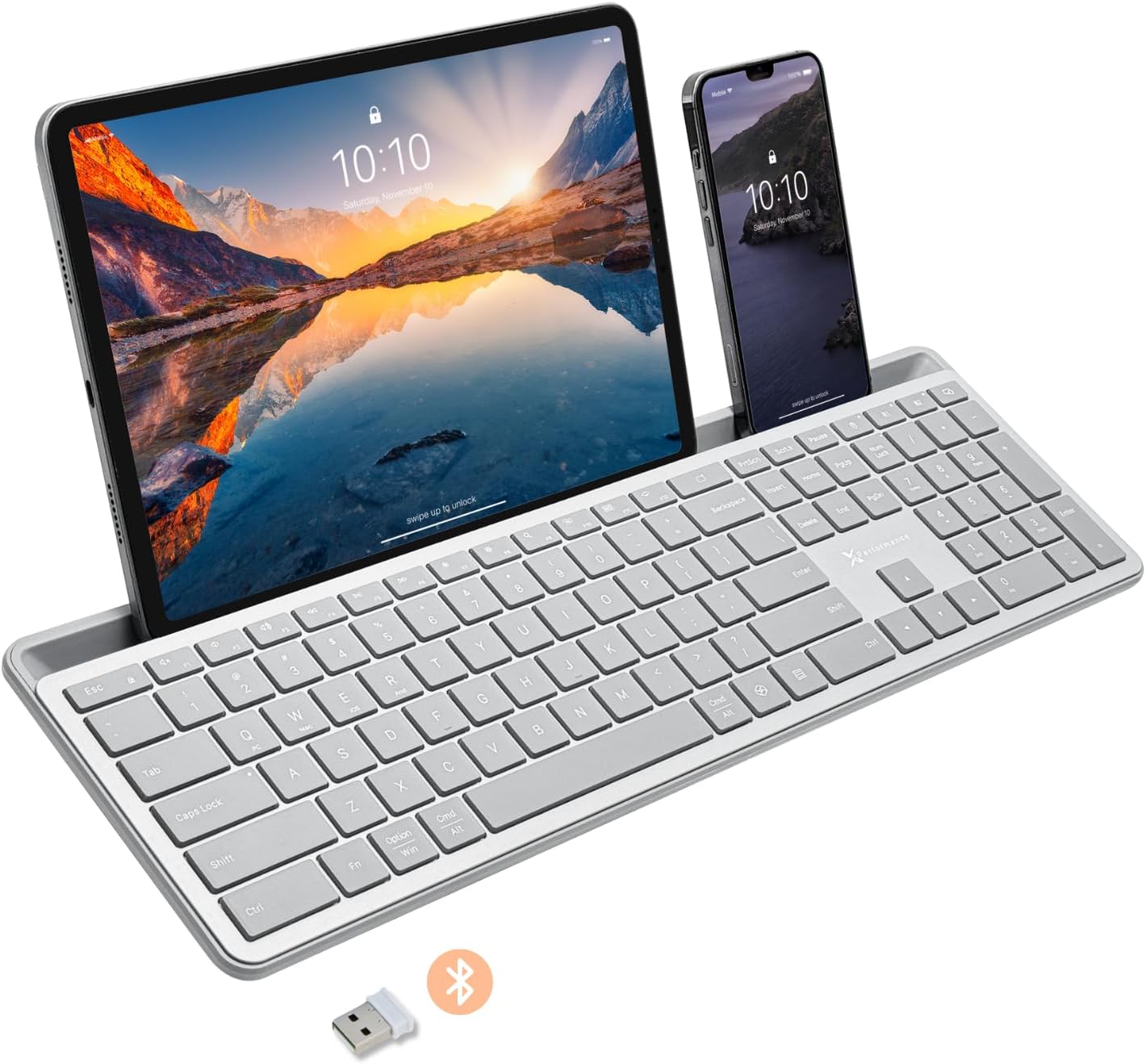
Image: The X9 Full-Size Bluetooth Keyboard in silver, featuring an integrated dock holding a tablet and a smartphone. A USB dongle and Bluetooth symbol are visible below the keyboard.
Nøkkelfunksjoner
- Trippelmodus-tilkobling: Seamlessly connect up to three devices using 2.4G wireless (via included USB dongle) and two independent Bluetooth channels.
- Integrated Device Dock: An extra-long dock (16.75" long x 0.45" wide) securely holds your smartphone and tablet simultaneously, allowing for easy transitions between devices. Note: May not fit devices with thick cases.
- Bakgrunnsbelyste taster: Crisp white LED backlighting with 3 adjustable brightness levels for comfortable typing in various lighting conditions.
- Oppladbart batteri: Equipped with a 1000 mAh rechargeable battery for extended use, with a USB-C charging cable included.
- Oppsett i full størrelse: A complete 110-key layout including a numeric keypad for efficient data entry and productivity.
- Multi-OS-kompatibilitet: Designed for Windows and Mac users, with seamless compatibility across macOS, iOS, and Android operating systems.
- Stille taster: Keys are designed for a quiet typing experience.

Image: Diagram illustrating the keyboard's ability to pair with up to three devices: a smartphone via Bluetooth (channel 1), a desktop monitor via 2.4GHz wireless (channel 2), and a laptop via Bluetooth (channel 3).

Bilde: Et nærbilde view of the keyboard's integrated dock, highlighting its extra-long design and a note indicating its dimensions (0.45" width) and potential incompatibility with thick device cases.

Image: A close-up of the keyboard's side, showing a USB-C cable plugged into the charging port, with text indicating a 1000mAh rechargeable battery.
Pakkeinnhold
Sørg for at alle varene er til stede i pakken:
- X9 Full-Size Bluetooth Keyboard
- USB-C ladekabel
- 2.4G USB trådløs dongel
Oppsettveiledning
1. Lade tastaturet
Before first use, fully charge the keyboard. Connect the included USB-C charging cable to the keyboard's charging port and the other end to a USB power source (e.g., computer USB port, USB wall adapter). The charging indicator light will show charging status and turn off when fully charged.
2. Koble til enheter
The X9 keyboard supports three connection channels: one 2.4G wireless channel and two Bluetooth channels (B1 and B2).
2.1. 2.4G trådløs tilkobling
- Locate the 2.4G USB wireless dongle, typically stored in a compartment on the keyboard.
- Koble USB-donglen til en ledig USB-port på datamaskinen.
- Turn on the keyboard. The keyboard should automatically connect to your computer via the 2.4G dongle.
2.2. Bluetooth Connection (B1 / B2)
- Slå på tastaturet.
- Trykk og hold inne B1 or B2 key for 3-5 seconds until the corresponding indicator light (B1 or B2) starts blinking rapidly. This indicates the keyboard is in pairing mode.
- Gå til Bluetooth-innstillingene på enheten din (smarttelefon, nettbrett, datamaskin) og aktiver Bluetooth.
- Søk etter new devices. The keyboard should appear as "X9 Keyboard" or similar.
- Select the keyboard from the list to pair. Follow any on-screen prompts to complete the pairing process. The indicator light will stop blinking and remain solid for a few seconds, then turn off, indicating successful connection.
- Repeat these steps for the second Bluetooth channel (B2) if you wish to connect another device.
Bruksanvisning
1. Bytte mellom tilkoblede enheter
For å bytte mellom de tilkoblede enhetene dine, trykker du ganske enkelt på den tilhørende tilkoblingstasten:
- Pressen 2.4G key to switch to the device connected via the USB dongle.
- Pressen B1 key to switch to the device connected via Bluetooth Channel 1.
- Pressen B2 key to switch to the device connected via Bluetooth Channel 2.
2. Adjusting Backlight Brightness
The keyboard features three levels of backlight brightness. To adjust:
- Trykk på Fn tasten + Lyspære key (usually located near the F12 key) repeatedly to cycle through the brightness levels (Low, Medium, High, Off).

Image: A close-up of the keyboard in a dark setting, showcasing its clear backlit keys. Indicators for Low, Medium, and High brightness levels are shown below the keyboard.
3. Using the Copilot AI Key
The keyboard includes a dedicated Copilot AI key for quick access to AI functionalities on compatible systems. Press this key to activate Copilot or similar AI features.
4. Operating System Specific Functions
The keyboard is optimized for various operating systems. Some function keys may behave differently or require the Fn key to access secondary functions depending on your OS (Windows, macOS, iOS, Android).
- For optimal compatibility, ensure your device's operating system is updated.
- Some systems may require specific key combinations (e.g., Fn + Option + R for Android, as mentioned in customer reviews for specific app compatibility). Refer to your device's documentation for advanced keyboard settings.
Vedlikehold
To ensure the longevity and optimal performance of your X9 keyboard, follow these maintenance guidelines:
- Rengjøring: Bruk en myk, lofri klut litt dampened with water or a mild cleaning solution to wipe the surface of the keyboard. Avoid excessive moisture. For cleaning between keys, use compressed air.
- Lagring: Oppbevar tastaturet på et kjølig og tørt sted, unna direkte sollys og ekstreme temperaturer.
- Batteripleie: Avoid fully discharging the battery frequently. For long-term storage, charge the battery to about 50% to preserve its lifespan.
- Unngå søl: Hold væsker unna tastaturet for å forhindre skade på interne komponenter.
Feilsøking
If you encounter issues with your X9 keyboard, refer to the following common problems and solutions:
| Problem | Mulig årsak/løsning |
|---|---|
| Tastaturet slår seg ikke på. | Battery is depleted. Connect the keyboard to a power source using the USB-C cable and allow it to charge. |
| Tastaturet kobler seg ikke til via Bluetooth. |
|
| 2.4G wireless connection not working. |
|
| Tastene reagerer ikke, eller de skriver feil. |
|
| Baklyset fungerer ikke. |
|
Spesifikasjoner
| Trekk | Detalj |
|---|---|
| Modellnummer | X9RBBLKBDOCKS |
| Tilkoblingsteknologi | 2.4G trådløs, Bluetooth |
| Kompatible enheter | Laptop, PC, Mac, iOS, Android (Smartphone, Tablet) |
| Tastaturoppsett | Full-Size, 110-key |
| Bakgrunnsbelysning | Single Color (White), 3 Brightness Levels |
| Batterikapasitet | 1000 mAh (oppladbar) |
| Produktdimensjoner (L x B x H) | 44.02 cm x 14.12 cm x 2.26 cm (17.33 x 5.56 x 0.89 tommer) |
| Varevekt | 2.25 pund (1.02 kg) |
| Device Dock Dimensions (L x W) | 16.75 cm x 0.45 cm |
| Produsent | X9 Ytelse |

Bilde: En overhead view of the X9 keyboard with measurements indicating its length (17.3"), width (5.55"), and height (0.89").
Garantiinformasjon
X9 Performance products are designed for reliability and performance. For specific warranty terms and conditions, please refer to the warranty card included with your product or visit the official X9 Performance webVanligvis er produkter dekket mot defekter i materialer og utførelse i en spesifisert periode fra kjøpsdatoen.
Støtte
For further assistance, technical support, or to inquire about replacement parts, please contact X9 Performance customer support:
- Webnettsted: Visit the official X9 Performance webnettsted for vanlige spørsmål, drivere og støtteressurser.
- Kontakt: Se kontaktinformasjonen på produktemballasjen eller den offisielle webnettsted for telefon- eller e-poststøtte.
Please have your product model number (X9RBBLKBDOCKS) and purchase details ready when contacting support.