
1. Introduksjon
This manual provides essential instructions for the installation, setup, and operation of your TONGOU Wi-Fi Smart Switch 1P+N DIN Rail DIY with Power Monitoring. This device allows you to transform traditional household appliances into smart, connected devices, offering remote control, voice control, and energy consumption monitoring through the Smart Life or Tuya application.

Image 1.1: TONGOU Wi-Fi Smart Switch integrated into a smart home system, showing app control and Wi-Fi connectivity.
2. Sikkerhetsinformasjon
WARNING: Electrical installation should only be performed by qualified personnel. Incorrect installation can lead to electric shock, fire, or property damage.
- Koble alltid fra strømmen ved hovedsikringen før installasjon eller vedlikehold.
- Sørg for at enheten er installert i et tørt miljø, unna fuktighet og ekstreme temperaturer.
- Kontroller at voltage and current ratings of the switch match your electrical system requirements.
- Do not exceed the maximum current rating of 6A for this model.
- Sørg for at alle ledningsforbindelser er sikre og ordentlig isolert.
3. Pakkens innhold
Bekreft at alle varene er til stede i pakken:
- 1 x TONGOU Wi-Fi Smart Switch (Model: With Power Monitoring 6A)
- 1 x brukerhåndbok
4. Spesifikasjoner
| Trekk | Spesifikasjon |
|---|---|
| Merke | TONGOU |
| Modellnummer | With Power Monitoring 6A |
| Driftsvoltage | AC 90 - 240 V, 50/60 Hz |
| Trådløs type | Wi-Fi 2.4 GHz (5/4 GHz not supported) |
| Nåværende vurdering | 6 A |
| Maximum Wiring Capacity | 10 mm² (Power side and Load side) |
| Monteringstype | DIN -skinnemontering |
| Dimensjoner (L x B x H) | 9 x 2 x 8 cm |
| Vekt | 120 gram |
| Kontaktmateriale | Silver-plated relay contacts |
| Driftsmodus | På/Av |
| Sertifiseringer | CE |
| Driftstemperatur | Opptil 80 grader Celsius |
5. Installasjon
The TONGOU Wi-Fi Smart Switch is designed for DIN rail mounting. Follow these steps for proper installation:
- Strømfrakobling: Før du starter noe elektrisk arbeid, må du sørge for at hovedstrømforsyningen til kretsen er slått av ved sikringsbryteren.
- Montering: Mount the smart switch onto a standard 35mm DIN rail. The device occupies one position (18mm width).
- Kabling: Connect the power input (N for Neutral, L for Live) to the top terminals labeled 'Power'. Connect the load output (N for Neutral, L for Live) to the bottom terminals labeled 'Load'. The maximum wiring capacity is 10 mm² for both power and load sides. Ensure correct polarity.
- Kretsbeskyttelse: It is recommended to install an upstream residual current circuit breaker (RCBO/A type, 30mA/10kA) to protect the circuit.
- Sikre tilkoblinger: Use a screwdriver to securely tighten all wire connections.

Image 5.1: Wiring diagram illustrating the connection of the TONGOU Wi-Fi Smart Switch to a circuit with an upstream circuit breaker and a light bulb as a load.
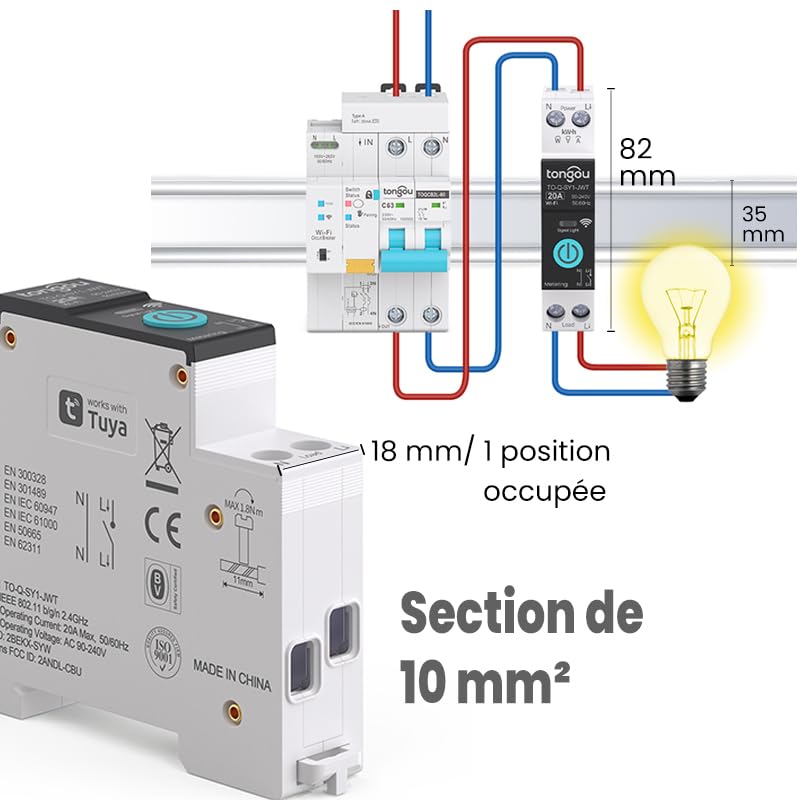
Image 5.2: Close-up of the smart switch showing its dimensions (82mm height, 35mm depth, 18mm width) and indicating a 10 mm² wiring section capacity.
6. Oppsett
To enable smart functionalities, connect your TONGOU Wi-Fi Smart Switch to the Smart Life or Tuya application.
- Last ned appen: Download the "Smart Life" or "Tuya Smart" application from the App Store (iOS) or Google Play Store (Android).
- Registrer/Logg inn: Åpne appen og registrer en ny konto eller logg inn med en eksisterende.
- Gå inn i sammenkoblingsmodus: After restoring power to the switch, press and hold the main button on the device for 5 to 10 seconds until the signal light blinks rapidly in blue. This indicates the device is in pairing mode.
- Legg til enhet i appen: In the Smart Life/Tuya app, tap the "+" icon (usually in the top right corner) to add a new device. The app should automatically discover the switch. If not, manually select "Electrical" > "Circuit Breaker (Wi-Fi)" or similar.
- Koble til Wi-Fi: Follow the in-app instructions to connect the device to your 2.4 GHz Wi-Fi network. Note: The device only supports 2.4 GHz Wi-Fi; 5 GHz networks are not compatible.
- Gi nytt navn til enheten: Når den er koblet til, kan du gi enheten nytt navn for enklere identifisering (f.eks. «Stuelampe»).

Image 6.1: Visual guide showing how to press and hold the button for 5-10 seconds until the blue indicator light blinks rapidly, signifying pairing mode.

Image 6.2: Screenshot of the Smart Life/Tuya app showing the login/register screen, a Wi-Fi router, and the process of adding a discovered "WiFi Din Rail Switch" device.
7. Drift
Once the smart switch is successfully paired, you can control it and monitor energy usage through the app or voice commands.
7.1. Fjernkontroll via app
Open the Smart Life or Tuya app. Select your TONGOU Smart Switch from the device list. You can:
- Turn the connected appliance On or Off remotely from anywhere.
- Set up various timer modes:
- Tidsmodus: Schedule specific on/off times for daily or weekly routines.
- Nedtellingsmodus: Angi en nedtellingstimer for at enheten skal slå seg av etter en angitt tid.
- Cyclic Timing Mode: Configure repetitive on/off cycles.
- Astronomical Timing Mode: Automatiser basert på soloppgangs- og solnedgangstider.
7.2. Stemmekontroll
The TONGOU Smart Switch is compatible with Amazon Alexa and Google Assistant. To enable voice control:
- Link your Smart Life/Tuya account to Amazon Alexa or Google Home app.
- Oppdag nye enheter.
- Bruk talekommandoer som:
- "Alexa, slå på [Enhetsnavn]"
- «Hei Google, slå av [Enhetsnavn]»

Image 7.1: An Amazon Echo device displaying a voice waveform, indicating it is processing a command to turn off a lamp.
7.3. Strømovervåking
The smart switch provides real-time and historical energy consumption data:
- View sanntidsstrøm, volumtage, and power consumption of the connected load.
- Access historical data (hourly, daily, monthly, yearly) to track energy usage patterns.
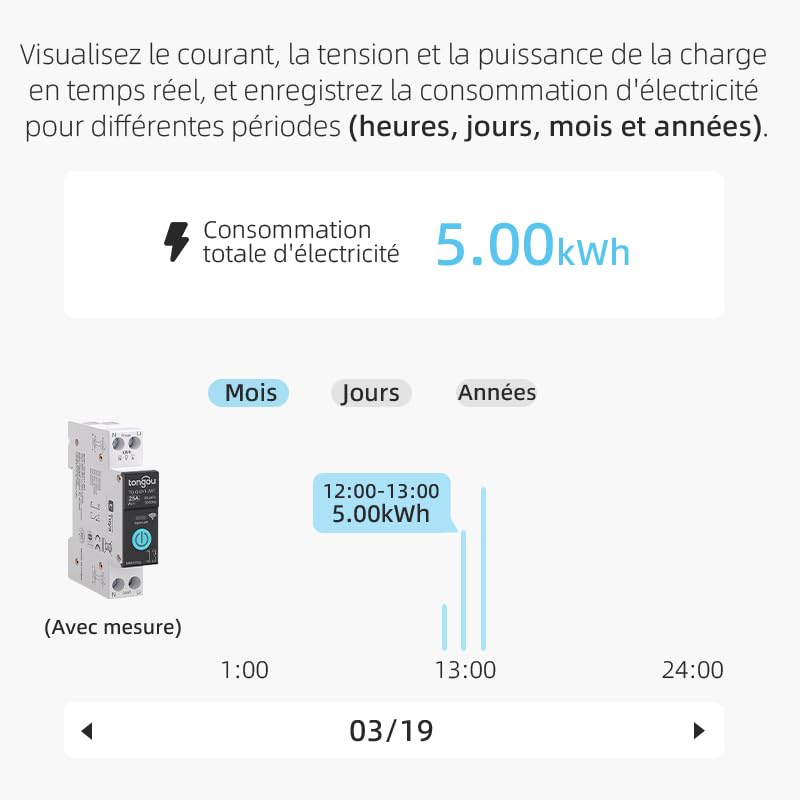
Image 7.2: A graphical representation within the app showing total electricity consumption (5.00 kWh) and a bar chart illustrating hourly consumption data for a specific date.
8. Vedlikehold
To ensure optimal performance and longevity of your TONGOU Wi-Fi Smart Switch:
- Hold enheten ren og fri for støv. Bruk en tørr, myk klut til rengjøring.
- Ikke bruk flytende rengjøringsmidler eller løsemidler.
- Sørg for tilstrekkelig ventilasjon rundt enheten for å forhindre overoppheting.
- Regularly check wiring connections for tightness, especially after initial installation.
9. Feilsøking
If you encounter issues with your TONGOU Wi-Fi Smart Switch, refer to the following common problems and solutions:
| Problem | Mulig årsak | Løsning |
|---|---|---|
| Enheten kobler seg ikke til Wi-Fi | Incorrect Wi-Fi band (5GHz), weak signal, incorrect password, device not in pairing mode. | Ensure your Wi-Fi is 2.4 GHz. Move the device closer to the router. Re-enter Wi-Fi password carefully. Put the device back into pairing mode (rapid blue blinking). |
| Enheten er frakoblet i appen | Wi-Fi disconnected, power outage, router issues. | Check your Wi-Fi router and internet connection. Verify the device has power. Re-pair if necessary. |
| Stemmekontroll fungerer ikke | Account not linked, device not discovered, incorrect commands. | Ensure Smart Life/Tuya account is linked to Alexa/Google Home. Discover devices in the voice assistant app. Use the exact device name. |
| Power monitoring data is inaccurate or missing | Feil kabling, funksjonsfeil på enheten. | Double-check wiring according to the installation diagram. Contact support if the issue persists. |
| Device not responding to manual button press | Ingen strøm, intern feil. | Check power supply to the device. If power is present and the device is unresponsive, contact support. |
10. Garanti og støtte
For warranty information and technical support, please refer to the documentation provided with your purchase or contact TONGOU customer service through their official channels. Keep your purchase receipt as proof of purchase.