
Thomson TDF-1001P
Brukerhåndbok for THOMSON 10.1-tommers digital fotoramme
Model: TDF-1001P
1. Introduksjon
This user manual provides comprehensive instructions for setting up, operating, and maintaining your THOMSON 10.1-inch WiFi Digital Photo Frame. Please read this manual carefully before using the device to ensure proper functionality and longevity.
2. Produktet er overview
The THOMSON Digital Photo Frame is designed to display your cherished memories with ease. It features a high-definition IPS touchscreen and WiFi connectivity for convenient photo sharing.
Nøkkelfunksjoner:
- 32 GB internminne: Stores approximately 50,000 photos. Supports SD Card/SDHC Card/MMC Card/USB Drive expansion up to 256GB.
- Enkelt oppsett: Connects to WiFi, automatically sets local date and time.
- 10.1-inch 1280x800 HD IPS Screen: Provides clear image viewing with a 180° viewing vinkel.
- Flere grensesnitt: Supports DC-4.0, Type-C, SD, 3.5mm Jack, and USB.
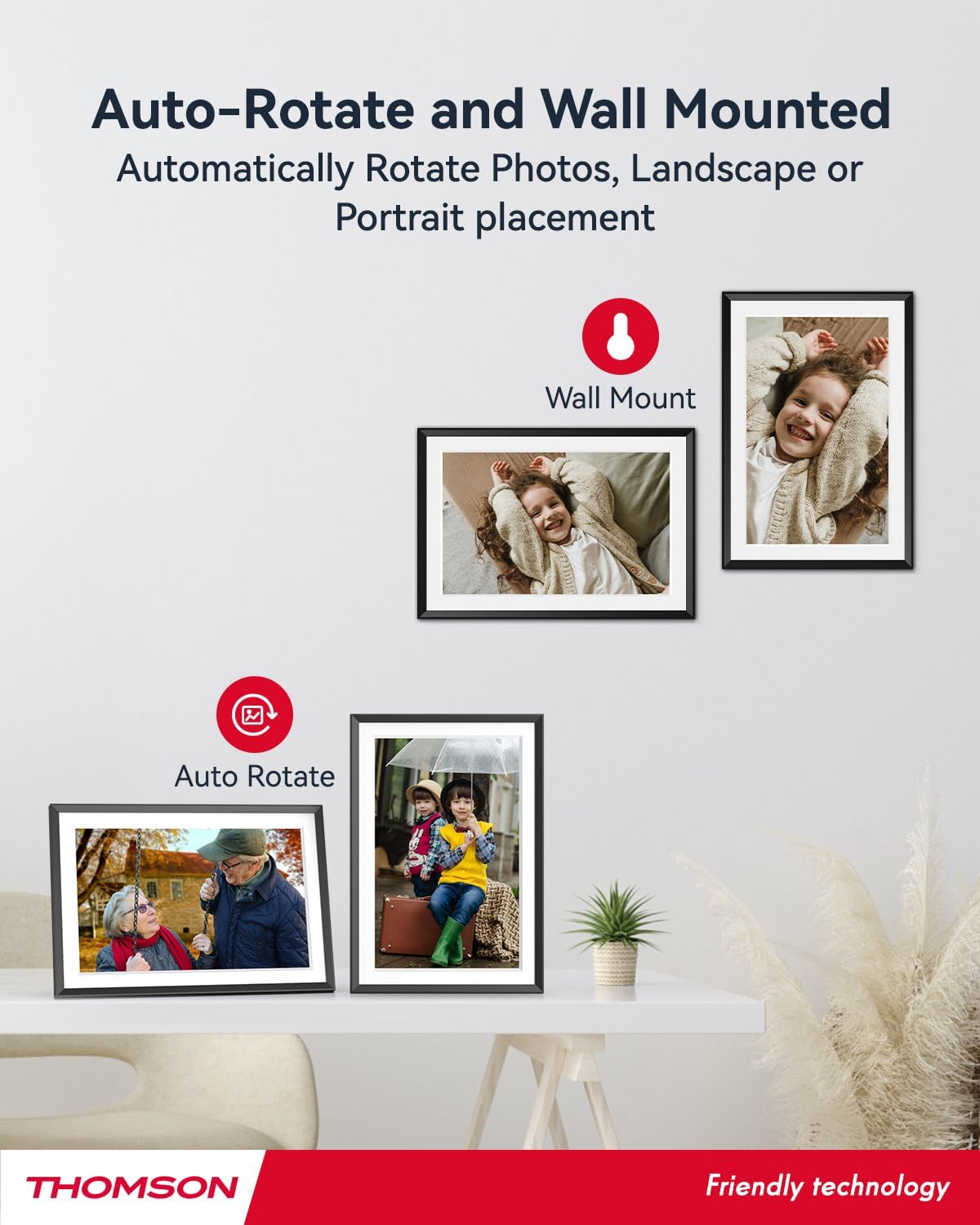
- Automatisk rotasjon: Displays photos correctly in any orientation.
- Bakgrunnsmusikk: Play music during slideshows.
- Google Photo Support: Send photos directly from Google Photos.





3. Oppsett
3.1 Utpakking og førstegangsinspeksjon
- Fjern forsiktig alle komponenter fra emballasjen.
- Verify that all items listed in the 'Product Overview'-delen er til stede.
- Inspect the frame for any signs of damage. If damaged, do not proceed and contact customer support.
3.2 Strømtilkobling
- Connect the power adapter to the DC-4.0 port on the back of the photo frame.
- Koble strømadapteren til en vanlig stikkontakt.
- The frame will power on automatically.
3.3 Nettverkstilkobling (Wi-Fi)
- On the frame's touchscreen, navigate to 'Settings' or 'Wi-Fi Settings'.
- Velg ønsket Wi-Fi-nettverk fra listen over tilgjengelige nettverk.
- Skriv inn Wi-Fi-passordet ved hjelp av skjermtastaturet.
- Confirm the connection. Once connected, the frame will automatically synchronize the date and time.
3.4 App Installation (Thomson Smart Frame)
To share photos wirelessly from your smartphone, download the 'Thomson Smart Frame' app:
- For Android devices, search for 'Thomson Smart Frame' on the Google Play Butikk.
- For iOS devices, search for 'Thomson Smart Frame' on the Apple App Store.
- Follow the on-screen instructions within the app to pair it with your digital photo frame.
4. Bruksanvisning
4.1 Legge til bilder og videoer
- Via Thomson Smart Frame App: Use the paired smartphone app to wirelessly send photos and videos to the frame.
- Via SD-kort/USB-stasjon: Insert a compatible SD card or USB drive into the respective slot. The frame will detect the media, and you can import files to the internal memory or play directly.
- Via Google Photos: The frame supports integration with Google Photos for direct photo sharing. Refer to the frame's on-screen instructions for linking your Google Photos account.
4.2 Berøringsskjermnavigasjon
The frame features an intuitive touchscreen interface. Tap to select, swipe to scroll, and pinch to zoom (if supported by the specific function).
4.3 Innstillinger for lysbildefremvisning
Customize your photo slideshow experience:
- Slideshow Speed: Adjust the duration each photo is displayed.
- Overgangseffekter: Choose from various transition styles between photos.
- Bakgrunnsmusikk: Velg lyd files to play during the slideshow.
4.4 Automatisk rotasjon
The frame automatically detects its orientation (landscape or portrait) and adjusts the displayed photos accordingly. Ensure the auto-rotate function is enabled in the settings if you wish to utilize this feature.
4.5 Flerbrukertilkobling
Multiple users can connect to the same frame via the Thomson Smart Frame app, allowing family and friends to share their photos to your frame from different locations.
5. Vedlikehold
5.1 Rengjøring av skjermen
- Turn off the photo frame and unplug it from the power source.
- Bruk en myk, lofri klut (f.eks. mikrofiberklut) til å tørke forsiktig av skjermen.
- For gjenstridige flekker, litt dampen the cloth with water or a screen-cleaning solution specifically designed for electronic displays. Do not spray liquid directly onto the screen.
5.2 Generell pleie
- Avoid exposing the frame to extreme temperatures, direct sunlight, or high humidity.
- Keep the frame away from water and other liquids.
- Do not block the ventilation openings on the frame.
- Handle the frame with care to prevent drops or impacts.
6. Feilsøking
| Problem | Mulig årsak | Løsning |
|---|---|---|
| Rammen slår seg ikke på. | Strømadapteren er ikke tilkoblet, eller stikkontakten er defekt. | Ensure power adapter is securely connected to the frame and a working electrical outlet. Try a different outlet. |
| Kan ikke koble til Wi-Fi. | Feil passord, svakt signal eller nettverksproblem. | Dobbeltsjekk Wi-Fi-passordet. Flytt rammen nærmere ruteren. Start ruteren og rammen på nytt. |
| Photos not displaying. | Støttes ikke file format, no photos loaded, or storage issue. | Ensure photos are in supported formats (e.g., JPEG, PNG). Verify photos are loaded onto the frame's internal memory or connected storage. Check storage space. |
| Berøringsskjermen reagerer ikke. | Midlertidig programvarefeil. | Start rammen på nytt ved å trekke ut strømadapteren og sette den inn igjen. |
7. Spesifikasjoner
| Trekk | Detalj |
|---|---|
| Merke | Thomson |
| Modellnummer | TDF-1001P |
| Skjermstørrelse | 10.1 tommer |
| Skjermoppløsning | 1280 x 800 HD |
| Visningstype | IPS berøringsskjerm |
| Internt minne | 32 GB |
| Utvidbart minne | SD Card/SDHC Card/MMC Card/USB Drive (up to 256GB) |
| Tilkoblingsteknologi | Wi-Fi |
| Kompatible enheter | Android- og iOS-smarttelefoner |
| Strømkilde | Elektrisk med ledning |
| Aspektforhold | 16:10 |
| Rammemateriale | Plast |
| Produktdimensjoner (L x B x H) | 26.5 x 18.4 x 2.51 cm |
| Produktvekt | 530 gram |
8. Garanti og støtte
For warranty information or technical support, please refer to the documentation included with your purchase or visit the official Thomson website. You may also contact Thomson customer service directly for assistance with product issues or inquiries.
Ask a question about this manual
Ask about setup, troubleshooting, compatibility, parts, safety, or missing instructions. Manuals+ will review the question and use this page’s manual context to help answer it.