
1. Introduksjon
Thank you for choosing the Pomya Mechanical Gaming Keyboard. This 68-key wired keyboard is designed for a comfortable and responsive typing experience, suitable for both gaming and office use. It features an ergonomic design, ice blue backlighting with multiple modes, a detachable cable, and hot-swappable switches for customization.
This manual provides essential information for the proper installation, operation, and maintenance of your keyboard. Please read it thoroughly before use.

Image: The Pomya Mechanical Gaming Keyboard, featuring its compact 68-key layout, ice blue backlighting, and a close-up of a blue mechanical switch.
2. Pakkens innhold
Vennligst sjekk innholdet i pakken for å sikre at alle varene er til stede og i god stand:
- 1 x 68-Key Mechanical Keyboard
- 1 x Keycap puller
- 1 x Data Cable (USB-A to USB-C, 5.7ft)
- 1 x brukerhåndbok (dette dokumentet)
- 3 x Blue Switches (spare)

Image: All items included in the product package: the keyboard, detachable USB cable, keycap puller, and three spare blue switches.
3. Oppsett
- Pakk ut tastaturet: Ta tastaturet og alt tilbehør forsiktig ut av emballasjen.
- Koble til datakabelen:
- Finn USB-C-porten på baksiden eller siden av tastaturet.
- Insert the USB-C end of the provided data cable into the keyboard's port.
- Insert the USB-A end of the data cable into an available USB port on your computer (desktop PC, laptop, etc.).
- Systemgjenkjenning: Your computer should automatically detect and install the necessary drivers for the keyboard. No additional software installation is typically required.
- Plassering: Position the keyboard on a stable, flat surface. Adjust the kickstands on the bottom of the keyboard for your preferred typing angle, if available.

Image: Detail of the USB-C port on the keyboard, illustrating where the detachable cable connects.
4. Bruksanvisning
4.1 Grunnleggende tastaturfunksjoner
The keyboard functions as a standard 68-key layout. All keys are anti-ghosting, ensuring accurate input even during rapid key presses.
4.2 Backlight Control (Ice Blue)
The keyboard features an ice blue backlight with over 19 different lighting modes. Use the following key combinations to control the backlight:
- Fn + \ |: Cycle through the 19+ different backlight modes.
- Fn + ↑: Øk bakgrunnsbelysningens lysstyrke.
- Fn + ↓: Reduser bakgrunnsbelysningens lysstyrke
- Fn + ←: Decrease backlight speed (for dynamic modes).
- Fn + →: Increase backlight speed (for dynamic modes).

Bilde: Overhead view of the keyboard, showing the key layout and compact design.
4.3 Multimedia- og funksjonstaster
Many keys have secondary functions accessible via the Fn key. Refer to the keycaps for specific icons indicating these functions (e.g., F1-F12, media controls).
| Kombinasjon | Funksjon |
|---|---|
| Fn+F1-F12 | Standard F-key functions (e.g., F1 for Help, F5 for Refresh). |
| Fn + Q/W/E/R/T/Y | Specific multimedia controls (check keycap legends). |
| Fn + Win | Lås/opplås Windows-tasten. |
4.4 Utskiftbare brytere
This keyboard features hot-swappable switches, allowing you to change the mechanical switches without soldering. This enables customization of typing feel and sound.
- Fjern tastehetten: Bruk den medfølgende tastehetteavtrekkeren til å forsiktig fjerne den ønskede tastehetten.
- Fjern bryteren: Use a switch puller (not included, but often comes with spare switches or can be purchased separately) to carefully pull the switch straight up from the PCB.
- Sett inn ny bryter: Align the pins of the new switch with the holes on the PCB. Press the switch firmly until it clicks into place. Ensure pins are not bent.
- Bytt tastehette: Sett tastehetten tilbake på den nye bryteren.
Note: The keyboard comes with blue switches installed and three spare blue switches. Ensure replacement switches are compatible with the keyboard's PCB (typically 3-pin or 5-pin MX-style switches).
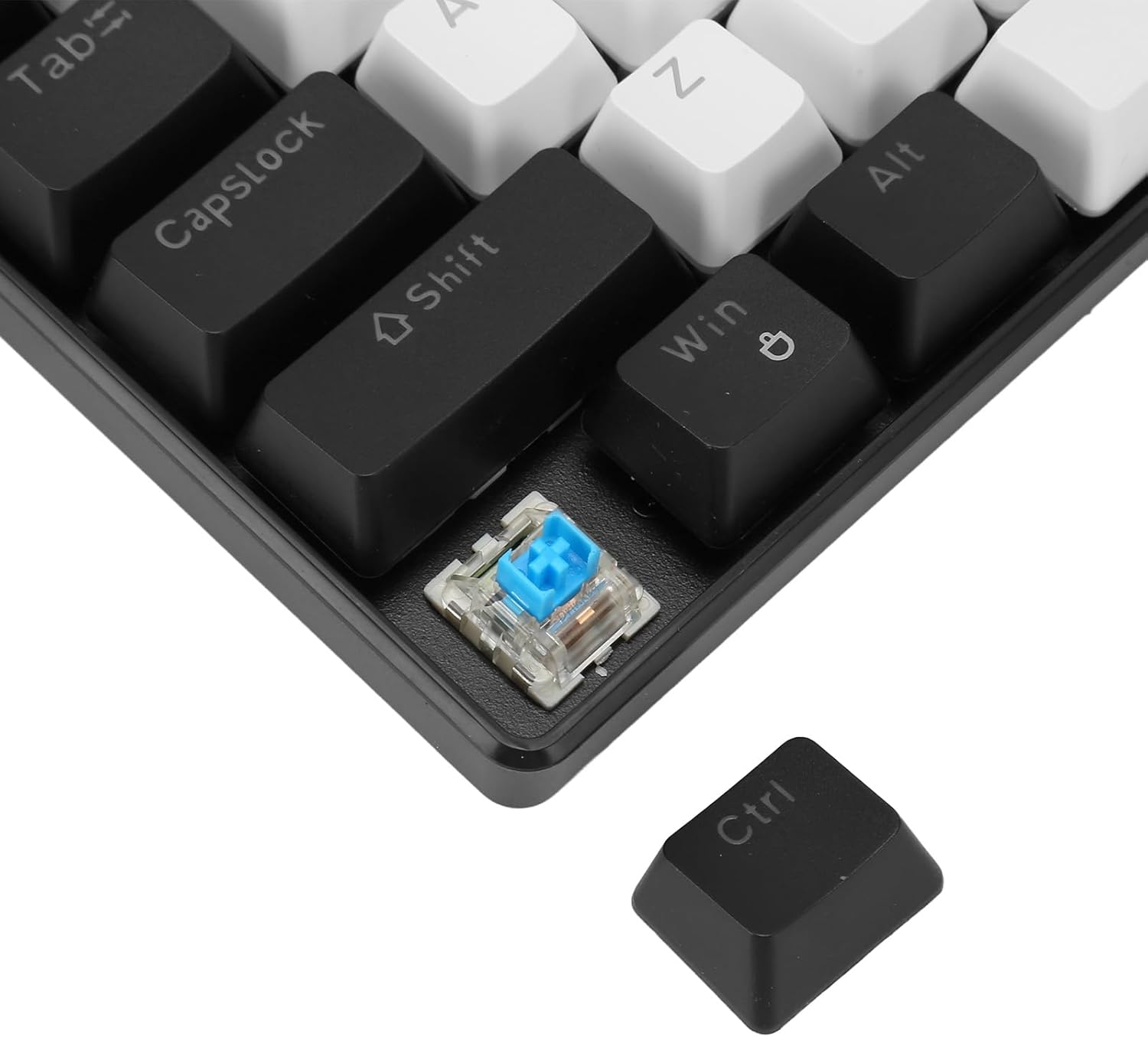
Bilde: En detaljert view showing a mechanical switch detached from the keyboard, alongside a keycap, illustrating the hot-swappable design.
5. Vedlikehold
- Rengjøring:
- Koble tastaturet fra datamaskinen før rengjøring.
- Bruk en myk, tørr klut til å tørke av overflaten på tastaturet.
- For deeper cleaning, use a keycap puller to remove keycaps and compressed air to clear dust and debris from between the switches.
- Keycaps can be cleaned with mild soap and water, then thoroughly dried before reattaching.
- Kabelpleie: The detachable cable should be handled with care. Avoid sharp bends or excessive pulling to prevent damage.
- Lagring: Oppbevar tastaturet på et rent og tørt sted, unna ekstreme temperaturer og direkte sollys når det ikke er i bruk over lengre tid.
6. Feilsøking
| Problem | Løsning |
|---|---|
| Tastaturet svarer ikke. |
|
| Bakgrunnsbelysningen fungerer ikke eller sitter fast. |
|
| Certain keys not registering input. |
|
7. Spesifikasjoner
| Trekk | Detalj |
|---|---|
| Modellnummer | Pomya0f5gohme46-11 |
| Merke | Pomya |
| Tilkoblingstype | Wired (USB-C detachable cable) |
| Antall nøkler | 68 Keys (Full Anti-Ghosting) |
| Brytertype | Blue Mechanical Switches (Hot-swappable) |
| Tastetrykk liv | 50 Million keystrokes |
| Bakgrunnsbelysning | Ice Blue (19+ modes) |
| Tastehetteprosess | Double Color Injection Molding |
| Kabellengde | 5.7 fot (ca. 1.74 m) |
| Materiale | ABS (akrylnitrilbutadienstyren) |
| Kompatibilitet | Windows, OS X, Linux |
| Dimensjoner (pakke) | 13.39 x 5.12 x 1.97 tommer |
| Varevekt | 1.52 pund |

Bilde: Topp og bunn views of the keyboard, detailing its design and the information label on the base.
8. Garanti og støtte
For warranty information and technical support, please refer to the documentation provided with your purchase or contact Pomya customer service through the retailer where the product was purchased. Keep your proof of purchase for warranty claims.
Online støtte: Visit the official Pomya store page on Amazon for additional product information and support resources: Pomya Amazon Store