
1. Introduksjon
Thank you for choosing the MEETION BTM011 Ergonomic Wireless Bluetooth Vertical Mouse. This device is designed to provide a comfortable and efficient computing experience by promoting a natural hand position, reducing wrist strain. It offers versatile connectivity options for multiple devices and adjustable precision to suit various tasks.

The ergonomic design of the MEETION vertical mouse helps maintain a natural hand and wrist posture, reducing discomfort compared to traditional mice.
2. Pakkens innhold
- MEETION BTM011 Ergonomic Wireless Bluetooth Vertical Mouse
- USB 2.4G Receiver (stored in the mouse battery compartment)
- USB-A til USB-C-adapter
- Brukerhåndbok
3. Produktet er overview
Familiarize yourself with the various components and buttons of your MEETION BTM011 mouse.

Detaljert view of the mouse components, including the Mode Switching Button, Power Switch (ON/OFF), Low Battery Indicator, Charging Indicator, DPI Speed Switch Button, 2.4G Connection Indicator, Bluetooth 1 Connection Indicator, and Bluetooth 2 Connection Indicator.
- Venstre knapp: Standard venstreklikkfunksjon.
- Høyre knapp: Standard høyreklikkfunksjon.
- Rullehjul: For scrolling up and down.
- Videresend-knapp: Navigerer fremover i web nettlesere eller file oppdagelsesreisende.
- Tilbake-knapp: Navigerer bakover i web nettlesere eller file oppdagelsesreisende.
- DPI-bryterknapp: Justerer markørfølsomheten.
- Modusbytteknapp: Switches between 2.4G, Bluetooth 1, and Bluetooth 2 modes.
- Strømbryter (PÅ/AV): Slår musen på eller av.
- Batterirom: Located at the bottom, for 1x AA battery and USB receiver storage.
4. Installasjonsinstruksjoner
4.1 Installasjon av batteri
Musen krever ett AA-batteri (ikke inkludert).
- Finn batteridekselet på undersiden av musen.
- Skyv dekselet åpent.
- Sett inn ett AA-batteri, og sørg for at polariteten er riktig (+/-).
- Lukk batteridekselet godt.

Insert one AA battery into the compartment. The USB receiver is also stored here.
4.2 Strøm på/av
Slide the power switch located on the bottom of the mouse to the "ON" position to turn it on. Slide to "OFF" to conserve battery when not in use.
4.3 Tilkoblingsmoduser
The MEETION BTM011 mouse supports three connection modes: 2.4GHz wireless (via USB receiver) and two independent Bluetooth 5.3 channels (BT1 and BT2). You can connect to up to three devices simultaneously and switch between them.

The mouse supports 2.4G wireless and two Bluetooth 5.3 connections for seamless switching between devices.
4.4 2.4GHz USB Connection
- Ta ut USB-mottakeren fra batterirommet på musen.
- Insert the USB receiver into an available USB-A port on your computer. If your computer only has USB-C ports, use the provided USB-A to USB-C adapter.
- Slå på musen med strømbryteren.
- Press the Mode Switching Button until the 2.4G Connection Indicator (green light) lights up. The mouse should now be connected.
4.5 Bluetooth-tilkobling (BT1 / BT2)
- Slå på musen med strømbryteren.
- Press the Mode Switching Button to select either Bluetooth 1 (BT1) or Bluetooth 2 (BT2). The corresponding blue indicator light will blink, indicating pairing mode.
- On your device (computer, laptop, tablet, smartphone), go to Bluetooth settings.
- Søk etter new devices. You should find "Meetion_MS_BT1" or "Meetion_MS_BT2".
- Select the device to pair. Once paired, the blue indicator light will stop blinking and remain solid for a few seconds.

Visual guide for connecting the mouse via 2.4G USB receiver and Bluetooth modes.
5. Bruksanvisning
5.1 DPI-justering
The mouse features 4 adjustable DPI levels: 1200, 1600, 2400, and 3200. Press the DPI Switch Button (located behind the scroll wheel) to cycle through these settings. Each press changes the cursor speed, allowing you to select the precision suitable for your task.
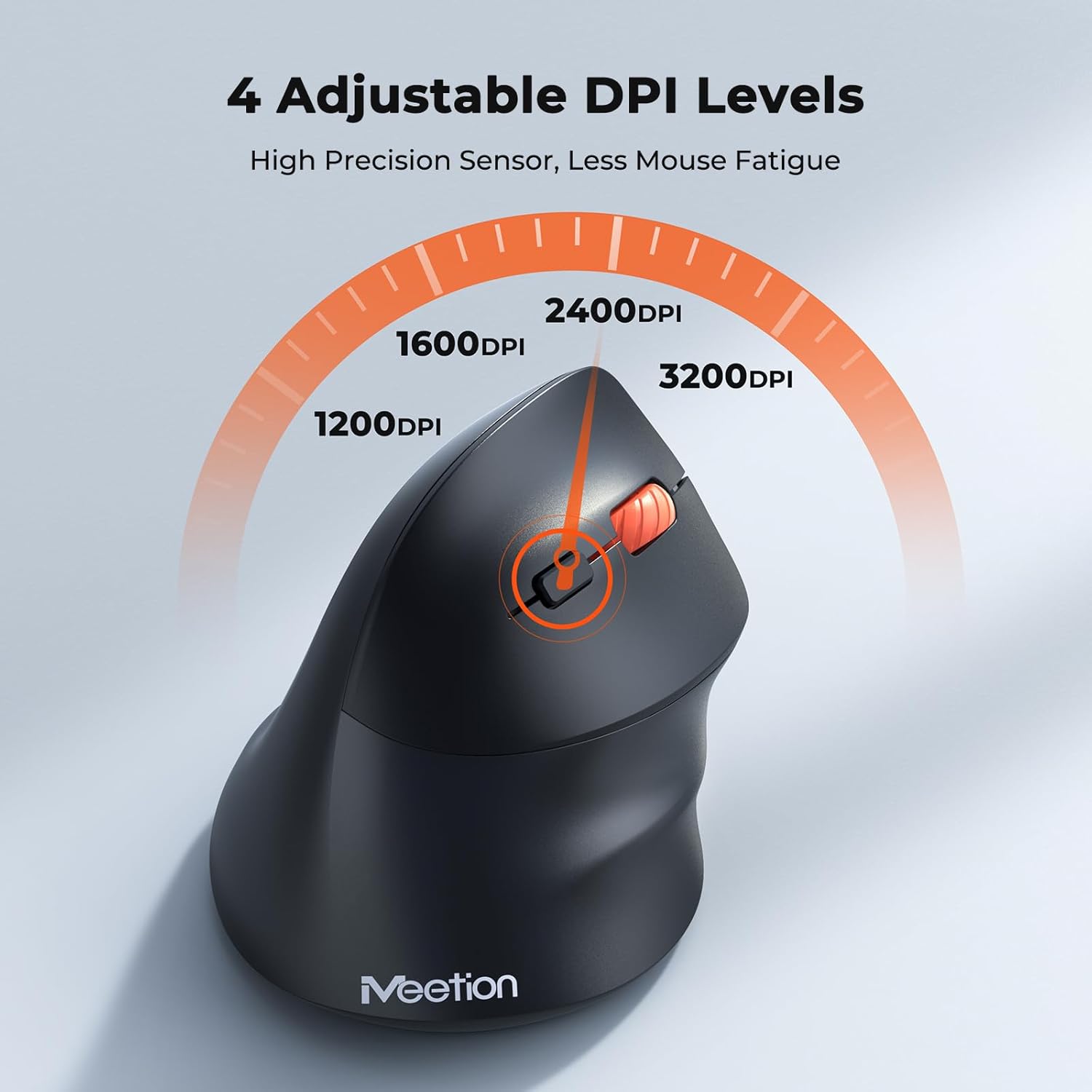
Adjust the DPI to match your preference for cursor speed and precision.
5.2 Bytte mellom flere enheter
To switch between connected devices, simply press the Mode Switching Button located on the bottom of the mouse. The corresponding indicator light (green for 2.4G, blue for BT1/BT2) will illuminate to show the active connection.
5.3 Frem/tilbake-knapper
Use the Forward and Back buttons, conveniently located on the side of the mouse, for quick navigation in web nettlesere, file explorers, and other applications that support these functions.
6. Strømstyring
6.1 Automatisk hvilemodus
To conserve battery life, the mouse will automatically enter sleep mode after 20 minutes of inactivity. This intelligent feature helps extend the battery's operational time.
6.2 Waking the Mouse
To wake the mouse from sleep mode, simply press any button. It will instantly reconnect to the last active device.
6.3 Batterilevetid
With typical usage, a single AA battery can power the mouse for up to 3 months. Actual battery life may vary based on usage patterns and battery quality.
7. Vedlikehold
For å sikre optimal ytelse og levetid for musen din, følg disse vedlikeholdsretningslinjene:
- Rengjøring: Bruk en myk, tørr klut til å tørke av overflaten på musen. For gjenstridig smuss, bruk en litt tørr klut.amp En klut kan brukes, men sørg for at det ikke kommer fuktighet inn i enheten. Unngå sterke kjemikalier eller slipende rengjøringsmidler.
- Batteribytte: Replace the AA battery when the low battery indicator lights up or when mouse performance degrades. Always dispose of used batteries responsibly.
- Lagring: Når den ikke er i bruk over lengre tid, slå av musen og oppbevar den på et tørt og kjølig sted.
8. Feilsøking
If you encounter issues with your MEETION BTM011 mouse, refer to the following solutions:
| Problem | Løsning |
|---|---|
| Musen reagerer ikke |
|
| Markørbevegelsen er uregelmessig eller treg |
|
| Kan ikke koble til via Bluetooth |
|
| Forward/Back buttons not working |
|
9. Spesifikasjoner
| Trekk | Detalj |
|---|---|
| Modell | BTM011 |
| Tilkobling | 2.4GHz Wireless, Bluetooth 5.3 (BT1, BT2) |
| DPI-nivåer | 1200 / 1600 / 2400 / 3200 |
| Knapper | 7 (Left, Right, Scroll Wheel, Forward, Back, DPI Switch, Mode Switch) |
| Strømkilde | 1x AA-batteri (ikke inkludert) |
| Auto-søvn | Etter 20 minutter med inaktivitet |
| Kompatibilitet | Windows, Mac OS, Linux, Android, iOS (for iPad/iPhone) |
| Materiale | Plast |
| Dimensjoner (ca.) | 4.4 x 3.29 x 2.74 tommer (11.18 x 8.36 x 6.96 cm) |
10. Garanti og støtte
10.1 Garantiinformasjon
MEETION products are designed and manufactured to the highest quality standards. This product is covered by a limited warranty against defects in materials and workmanship. Please retain your proof of purchase for warranty claims. Specific warranty terms may vary by region; refer to your local retailer or the official MEETION webnettsted for detaljer.
10.2 Kundestøtte
For technical assistance, troubleshooting, or general inquiries, please contact MEETION customer support:
- E-post: service@meetion.com
- Webnettsted: Visit the official MEETION webnettsted for vanlige spørsmål og ytterligere ressurser.