
1. Introduksjon
Thank you for choosing the TECPHILE K936 Wireless Keyboard and Mouse Combo. This product is designed to provide versatile and efficient input for multiple devices, featuring both Bluetooth 5.0 and 2.4GHz USB connectivity. This manual will guide you through the setup, operation, and maintenance of your new keyboard and mouse.
2. Pakkens innhold
- TECPHILE K936 Wireless Keyboard
- TECPHILE Wireless Mouse
- USB-mottaker (oppbevares i musens batterirom)
- USB-C ladekabel
- Keyboard Protective Cover
- Brukerhåndbok
3. Produktet er overview
Familiarize yourself with the components of your TECPHILE K936 Wireless Keyboard and Mouse Combo.

Bilde 3.1: The TECPHILE K936 Wireless Keyboard and Mouse Combo in Grey. The keyboard features a full layout with a numeric keypad, and the mouse is a compact, ergonomic design.

Bilde 3.2: Diagram showing the dimensions of the keyboard (368mm x 121mm) and mouse (110mm x 63mm x 30mm).
Tastaturfunksjoner:
- Multi-device connectivity: 3 x Bluetooth 5.0, 1 x 2.4GHz USB
- Dedicated function keys (F1-F12) with multimedia controls
- Oppladbart 300mAh litiumbatteri
- Type-C ladeport
- Automatic sleep mode for power saving
- Scissor-leg key structure for comfortable typing
- Transparent protective cover included
Musfunksjoner:
- Dual-mode connectivity: 1 x Bluetooth, 1 x 2.4GHz USB
- Optical movement detection technology
- Ambidextrous design
- Quiet click buttons
4. Oppsett
4.1 Innledende lading
Before first use, fully charge both the keyboard and mouse. Connect the provided USB-C charging cable to the charging port on the keyboard and mouse, and the other end to a 5V/1A power adapter (not included) or a computer USB port. The charging indicator light will show charging status and turn off when fully charged.
Note: Only use a 5V/1 Amp power adapter for charging to ensure optimal battery life.

Bilde 4.1: Illustration of the keyboard's battery specifications: 2-4 hours charging time, 300mAh battery capacity, and up to 180 days standby time.
4.2 Koble til tastaturet
The keyboard supports up to three Bluetooth connections and one 2.4GHz USB connection.

Bilde 4.2: Diagram illustrating the keyboard's ability to connect to multiple devices via Bluetooth (3 channels) and 2.4GHz USB.
2.4GHz USB Connection:
- Finn USB-mottakeren inni musens batterirom.
- Koble USB-mottakeren til en ledig USB-port på datamaskinen eller enheten din.
- Turn on the keyboard. The keyboard should automatically connect.
Bluetooth Connection (BT1, BT2, BT3):
- Slå på tastaturet.
- Trykk og hold inne Fn key and one of the Bluetooth keys (BT1, BT2, eller BT3) for 3-5 seconds until the corresponding indicator light flashes rapidly. This indicates pairing mode.
- Gå til Bluetooth-innstillingene på enheten din (datamaskin, nettbrett, smarttelefon) og søk etter nye enheter.
- Select "TECPHILE Keyboard" from the list of available devices to pair.
- Once paired, the indicator light will stop flashing and remain solid for a few seconds before turning off.
- Repeat for other Bluetooth channels to connect to additional devices.
4.3 Koble til musen
The mouse supports one Bluetooth connection and one 2.4GHz USB connection.
2.4GHz USB Connection:
- Sørg for at USB-mottakeren er koblet til enheten.
- Switch the mouse to 2.4GHz mode using the switch on the bottom of the mouse.
- Musen skal koble til automatisk.
Bluetooth-tilkobling:
- Switch the mouse to Bluetooth mode using the switch on the bottom of the mouse.
- Press and hold the Bluetooth pairing button on the bottom of the mouse for 3-5 seconds until the indicator light flashes.
- Gå til Bluetooth-innstillingene på enheten din og søk etter nye enheter.
- Select "TECPHILE Mouse" from the list to pair.
5. Bruksanvisning
5.1 Switching Between Devices (Keyboard)
To switch between connected devices on the keyboard, simply press the Fn key along with the corresponding connection key (BT1, BT2, BT3, eller 2.4G for USB). The keyboard will switch to the selected device instantly.
5.2 Switching Between Devices (Mouse)
To switch between 2.4GHz USB and Bluetooth modes on the mouse, use the toggle switch located on the bottom of the mouse.
5.3 Function Keys (Keyboard)
The keyboard features dedicated function keys (F1-F12) that can be used in conjunction with the Fn key for various multimedia and system controls.
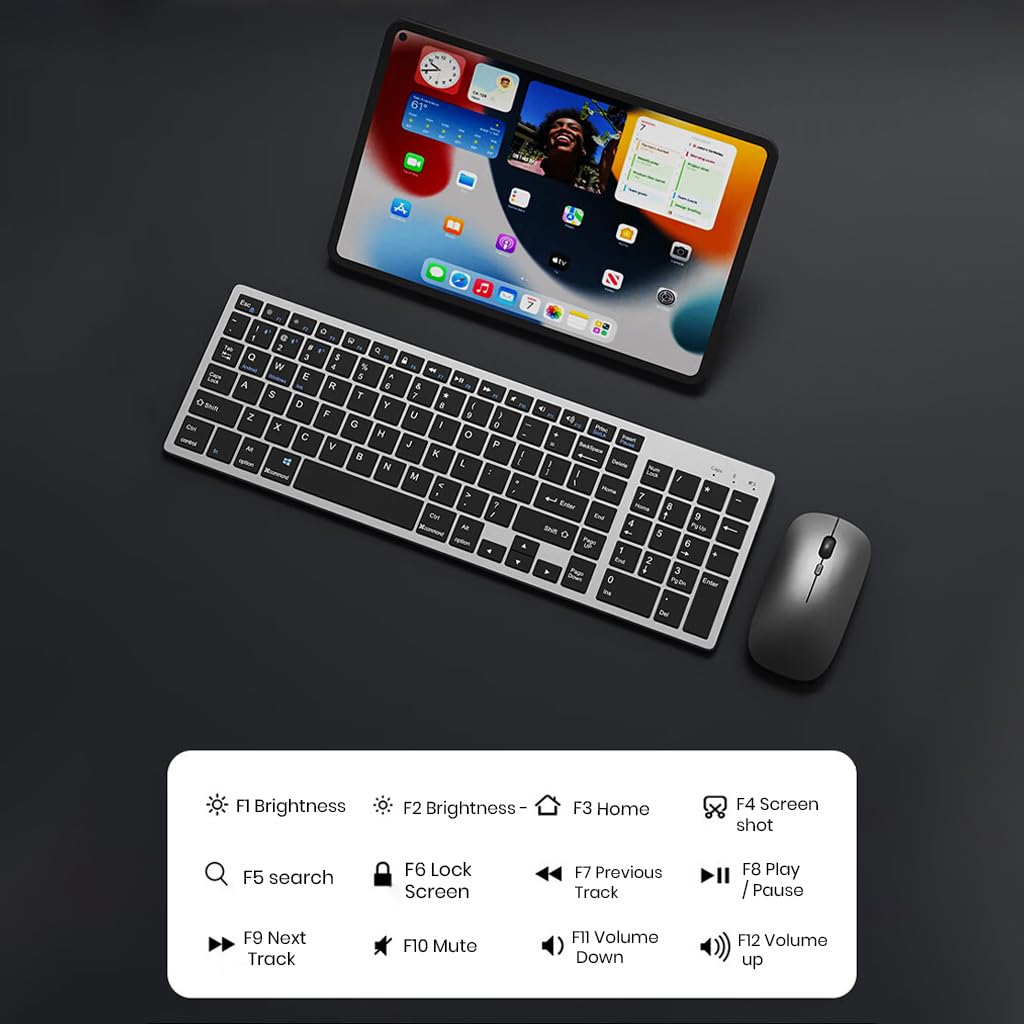
Bilde 5.1: The keyboard displaying its function keys and their associated actions, such as brightness control, home, screen shot, search, lock screen, media playback, and volume control.
- Fn+F1: Lysstyrke ned
- Fn+F2: Lysstyrke opp
- Fn+F3: Hjem
- Fn+F4: Skjermdump
- Fn+F5: Søk
- Fn+F6: Låseskjerm
- Fn+F7: Forrige spor
- Fn+F8: Spill av/pause
- Fn+F9: Neste spor
- Fn+F10: Stum
- Fn+F11: Volum ned
- Fn+F12: Volum opp
5.4 Strømsparingsmodus
The keyboard and mouse are equipped with an automatic sleep mode to conserve battery life. If inactive for 10 minutes, the devices will enter sleep mode. To wake them up, simply press any key on the keyboard or move/click the mouse.

Bilde 5.2: Diagram illustrating the auto-sleep mode and how to reactivate the keyboard and mouse by pressing any key.
6. Vedlikehold
- Rengjøring: Bruk en myk, tørr klut til å rengjøre tastaturet og musen. For gjenstridig smuss, bruk en litt tørr klut.amp klut kan brukes, og sørg for at det ikke kommer væske inn i enheten.
- Beskyttelsesdeksel: Utilize the included transparent protective cover for the keyboard to guard against dust and accidental spills.
- Lagring: Oppbevar enhetene på et kjølig og tørt sted, unna direkte sollys og ekstreme temperaturer.
- Lader: Always use a 5V/1A power adapter for charging to prevent damage and ensure battery longevity.

Bilde 6.1: The keyboard shown with its transparent protective keyskin, designed to prevent dust and spills.
7. Feilsøking
| Problem | Mulig årsak | Løsning |
|---|---|---|
| Keyboard/Mouse not connecting via 2.4GHz USB. | USB receiver not properly inserted, low battery, incorrect mode selected. |
|
| Keyboard/Mouse not connecting via Bluetooth. | Not in pairing mode, device's Bluetooth is off, already connected to max devices, low battery. |
|
| Lag eller intermitterende tilkobling. | Interferens, avstand fra mottaker/enhet, lavt batteri. |
|
| Keyboard keys not responding. | Low battery, device in sleep mode, connection issue. |
|
8. Spesifikasjoner
| Trekk | Detalj |
|---|---|
| Merke | TEKFILE |
| Modell | K936 |
| Tilkoblingsteknologi | Keyboard: 3 x Bluetooth 5.0, 1 x 2.4GHz USB; Mouse: 1 x Bluetooth, 1 x 2.4GHz USB |
| Kompatible enheter | Bærbar PC, Personlig datamaskin, Smarttelefon, Nettbrett |
| Operativsystem | Android, iOS, Windows, macOS |
| Tastaturbatteri | 300mAh litiumionbatteri (oppladbart) |
| Ladeport | USB Type-C |
| Ladetid | 2-4 timer (ca.) |
| Standby-tid | Opptil 180 dager |
| Tastaturmål (LxBxH) | 36 x 13 x 1.5 cm |
| Musens mål (LxBxH) | 11 x 6.3 x 3 cm (ca.) |
| Varevekt | 661 g (kombinasjon) |
| Bevegelsesdeteksjonsteknologi | Optisk |
| Håndorientering | Ambidekstrøs |
9. Garanti og støtte
TECPHILE products come with a standard warranty. For warranty claims, technical support, or any product-related inquiries, please contact TECPHILE customer service through the retailer where the product was purchased or visit the official TECPHILE webnettsted for kontaktinformasjon.
Vennligst ta vare på kjøpsbeviset av garantihensyn.
Manufacturer/Importer: TECPHILE, 2nd Floor, A36, Block B, Naraina Industrial Area Phase 2, Naraina, New Delhi, Delhi, 110028