
1. Introduksjon
This manual provides essential information for the proper installation, operation, and maintenance of your GAMEON Pro Series 27-inch Fast IPS Gaming Monitor (Model: GOAE27QHD165IPS). Please read this manual thoroughly before using the product to ensure optimal performance and safety. Keep this manual for future reference.

Bilde 1.1: Foran view of the GAMEON Pro Series 27-inch Fast IPS Gaming Monitor, showcasing de slanke rammene og stativet.
The GAMEON Pro Series 27-inch Fast IPS Gaming Monitor features a QHD 2K (2560x1440p) resolution, a 165Hz refresh rate, and a 0.5ms MPRT response time. It supports Adaptive-Sync and Variable Refresh Rate (VRR) technologies for smooth, tear-free gameplay. Connectivity options include dual HDMI 2.1 ports and dual DisplayPort 1.4 ports, along with an audio-out jack and integrated speakers. This monitor is compatible with various gaming consoles and PCs, including PS5.
2. Pakkens innhold
Sjekk innholdet i pakken når du pakker ut den. Kontakt forhandleren din hvis noen av delene mangler eller er skadet.
- GAMEON Pro Series 27-inch Fast IPS Gaming Monitor
- Skjermstativ (base og hals)
- Strømadapter og strømkabel
- HDMI-kabel
- DisplayPort-kabel
- Brukerhåndbok
3. Oppsett
3.1 Skjermmontering
- Ta skjermen forsiktig ut av emballasjen, og beskytt skjermen.
- Fest stativhalsen til skjermpanelet. Sørg for at den klikker ordentlig på plass, eller at den er festet med skruer hvis de følger med.
- Attach the stand base to the stand neck and tighten the screw at the bottom of the base.
- Plasser den monterte skjermen på en stabil, flat overflate.
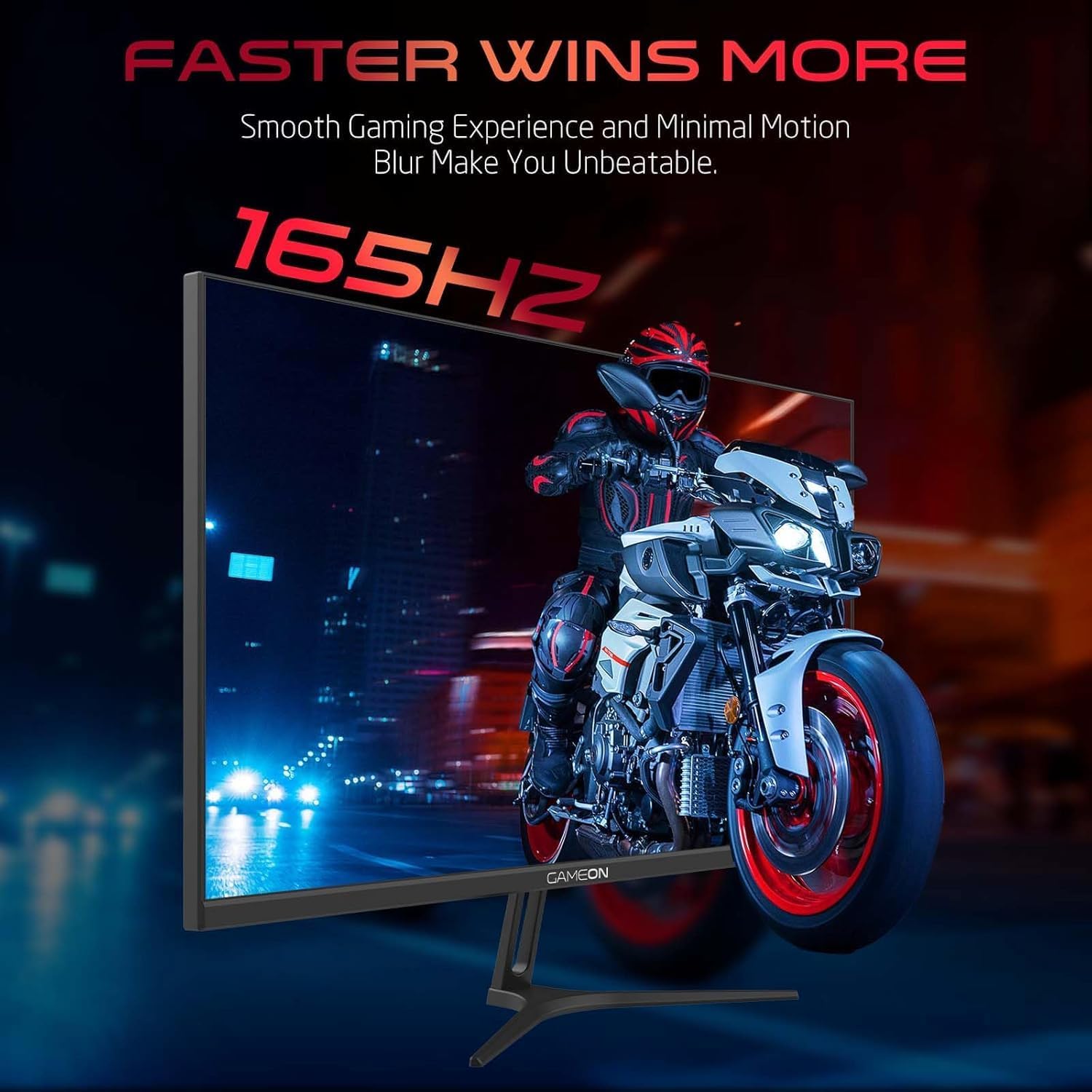
Image 3.1: Illustration of the monitor with its stand, ready for assembly.
3.2 Koble til enheter
The monitor offers multiple input options. Choose the appropriate cable for your device (PC, gaming console, etc.).

Bilde 3.2: Bak view of the monitor, highlighting the input ports and VESA mounting points.

Image 3.3: Detailed diagram illustrating the various input/output ports and their corresponding devices.
- HDMI-tilkobling: Connect one end of the HDMI cable to the HDMI output port of your device (PC, PS5, Xbox, TV box) and the other end to one of the HDMI 2.1 ports on the monitor.
- DisplayPort-tilkobling: Connect one end of the DisplayPort cable to the DisplayPort output of your PC and the other end to one of the DisplayPort 1.4 ports on the monitor.
- Lydutgang: For external audio, connect headphones or external speakers to the 3.5mm audio-out jack on the monitor.
3.3 Strømtilkobling
- Koble strømadapteren til DC IN-porten på skjermen.
- Plug the power cable into the power adapter, then plug the other end of the power cable into a power outlet.
4. Bruksanvisning
4.1 Strøm på/av
Trykk på av/på-knappen på skjermen for å slå den av eller på. Av/på-indikatorlampen lyser når skjermen er på.
4.2 On-Screen Display (OSD)-meny
The monitor features a menu button (often a joystick or a series of buttons) usually located on the back or bottom right of the monitor. Use this to navigate the OSD menu and adjust settings.
- Press the menu button to open the OSD menu.
- Bruk navigasjonskontrollene til å navigere gjennom menyalternativene.
- Press the menu button again (or a designated 'Enter' button) to select an option.
- Use the navigation controls to adjust values or select sub-menus.
- Select 'Exit' or press the menu button repeatedly to close the OSD menu.
4.3 Vanlige OSD-innstillinger
- Bildeinnstillinger: Juster lysstyrke, kontrast, skarphet, gamma og fargetemperatur.
- Fargeinnstillinger: Fine-tune RGB values, hue, and saturation.
- Inndatakilde: Manually select between HDMI 1, HDMI 2, DisplayPort 1, or DisplayPort 2.
- Lyd: Juster volumet for innebygde høyttalere eller tilkoblede hodetelefoner.
- Spillfunksjoner: Enable/disable Adaptive-Sync/FreeSync, adjust overdrive settings, and activate crosshair overlays if available.
4.4 PS5 120Hz Setup Guide
To enable 120Hz output on your PlayStation 5 with this monitor, follow these steps:

Image 4.1: Visual guide for configuring 120Hz refresh rate on a PlayStation 5 console.
- Enable 120Hz from PS5 Settings:
- Gå til Innstillinger > Skjerm og video > Videoutgang.
- Sett Enable 120Hz Output til Automatisk.
- Sett Oppløsning til 1080p or Automatisk. (Note: While the monitor supports 1440p, some PS5 games may require 1080p for 120Hz output.)
- Enable Performance Mode for Gamers:
- Gå til Innstillinger > Save Data and Game App Settings > Spillinnstillinger.
- Sett Ytelsesmodus som standard.
- Check In-Game Settings:
- Go to the specific game's Spillinnstillinger > Videoinnstillinger og velg 120 bilder per sekund or Ytelsesmodus.
5. Vedlikehold
5.1 Rengjøring av skjermen
- Slå av skjermen og trekk ut strømkabelen.
- Bruk en myk, lofri klut lett damprengjøres med vann eller en spesialisert skjermrenser.
- Wipe the screen gently. Do not press hard or use abrasive materials.
- Avoid using alcohol, ammonia, or benzene-based cleaners, as they may damage the screen surface.
5.2 Rengjøring av Casing
- Bruk en myk, tørr klut til å tørke av skjermenasing.
- For vanskelige flekker, lett dampSkyll kluten med vann og et mildt vaskemiddel, og tørk deretter av.
6. Feilsøking
If you encounter issues with your monitor, refer to the following troubleshooting guide:
| Problem | Mulig årsak | Løsning |
|---|---|---|
| Intet bilde på skjermen | Ingen strøm; Feil inngangskilde; Løs videokabel | Ensure power cable is securely connected and power outlet is active. Press power button. Check OSD menu to select correct input source (HDMI/DP). Reconnect video cable firmly. |
| Bildet er uskarpt eller forvrengt | Incorrect resolution; Video cable issue | Set display resolution to 2560x1440p in your device's display settings. Try a different video cable. |
| Ingen lyd | Volume too low; Incorrect audio output selected; Loose audio cable | Adjust monitor volume via OSD. Ensure monitor is selected as the audio output device on your PC/console. Check external audio cable connection if using headphones/speakers. |
| Skjermen flimrer | Refresh rate mismatch; Adaptive-Sync/VRR issue | Ensure your device's refresh rate is set to 165Hz. If flickering persists with Adaptive-Sync/VRR enabled, try disabling it in the OSD or your graphics card settings. |
| Monitor not detected by PC/console | Video cable issue; Driver issue | Try a different video cable or port. Update your graphics card drivers. Restart your PC/console. |
7. Spesifikasjoner
Below are the technical specifications for the GAMEON Pro Series 27-inch Fast IPS Gaming Monitor (GOAE27QHD165IPS):
| Trekk | Spesifikasjon |
|---|---|
| Skjermstørrelse | 27 tommer |
| Paneltype | Nesten IPS |
| Oppløsning | QHD 2K (2560x1440p) |
| Oppdateringsfrekvens | 165 Hz |
| Responstid | 0.5 ms MPRT |
| Kontrastforhold | 1000:1 |
| Lysstyrke | 280 (±30) nits typical |
| Viewi vinkler | Bred viewing angles (IPS technology) |
| Adaptiv synkroniseringsteknologi | Adaptive-Sync, FreeSync, VRR Compatible |
| Tilkobling | 2x HDMI 2.1, 2x DisplayPort 1.4, 1x Audio Out (3.5mm) |
| Lyd | Built-in 4Ω2W speakers |
| VESA-monteringskompatibilitet | 100x100mm |
| Strøminngang | Ekstern DC 12V 4A adapter |
| Maks strømforbruk | 48W |
| Produktmål (med stativ) | 16.2 x 61.4 x 45.3 cm |
| Produktvekt | 5.84 kg |
| Modellnummer | GOAE27QHD165IPS |
8. Garanti og støtte
The GAMEON Pro Series 27-inch Fast IPS Gaming Monitor comes with a 2 års garanti fra kjøpsdatoen. Denne garantien dekker produksjonsfeil ved normal bruk. Vennligst ta vare på kjøpsbeviset for garantikrav.
For technical support, warranty inquiries, or service requests, please contact GAMEON customer service through their official website or the retailer where the product was purchased. Provide your monitor's model number (GOAE27QHD165IPS) and a detailed description of the issue to expedite assistance.


