
Introduksjon
This manual provides essential information for the proper setup, operation, maintenance, and troubleshooting of your KTC H27T27 27-inch WQHD IPS Flat Monitor. Please read this manual thoroughly before using the product to ensure optimal performance and safety.
The KTC H27T27 monitor features a 27-inch WQHD (2560x1440) IPS panel with a 100Hz refresh rate, designed to deliver clear and detailed images with smooth motion. It includes FreeSync technology for enhanced visual fluidity during dynamic content. The IPS panel ensures vivid colors and wide viewing vinkler.

Figure 1: KTC H27T27 27-inch WQHD IPS Flat Monitor Front View
Oppsett
1. Pakker ut
Carefully remove all components from the packaging. Ensure all items listed in the packing list are present and undamaged. Retain the original packaging for future transport or service needs.
2. Montering av stativ
- Plasser skjermen med forsiden ned på en myk, ren overflate for å unngå riper.
- Fest stativbasen til stativhalsen med de medfølgende skruene.
- Align the assembled stand with the mounting slot on the back of the monitor and secure it firmly.
3. VESA-montering (valgfritt)
The monitor supports VESA 100x100mm mounting. If using a VESA mount, remove the stand and attach the VESA compatible bracket to the monitor's rear panel using appropriate screws.
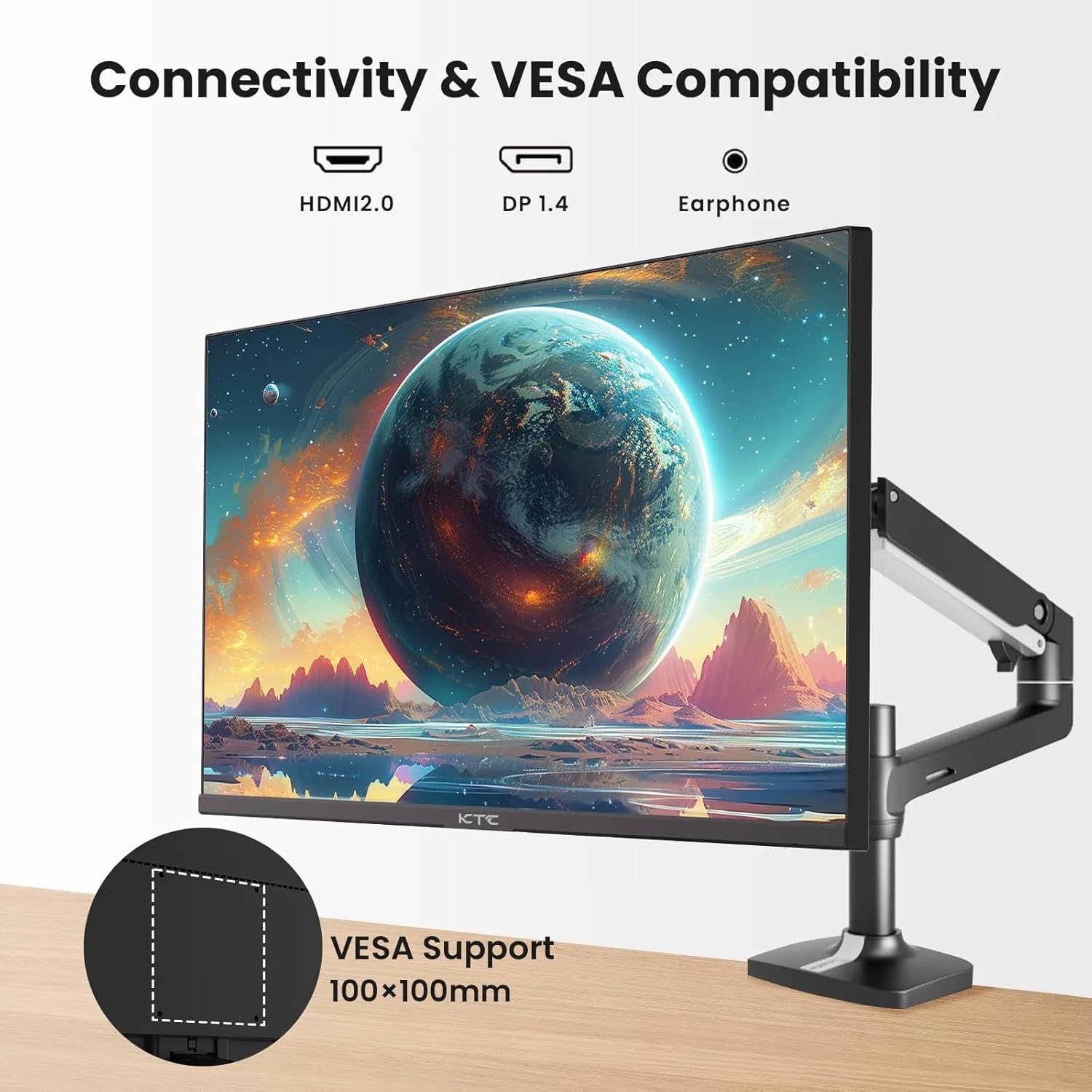
Figure 2: VESA Compatibility and Connectivity Ports
4. Koble til kabler
Connect the necessary cables to the monitor and your computer or other devices. Ensure all connections are secure.
- Strømkabel: Koble strømadapteren til skjermens likestrømsinngangsport, og koble deretter strømkabelen til en stikkontakt.
- Videokabel: Connect either an HDMI cable (HDMI 2.0) or a DisplayPort cable (DP 1.4) from your computer's graphics card to the corresponding input port on the monitor.
- Lydutgang: If desired, connect headphones or external speakers to the 3.5mm audio output jack.

Figur 3: Skjerminngangsporter
5. Første oppstart
Press the power button on the monitor. The power indicator light will illuminate. If no image appears, ensure your computer is powered on and the correct input source is selected on the monitor.
Drift
1. Slå på/av
Press the power button located on the monitor to turn it on or off. The power indicator will show the monitor's status.
2. On-Screen Display (OSD)-meny
The OSD menu allows you to adjust various monitor settings. Use the control buttons (usually located on the back or bottom of the monitor) to navigate the menu.
- Press a button to activate the OSD menu.
- Bruk navigasjonsknappene til å navigere gjennom menyalternativene.
- Press a selection button to enter a sub-menu or confirm a setting.
- Press an exit button to close the OSD menu.
3. Justere innstillinger
Vanlige justerbare innstillinger inkluderer:
- Lysstyrke/kontrast: Juster den generelle lysstyrken og forskjellen mellom lyse og mørke områder.
- Fargeinnstillinger: Endre fargetemperatur, gamma og individuelle RGB-verdier.
- Inndatakilde: Manually select between HDMI 1, HDMI 2, or DisplayPort inputs.
- Bildemodus: Select predefined display modes (e.g., Standard, Game, Movie).
4. Oppdateringsfrekvens
The KTC H27T27 supports a 100Hz refresh rate, providing smoother motion compared to standard 60Hz displays. Ensure your graphics card and operating system are configured to output at 100Hz for the best experience.

Figure 4: 100Hz Refresh Rate Benefit
5. FreeSync-teknologi
This monitor is compatible with AMD FreeSync technology, which synchronizes the monitor's refresh rate with your graphics card's frame rate. This helps eliminate screen tearing and stuttering for a smoother gaming and video experience. Ensure FreeSync is enabled in both the monitor's OSD menu and your graphics card's control panel.
Figure 5: FreeSync Technology in Action
Vedlikehold
1. Rengjøring av skjermen
- Slå av skjermen og trekk ut strømledningen.
- Tørk forsiktig av skjermen med en myk, lofri klut.
- For gjenstridige merker, tørk lettampRengjør kluten med vann eller et spesialisert skjermrensemiddel (ikke spray direkte på skjermen).
- Unngå å bruke slipende rengjøringsmidler, alkohol eller ammoniakkbaserte løsninger, da disse kan skade skjermens overflate.
2. Generell omsorg
- Hold skjermen unna direkte sollys, høy varme og fuktighet.
- Sørg for tilstrekkelig ventilasjon rundt skjermen for å forhindre overoppheting.
- Unngå å plassere tunge gjenstander oppå skjermen eller kablene.
Feilsøking
Hvis du støter på problemer med skjermen, kan du se følgende vanlige problemer og løsninger:
- Ingen strøm:
- Ensure the power cable is securely connected to both the monitor and the power outlet.
- Kontroller at strømuttaket fungerer. - Ingen signal:
- Check that the video cable (HDMI or DisplayPort) is securely connected to both the monitor and your computer.
- Ensure your computer is powered on and not in sleep mode.
- Select the correct input source via the monitor's OSD menu. - Flimrende eller forvrengt bilde:
- Check the video cable for damage or loose connections.
- Adjust the refresh rate settings on your computer.
- Disable or enable FreeSync in the OSD menu and graphics card settings to test. - Feil farger:
- Reset color settings to factory defaults in the OSD menu.
- Adjust color temperature or individual RGB values.
Hvis problemet vedvarer etter at du har prøvd disse løsningene, kan du kontakte kundestøtte.
Spesifikasjoner
| Trekk | Spesifikasjon |
|---|---|
| Merke | KTC |
| Modellnummer | H27T27 |
| Skjermstørrelse | 27 tommer |
| Oppløsning | 2560 x 1440 (WQHD) |
| Oppdateringsfrekvens | 100 Hz |
| Visningstype | IPS |
| Responstid | 7 millisekunder |
| Adaptiv synkronisering | FreeSync |
| Tilkobling | 2x HDMI 2.0, 1x DisplayPort 1.4, 1x 3.5 mm lydutgang |
| Aspektforhold | 1.78:1 |
| Skjermoverflate | Matte |
| Varedimensjoner (D x B x H) | 1.85" D x 24.25" B x 14.33" H |
| Varevekt | 4 kilo |
Garanti og støtte
Garantiinformasjon
This KTC monitor is covered by a manufacturer's warranty. Please refer to the warranty card included in your product packaging for specific terms, conditions, and duration of coverage. Keep your purchase receipt as proof of purchase for warranty claims.
Kundestøtte
For technical assistance, warranty service, or any product-related inquiries, please contact KTC customer support. Contact details can typically be found on the official KTC webnettstedet eller på garantikortet.
When contacting support, please have your monitor's model number (H27T27) and serial number ready.


