
Introduksjon
This manual provides essential information for setting up, operating, and maintaining your NIMO 15.6" FHD Laptop Computer (Model NIMO N157). Please read this manual thoroughly before using your device to ensure optimal performance and longevity.
Hva er i esken
- 1 x NIMO N157 bærbar PC
- 1 x Type-C 65W PD hurtiglader
- 1 x brukerhåndbok (dette dokumentet)
- Windows 11 Home (forhåndsinstallert)
- 2 års garanti, 90 dagers returrett
Oppsettveiledning
1. Første oppstart og lading
Before first use, ensure your NIMO laptop is fully charged. Connect the provided Type-C 65W PD Fast Charger to the laptop's Type-C charging port and a power outlet. The charge LED indicator will illuminate. A full charge is recommended for optimal battery calibration.

Image: NIMO laptop connected to its Type-C 65W GaN II PD charger. This charger provides fast charging capabilities.
2. Operating System Setup (Windows 11 Home)
Upon first power-on, the laptop will guide you through the Windows 11 Home setup process. Follow the on-screen instructions to configure language, region, network settings, and create a user account. An internet connection (Wi-Fi 6 supported) is recommended for the initial setup to download necessary updates.

Image: The NIMO laptop screen showing the Windows 11 desktop interface.
3. Oppsett av fingeravtrykksleser
For enhanced security and quick login, set up the integrated fingerprint reader. Navigate to Windows Settings > Accounts > Sign-in options and follow the prompts to register your fingerprint. This allows for secure one-touch login.

Bilde: Et nærbilde view of the fingerprint reader on the NIMO laptop, illustrating its use for secure login.
Bruksanvisning
1. Keyboard and Backlight
The NIMO laptop features a full-size keyboard with a numeric keypad and a backlit function. To activate or adjust the keyboard backlight, use the dedicated function keys (Fn + Fx, refer to your keyboard layout for specific key). This feature allows for comfortable typing in low-light environments.
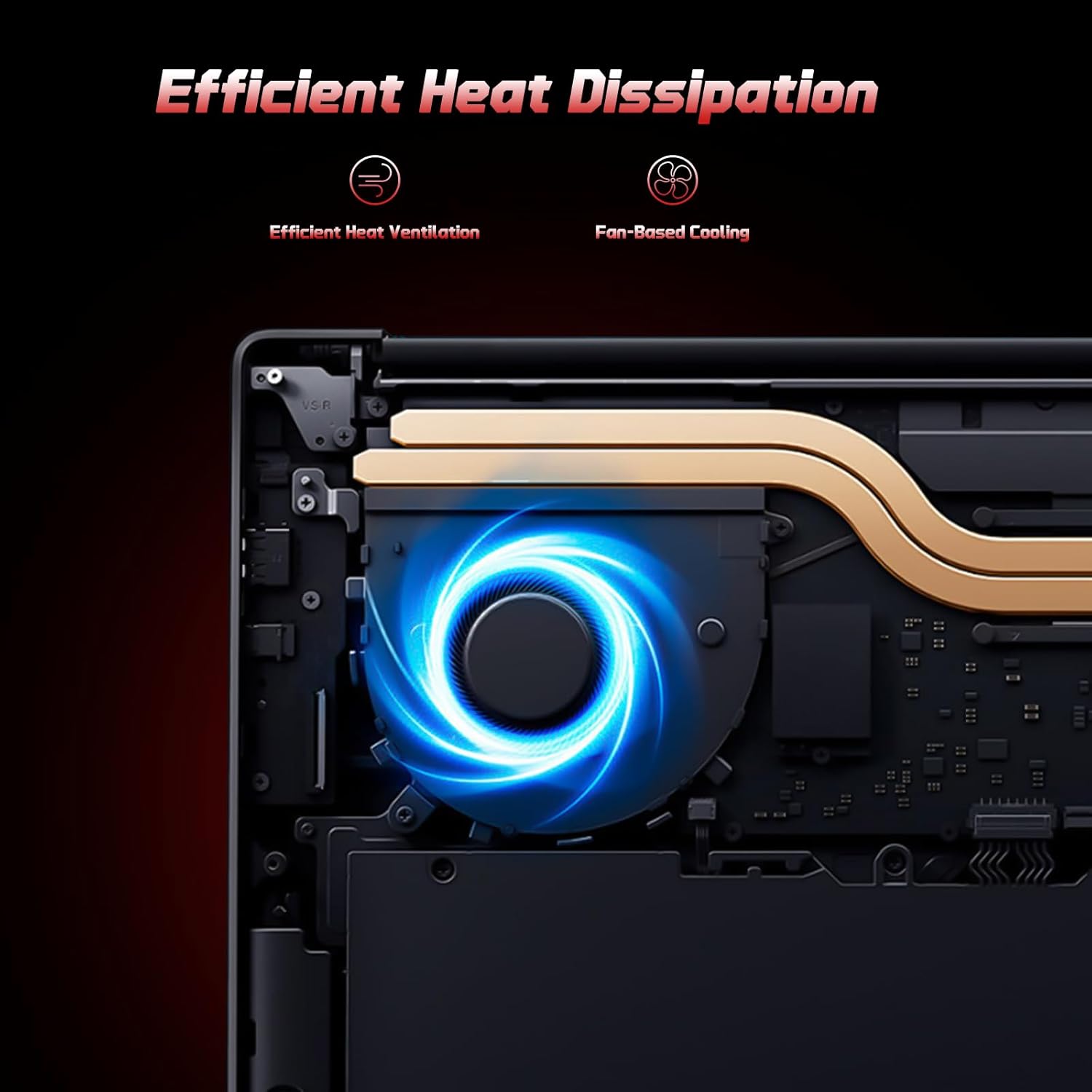
Image: A user typing on the NIMO laptop's backlit keyboard in a dim environment.
2. Koble til eksterne enheter
The laptop is equipped with multiple ports for various peripherals:
- USB-porter: Connect USB devices such as external drives, mice, or keyboards.
- HDMI-port: Koble til en ekstern skjerm eller TV for utvidet visning.
- Type-C-porter: One port supports 65W PD fast charging, and another is a multifunction port for data transfer and display output.
- Micro SD-spor: Insert a Micro SD card for expandable storage.
- Hodetelefonkontakt: Koble til hodetelefoner eller eksterne høyttalere.
- Kensington-låsspor: For fysisk sikkerhet.
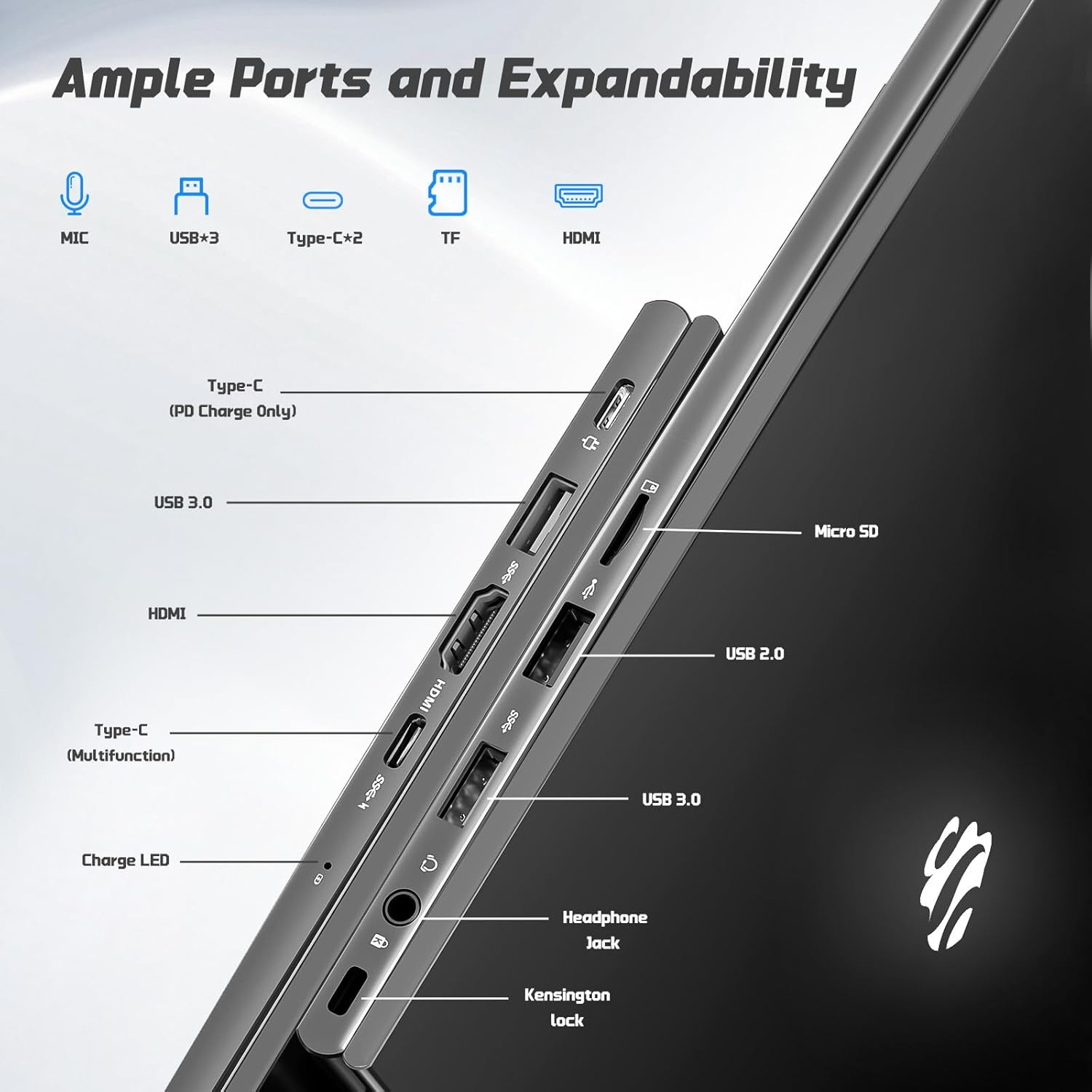
Bilde: Side view of the NIMO laptop highlighting the available ports including USB, HDMI, Type-C, Micro SD, and headphone jack.
3. Webkamera og personvern
Den integrerte 2MP webcam is suitable for video calls and online meetings. For privacy, ensure the camera is covered or disabled when not in use, if a physical privacy shutter is present (refer to product images for confirmation).
Video: This video demonstrates the NIMO laptop's features, including the webcam and various ports. It shows the laptop being used for work, school, and play, highlighting the backlit keyboard and fingerprint unlock feature.
Video: This video showcases the NIMO laptop's versatility for different users, including students and professionals. It highlights the 15.6" FHD display, backlit keyboard, and multiple connectivity options.
Video: A comprehensive introduction to the NIMO 15.6" laptop, detailing its design, performance, and user experience for various tasks.
Video: This video emphasizes the efficiency and convenience of the NIMO laptop, showcasing its features that contribute to productivity and ease of use.
Video: This video highlights the NIMO 15.6" FHD laptop's suitability for students, home use, and work, demonstrating its performance in various daily scenarios.
Vedlikehold
1. Rengjøring av den bærbare datamaskinen
To clean the screen, use a soft, lint-free cloth specifically designed for electronics. For the keyboard and chassis, a slightly damp cloth with mild cleaning solution can be used. Avoid excessive moisture and abrasive materials. Ensure the laptop is powered off before cleaning.
2. Batteripleie
The NIMO laptop features a 53.58 Watt Hours Lithium Polymer battery. To prolong battery life, avoid fully discharging the battery frequently. It is recommended to keep the battery charge between 20% and 80% when possible. Store the laptop in a cool, dry place when not in use for extended periods.
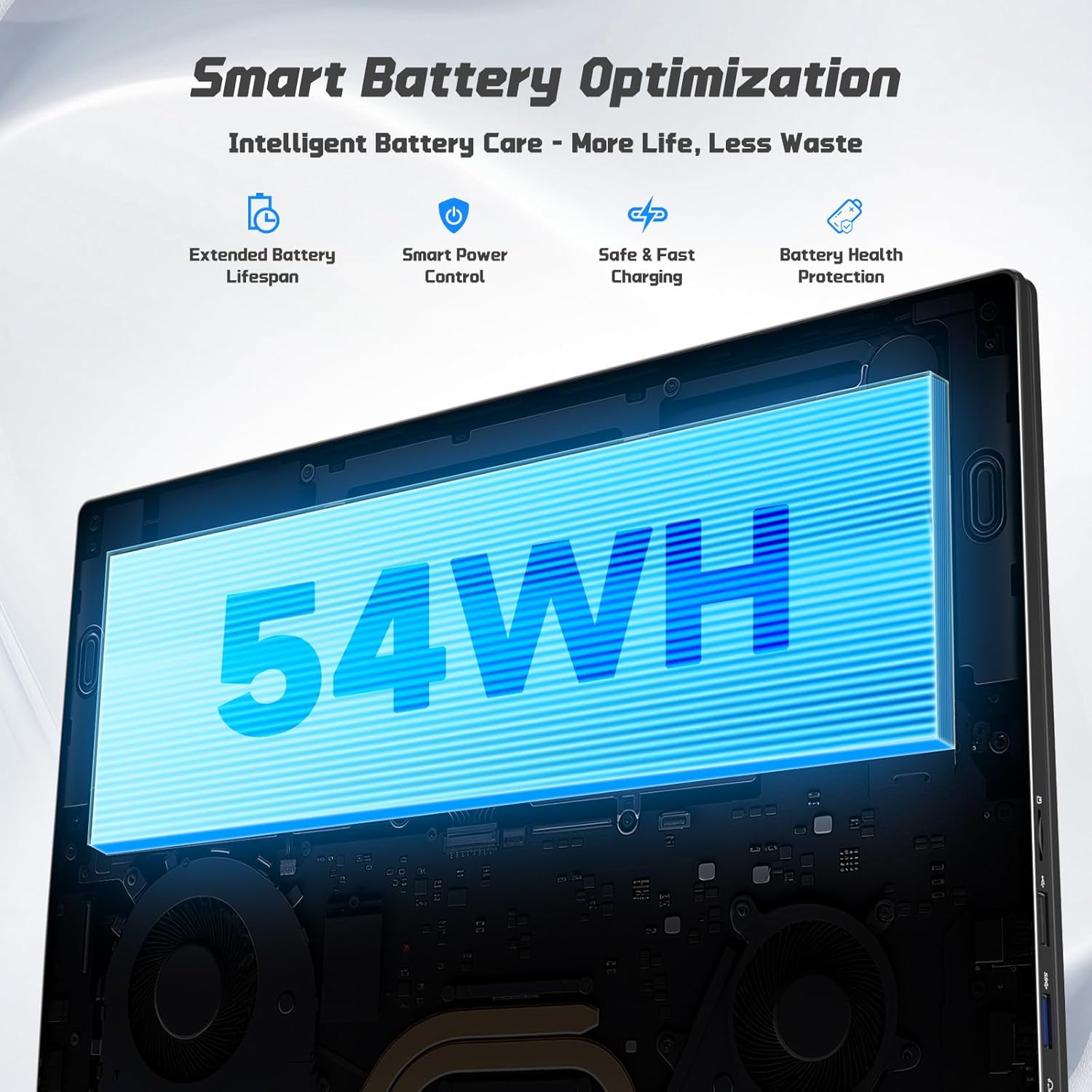
Image: Diagram illustrating the NIMO laptop's smart battery optimization features, including extended lifespan, smart power control, safe and fast charging, and battery health protection.
3. Programvareoppdateringer
Regularly check for and install Windows updates to ensure your system has the latest security patches and performance improvements. Go to Settings > Windows Update to manage updates.
4. Varmespredning
The laptop is designed with efficient heat ventilation and fan-based cooling. To prevent overheating, ensure that the ventilation openings are not blocked during use. Avoid placing the laptop on soft surfaces like beds or couches that can obstruct airflow.
Bilde: En intern view of the NIMO laptop showing its efficient heat dissipation system with fan-based cooling.
Feilsøking
1. Den bærbare datamaskinen slår seg ikke på
- Sørg for at laderen er ordentlig koblet til både den bærbare datamaskinen og et fungerende strømuttak.
- Check the charge LED indicator. If it's not lit, try a different outlet or charger.
- Trykk og hold inne av/på-knappen i 10–15 sekunder for å utføre en hard tilbakestilling.
2. Skjermproblemer (ingen skjerm, flimring)
- Connect an external monitor via the HDMI port to check if the issue is with the laptop's display or graphics output.
- Start den bærbare datamaskinen på nytt.
- Ensure display drivers are up to date via Windows Update or NIMO's support webnettstedet.
3. Treg ytelse
- Lukk unødvendige programmer som kjører i bakgrunnen.
- Se etter og installer eventuelle ventende Windows-oppdateringer.
- Ensure sufficient free space on the 128GB SSD. Consider expanding storage using the Micro SD slot or upgrading the SSD if needed.
- Kjør en virusskanning.
4. Wi-Fi or Bluetooth Connectivity Issues
- Ensure Wi-Fi and Bluetooth are enabled in Windows Settings.
- Start ruteren/modemet på nytt hvis du har problemer med Wi-Fi.
- Update network drivers via Windows Update or NIMO's support webnettstedet.
Spesifikasjoner
| Trekk | Detalj |
|---|---|
| Merke | NIMO |
| Modellnavn | NIMO N157G |
| Skjermstørrelse | 15.6 tommer |
| Skjermoppløsning | 1920 x 1080 piksler (FHD) |
| Visningstype | IPS LCD, Anti-glare |
| Prosessor | Intel Pentium N150 (4-Core, up to 3.6 GHz) |
| VÆR | 4 GB DDR4 (kan utvides opptil 16 GB) |
| Lagring | 128 GB SSD (Expandable via Micro SD) |
| Operativsystem | Windows 11 Home |
| Grafikk | Intel Integrated Graphics |
| Webkam | 2 MP frontkamera |
| Tilkobling | Wi-Fi 6, Bluetooth 5.3 |
| Havner | 2x USB 3.0, 1x USB 2.0, 2x Type-C (1x PD Charge Only, 1x Multifunction), 1x HDMI, 1x Micro SD Slot, 1x Headphone Jack, 1x Kensington Lock |
| Batteri | 53.58 Wh Lithium Polymer (Up to 12.75 hours life) |
| Lader | 65W Type-C PD hurtiglader |
| Spesielle funksjoner | Bakgrunnsbelyst tastatur, fingeravtrykksleser, HD-lyd, numerisk tastatur |
| Dimensjoner | 14.07 cm L x 8.98 cm B x 0.76 cm Tykkelse |
| Vekt | 3.75 pund |
Garanti og støtte
Din NIMO-bærbare PC leveres med en 2 års garanti from NIMO Direct Inc. Additionally, a 90-dagers problemfri returrett is provided. For any product-related questions, technical assistance, or warranty claims, please contact NIMO customer support.
Kontaktinformasjon:
- E-post: service@nimopc.com
- Online støtte: Refer to the official NIMO webnettstedet for ytterligere støtteressurser.
Please have your model number (NIMO N157) and purchase details ready when contacting support.