
Introduksjon
This manual provides essential information for setting up, operating, maintaining, and troubleshooting your Acer AL15-33P laptop. Please read this guide thoroughly to ensure proper use and to maximize the lifespan of your device.
Oppsett
1. Unboxing og innledende inspeksjon
Carefully remove the laptop and all accessories from the packaging. Check for any visible damage. The package should include the laptop, power adapter, and this user manual.

Front view of the Acer AL15-33P laptop with the screen displaying the Windows desktop.
2. Koble til strøm
- Connect the AC adapter cable to the power adapter.
- Plug the DC output connector of the power adapter into the power input port on the side of your laptop.
- Koble strømledningen til en stikkontakt.
Batteriet vil begynne å lades automatisk. Det anbefales å lade batteriet helt opp før første gangs bruk.
3. Første oppstart og Windows-oppsett
- Åpne lokket på den bærbare datamaskinen.
- Press the power button, typically located on the keyboard deck or side, to turn on the laptop.
- Follow the on-screen instructions to complete the Windows 11 setup process. This includes selecting your region, language, accepting terms, and setting up a user account.
Bruke den bærbare datamaskinen
1. Bruk av tastatur og berøringsplate
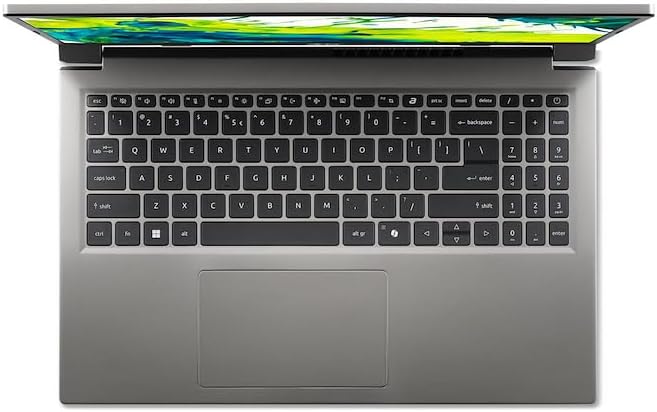
Top-down view av den bærbare datamaskinens tastatur og berøringsplate.
- Tastatur: The laptop features a full-size keyboard. Use the function (Fn) key in combination with F-keys for special functions like adjusting brightness, volume, or enabling/disabling Wi-Fi.
- Touchpad: Den integrerte berøringsplaten støtter flerberøringsbevegelser. Trykk for å klikke, bruk to fingre for å bla og klyp for å zoome.
2. Koble til eksterne enheter
Your Acer AL15-33P laptop is equipped with various ports for connecting external devices.

Right side of the laptop showing ports including USB and audio jack.

Left side of the laptop showing ports including power, USB-C, HDMI, and USB-A.
- USB-porter: Koble til USB-enheter som eksterne harddisker, mus eller tastaturer.
- HDMI-port: Connect an external monitor or TV for a larger display.
- Lydkontakt: Koble til hodetelefoner eller eksterne høyttalere.
- USB-C-port: For data transfer and potentially display output or charging, depending on the specific model configuration.
3. Trådløs tilkobling
- Wi-Fi: For å koble til et trådløst nettverk, klikk på Wi-Fi-ikonet på oppgavelinjen, velg nettverket ditt og skriv inn passordet om nødvendig.
- Bluetooth: To pair Bluetooth devices, go to Windows Settings > Bluetooth & devices, and turn on Bluetooth.
4. Strømstyring
- Sove modus: Lukk lokket eller velg «Hvilemodus» fra Start-menyen for å sette den bærbare datamaskinen i en strømsparingsmodus.
- Avslutning: To turn off the laptop completely, go to the Start menu, click the Power icon, and select 'Shut down'.
- Start på nytt: To restart the laptop, go to the Start menu, click the Power icon, and select 'Restart'.
Vedlikehold
1. Rengjøring av den bærbare datamaskinen
- Bruk en myk, lofri klut litt dampskyll med vann eller et skjermrensemiddel for å rengjøre skjermen.
- Bruk en myk klut til tastaturet og kabinettet. Unngå sterke kjemikalier eller slipende materialer.
- Periodically use compressed air to clear dust from the cooling vents to prevent overheating.
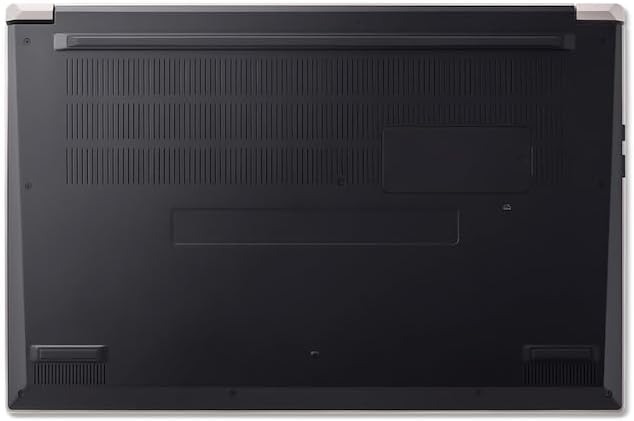
Bunn view of the laptop, highlighting the ventilation grilles.
2. Batteripleie
- Unngå å utlade batteriet helt ofte.
- Hvis du oppbevarer den bærbare datamaskinen over lengre tid, må du sørge for at batteriet er ladet til omtrent 50–70 %.
- Operate the laptop in a moderate temperature environment.
3. Programvareoppdateringer
Regularly update your operating system and drivers to ensure optimal performance and security. Windows Update can be accessed via Settings > Windows Update.
4. Lagringshåndtering
Periodisk vedrview og slett unødvendig files to free up storage space. Utilize cloud storage or external drives for backups of important data.
Feilsøking
This section addresses common issues you might encounter with your Acer AL15-33P laptop.
| Problem | Mulig løsning |
|---|---|
| Den bærbare datamaskinen slår seg ikke på. | Ensure the power adapter is securely connected and the outlet is working. Try a different outlet. If the battery is completely drained, it may take a few minutes to show signs of life after plugging in. |
| Skjermen er tom eller svart. | Check if the laptop is powered on. Try pressing Fn + F6 (or the corresponding display toggle key) to cycle through display modes. Connect an external monitor to check if the issue is with the laptop's screen. |
| Problemer med Wi-Fi-tilkoblingen. | Ensure Wi-Fi is enabled (Fn + F3 or check Windows settings). Restart your router and modem. Check if other devices can connect to the Wi-Fi network. Update Wi-Fi drivers. |
| Den bærbare datamaskinen går sakte. | Close unnecessary applications. Check Task Manager for processes consuming high CPU or memory. Run a disk cleanup. Ensure Windows and drivers are up to date. |
Spesifikasjoner
The following are key specifications for the Acer AL15-33P model. Note that specific configurations may vary.
- Modell: Acer AL15-33P
- Prosessor: Intel Core i3-N355
- VÆR: 8 GB
- Lagring: 512 GB SSD
- Utstilling: 15.6-tommers
- Operativsystem: Windows 11
- Merke: Acer
Garanti og støtte
Your Acer AL15-33P laptop comes with a standard manufacturer's warranty. Please refer to the warranty card included with your product for specific terms and conditions, including the warranty period and coverage details.
For teknisk støtte, drivernedlastinger eller serviceforespørsler, kan du gå til den offisielle Acer-støttesiden. website or contact Acer customer service directly. Have your laptop's serial number ready when contacting support.
Acer-støtte Webnettsted: www.acer.com/support