
Introduksjon
This manual provides detailed instructions for the setup, operation, and maintenance of your HANNspree HT240CUA 23.8-inch Multitouch Monitor. Please read this manual thoroughly before using the product to ensure proper functionality and to prevent damage.
Pakkeinnhold
Kontroller at alle varene som er oppført nedenfor er inkludert i produktpakken. Hvis noen av varene mangler eller er skadet, kan du kontakte forhandleren din.
- HANNspree HT240CUA Multitouch Monitor
- Strømforsyning
- Strømkabel (1.5 m)
- HDMI-kabel
- USB AC-kabel
- Garantikort
- Hurtigstartguide
Produkt overview
The HANNspree HT240CUA is a 23.8-inch multitouch monitor designed for versatile use in various environments. It features PCAP touch technology with 10 touch points, Full HD resolution, optical bonding, and a durable 7H tempered glass surface.
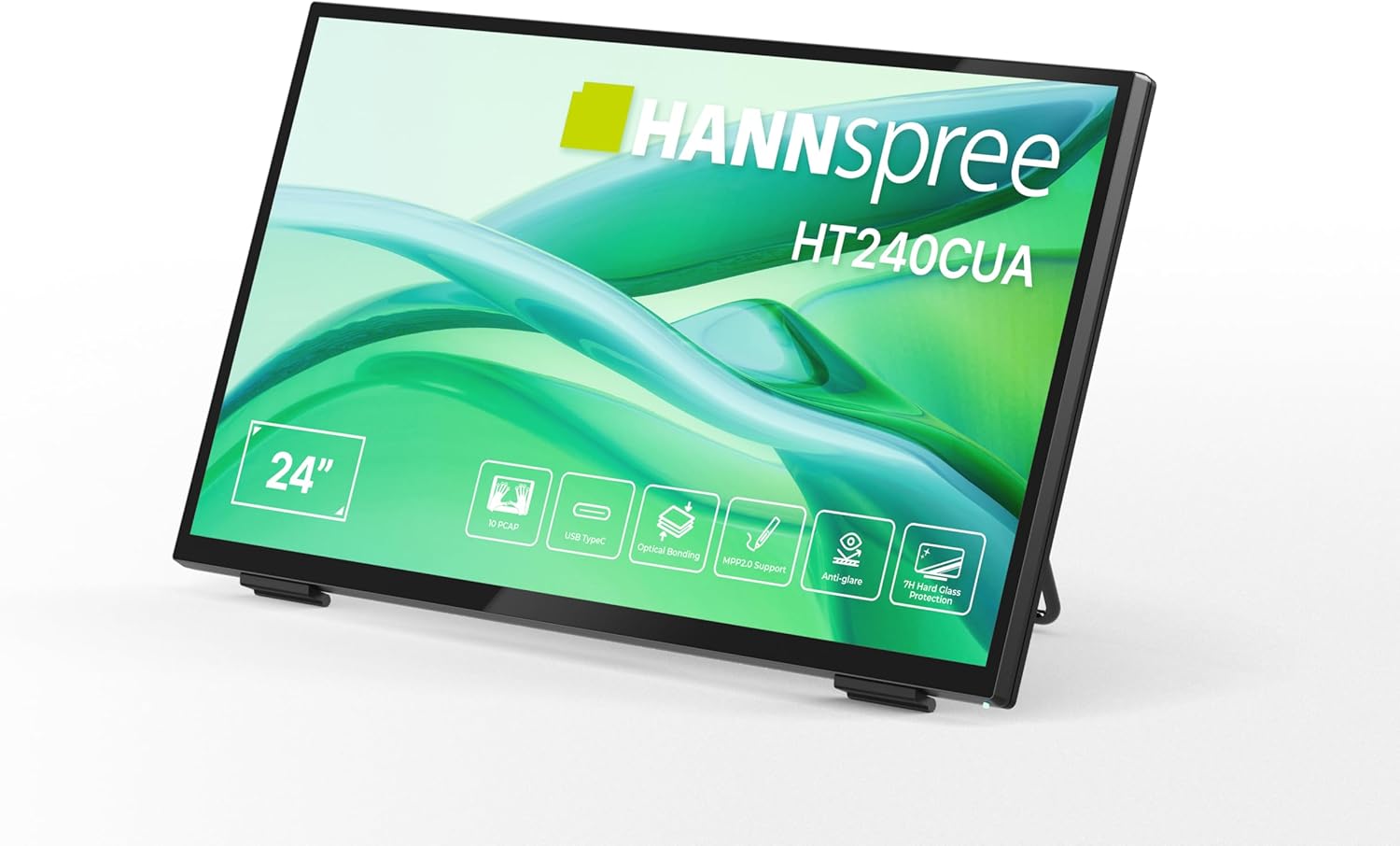
Front view of the HANNspree HT240CUA monitor, showcasindet elegante designet og 24-tommers skjermen.

Bak view of the HANNspree HT240CUA monitor, highlighting the various input/output ports including USB Type-C, HDMI, and DisplayPort.
Oppsett
- Unpacking the Monitor: Carefully remove the monitor and all accessories from the packaging. Place the monitor on a stable, flat surface.
- Koble til strømmen:
- Koble strømkabelen til strømforsyningen.
- Plug the power supply into the DC IN port on the back of the monitor.
- Koble den andre enden av strømkabelen til en jordet stikkontakt.
- Koble til en datamaskin:
- USB Type-C-tilkobling: For video, audio, and touch functionality with a single cable, connect the supplied USB A-C cable to the USB Type-C port on the monitor and to a compatible USB Type-C port on your computer.
- HDMI-tilkobling: Connect one end of the HDMI cable to the HDMI port on the monitor and the other end to the HDMI output port on your computer.
- DisplayPort-tilkobling: Connect a DisplayPort cable (not included) to the DP port on the monitor and to the DisplayPort output on your computer.
- VGA-tilkobling: Connect a VGA cable (not included) to the VGA port on the monitor and to the VGA output on your computer.

Diagram illustrating the versatile connectivity options available on the HANNspree HT240CUA monitor, including USB-C, DisplayPort, HDMI, and VGA.
- Justering av stativet: The monitor features an ergonomically adjustable stand with a tilt angle of 15-70 degrees. Adjust the stand to your preferred viewing vinkel.
- VESA-montering (valgfritt): The monitor supports VESA mount 100 x 100 mm for alternative mounting solutions, such as wall mounts or mini PC attachments.
Bruksanvisning
Slå på/av
Trykk på av/på-knappen på siden av skjermen for å slå den av eller på.
Using the Multitouch Functionality
The HT240CUA supports 10-point PCAP multitouch. Ensure your operating system is configured for touch input.

Image showing the HANNspree HT240CUA monitor in use with 10-point multitouch functionality, allowing for smooth and precise interactions.
MPP 2.0 Stylus Support
The monitor supports MPP 2.0 compatible styluses (pen not included) for a pen-like writing and drawing experience with precise accuracy and low latency.
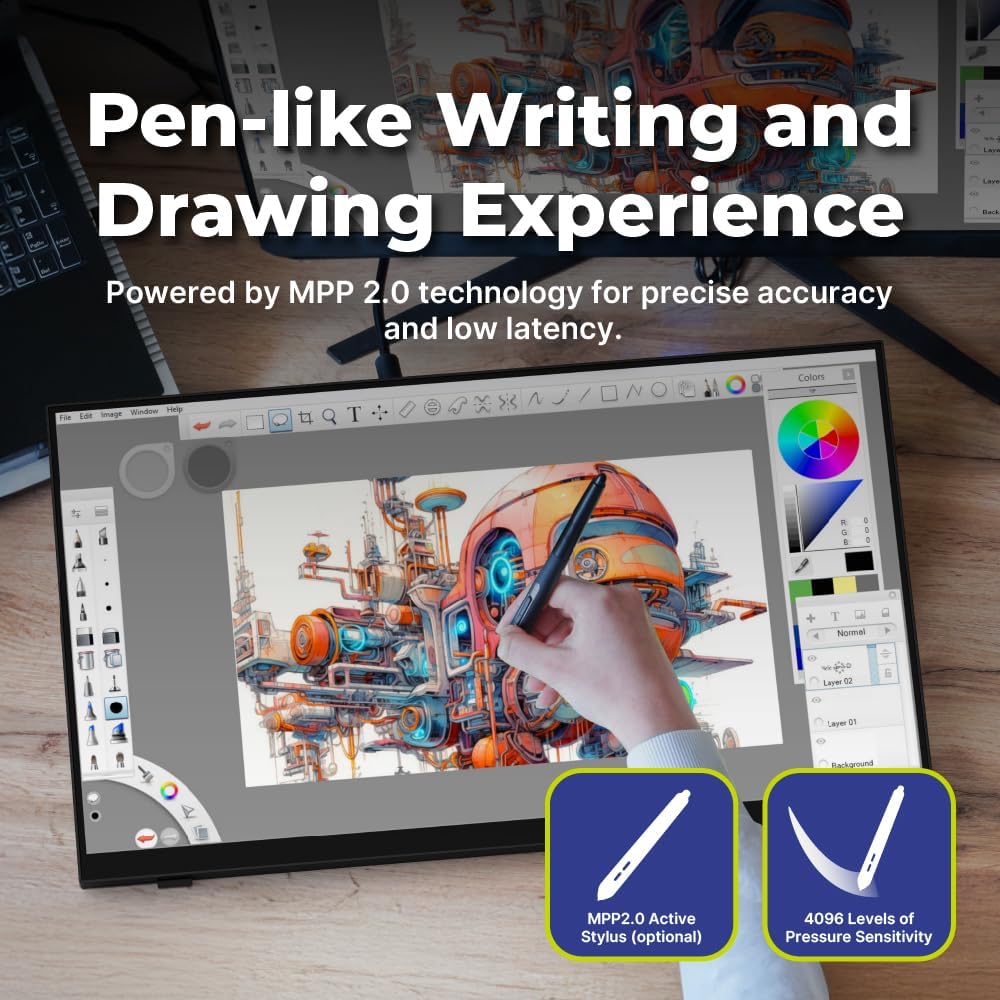
Illustration of the HANNspree HT240CUA monitor's support for MPP 2.0 styluses, enabling a natural writing and drawing experience.
On-Screen Display (OSD)-meny
Use the buttons on the side of the monitor to navigate and adjust settings in the OSD menu. Common settings include brightness, contrast, input source selection, and color temperature.
- MENY-knapp: Åpner OSD-menyen.
- OPP/NED-knapper: Naviger gjennom menyalternativer.
- ENTER -knapp: Velger et alternativ eller bekrefter en innstilling.
- EXIT-knapp: Går ut av gjeldende meny eller OSD-menyen.
Vedlikehold
Rengjøre skjermen
For å rengjøre skjermen og casing:
- Slå av skjermen og trekk ut strømkabelen.
- Bruk en myk, lofri klut lett damprengjøres med vann eller et ikke-slipende skjermrensemiddel.
- Tørk forsiktig av skjermen ogasing. Avoid applying excessive pressure.
- Do not use alcohol, benzene, thinners, or other harsh chemicals, as these may damage the screen surface or casing.
Lagring
Når du oppbevarer skjermen over lengre tid, må du sørge for at den er slått av, koblet fra strømnettet og oppbevart på et kjølig og tørt sted, unna direkte sollys og ekstreme temperaturer.
Feilsøking
Hvis du støter på problemer med skjermen, kan du se følgende vanlige problemer og løsninger.
Ingen strøm
- Sørg for at strømkabelen er ordentlig koblet til skjermen og stikkontakten.
- Kontroller at strømuttaket fungerer som det skal ved å koble til en annen enhet.
- Sjekk strømadapteren for synlige skader.
Ingen bilde på skjermen
- Confirm that the monitor is powered on.
- Check the video cable (HDMI, DisplayPort, USB-C, VGA) connections at both the monitor and the computer.
- Sørg for at riktig inngangskilde er valgt i skjermens OSD-meny.
- Test skjermen med en annen datamaskin eller videokilde hvis mulig.
Touch Functionality Not Working
- For USB Type-C connections, ensure the cable supports data transfer for touch.
- If using HDMI/DP/VGA, ensure a separate USB cable is connected from the monitor's USB upstream port to your computer for touch data.
- Check your computer's operating system settings for touch screen calibration or driver issues.
- Restart both the monitor and the computer.
Problemer med bildekvalitet
- Juster lysstyrke-, kontrast- og fargeinnstillinger via OSD-menyen.
- Sørg for at skjermoppløsningen på datamaskinen er satt til skjermens native oppløsning (1920 x 1080).
- Sjekk for eventuelle fysiske skader på skjermen eller kablene.
Spesifikasjoner
| Trekk | Spesifikasjon |
|---|---|
| Skjermstørrelse | 23.8 tommer |
| Oppløsning | 1920 x 1080 (Full HD) |
| Aspektforhold | 16:9 |
| Touch-teknologi | PCAP, 10-point multitouch |
| Overflatehardhet | 7H Tempered Glass |
| Lysstyrke | 270 cd/m² |
| Tilkobling | USB Type-C (Video/Audio/Touch), HDMI, DisplayPort, VGA, USB Hub 3.0 (2x) |
| Høyttalere | Integrert |
| Tiltvinkel | 15-70 grader |
| VESA -feste | 100 x 100 mm |
| Støtte for pekepenner | MPP 2.0 (pen not included) |
| Produktdimensjoner (L x B x H) | 21.65 x 13.12 x 1.94 tommer |
| Varevekt | 12.39 pund |
Garanti og støtte
For warranty information, please refer to the included Warranty Card in your package. For technical support or service inquiries, please visit the official HANNspree webnettstedet eller kontakt deres kundeserviceavdeling.
Keep your purchase receipt and product serial number (found on the back of the monitor) readily available when contacting support.