
1. Produktet er overview
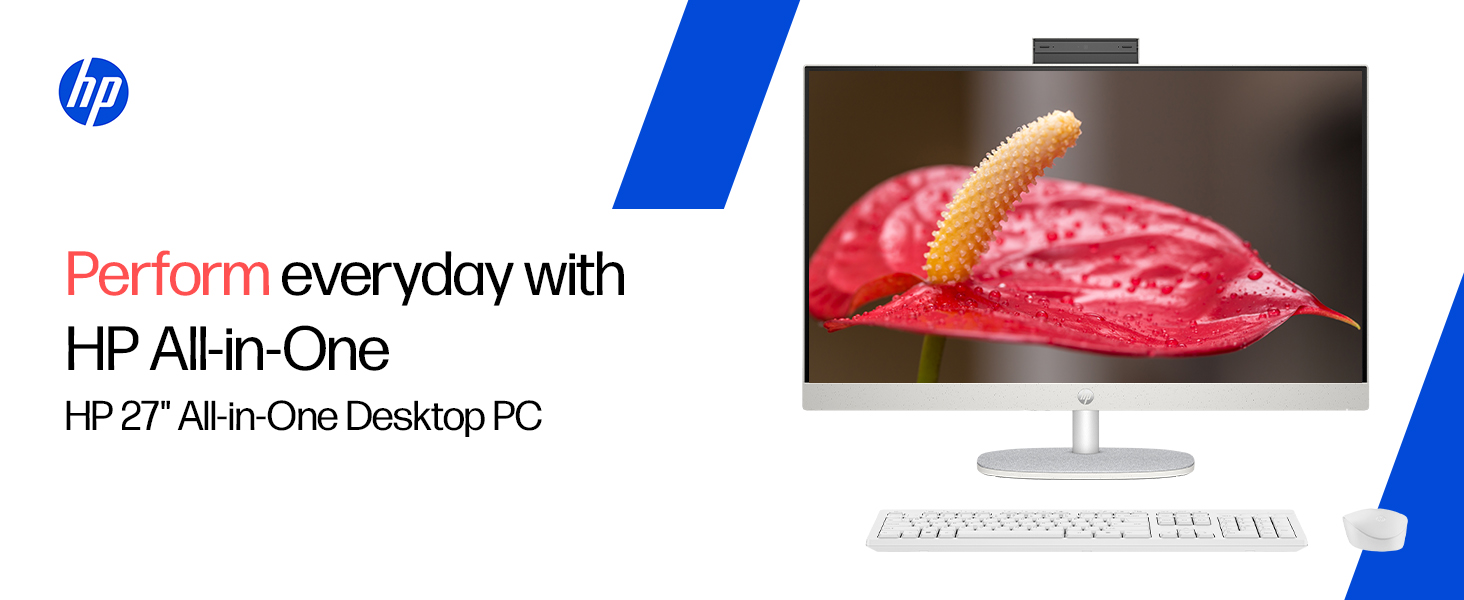
The HP All-in-One PC models 27-cr0902in and 27-cr0906in are designed for everyday computing tasks, offering a blend of performance and display quality. This manual provides essential information for setting up, operating, maintaining, and troubleshooting your device.
Nøkkelfunksjoner
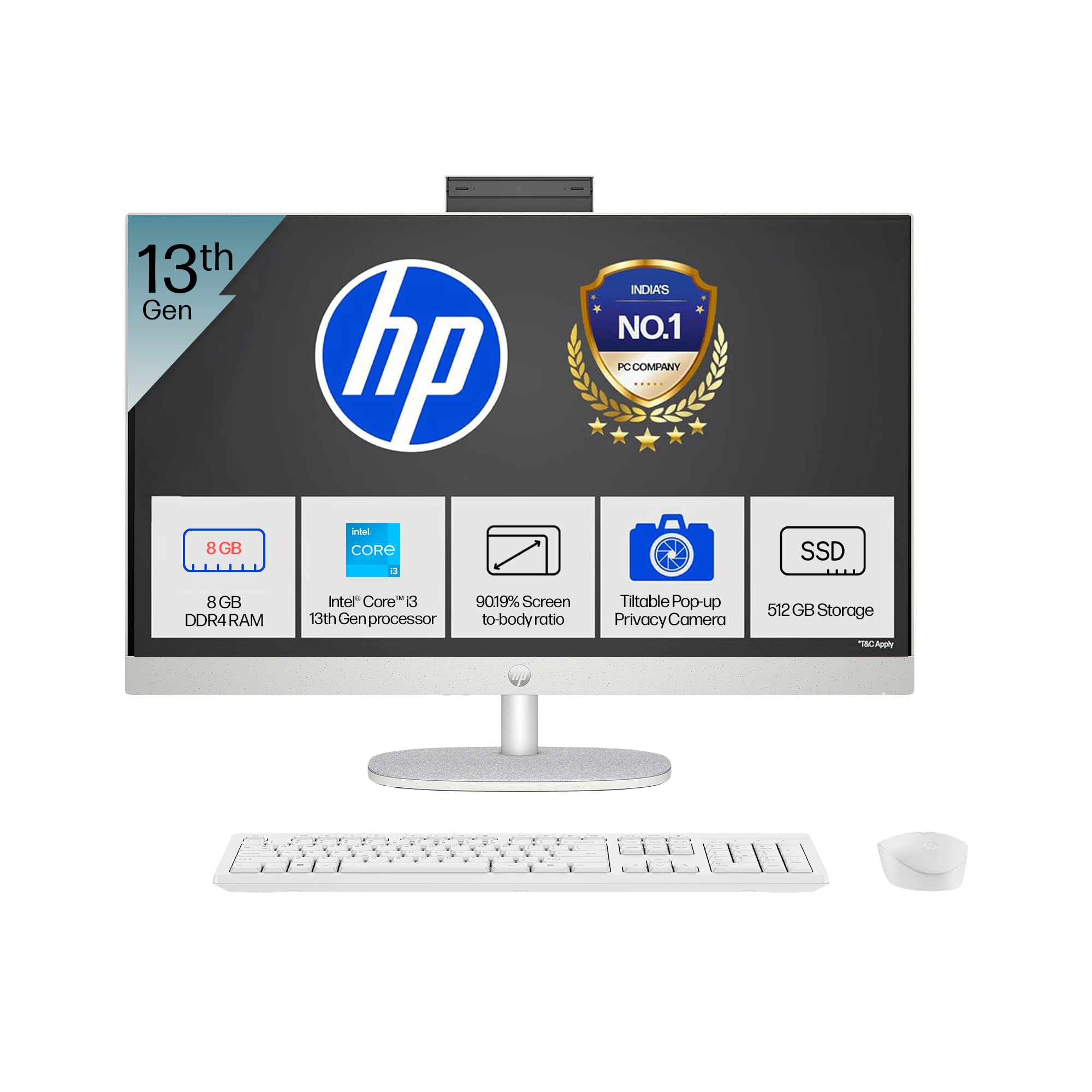
- Prosessor: Intel Core i3-1315U (up to 4.5 GHz with Intel Turbo Boost Technology, 6 cores, 8 threads)
- Hukommelse: 8 GB DDR4-3200 MT/s RAM
- Lagring: 512 GB PCIe NVMe M.2 SSD
- Utstilling: 27-inch (68.6 cm) diagonal, FHD (1920 x 1080), touch, IPS, three-sided microedge, anti-glare, 300 nits, 99% sRGB
- Grafikk: Integrert Intel UHD-grafikk
- Operativsystem: Windows 11 Home Single Language i S-modus
- Kamera: HP True Vision 1080p FHD IR tilt privacy camera with temporal noise reduction and integrated dual array digital microphones
- Tilkobling: Wi-Fi 6 (2x2), Bluetooth 5.3, 1 USB Type-C 5Gbps, 2 USB Type-A 5Gbps, 2 USB 2.0 Type-A, 1 headphone/microphone combo, 1 RJ-45
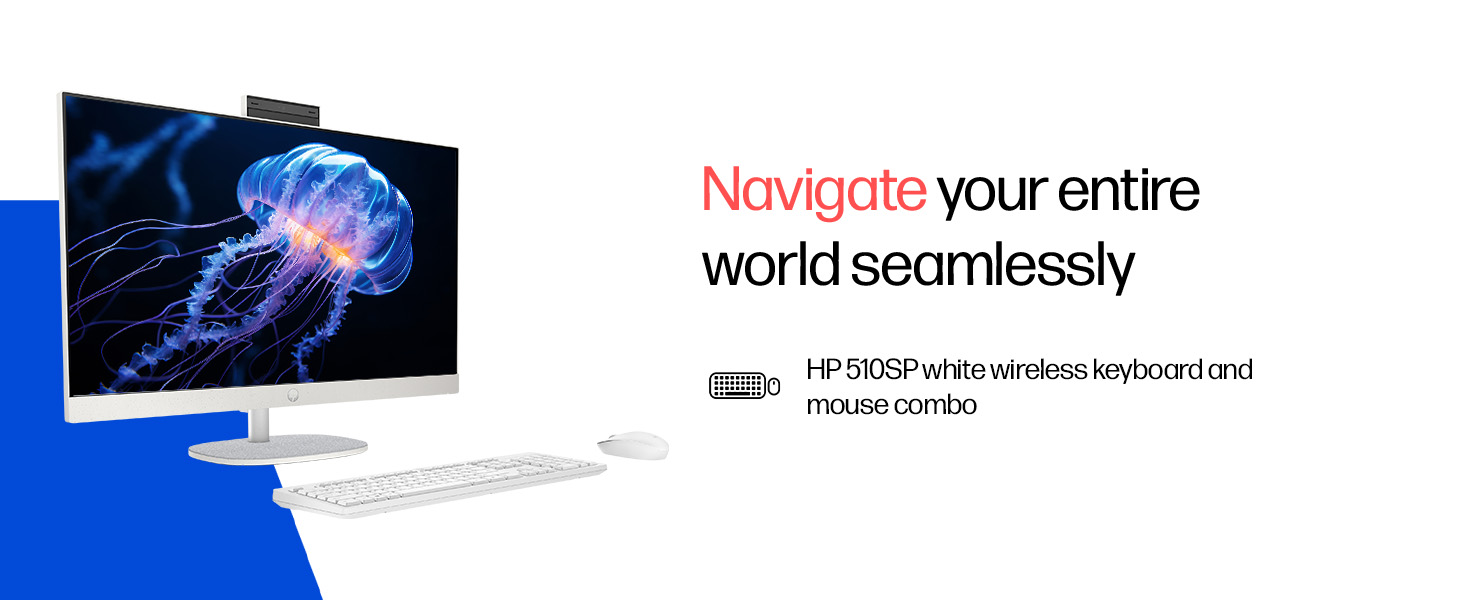
- Included Peripherals: HP 510SP White Wireless Keyboard and Mouse Combo
2. Oppsettveiledning
Follow these steps to set up your HP All-in-One PC.
2.1 Pakke ut esken
Ta forsiktig alle komponentene ut av emballasjen. Sørg for at følgende er til stede:
- HP All-in-One PC unit
- Strømadapter og kabel
- HP 510SP White Wireless Keyboard
- HP 510SP White Wireless Mouse
- Dokumentasjon (denne håndboken, garantiinformasjon)
2.2 Koble til eksterne enheter
- Koble til tastaturet og musen: Insert the USB receiver for the wireless keyboard and mouse into an available USB port on the back of the All-in-One PC. Ensure batteries are installed in both the keyboard and mouse.
- Koble til strøm: Connect the power adapter to the power input port on the back of the All-in-One PC, then plug the power cable into a wall outlet.
- Valgfrie tilkoblinger:
- Eksterne enheter: Connect any external USB devices (e.g., external hard drives, printers) to the available USB ports.
- Nettverkskabel: If using a wired network connection, connect an Ethernet cable to the RJ-45 port.

2.3 Første gangs strøm på
Press the power button, usually located on the side or back of the display. The PC will boot up, and you will be guided through the Windows 11 setup process. Follow the on-screen instructions to configure your operating system, network, and user accounts.
3. Bruksanvisning
3.1 Strøm på/av og hvilemodus
- Strøm på: Trykk på strømknappen.
- Slå av: Klikk på Start-knappen i Windows, og velg deretter Av/på > Slå av.
- Start på nytt: Klikk på Start-knappen i Windows, og velg deretter Av/på > Start på nytt.
- Sove: Click the Start button in Windows, then select Power > Sleep. You can also configure power settings in Windows to automatically enter sleep mode after a period of inactivity.
3.2 Bruk av berøringsskjermen
Your HP All-in-One PC features a touch-enabled display. You can interact with the operating system and applications using touch gestures similar to a tablet or smartphone. Common gestures include tapping, swiping, pinching to zoom, and stretching to zoom out.
3.3 Using the HP True Vision Camera
The integrated HP True Vision 1080p FHD IR tilt privacy camera is suitable for video calls and facial recognition login (Windows Hello). The camera can be tilted for optimal viewing angles and includes a privacy shutter for security. To use the camera, open an application that requires camera access (e.g., Camera app, video conferencing software).
3.4 Audio and Microphones
The PC includes integrated dual 2W speakers and dual array digital microphones with temporal noise reduction for clear audio input during calls or recordings. You can adjust volume settings through the Windows sound controls.
4. Vedlikehold
Proper maintenance ensures the longevity and optimal performance of your HP All-in-One PC.
4.1 Rengjøre enheten
- Utstilling: Bruk en myk, lofri klut litt dampened with water or a screen cleaning solution. Avoid harsh chemicals or abrasive materials.
- Chassis: Tørk av de utvendige overflatene med en myk, tørr klut.
- Tastatur og mus: Use a soft brush or compressed air to remove dust and debris.
- Slå alltid av PC-en og koble den fra støpselet før rengjøring.
4.2 Programvareoppdateringer
Regularly check for and install Windows updates and HP driver updates to ensure system stability, security, and performance. You can find Windows updates in the Settings app under "Windows Update." HP drivers can be found on the official HP support webnettstedet.
4.3 Systemsikkerhetskopiering
It is recommended to regularly back up your important data to an external drive or cloud storage to prevent data loss.
5. Feilsøking
This section addresses common issues you might encounter with your HP All-in-One PC.
5.1 Ingen strøm / Systemet slår seg ikke på
- Sørg for at strømkabelen er ordentlig koblet til både PC-en og stikkontakten.
- Kontroller at stikkontakten fungerer ved å koble til en annen enhet.
- Prøv et annet strømuttak.
5.2 Visningsproblemer
- Ikke noe bilde på skjermen: Ensure the PC is powered on. If connected to an external monitor, check the input source on the monitor.
- Flimrende eller forvrengt bilde: Oppdater grafikkdriverne. Kontakt kundestøtte hvis problemet vedvarer.
- Berøringsskjermen svarer ikke: Restart the PC. Ensure there are no obstructions on the screen. Check for driver updates for the touch display.
5.3 System Performance Issues (Slowdown, Hanging)
- Lukk unødvendige programmer som kjører i bakgrunnen.
- Sjekk Oppgavebehandling (Ctrl+Shift+Esc) for prosesser som bruker mye CPU, minne eller disk.
- Sørg for at operativsystemet og driverne er oppdaterte.
- Run a full system scan for malware or viruses.
- Consider freeing up disk space on your SSD.
5.4 Peripheral Connectivity Problems (Keyboard/Mouse)
- Ensure the USB receiver is securely plugged into a USB port.
- Check the batteries in the wireless keyboard and mouse and replace them if necessary.
- Prøv å koble USB-mottakeren til en annen USB-port.
- Start PC-en på nytt.
6. Tekniske spesifikasjoner
Detailed specifications for the HP All-in-One PC 27-cr0902in/cr0906in.
| Trekk | Detalj |
|---|---|
| Merke | HP |
| Modellnummer | 27-cr0902in, 27-cr0906in |
| Prosessor | Intel Core i3-1315U (up to 4.5 GHz, 6 cores, 8 threads, 10 MB L3 cache) |
| Operativsystem | Windows 11 Home Single Language i S-modus |
| Minne (RAM) | 8 GB DDR4-3200 MT/s (1 x 8 GB) |
| Lagring | 512 GB PCIe NVMe M.2 SSD |
| Utstilling | 27-inch (68.6 cm) FHD (1920 x 1080) IPS, touch, anti-glare, 300 nits, 99% sRGB |
| Grafikk | Intel UHD-grafikk (integrert) |
| Kamera | HP True Vision 1080p FHD IR tilt privacy camera with temporal noise reduction |
| Lyd | Integrated dual array digital microphones, Dual 2W speakers |
| Trådløs tilkobling | Realtek RTL8852BE Wi-Fi 6 (2x2), Bluetooth 5.3 |
| Havner | 1 USB Type-C 5Gbps, 2 USB Type-A 5Gbps, 2 USB 2.0 Type-A, 1 headphone/microphone combo, 1 RJ-45 |
| Tastatur og mus | HP 510SP White Wireless Keyboard and Mouse Combo |
| Dimensjoner (B x D x H) | 61.2 x 18.6 x 44.1 cm (24.11 x XUMX x 7.33 inches) |
| Vekt | 6.42 kg |
| Farge | Hvit skall |
| Miljøsertifiseringer | EPEAT Gold Registered, ENERGY STAR certified |
7. Garanti og støtte
7.1 Garantiinformasjon
Your HP All-in-One PC comes with a 1 års produsentgaranti on the device from the date of purchase. Please retain your purchase receipt for warranty claims.
7.2 Teknisk støtte
For any technical or product-related queries, please contact HP customer support:
- Gratisnumre: 1800-258-7170 or 1860-258-3079
- Produsentkontakt: HP India Sales Pvt. Ltd.
- Importørkontakt: HP India Sales Private Limited, No. 24, Kothari Arena, Hosur Main Road, Adugodi, Bangalore, Karnataka, India, 560030
You can also visit the official HP support website for drivers, documentation, and further assistance.