
Introduksjon
Thank you for choosing the FOPO 15.6" Triple Portable Laptop Monitor. This device is designed to enhance your productivity by providing an extended display for your laptop, creating a multi-screen workstation wherever you go. This manual provides essential information on setup, operation, and maintenance to ensure optimal performance and longevity of your device.
Pakkeinnhold
Vennligst sjekk at alle varene som er oppført nedenfor er inkludert i pakken din. Hvis noen varer mangler eller er skadet, vennligst kontakt kundestøtte.
- 1x FOPO Triple Portable Laptop Monitor (Model S9)
- 1x bæreveske
- 2x USB-C to USB-C Cables
- 2x Mini HDMI to HDMI Cables
- 2x USB-C til USB-A-kabler
- 1x strømadapter
- 1x brukerveiledning
- 1x beskyttelseshette
- 1x Buntebånd
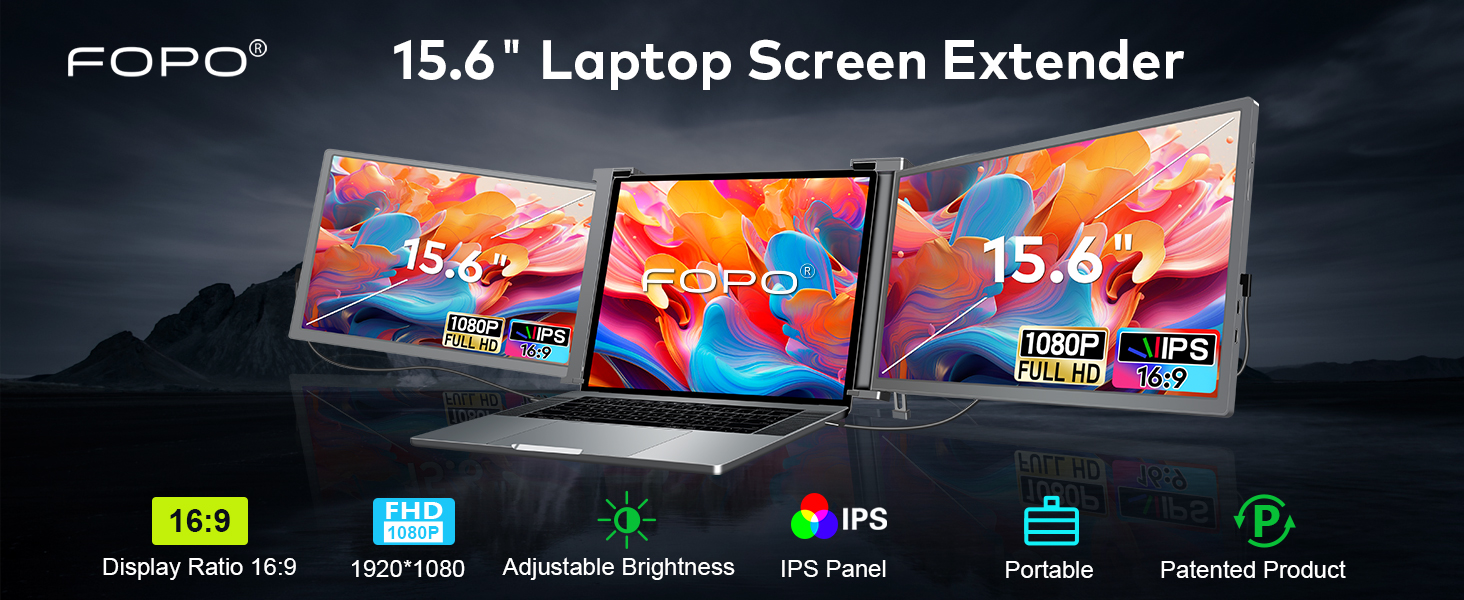
Image: A detailed layout of all items included in the FOPO Triple Portable Laptop Monitor package, including the main unit, cables, power adapter, carry bag, and user manual.
Produktfunksjoner
- Fantastiske bilder: 15.6" FHD 1080P IPS displays with 72% NTSC, 1000:1 contrast ratio, 300 nits brightness, and wide viewing vinkler.
- Allsidig design: Dual rotatable screens (right 0-180°, left 0-235°) for flexible viewing and screen sharing.
- Integrert støtte: Stable built-in kickstand for adjustable length and comfortable viewing angles, preventing falls.
- Bærbar: Foldable and lightweight design (3.98 lbs) with a convenient carry bag, ideal for travel and remote work.
- Enkel tilkobling: Plug and Play functionality with USB-C and HDMI ports, no extra drivers or software needed.
- Omvendt lading: Display PD power cable supports reverse charging for laptops.

Image: The FOPO monitor in various configurations, demonstrating its dual rotatable screens and different display modes (Extended and Mirror).
Kompatibilitet
This monitor offers broad compatibility with various devices and operating systems. Please ensure your laptop meets the following requirements for optimal performance:
- Laptop Size: Suitable for 15.6-17.3 inch laptops. Adaptive laptop dimensions: Length (left to right) 13.5-18.2 inches, Breadth (top to bottom) >9.4 inches, Thickness (display panel) <0.3 inches.
- Operativsystemer: Windows, MacOS (M1 Pro and M1 Max chips only), Android, Switch, Xbox.
- Tilkobling: Requires a full-featured USB-C port (for power supply & video signal) or a combination of USB-A and HDMI ports.

Image: A visual guide explaining how to identify a full-featured USB-C port by its symbols (Thunderbolt 3, Thunderbolt 4, SS with DP icon). It also lists incompatible laptop models.
Incompatible Laptop Models
Please note that the following laptop models are generally incompatible. If your laptop is listed, please contact customer support to confirm compatibility before purchase:
- MacBook: M1/M2/M3 MacBook, MacBook Pro 2012 and earlier, MacBook Air 2017 and earlier
- Microsoft: Surface Series (including Surface Pro/Go/Go 2, Surface Pro 6/Pro 7/ProX, Surface Laptop Go/3/2/4)
- Lenovo: Thinkpad X1 Fold, Yoga Chromebook 15.6", Yoga 7i 14", S540 13"
- HP: HP G62 (2010), ENVY X360 13-ay0056AU, ENVY 13
- Huawei: MateBook 13 2020 3.3", 13 2021 13.3", E 2019 12"
- Samsung: Galaxy Book S/Book Pro 360, Galaxy Chromebook
- Dell: Dell XPS 13 Early 2015, Dell Vostro Series
Oppsettinstruksjoner
1. Fysisk oppsett
- Carefully remove the triple monitor unit from its packaging.
- Place your laptop on a stable, flat surface.
- Unfold the triple monitor unit and attach it to the top of your laptop screen. Ensure the brackets securely grip the top edge of your laptop screen.
- Adjust the integrated kickstand at the back of the triple monitor unit to provide stable support and achieve your desired viewing vinkel.

Image: A close-up of the adjustable bracket on the back of the FOPO monitor, demonstrating how to press and extend it for stability.
2. Kabeltilkoblinger
The FOPO monitor supports two main connection methods:
- Alternativ 1: To fullfunksjonelle USB-C-porter
- Connect one USB-C to USB-C cable from your laptop's first full-featured USB-C port to the left monitor's USB-C port.
- Connect a second USB-C to USB-C cable from your laptop's second full-featured USB-C port to the right monitor's USB-C port.

Image: Visual instructions for connecting the triple monitor using two USB-C to USB-C cables, assuming the laptop has two full-featured USB-C ports.
- Option 2: USB-C and HDMI Ports
- Connect one USB-C to USB-C cable from your laptop's full-featured USB-C port to one of the monitor's USB-C ports (for power and video).
- Connect a Mini HDMI to HDMI cable from your laptop's HDMI port to the other monitor's Mini HDMI port (for video).
- Connect a USB-C to USB-A cable from your laptop's USB-A port to the remaining monitor's USB-C port (for power only).

Image: Visual instructions for connecting the triple monitor using a combination of USB-C, USB-A, and HDMI cables, suitable for laptops with varied port types.
3. Strømforsyning
If your laptop's USB-C ports do not provide sufficient power (e.g., if the screen flashes), you may need to use the included power adapter:
- Connect the power adapter to an external outlet.
- Connect the power adapter's USB-C cable to the monitor's dedicated power input port.

Image: Illustration of connecting a 65W+ power adapter to the monitor for reverse charging, which also powers the laptop.
Bruksanvisning
1. Skjermkonfigurasjon
After connecting the monitors, you may need to configure your display settings:
- For Windows:
- Go to your Display Settings (Start > Settings > System > Display).
- Click and drag screens to configure their arrangement.
- To set different display modes (Extend, Duplicate, Second screen only), select the desired option.
- If any of the screens are upside down, click on the screen in the display menu, then click on the "Identify" button down the screen to find the corresponding screen and select the one, then enter into the "Multiple displays" menu to set the orientation to Landscape (flipped).
- For MacOS:
- Open "System Preferences" > "Displays".
- Click "Display Settings" from display menu.
- Klikk på skjermnavn for å angi speil eller utvidet visning.
- Click any display screen in the interface shown in to adjust the screen position.

Image: Side-by-side comparison of display settings interfaces for Windows and MacOS, illustrating how to arrange and configure multiple monitors.
2. Lysstyrkejustering
Each monitor has separate OSD buttons for brightness adjustment. Use the physical buttons on the monitor to increase or decrease brightness to your preference.

Image: A visual representation of the FOPO triple monitor setup with separate OSD buttons for brightness adjustment on each screen.
3. Skjermrotasjon
The left screen can rotate from 0 to 235 degrees, and the right screen can rotate from 0 to 180 degrees. This allows for flexible viewing options, including portrait mode or screen sharing with colleagues.
Strømstyring
The FOPO Triple Portable Laptop Monitor supports reverse charging for your laptop via its PD power cable. This means the monitor can draw power from an external adapter and simultaneously charge your laptop, extending your work time on the go.
Feilsøking
- Screen not displaying: Ensure all cables are securely connected. Verify your laptop's ports support video output. For MacOS, ensure you have M1 Pro or M1 Max chip.
- Screen flashing/insufficient power: Connect the included power adapter to an external outlet and the monitor's power input.
- Incorrect display orientation: Adjust settings in your operating system's display preferences (refer to Operating Instructions).
- Ingen lyd: Check your laptop's sound settings and ensure the monitor's volume is not muted or too low.
Spesifikasjoner
| Trekk | Spesifikasjon |
|---|---|
| Modellnummer | S9 |
| Skjermstørrelse | 15.59 tommer |
| Oppløsning | 1920 x 1080 piksler (FHD 1080p) |
| Aspektforhold | 16:9 |
| Beskrivelse av skjermoverflaten | LCD |
| Produktdimensjoner | 1.6 x 15.5 x 9.6 tommer |
| Varevekt | 6.89 pund |
| Produsent | SHENZHEN E-Tech Digital Technology CO., Ltd. |
Offisielle produktvideoer
FOPO 15.6" Triple Portable Laptop Monitor - Overview
Video: A 45-second official video from FOPO Direct showcasing the FOPO 15.6" Triple Portable Laptop Monitor, highlighting its key features and design.
15.6" Triple Portable Laptop Monitor - Setup & Usage
Video: A 3-minute and 41-second official video from FOPO Direct demonstrating the setup and various usage scenarios of the 15.6" Triple Portable Laptop Monitor.
Garanti og støtte
The FOPO Triple Portable Laptop Monitor comes with a standard manufacturer's warranty. For specific warranty details, technical support, or any inquiries, please refer to the contact information provided in your package or visit the official FOPO website. Always ensure compatibility and check laptop size before making a purchase.