
Introduksjon
This manual provides essential information for setting up, operating, maintaining, and troubleshooting your HP All-in-One PC, models 27-cr0417in and 27-cr0421in. Please read these instructions carefully to ensure proper use and longevity of your device.
The HP All-in-One PC features a 27-inch Full HD IPS display, powered by a 13th Gen Intel Core i5-1334U processor, 16GB DDR4 RAM, and a 1TB PCIe NVMe M.2 SSD. It comes pre-installed with Windows 11 Home and Office 2024.
1. Oppsettveiledning
1.1 Unpacking the PC
Ta forsiktig alle komponentene ut av emballasjen. Sørg for at følgende er til stede:
- HP All-in-One PC unit
- HP 710 White Wireless Keyboard
- HP White Wireless Mouse
- 90W Smart AC Power Adapter
- Dokumentasjon (inkludert denne håndboken)
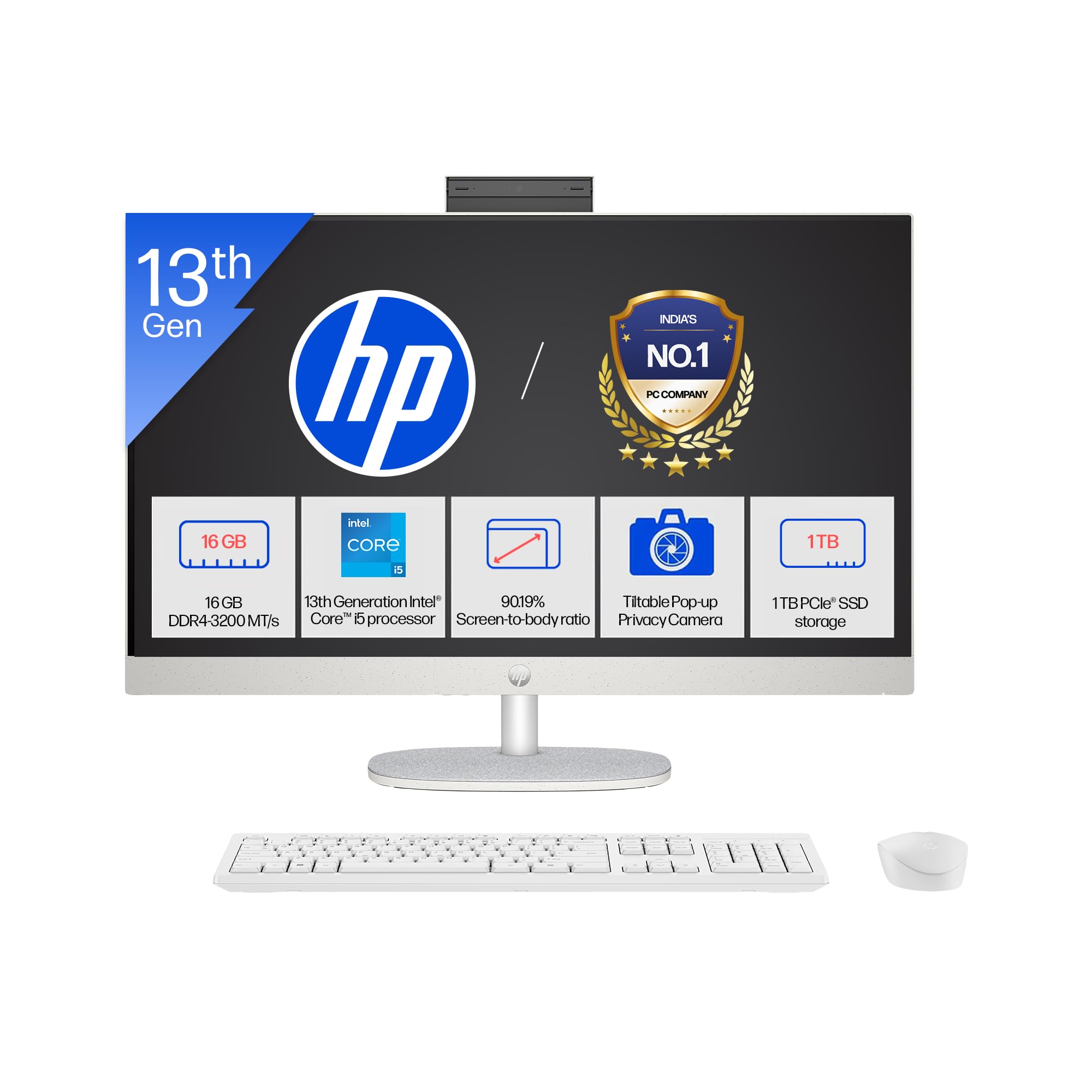
Image: The HP All-in-One PC with its included wireless keyboard and mouse, ready for setup.
1.2 Koble til eksterne enheter
- Strømtilkobling: Connect the 90W Smart AC Power Adapter to the power port on the back of the PC, then plug it into a wall outlet.
- Trådløst tastatur og mus: The HP 710 wireless keyboard and mouse are pre-paired. Insert the included batteries into both devices. The USB receiver for the wireless devices is typically found in the mouse or keyboard packaging. Plug this receiver into an available USB port on the PC.
- Valgfrie tilkoblinger: If you have external devices, connect them to the appropriate ports (e.g., USB drives, external monitors via HDMI-out).
1.3 Første oppstart og Windows-oppsett
- Press the power button, usually located on the side or back of the display.
- Follow the on-screen instructions to complete the Windows 11 Home setup. This includes selecting your region, connecting to a Wi-Fi network, and creating a user account.
- Your PC comes with Windows 11 Home in S mode. This mode is designed for security and performance, exclusively running apps from the Microsoft Store. If you need to install apps from outside the Microsoft Store, you can switch out of S mode.
2. Bruk av PC-en
2.1 Grunnleggende navigasjon og visning
Your HP All-in-One PC features a 27-inch Full HD (1920 x 1080) IPS display with a three-sided micro-edge design for an immersive viewing experience. The anti-glare finish reduces reflections, and 300 nits brightness ensures clear visuals.

Image: Visual representation of the 27-inch FHD IPS display with micro-edge bezels and 300 nits brightness.
2.2 Camera and Audio Features
- HP True Vision 1080p FHD IR Tilt Privacy Camera: The integrated camera provides high-definition video for calls and includes an IR sensor for Windows Hello facial recognition. The tilt feature allows adjustment, and the privacy shutter ensures your privacy when not in use.
- Dual Array Digital Microphones: Integrated microphones with temporal noise reduction enhance audio clarity during video conferences and voice commands.
- Doble 2W høyttalere: The built-in stereo speakers provide clear audio output for multimedia and communication.
2.3 Tilkobling
Your PC offers a variety of ports and wireless options for connecting to networks and peripherals.
- Trådløs: Integrated Realtek RTL8852BE Wi-Fi 6 (2x2) for high-speed internet and Bluetooth 5.3 for connecting wireless accessories.
- USB-porter: Includes 1 USB Type-C (5Gbps), 2 USB Type-A (5Gbps), and 2 USB 2.0 Type-A ports for various devices.
- HDMI-utgang: Connect an external display using the HDMI-out 1.4 port.
- RJ-45: For kablet Ethernet-nettverkstilkobling.
- Hodetelefon/mikrofon-kombinasjon: A single port for audio input and output.

Bilde: Detaljert view of the rear ports on the HP All-in-One PC, including USB, HDMI, and Ethernet connections.
3. Vedlikehold og stell
3.1 Rengjøringsinstruksjoner
- Utstilling: Bruk en myk, lofri klut litt dampened with water or a screen cleaner specifically designed for electronics. Avoid harsh chemicals.
- Chassis: Tørk av de utvendige overflatene med en myk, tørr klut. For gjenstridige merker, bruk en lett klut.amp klut kan brukes.
- Tastatur og mus: Bruk en myk børste eller trykkluft for å fjerne støv og rusk. Tørk av overflatene med en lett klut.amp klut om nødvendig.
- Ventilasjon: Ensure the ventilation openings are clear of dust to prevent overheating. Use compressed air to gently clear dust from vents.
3.2 Programvareoppdateringer
Oppdater operativsystemet og driverne regelmessig for å sikre optimal ytelse og sikkerhet.
- Windows-oppdateringer: Gå til Innstillinger > Windows-oppdatering for å se etter og installere de nyeste oppdateringene.
- Driveroppdateringer: HP provides driver updates through its support website or HP Support Assistant software.
3.3 Lagringshåndtering
To maintain system performance, regularly manage your 1TB SSD storage:
- Slett unødvendig files og applikasjoner.
- Bruk skylagringstjenester for store files.
- Run Disk Cleanup (search for it in Windows) to remove temporary files.
4. Feilsøking
4.1 Vanlige problemer og løsninger
- PC does not power on:
- Sørg for at strømadapteren er ordentlig koblet til både PC-en og en fungerende stikkontakt.
- Test strømuttaket med en annen enhet.
- Ingen visning på skjermen:
- Check if the PC is powered on.
- Ensure no external display is connected and set as the primary output.
- Wireless keyboard/mouse not responding:
- Kontroller batterinivåene og skift ut om nødvendig.
- Ensure the USB receiver is properly plugged into a USB port.
- Prøv å koble mottakeren til en annen USB-port.
- Ingen internettforbindelse:
- Verify your Wi-Fi network is active and you have the correct password.
- Start ruteren/modemet på nytt.
- Check network cable if using RJ-45.
4.2 Når du skal kontakte kundestøtte
If you encounter persistent issues that cannot be resolved using the troubleshooting steps above, please refer to the Warranty and Support section for contact information.
5. Produktspesifikasjoner

Bilde: Overview of the 13th Gen Intel Core i5-1334U processor specifications, including core count and clock speed.
| Trekk | Beskrivelse |
|---|---|
| Modellnummer | 27-cr0417in, 27-cr0421in |
| Prosessor | 13th Gen Intel Core i5-1334U (up to 4.6 GHz, 10 cores, 12 threads, 12 MB L3 cache) |
| Minne (RAM) | 16 GB DDR4-3200 MT/s (1 x 16 GB), 1 available slot |
| Lagring | 1 TB PCIe NVMe M.2 SSD |
| Operativsystem | Windows 11 Home Single Language i S-modus |
| Forhåndsinstallert programvare | Microsoft Office 2024, 1 Year Microsoft 365 Basic |
| Utstilling | 27" (68.6 cm) diagonal, FHD (1920 x 1080), IPS, three-sided micro-edge, anti-glare, 300 nits, 99% sRGB |
| Grafikk | Integrert grafikk |
| Havner | 1 USB Type-C 5Gbps, 2 USB Type-A 5Gbps, 2 USB 2.0 Type-A, 1 Headphone/microphone combo, 1 RJ-45, 1 HDMI-out 1.4 |
| Utvidelsesspor | 1 M.2 (for SSD), 1 M.2 (for WLAN) |
| Trådløs tilkobling | Realtek RTL8852BE Wi-Fi 6 (2x2) and Bluetooth 5.3 |
| Lyd | Doble 2W høyttalere |
| Tastatur og mus | HP 710 White Wireless Keyboard and Mouse Combo |
| Kamera | HP True Vision 1080p FHD IR tilt privacy camera with temporal noise reduction and integrated dual array digital microphones |
| Strømforsyning | 90W Smart AC power adapter |
| Dimensjoner (B x D x H) | 61.2 x 18.6 x 51.7 cm (24.11 x XUMX x 7.34 inches) |
| Vekt | 6.72 kg |
| Farge | Shell white |
| UPC | 199485095103 |
| Bærekraftsfunksjoner | Post-consumer recycled and ocean-bound plastics, EPEAT Gold Registered, ENERGY STAR Certified |
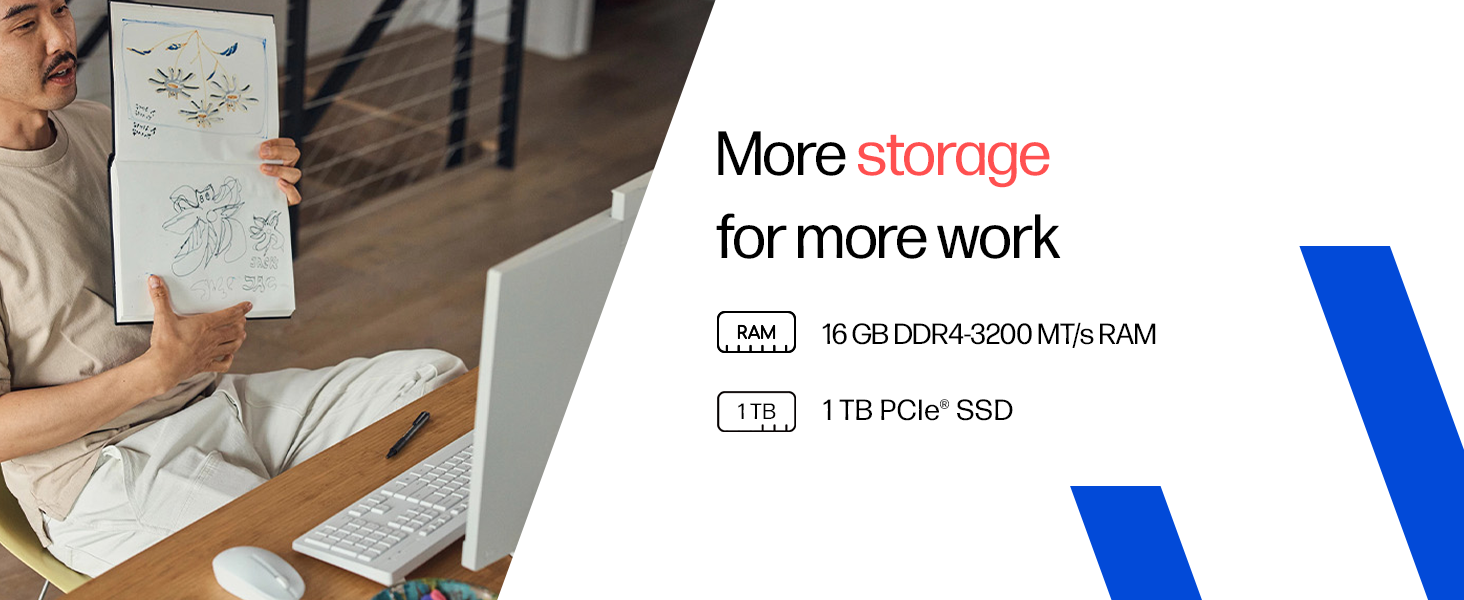
Image: Details on the 16GB DDR4 RAM and 1TB PCIe SSD for efficient performance and storage.
6. Garanti og støtte
6.1 Garantiinformasjon
Your HP All-in-One PC comes with a 1 års produsentgaranti on the device from the date of purchase. Please retain your proof of purchase for warranty claims.
6.2 Teknisk støtte
For any technical or product-related queries, please contact HP customer support:
- Gratisnumre: 1800-258-7170 or 1860-258-3079
- Produsent: HP India Sales Pvt. Ltd.
For additional support resources, visit the official HP support webnettstedet.