
1. Introduksjon
This manual provides detailed instructions for the setup, operation, maintenance, and troubleshooting of your Gawfolk 24.5 Inch 300Hz Gaming Monitor, Model GF245C. This monitor features a 24.5-inch FHD 1080p VA panel, a 300Hz refresh rate, 1ms response time, Adaptive Sync technology, 98% sRGB color gamut, and low blue light/flicker-free technology for an enhanced viewopplevelse.
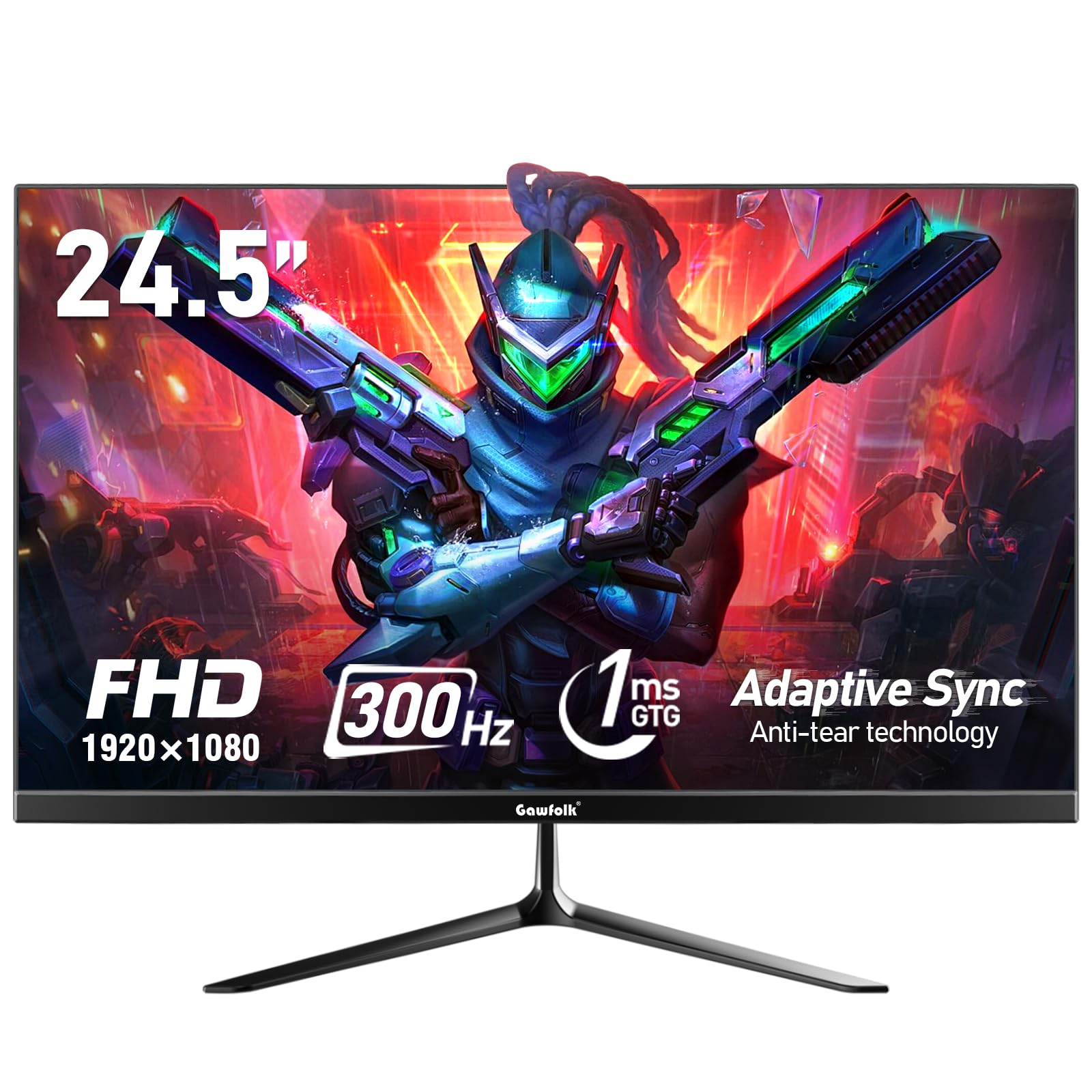
Figur 1: Foran view of the Gawfolk 24.5 Inch 300Hz Gaming Monitor.
2. Installasjonsinstruksjoner
2.1 Pakkeinnhold
- Gawfolk 24.5 Inch Gaming Monitor
- Skjermstativ (base og hals)
- Strømadapter
- DisplayPort (DP)-kabel
- Brukerhåndbok
2.2 Montering av stativet
- Ta forsiktig ut komponentene til skjermen og stativet fra emballasjen.
- Fest stativhalsen til skjermpanelet med de medfølgende skruene.
- Attach the stand base to the stand neck, securing it with the designated screw.
- Plasser den monterte skjermen på en stabil, flat overflate.
2.3 Tilkoblingskabler
Sørg for at skjermen og datamaskinen er slått av før du foretar noen tilkoblinger.
- Strømtilkobling: Koble strømadapteren til skjermens likestrømsinngang, og koble deretter adapteren til en stikkontakt.
- Videotilkobling: Connect one end of the provided DisplayPort (DP) cable to the DP port on your computer's graphics card and the other end to the DP input on the monitor. Alternatively, use an HDMI cable to connect to an HDMI port.
- Lydutgang: If desired, connect external speakers or headphones to the 3.5mm audio output port on the monitor.
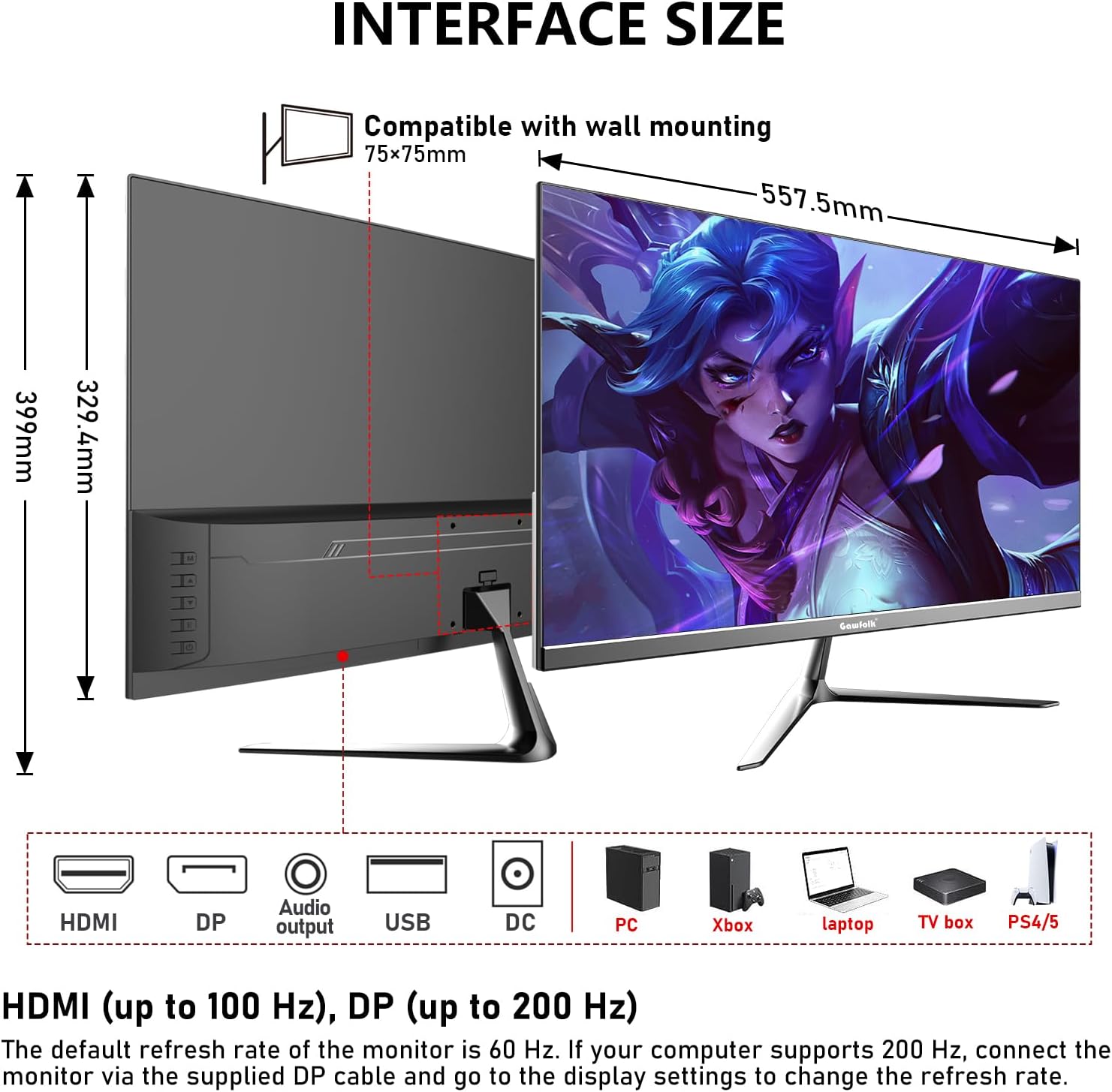
Figure 2: Monitor dimensions and port layout.
2.4 Veggmontering (valgfritt)
The monitor supports VESA wall mounting with a 75x75mm pattern. A wall mounting bracket is not included and must be purchased separately. Follow the instructions provided with your VESA mount for proper installation.

Figure 3: Monitor compatible with 75x75mm VESA wall mounting.
3. Bruksanvisning
3.1 Strøm på/av
- To power on the monitor, press the power button located on the back or bottom of the monitor.
- For å slå av, trykk og hold inne av/på-knappen til skjermen slår seg av.
3.2 OSD-meny navigasjon
The On-Screen Display (OSD) menu allows you to adjust various monitor settings. Use the joystick or buttons (location may vary slightly) on the back or bottom of the monitor to navigate the menu.
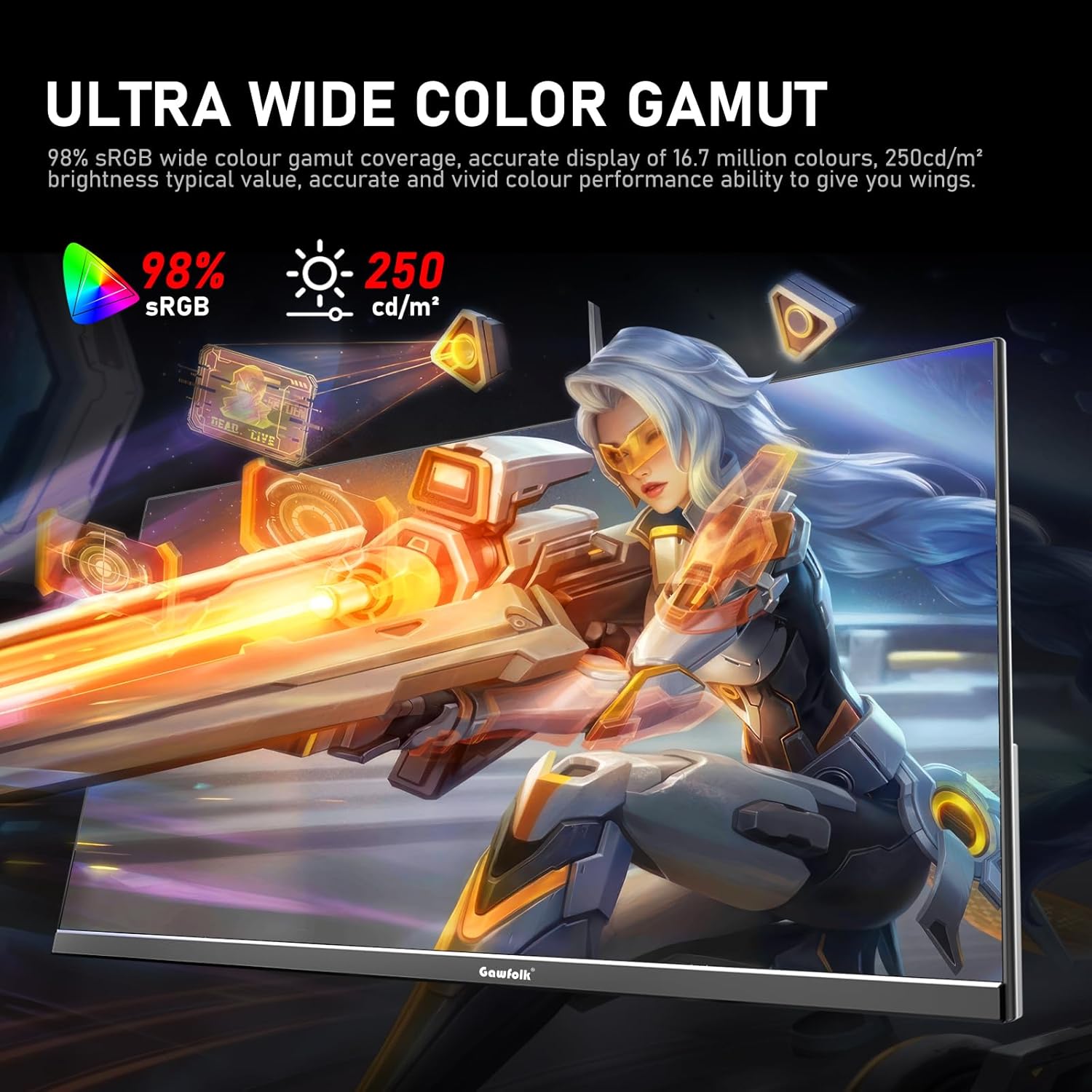
Figure 4: On-Screen Display (OSD) menu for monitor settings.
3.3 Inngangsvalg
Access the OSD menu and navigate to the 'Input' or 'Source' section to select between HDMI and DisplayPort inputs.
3.4 Justere skjerminnstillinger
- Lysstyrke/kontrast: Juster disse innstillingene i OSD-menyen slik at de passer til dine behov. viewmiljøet.
- Fargeinnstillinger: Fine-tune color temperature, gamma, and other color parameters for optimal visual quality. The monitor supports 98% sRGB for rich colors.
- Oppdateringsfrekvens: The monitor supports up to 300Hz via DisplayPort and up to 120Hz via HDMI. To change the refresh rate, connect the monitor via the appropriate cable and adjust the display settings within your computer's operating system.

Figure 5: Connectivity options and refresh rate capabilities.
3.5 Adaptiv synkroniseringsteknologi
This monitor supports Adaptive Sync (FreeSync/G-Sync compatible) to minimize input latency and reduce screen tearing and stuttering during gaming and video playback. Ensure Adaptive Sync is enabled in both the monitor's OSD menu and your graphics card settings.

Figure 6: Visual demonstration of Adaptive Sync technology reducing screen tearing.
3.6 Low Blue Light and Flicker-Free
The monitor incorporates DC global dimming technology for a flicker-free display and a low blue light mode. Activate the low blue light mode in the OSD menu to reduce eye strain during prolonged use.

Figure 7: Illustration of Flicker-Free Technology for eye comfort.
4. Vedlikehold
4.1 Rengjøre skjermen
- Slå alltid av skjermen og koble den fra støpselet før rengjøring.
- Bruk en myk, lofri klut lett damprengjøres med vann eller et mildt, ikke-slipende skjermrensemiddel.
- Ikke spray rengjøringsmiddel direkte på skjermen.
- Avoid using alcohol, ammonia, or abrasive cleaners, as these can damage the screen surface.
4.2 Generell pleie
- Hold skjermen unna direkte sollys, høy varme og fuktighet.
- Sørg for tilstrekkelig ventilasjon rundt skjermen for å forhindre overoppheting.
- Unngå å plassere tunge gjenstander oppå skjermen eller kablene.
5. Feilsøking
Hvis du støter på problemer med skjermen, kan du se følgende vanlige løsninger:
5.1 Ingen skjerm / svart skjerm
- Sørg for at strømkabelen er ordentlig koblet til både skjermen og strømuttaket.
- Verify that the video cable (DP or HDMI) is firmly connected to both the monitor and your computer.
- Sjekk om riktig inngangskilde er valgt i skjermens OSD-meny.
- Start datamaskinen på nytt.
- Test the monitor with another device or cable if possible to isolate the issue.
5.2 Flimrende skjerm
- Ensure the video cable is securely connected. A loose connection can cause flickering.
- Check your graphics card drivers and update them if necessary.
- Disable Adaptive Sync in your graphics card settings and the monitor's OSD menu to see if the issue persists.
- Verify that the refresh rate is set correctly in your computer's display settings.
5.3 Image Quality Issues (Blurry, Distorted)
- Sørg for at skjermoppløsningen på datamaskinen er satt til skjermens native oppløsning (1920 x 1080).
- Adjust the brightness, contrast, and color settings in the OSD menu.
- If using an analog connection (not applicable for this monitor's inputs but general advice), ensure auto-adjustment is performed.
5.4 No Audio from Monitor Speakers/Audio Out
- Ensure the audio output is selected correctly in your computer's sound settings.
- Check the volume level on both the monitor (via OSD) and your computer.
- If using external speakers/headphones, ensure they are properly connected to the monitor's audio output.
6. Spesifikasjoner
| Trekk | Spesifikasjon |
|---|---|
| Merke | Gawfolk |
| Modellnummer | GF245C |
| Skjermstørrelse | 24.5 tommer |
| Oppløsning | FHD 1080p (1920 x 1080 piksler) |
| Aspektforhold | 16:9 |
| Oppdateringsfrekvens | 300 Hz (DP), 120 Hz (HDMI) |
| Responstid | 1 Millisecond (GTG) |
| Skjermteknologi | VA -panel |
| Viewing vinkel | 178 grader |
| Lysstyrke | 250 Candela |
| Fargeskala | 98 % sRGB |
| Kontrastforhold | 3500:1 |
| Tilkobling | DisplayPort, HDMI, 3.5mm Audio Out |
| Adaptiv synkronisering | FreeSync, G-Sync-kompatibel |
| Ekstra funksjoner | Flicker-Free, Low Blue Light, Frameless Design |
| Monteringstype | Desk Mount, VESA Wall Mount (75x75MM) |
| Varedimensjoner (D x B x H) | 6.42" D x 21.93" B x 15.75" H |
| Varevekt | 3.48 kilo |
7. Garanti og støtte
7.1 Garantiinformasjon
The Gawfolk 24.5 Inch 300Hz Gaming Monitor (Model GF245C) comes with a ett års garanti covering quality problems from the date of purchase.
7.2 Ettersalgsservice
Vi tilbyr en 12 måneders ettersalgsservice. If you encounter any problems when using the monitor, please communicate with us in a timely manner for assistance. For support, please refer to the contact information provided with your purchase or visit the official Gawfolk webnettstedet.