
1. Introduksjon og overview
This manual provides essential information for setting up, operating, maintaining, and troubleshooting your HP 17-inch Business Laptop. This device is designed for productivity and features a 13th Generation Intel Core i5 processor, a 17.3-inch HD+ anti-glare display, a backlit keyboard with a numeric keypad, and a fingerprint reader for enhanced security. It comes pre-installed with Windows 11 Home.
Nøkkelfunksjoner inkluderer:
- Prosessor: 13th Gen Intel Core i5-1334U 10-core processor for efficient multitasking.
- Operativsystem: Windows 11 Home for a modern and secure computing experience.
- Utstilling: 17.3-inch HD+ (1366x768) anti-glare screen with micro-edge design.
- Minne og lagring: Up to 64GB DDR4 RAM and up to 2TB NVMe M.2 SSD for fast performance and ample lagring.
- Tilkobling: USB 3.2 Gen 1 Type-C, USB 3.2 Gen 1 Type-A, HDMI 1.4, and a headphone/microphone combo jack.
- Sikkerhet: Integrated fingerprint reader.
- Bekvemmelighet: Full-size backlit keyboard with numeric keypad and HP Fast Charge battery technology.
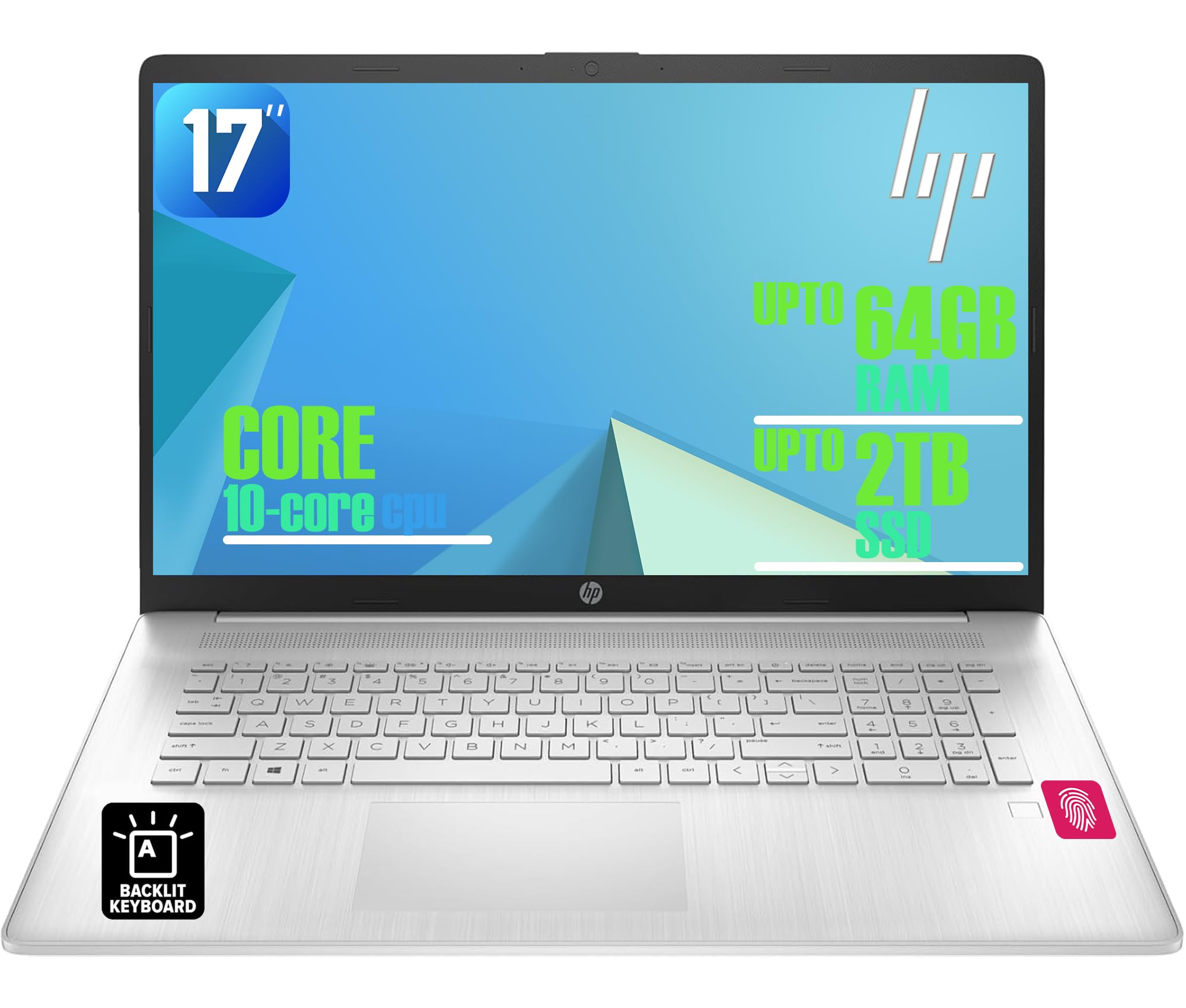
Figure 1: HP 17-inch Business Laptop (Silver)
2. Oppsett
2.1 Utpakking og første inspeksjon
Carefully remove the laptop and all accessories from the packaging. Check for any visible damage. The package should include the HP 17-inch laptop, a power adapter, and documentation.
2.2 Koble til strøm
- Connect the power adapter to the AC smart pin port on the side of the laptop.
- Koble strømadapteren til en stikkontakt.
- La den bærbare datamaskinen lade i minst 30 minutter før første gangs bruk, eller til batteriindikatoren viser tilstrekkelig lading.
2.3 Første oppstart og Windows-oppsett
- Åpne lokket på den bærbare datamaskinen og trykk på av/på-knappen, som vanligvis sitter øverst til høyre på tastaturet.
- Følg instruksjonene på skjermen for å fullføre installasjonsprosessen for Windows 11 Home. Dette inkluderer å velge region og språk, koble til et Wi-Fi-nettverk og opprette en brukerkonto.
2.4 Koble til eksterne enheter
Your HP laptop offers various ports for connecting external devices:
- USB-porter: Use the USB 3.2 Gen 1 Type-C port or the two USB 3.2 Gen 1 Type-A ports for connecting external drives, mice, keyboards, or other USB accessories.
- HDMI: Connect an external monitor or projector using the HDMI 1.4 port.
- Lyd: Plug headphones or an external microphone into the 3.5mm headphone/microphone combo jack.

Figur 2: Side view illustrating available ports (USB Type-C, USB Type-A, HDMI, Headphone/microphone combo, AC smart pin)
3. Bruk av den bærbare datamaskinen
3.1 Strømstyring
- Strøm på: Trykk på strømknappen.
- Sove modus: Lukk lokket eller velg «Hvilemodus» fra Start-menyen.
- Slå av: Velg «Slå av» fra Start-menyen.
- Start på nytt: Velg «Start på nytt» fra Start-menyen.
3.2 Tastatur og pekeplate
The laptop features a full-size backlit keyboard with a numeric keypad. Use the function keys (Fn) in combination with other keys for specific actions like adjusting screen brightness, volume, or toggling the keyboard backlight.
The integrated touchpad supports multi-touch gestures for navigation. Refer to Windows settings for customizing touchpad behavior.

Figure 3: Backlit keyboard with numeric keypad and integrated fingerprint reader
3.3 fingeravtrykksleser
The integrated fingerprint reader allows for secure and quick login using Windows Hello. To set up, navigate to Innstillinger > Kontoer > Påloggingsalternativer and follow the instructions to register your fingerprint.
3.4 Trådløs tilkobling
- Wi-Fi: The laptop supports Realtek Wi-Fi 6 (2x2). To connect to a wireless network, click the Wi-Fi icon in the taskbar, select your desired network, and enter the password if required.
- Bluetooth: Bluetooth 5.3 is integrated for connecting wireless accessories like headphones or mice. Enable Bluetooth from Innstillinger > Bluetooth og enheter and pair your devices.
3.5 Skjerm og Webkam
The 17.3-inch HD+ anti-glare display provides a clear viewing experience. The HP True Vision 720p HD webcam with dual microphones is suitable for video calls and online meetings.
3.6 HP QuickDrop
HP QuickDrop allows for wireless file transfer between your laptop and mobile devices without needing cables. Install the HP QuickDrop app on both your laptop and mobile device and follow the in-app instructions to pair and transfer files.

Figure 4: HP QuickDrop for wireless file transfer between laptop and phone
4. Vedlikehold
4.1 Rengjøring av den bærbare datamaskinen
- Skjerm: Bruk en myk, lofri klut lett damprengjøres med vann eller et skjermrensemiddel. Ikke spray væske direkte på skjermen.
- Tastatur og kabinett: Bruk en myk, tørr klut. For gjenstridig smuss, bruk en litt tørr klut.amp cloth can be used, ensuring no liquid enters the device. Compressed air can help remove debris from between keys.
4.2 Batteristell
The laptop is equipped with a 41Wh Lithium-Ion Battery. To maximize battery lifespan:
- Unngå ekstreme temperaturer.
- Ikke utlad batteriet helt regelmessig.
- Utilize HP Fast Charge, which can charge the battery from 0 to 50% in approximately 45 minutes.

Figure 5: Battery life indicator (Up to 8 hours wireless streaming)
4.3 Programvareoppdateringer
Se etter og installer Windows-oppdateringer regelmessig for å sikre at systemet ditt har de nyeste sikkerhetsoppdateringene og ytelsesforbedringene. Gå til Innstillinger > Windows-oppdatering for å administrere oppdateringer.
5. Feilsøking
This section addresses common issues you might encounter with your HP laptop.
5.1 Strømproblemer
- Laptopen slår seg ikke på: Ensure the power adapter is securely connected to both the laptop and a working power outlet. Check if the power adapter's indicator light is on. Try a different outlet.
- Batteriet lades ikke: Verify the power adapter connection. Check battery health in Windows settings.
5.2 Skjermproblemer
- Ikke noe bilde på skjermen: Sørg for at den bærbare datamaskinen er slått på. Hvis en ekstern skjerm er koblet til, kan du prøve å koble den fra eller trykke på Fn + F4 (or the corresponding display toggle key) to switch display output.
- Demp skjermen: Adjust brightness using the function keys (e.g., Fn+F2/F3) or through Windows settings.
5.3 Tilkoblingsproblemer
- Wi-Fi kobler ikke til: Ensure Wi-Fi is enabled in Windows settings. Restart your router and the laptop. Check for updated network drivers.
- Bluetooth-enhet kobles ikke sammen: Ensure Bluetooth is enabled on both the laptop and the device. Make sure the device is in pairing mode.
5.4 Generelle ytelsesproblemer
- Treg ytelse: Lukk unødvendige programmer. Se etter skadelig programvare. Sørg for tilstrekkelig ledig plass på SSD-en.
- Systemet fryser: Pressen Ctrl + Alt + Del to open Task Manager and end unresponsive tasks. If unresponsive, perform a hard shutdown by holding the power button for several seconds.
6. Spesifikasjoner
The following table outlines the key technical specifications for the HP 17-inch Business Laptop (Model: HP laptop).
| Trekk | Spesifikasjon |
|---|---|
| Merke | HP |
| Modellnavn | HP laptop |
| Prosessor | 13. generasjons Intel Core i5-1334U (10 kjerner, opptil 4.6 GHz) |
| Operativsystem | Windows 11 Home |
| Utstilling | 17.3-inch HD+ (1366x768) Anti-glare, 250 nits |
| Grafikk | Intel Iris Xe-grafikk (integrert) |
| RAM-minne | Up to 64GB DDR4 SDRAM 3200 MHz |
| Lagring | Up to 2TB NVMe M.2 SSD |
| Trådløs tilkobling | Realtek Wi-Fi 6 (2x2), Bluetooth 5.3 |
| Havner | 1x USB 3.2 Gen 1 Type-C, 2x USB 3.2 Gen 1 Type-A, 1x HDMI 1.4, 1x Headphone/microphone combo jack |
| Tastatur | Bakbelyst tastatur i full størrelse med numerisk tastatur |
| Sikkerhet | Fingeravtrykkleser |
| Kamera | 720p HD-kamera med personvernlukker |
| Batteri | 41Wh Lithium-Ion (HP Fast Charge) |
| Dimensjoner (L x B x H) | 15.78 x 10.15 x 0.81 cm (ca.) |
| Vekt | 4.6 lbs (ca.) |
| Farge | Naturlig sølv |

Figure 6: Laptop dimensions (15.78" W x 10.15" D x 0.78" H) and weight (4.60 lbs)
7. Garanti og støtte
7.1 Produsentgaranti
Your HP laptop is covered by a manufacturer's warranty. Please refer to the warranty documentation included with your product for specific terms, conditions, and duration. Keep your proof of purchase for warranty claims.
7.2 Teknisk støtte
For technical assistance, driver downloads, or further support, please visit the official HP support website. You will typically need your product's serial number or model number to access specific support resources.
Online støtte: https://support.hp.com