
Viktig sikkerhetsinformasjon
Please read all instructions carefully before using this monitor. Keep this manual for future reference.
- Do not place the monitor near water or in humid environments.
- Sørg for god ventilasjon rundt skjermen for å forhindre overoppheting.
- Bruk kun strømadapteren som følger med skjermen.
- Unngå å utsette skjermen for direkte sollys eller ekstreme temperaturer.
- Ikke forsøk å reparere skjermen selv. Overlat all service til kvalifisert personell.
- Rengjør skjermen med en myk, lofri klut. Unngå bruk av sterke kjemikalier.
Pakkeinnhold
Vennligst sjekk at alle følgende varer er inkludert i pakken din:
- 31.5-inch 2K 120Hz Monitor (x1)
- Monitor Stand (x1)
- Hurtigstartveiledning (QSG) (x1)
- HDMI-kabel (x1)
- Strømadapter (x1)
- Strømledning (x1)

An image showing the monitor's dimensions and a list of included accessories: monitor, QSG, HDMI cable, adapter, power cord, and monitor stand.
Oppsett
Monitor montering
Følg disse trinnene for å montere skjermstativet og feste det til skjermpanelet:
- Ta forsiktig ut komponentene til skjermen og stativet fra emballasjen.
- Attach the base to the stand column, securing it with the provided screw.
- Align the assembled stand with the mounting points on the back of the monitor panel.
- Skyv stativet forsiktig på plass til det klikker ordentlig.
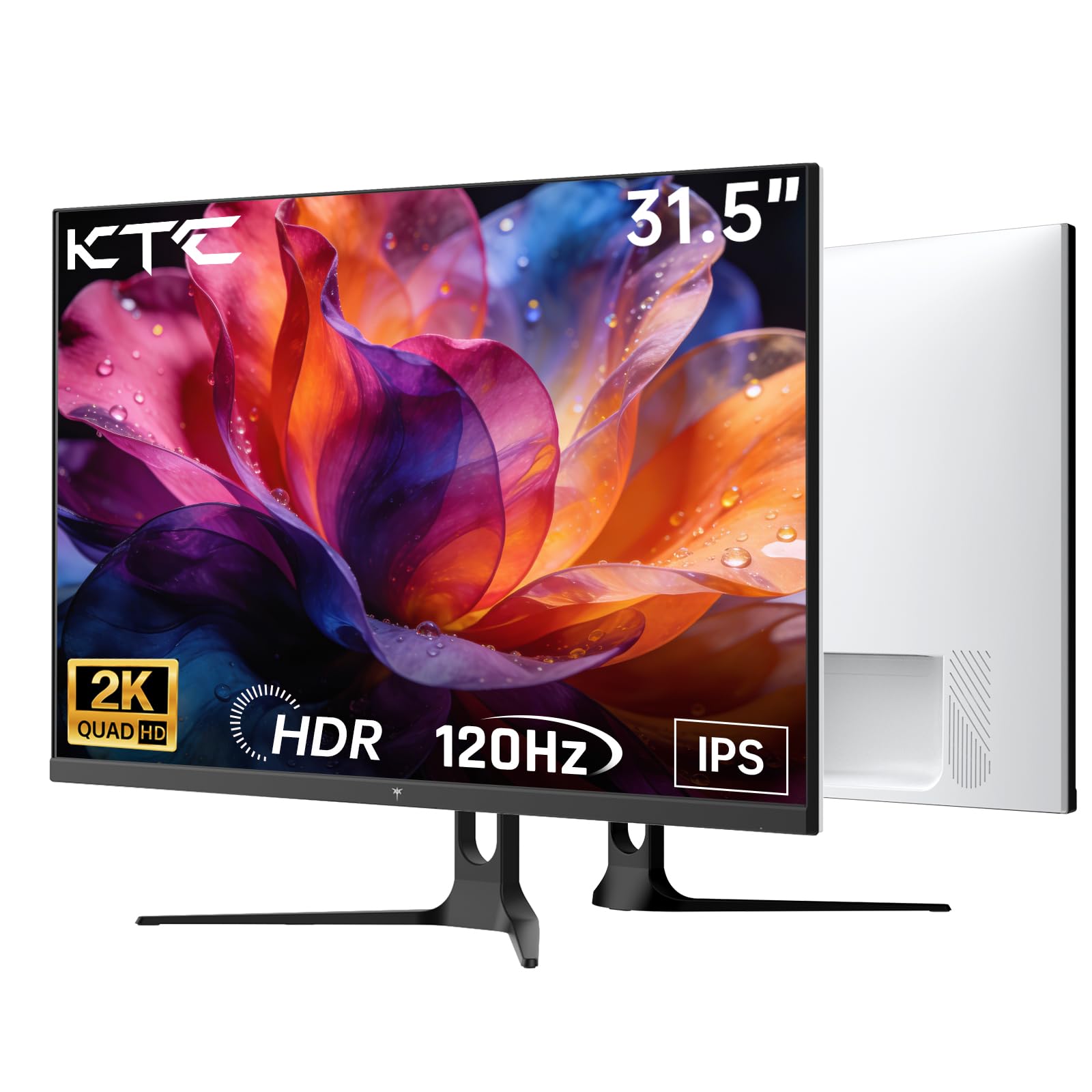
Front view of the KTC H32D6 31.5-inch monitor on its stand.
Tilkobling
Connect your monitor to a power source and your computer using the appropriate cables:
- Connect the power adapter to the monitor's DC input port, then plug the power cord into an electrical outlet.
- For video input, connect one end of the HDMI or DisplayPort cable to your computer's graphics card and the other end to the corresponding port on the monitor.
- Om ønskelig, koble hodetelefoner eller eksterne høyttalere til øretelefonkontakten.

Close-up of the monitor's rear panel, highlighting the HDMI 2.0 ports (x2), DisplayPort 1.4 (x1), and earphone jack.
Denne videoen gir en overview of the KTC 32 Inch 2K 120Hz Computer Monitor, showcasing its features and benefits in a dynamic presentation.
Bruksanvisning
Slå på/av
Press the power button (usually located on the back or bottom right of the monitor) to turn the monitor on or off. The power indicator light will illuminate when the monitor is on.
On-Screen Display (OSD) menynavigering
The monitor features an intuitive OSD menu for adjusting various settings. Use the joystick or buttons (depending on your model) on the back of the monitor to navigate the menu:
- Trykk på joysticken/knappen for å åpne OSD-menyen.
- Move the joystick up/down or left/right to select menu options.
- Trykk på joysticken/knappen igjen for å bekrefte et valg eller gå inn i en undermeny.
- To exit the OSD menu, navigate to the 'Exit' option or hold the joystick/button for a few seconds.
Justere skjerminnstillinger
I OSD-menyen kan du justere innstillinger som:
- Oppløsning: Set to QHD (2560x1440) for optimal clarity.
- Oppdateringsfrekvens: Adjust to 120Hz for ultra-smooth visuals.
- Lysstyrke og kontrast: Fine-tune for your preferred viewopplevelse.
- Fargeinnstillinger: Juster fargetemperatur, gamma og andre fargeparametere.

An image demonstrating the superior clarity of QHD (2560x1440) resolution compared to FHD (1920x1080) on the monitor screen.

A visual representation of smooth motion on the monitor, illustrating the benefit of a 120Hz refresh rate for seamless visuals.
Adaptiv synkronisering
This monitor supports Adaptive Sync technology (FreeSync, G-Sync Compatible) to eliminate screen tearing and stuttering during gaming or fast-paced video. Ensure Adaptive Sync is enabled in both your monitor's OSD settings and your graphics card control panel for optimal performance.

A side-by-side comparison showing the visual difference with Adaptive Sync ON (smooth image) and OFF (screen tearing) during fast-paced action.
HDR10-støtte
The monitor supports HDR10, providing a wider range of colors and contrast for a more immersive viewing experience. To utilize HDR10, ensure your content and graphics card support HDR, and enable it in your operating system display settings.

An image highlighting the enhanced color and contrast provided by HDR10 technology.
Øyepleiefunksjoner
The KTC H32D6 monitor includes Low Blue Light and Flicker-Free technologies to reduce eye fatigue during prolonged use. These features are designed to provide a more comfortable viewopplevelse.

An image illustrating the eye care features, including low blue light and flicker-free technology, designed to reduce eye strain.
Tilt justering
The monitor stand allows for tilt adjustment from -5° to 20°. Gently adjust the monitor panel to your desired viewvinkel for ergonomisk komfort.

An image demonstrating the wide 178-degree viewing angle provided by the IPS panel, ensuring consistent image quality from various positions.
Vedlikehold
Riktig vedlikehold sikrer skjermens levetid og optimale ytelse.
- Rengjøring av skjermen: Tørk forsiktig av skjermen med en myk, tørr og lofri klut. Tørk forsiktig av gjenstridige merkerampen the cloth with water or a screen-cleaning solution specifically designed for monitors. Never spray liquid directly onto the screen.
- Rengjøring av Casing: Bruk en myk, tørr klut til å rengjøre skjermensasing. Unngå slipende rengjøringsmidler eller løsemidler.
- Slå av når den ikke er i bruk: Turn off the monitor when not in use to save energy and extend its lifespan.
- Unngå hindringer: Ensure that the ventilation openings on the monitor are not blocked to prevent overheating.
Feilsøking
Hvis du støter på problemer med skjermen, kan du se følgende vanlige problemer og løsninger:
| Problem | Mulig løsning |
|---|---|
| Intet bilde på skjermen | Ensure the power cable is securely connected and the monitor is turned on. Check that the video cable (HDMI/DP) is firmly connected to both the monitor and your computer. Select the correct input source via the OSD menu. |
| Bildet flimrer eller er ustabilt | Check the video cable connection. Ensure your graphics card drivers are up to date. Verify that the refresh rate is set correctly in your computer's display settings. Enable Adaptive Sync if supported by your graphics card. |
| Fargene ser feil ut | Adjust color settings (brightness, contrast, color temperature) in the OSD menu. Ensure HDR is correctly configured in your operating system if you are using HDR content. |
| Monitor not recognized by computer | Start datamaskinen på nytt. Prøv en annen videoport eller kabel. Oppdater grafikkortdriverne. |
Spesifikasjoner
Key technical specifications for the KTC H32D6 monitor:
| Trekk | Spesifikasjon |
|---|---|
| Merke | KTC |
| Modellnummer | H32D6 |
| Skjermstørrelse | 31.5 tommer |
| Oppløsning | QHD Wide 1440p (2560 x 1440 Pixels) |
| Oppdateringsfrekvens | 100 Hz (up to 120Hz overclocked) |
| Visningstype | IPS |
| Responstid | 7 millisekunder |
| Aspektforhold | 16:9 |
| Lysstyrke | 350 Candela (cd/m²) |
| Kontrastforhold | 1000:1 |
| Viewing vinkel | 178 grader |
| Fargeskala | 109 % sRGB |
| Picture Quality Enhancement | HDR10 |
| Tilkobling | 2 x HDMI 2.0, 1 x DisplayPort 1.4, Earphone Jack |
| Adaptiv synkronisering | FreeSync, G-Sync-kompatibel |
| Ekstra funksjoner | Eye Care, Flicker-Free, Tilt Adjustment, VESA 100x100mm Compatible |
| Strømforbruk | 48 watt |
| Varedimensjoner (D x B x H) | 7.09" D x 28.23" B x 20.08" H |
Garanti og støtte
Garantiinformasjon
This KTC H32D6 monitor comes with a 3 års produsentgarantiDenne garantien dekker material- og produksjonsfeil ved normal bruk. Vennligst ta vare på kjøpsbeviset for garantikrav.
The warranty does not cover damage caused by misuse, accidents, unauthorized modifications, or external factors such as power surges.
Kundestøtte
For technical assistance, warranty claims, or any other inquiries, please contact KTC customer support through the official website or the contact information provided with your purchase. You may also refer to the Quick Start Guide for additional support resources.