
1. Viktig sikkerhetsinformasjon
Please read all instructions carefully before using this monitor. Keep this manual for future reference.
- Ikke utsett skjermen for regn, fuktighet eller ekstreme temperaturer.
- Sørg for god ventilasjon rundt skjermen for å forhindre overoppheting.
- Bruk kun strømadapteren som følger med skjermen.
- Unngå å plassere tunge gjenstander oppå strømledningen eller skjermen.
- Trekk ut strømstøpselet fra stikkontakten hvis skjermen ikke skal brukes over lengre tid.
- Ikke forsøk å utføre service på skjermen selv. Overlat all service til kvalifisert personell.
2. Pakkens innhold
Bekreft at alle varene er til stede i pakken din:
- 27-inch QHD 210Hz Monitor (1 unit)
- Monitor Stand (1 unit)
- Hurtigstartveiledning (1 enhet)
- DP Cable (1 unit)
- Power Adaptor (1 unit)
- Strømledning (1 enhet)
- Shielding Hood (2 units)

Video: KTC 27M1 27 Inch 210Hz Gaming Monitor. This video provides a visual overview of the monitor and its features.
3. Installasjonsinstruksjoner
3.1 Montering av skjermstativet
- Ta forsiktig ut komponentene til skjermen og stativet fra emballasjen.
- Attach the stand base to the stand arm using the provided screw.
- Align the stand arm with the mounting slot on the back of the monitor and push until it clicks into place.
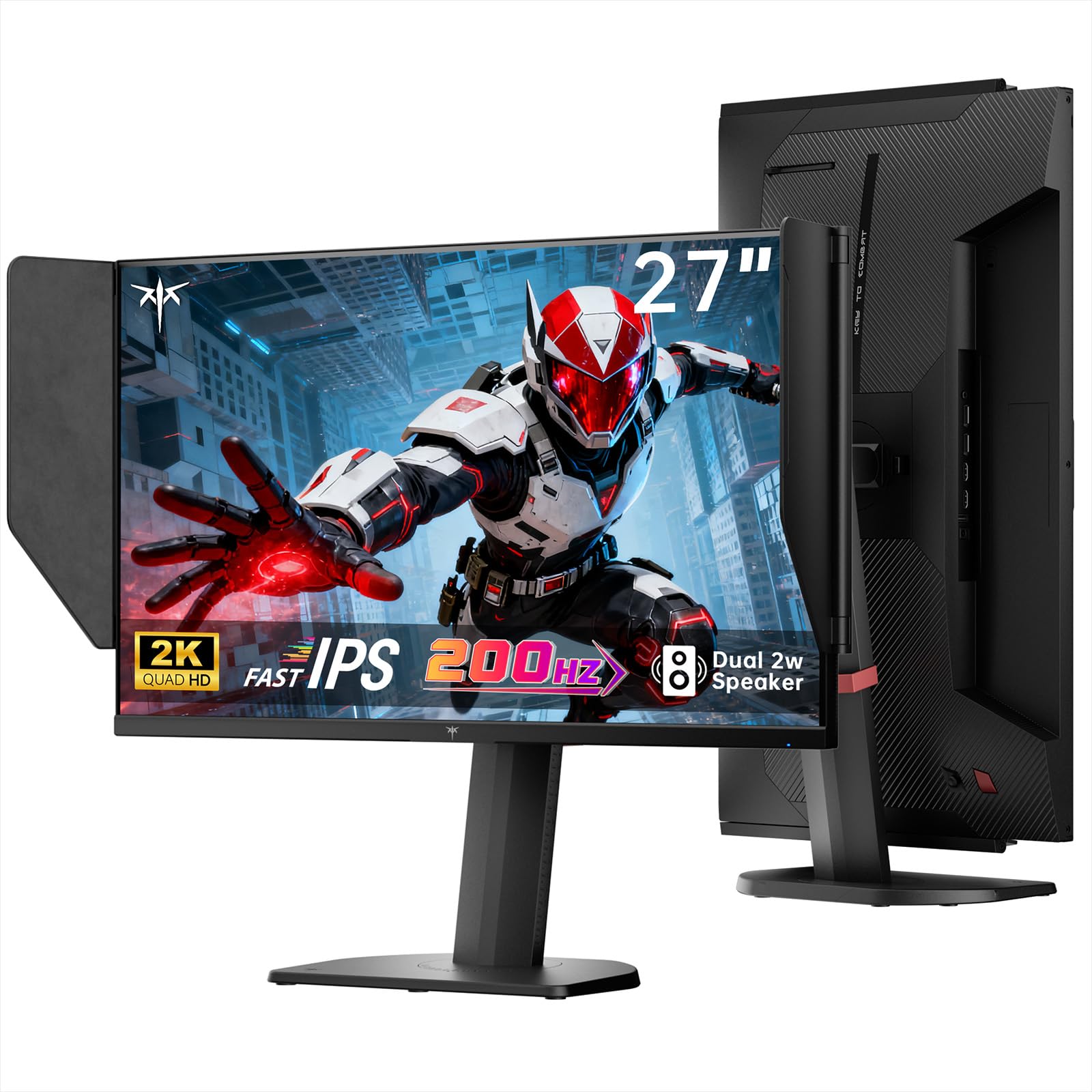
Image: The KTC 27M1 monitor with its stand fully assembled, ready for use.
3.2 Attaching the Shielding Hood
The shielding hood helps reduce glare and reflections for an optimal viewopplevelse.
- Locate the two shielding hood pieces.
- Align each piece with the designated slots on the sides of the monitor and gently slide them into place until secure.

Image: The KTC 27M1 monitor shown with the shielding hood attached, designed to block reflected light.
3.3 Tilkoblingskabler
Koble skjermen til datamaskinen eller andre enheter med de riktige kablene:
- DisplayPort (DP): For 200Hz (overclockable to 210Hz) refresh rates, connect the DP cable from your graphics card to the monitor's DP 1.4 port.
- HDMI: For 144Hz refresh rates, connect an HDMI 2.0 cable from your device to one of the monitor's HDMI ports.
- Makt: Connect the power adapter to the DC input on the monitor, then plug the power cord into a wall outlet.
- Lyd: Connect headphones or external speakers to the 3.5mm earphone jack if desired.

Bilde: Nærbilde view of the KTC 27M1 monitor's rear ports, including HDMI, DisplayPort, USB, and earphone jack.
4. Bruksanvisning
4.1 Strøm på/av
Press the 5-way navigation joystick located on the back of the monitor to power it on or off.
4.2 OSD-meny navigasjon
The 5-way navigation joystick is used to access and navigate the On-Screen Display (OSD) menu:
- Trykk på styrespaken for å åpne OSD-menyen.
- Beveg joysticken opp/ned/venstre/høyre for å navigere gjennom menyalternativene.
- Trykk på joysticken igjen for å velge et alternativ eller bekrefte en innstilling.
- Move the joystick Left to go back to the previous menu or exit the OSD.
4.3 Justere skjerminnstillinger
Within the OSD menu, you can adjust various display settings:
- Lysstyrke/kontrast: Juster de generelle lysstyrke- og kontrastnivåene.
- Fargeinnstillinger: Modify color temperature (Warm, Cool, User), gamma, hue, and saturation. The monitor offers 130% sRGB color gamut and ΔE<2 for accurate color reproduction.
- Spilloppsett: Enable/disable Adaptive Sync (FreeSync/G-Sync Compatible), adjust Overdrive (Ultra Fast recommended for gaming), and activate Game Assist features.
- Avanserte innstillinger: Toggle HDR (Auto/Off) and OverClock (to achieve 210Hz refresh rate).
- Inndata: Manually select the input source (DP, HDMI1, HDMI2).
- Systemsett: Change OSD language, LED indicator, audio volume, and other system preferences.
4.4 Ergonomiske justeringer
The monitor stand supports multiple ergonomic adjustments for comfortable viewing:
- Høydejustering: Adjust the monitor height by 150±5mm.
- Tilt: Vipp skjermen fra -5° til 35°.
- Sving: Swivel the monitor ±60°.
- Pivot: Pivot the screen from -5° to 90° for vertical orientation.

Image: Visual representation of the KTC 27M1 monitor's tilt, swivel, elevate, and pivot adjustments.
5. Funksjoner
- Utstilling: 27-inch QHD (2560x1440) Fast IPS panel.
- Oppdateringsfrekvens: 200Hz, overclockable to 210Hz.
- Responstid: 1ms (MPRT) for sharp visuals.
- Fargenøyaktighet: 130% sRGB color gamut, 99% DCI-P3 coverage, ΔE<2, 450 cd/m² brightness, 1.07 Billion Colors, 1000:1 Contrast Ratio.
- Adaptiv synkronisering: FreeSync and G-Sync Compatible to eliminate screen tearing.
- Øyepleie: Flicker-free and low blue light modes for extended comfortable viewing.
- Lyd: Innebygde doble 2W høyttalere.
- Tilkobling: 2x HDMI 2.0 ports, 1x DisplayPort 1.4 port, 1x USB 2.0 port, 1x Earphone jack.
- Montering: 100x100mm VESA mount compatible.
- Design: Includes a detachable shielding hood to block reflected light.

Image: The KTC 27M1 monitor displaying vibrant colors, highlighting its color accuracy and brightness features.
6. Spesifikasjoner
| Trekk | Spesifikasjon |
|---|---|
| Merke | KTC |
| Modellnummer | H27T8 (Marketed as 27M1) |
| Skjermstørrelse | 27 tommer |
| Innfødt oppløsning | 2560x1440 (QHD) |
| Skjermteknologi | Nesten IPS |
| Oppdateringsfrekvens | 200 Hz (Overclockable to 210 Hz) |
| Responstid | 1 Millisecond (MPRT) |
| Lysstyrke | 450 Candela (cd/m²) |
| Kontrastforhold | 1000:1 |
| Fargeskala | 130 % sRGB, 99 % DCI-P3 |
| Viewing vinkel | 178 grader |
| HDR-støtte | Ja |
| Adaptiv synkronisering | FreeSync, G-Sync-kompatibel |
| Innebygde høyttalere | 2x 2W Speakers |
| Tilkobling | 2x HDMI 2.0, 1x DisplayPort 1.4, 1x USB 2.0, 1x Earphone |
| VESA -feste | 100x100mm |
| Ergonomi | Height, Tilt, Swivel, Pivot Adjustment |
| Strømforbruk | 48 watt |
7. Vedlikehold og stell
- Rengjøring av skjermen: Tørk forsiktig av skjermen med en myk, lofri klut. For gjenstridige merker, dampen the cloth with a mild, non-abrasive screen cleaner.
- Rengjøring av Casing: Bruk en myk, tørr klut til å rengjøre skjermen casing. Unngå bruk av sterke vaskemidler eller slipende rengjøringsmidler.
- Ventilasjon: Ensure the ventilation openings on the monitor are clear and unobstructed to prevent overheating.
- Lagring: Hvis skjermen skal oppbevares over lengre tid, må du koble den fra strømmen og oppbevare den på et kjølig og tørt sted.
8. Feilsøking
8.1 Ingen strøm
- Sjekk om strømledningen er ordentlig koblet til skjermen og stikkontakten.
- Kontroller at strømuttaket fungerer som det skal ved å koble til en annen enhet.
- Kontroller at strømadapteren er riktig tilkoblet.
8.2 No Signal/Blank Screen
- Confirm that the video cable (DP or HDMI) is securely connected to both the monitor and your computer/device.
- Press the OSD joystick to open the menu and manually select the correct input source.
- Ensure your computer/device is powered on and not in sleep mode.
- Try using a different video cable or port to rule out cable/port issues.
8.3 Flickering/Distorted Image
- Sjekk videokabelen for skader eller løse tilkoblinger.
- Adjust the refresh rate in your computer's display settings to match the monitor's native refresh rate (200Hz or 210Hz if overclocked).
- Enable Adaptive Sync (FreeSync/G-Sync Compatible) in the monitor's OSD menu and your graphics card settings.
- Sørg for at grafikkortdriverne dine er oppdaterte.
8.4 No Sound from Built-in Speakers/Earphone Jack
- Check the volume settings in the monitor's OSD menu and your computer's operating system.
- Sørg for at riktig lydutgangsenhet er valgt i datamaskinens lydinnstillinger.
- Verify that the audio cable (if using external speakers) or headphones are properly connected.
9. Garanti og støtte
KTC is committed to providing quality service and support for your monitor.
- Garanti: This product comes with a 3-year quality guarantee.
- Teknisk støtte: Lifetime technical support is available for all KTC products.
- Kontakt oss: If you have any questions or encounter issues, please contact KTC customer support. Solutions will be provided within 24 hours.