
1. Introduksjon
This manual provides comprehensive instructions for the safe and efficient use of your HGFRTEE 27-inch 4K UHD 60Hz Monitor. Please read this manual thoroughly before operating the device and retain it for future reference.
The HGFRTEE 27-inch 4K UHD monitor features a 3840 x 2160 resolution IPS panel, 60Hz refresh rate, HDR10 support, 100% sRGB color gamut, and AMD FreeSync technology. It is designed for a wide range of applications, from professional work to casual entertainment.
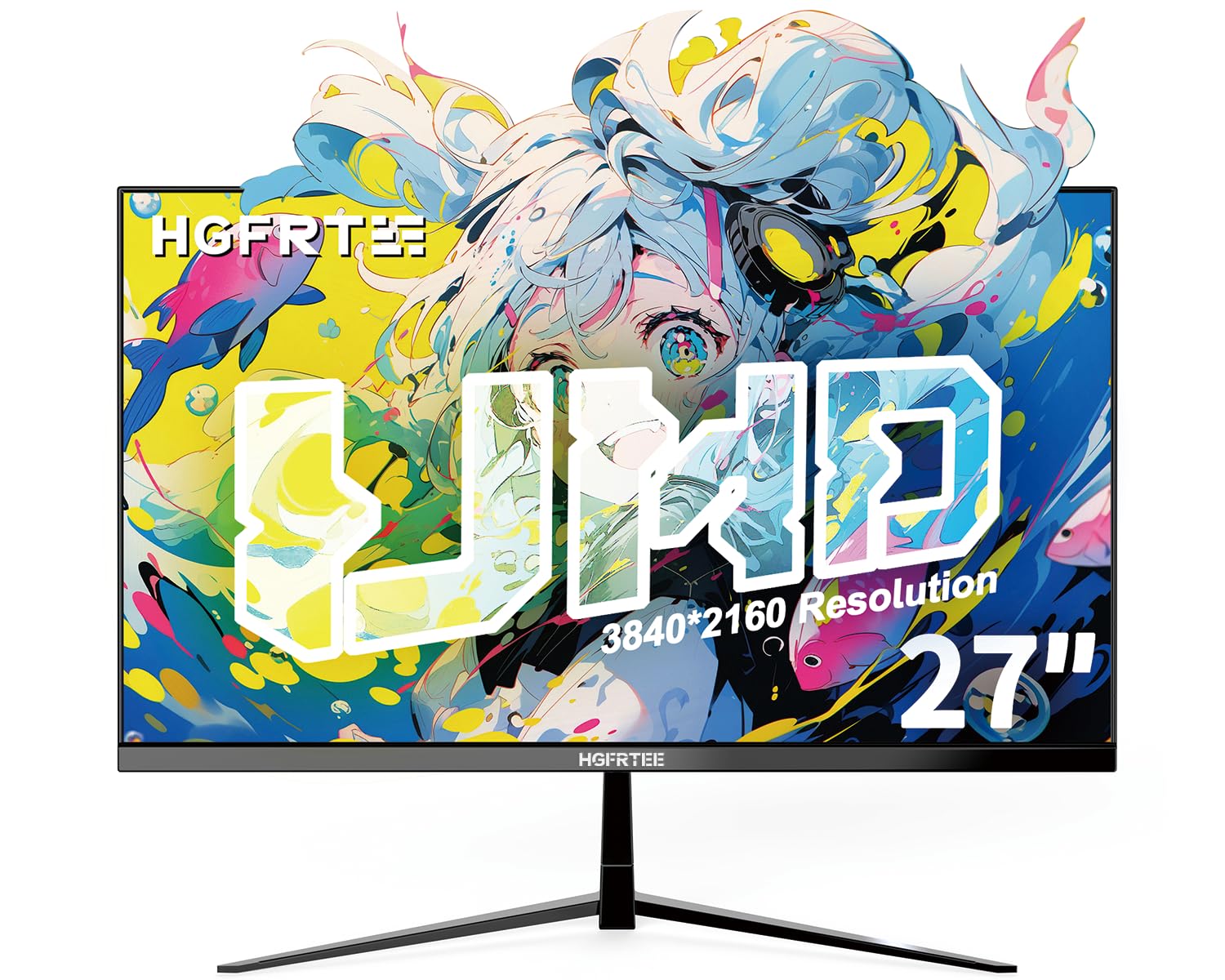
Bilde 1.1: Foran view of the HGFRTEE 27-inch 4K UHD Monitor.
2. Sikkerhetsinformasjon
Følg alltid disse grunnleggende sikkerhetsreglene for å redusere risikoen for brann, elektrisk støt og skade:
- Ikke utsett skjermen for regn eller fuktighet.
- Ikke åpne skjermen casing. Overlat all service til kvalifisert personell.
- Sørg for god ventilasjon rundt skjermen.
- Bruk kun strømadapteren som følger med skjermen.
- Unngå å plassere skjermen på ustabile overflater.
- Rengjør skjermen med en myk, tørr klut. Ikke bruk flytende rengjøringsmidler eller sprayrengjøringsmidler.
3. Pakkens innhold
Bekreft at alle varene er til stede i pakken din:
- HGFRTEE 27-inch 4K UHD Monitor
- Skjermstativ (base og hals)
- Strømadapter
- HDMI-kabel
- DisplayPort-kabel
- Brukerhåndbok
4. Oppsett
4.1 Montering av stativ
- Ta skjermen forsiktig ut av emballasjen, og oppbevar den beskyttet på en myk overflate.
- Attach the stand neck to the monitor's rear mounting point.
- Fest stativbasen til stativhalsen med de medfølgende skruene.
- Plasser den monterte skjermen på en stabil, flat overflate.

Image 4.1: Illustrated steps for monitor stand assembly.
4.2 VESA-montering
The monitor supports VESA 100x100mm mounting. To mount the monitor on a wall or an alternative stand:
- Remove the original stand if it is already attached.
- Attach your VESA-compatible mount to the four screw holes on the back of the monitor using M4 screws (not included with the monitor, typically supplied with the VESA mount).
- Ensure the mount is securely fastened before releasinskjermen.
4.3 Koble til en enhet
The monitor features multiple input ports for connectivity:
- HDMI2.0: Connect to devices such as PCs, laptops, and gaming consoles.
- DisplayPort 1.4: Connect to PCs and graphics cards for high-resolution and refresh rate output.
- USB (Power): For powering external devices.
- Lyd ut: Connect external speakers or headphones (monitor does not have built-in speakers).
For å koble til:
- Connect one end of the HDMI or DisplayPort cable to the corresponding port on your computer or device.
- Koble den andre enden av kabelen til HDMI- eller DisplayPort-inngangen på skjermen.
- Connect the power adapter to the monitor's DC input and then plug it into a power outlet.

Bilde 4.2: Bak view på skjermen som viser tilgjengelige inngangsporter.
5. Betjening av monitoren
5.1 Strøm på/av
Trykk på av/på-knappen på baksiden av skjermen for å slå den av eller på.
5.2 OSD-meny navigasjon
The monitor features a joystick control for navigating the On-Screen Display (OSD) menu. The controls are typically located on the back or bottom of the monitor.

Image 5.1: Diagram illustrating the monitor's control buttons and their functions.
- Strømknapp: Slår skjermen på eller av.
- 'E' Button: HDMI Port/DP Port Selection, Back/Exit Key.
- Pil opp: Increase value, Up Key.
- Pil ned: Decrease value, Down Key.
- M-knapp: Confirmation Key, Enter Submenu Key.
5.3 Skjerminnstillinger
Access the OSD menu to adjust various display settings:
- Lysstyrke/kontrast: Juster den generelle lysstyrken og kontrasten på skjermen.
- Fargeinnstillinger: Fine-tune color temperature, gamma, and color space (e.g., sRGB).
- Inndatakilde: Velg manuelt mellom HDMI- og DisplayPort-innganger.
- Bildemodus: Select from preset modes (e.g., Standard, Game, Movie, Text).
- FreeSync: Enable or disable AMD FreeSync for adaptive synchronization with compatible graphics cards.
- HDR: Enable or disable HDR10 support for enhanced dynamic range.
- Øyepleie: Activate features like flicker-free technology and blue light filter to reduce eye strain.
5.4 Avanserte funksjoner
- Motion Clarity (MEMC): This feature enhances motion smoothness by inserting black frames and optimizing motion processing, which can improve clarity in fast-moving scenes.
- Gaming Crosshairs: For gaming, the monitor offers six types of on-screen crosshairs to assist with aiming.

Image 5.2: Demonstration of Motion Clarity feature.

Bilde 5.3: Eks.amples of gaming crosshairs.
6. Vedlikehold
6.1 Rengjøre skjermen
For å rengjøre skjermen og casing:
- Slå av skjermen og trekk ut strømledningen.
- Bruk en myk, lofri klut til å tørke forsiktig av skjermen. For gjenstridige merker, tørk littampen the cloth with water or a specialized screen cleaner (ensure it is alcohol-free and ammonia-free).
- Tørk av casinmed en myk, tørr klut.
- Do not spray cleaners directly onto the screen or into any openings.
6.2 Oppbevaring
Hvis du oppbevarer skjermen over lengre tid, må du sørge for at den er slått av, koblet fra strømnettet og oppbevart på et kjølig og tørt sted, unna direkte sollys og ekstreme temperaturer. Bruk originalemballasjen hvis tilgjengelig for best mulig beskyttelse.
7. Feilsøking
Se følgende tabell for vanlige problemer og løsninger:
| Problem | Mulig årsak | Løsning |
|---|---|---|
| Intet bilde på skjermen | Monitor not powered on; Incorrect input selected; Loose video cable. | Ensure power is connected and monitor is on; Select correct input source via OSD; Check video cable connections. |
| Bildet flimrer eller river | FreeSync not enabled or incompatible; Graphics driver issues; Cable quality. | Enable FreeSync in OSD and graphics card settings; Update graphics drivers; Try a different high-quality video cable. |
| Fargene ser feil ut | Color settings misconfigured; Faulty cable. | Reset color settings in OSD; Adjust color temperature; Try a different video cable. |
| No audio from headphones/speakers | Audio cable not connected; Volume too low; Incorrect audio output selected on PC. | Ensure audio cable is securely connected to the monitor's audio out port; Adjust volume on connected device; Select monitor as audio output on your computer. |
Hvis problemet vedvarer etter at du har prøvd disse løsningene, kan du kontakte kundestøtte.
8. Spesifikasjoner
Below are the technical specifications for the HGFRTEE 27-inch 4K UHD Monitor (Model B270BZU06):
| Trekk | Spesifikasjon |
|---|---|
| Merke | HGFRTEE |
| Modellnummer | B270BZU06 |
| Skjermstørrelse | 27 tommer |
| Oppløsning | 4K UHD (3840 x 2160) |
| Oppdateringsfrekvens | 60 Hz |
| Responstid | 1 Millisecond (MPRT) |
| Visningstype | IPS LCD |
| Aspektforhold | 16:9 |
| Fargeskala | 100 % sRGB |
| HDR-støtte | HDR10 |
| Adaptiv synkronisering | AMD FreeSync |
| Viewing vinkel | 178° (Horisontal/Vertikal) |
| Tilkobling | HDMI 2.0 (x2), DisplayPort 1.4 (x1), USB (Power), Audio Out (3.5mm) |
| VESA-kompatibilitet | 100 x 100 mm |
| Ergonomi | Tilt Adjustment (-10° to 10°) |
| Dimensjoner (B x H x D) | Approx. 612mm x 452mm x 210mm (with stand) |
| Vekt | Ca. 4 kg / 8.81 lbs |

Image 8.1: Monitor dimensions and key physical features.
9. Garantiinformasjon
This HGFRTEE monitor is covered by a 2 års produsentgaranti fra kjøpsdatoen. Denne garantien dekker material- og produksjonsfeil ved normal bruk. Den dekker ikke skader forårsaket av feilbruk, ulykker, uautoriserte modifikasjoner eller eksterne årsaker.
Ta vare på kjøpsbeviset for garantikrav.
10. Kundestøtte
For technical assistance, warranty claims, or any questions regarding your HGFRTEE monitor, please contact our customer support team.
You can find more information and contact details on the official HGFRTEE store page: HGFRTEE Store on Amazon