Introduksjon
This manual provides essential information for setting up, operating, maintaining, and troubleshooting your HP 15 Laptop. Please read this guide thoroughly to ensure proper use and to maximize the performance and longevity of your device.
Komme i gang: Oppsett
1. Unboxing Your Laptop
Carefully remove the laptop and all accessories from the packaging. Ensure all components are present: the HP 15 Laptop, AC power adapter, and any included documentation.
2. Koble til strøm
Connect the AC power adapter to the laptop's power port and then plug it into a wall outlet. It is recommended to fully charge the battery before the first use.
3. Første oppstart og Windows-oppsett
Press the power button located on the keyboard deck. The laptop will power on, and you will be guided through the Windows 11 Home setup process. Follow the on-screen instructions to configure your language, region, network, and user account.
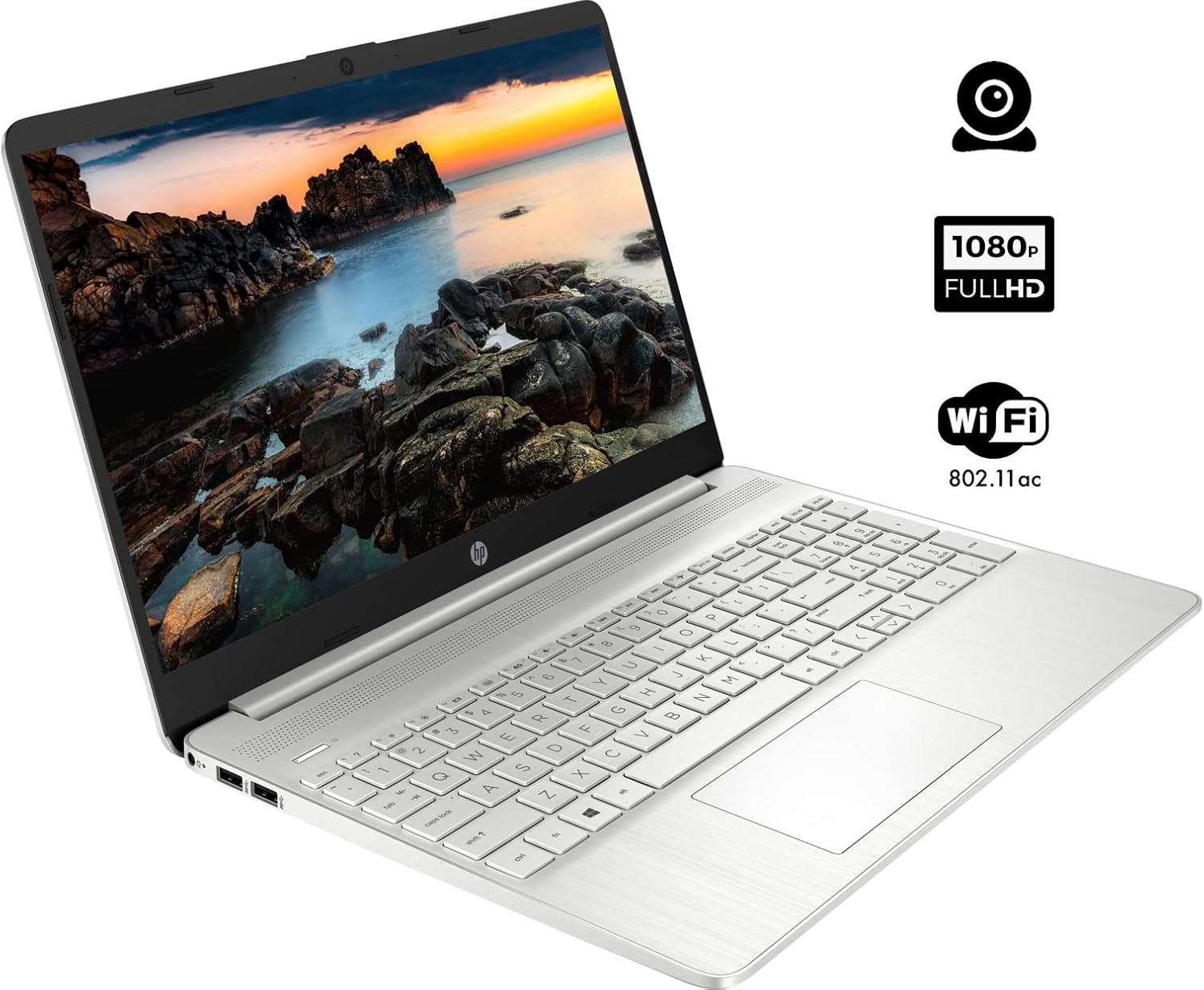
The HP 15 Laptop, ready for initial setup. Ensure the power adapter is connected before first use.
Bruke den bærbare datamaskinen
1. Slå på/av
- Strøm på: Trykk på strømknappen.
- Slå av: Klikk på Windows Start-knappen, og velg deretter Strøm > Slå av. Avoid forced shutdowns by holding the power button unless necessary.
2. Bruk av tastatur og berøringsplate
- Tastatur: Use the integrated keyboard for typing. Function keys (F1-F12) often have secondary actions (e.g., volume, brightness) accessible by pressing the Fn tasten samtidig.
- Touchpad: Berøringsplaten fungerer som en mus. Trykk for å klikke, bruk to fingre for å bla, og klyp for å zoome.
3. Koble til eksterne enheter
Your HP 15 Laptop features various ports for connecting external devices:
- USB Type-A-porter: For tilkobling av standard USB-enheter som mus, tastaturer eller eksterne harddisker.
- USB Type-C-port: En allsidig port for dataoverføring.
- HDMI-port: Koble til eksterne skjermer eller projektorer.
- Hodetelefon-/mikrofonkombinasjonskontakt: For audio output to headphones or input from a microphone.
- SD-kortleser: Insert an SD card for data transfer.

This diagram illustrates the various ports available on your HP 15 Laptop, including USB-C, USB-A, HDMI, audio jack, SD card reader, and the power input.
4. Koble til Wi-Fi
Slik kobler du til et trådløst nettverk:
- Klikk på Wi-Fi-ikonet i oppgavelinjen.
- Velg ønsket nettverk fra listen.
- Skriv inn nettverkspassordet hvis du blir bedt om det, og klikk deretter Koble til.
5. Koble til Bluetooth-enheter
For å pare en Bluetooth-enhet:
- Gå til Innstillinger > Bluetooth og enheter.
- Sørg for at Bluetooth er slått på On.
- Velge Legg til enhet and follow the on-screen instructions to pair your device.

The HP 15 Laptop features an integrated webcam for video calls and supports Wi-Fi 802.11ac for wireless internet connectivity.
Vedlikehold
1. Rengjøring av den bærbare datamaskinen
- Skjerm: Bruk en myk, lofri klut lett damprengjøres med vann eller et skjermrensemiddel. Unngå sterke kjemikalier.
- Tastatur og kabinett: Use a soft cloth to wipe surfaces. Compressed air can remove dust from between keys.
2. Programvareoppdateringer
Regularly update your operating system and drivers to ensure optimal performance and security. Windows Update typically handles this automatically, but you can manually check via Innstillinger > Windows-oppdatering.
3. Batteripleie
- Unngå å utlade batteriet helt ofte.
- If storing the laptop for an extended period, charge the battery to about 50% and store it in a cool, dry place.
Feilsøking
Denne delen tar for seg vanlige problemer du kan støte på.
Ingen strøm
- Sørg for at strømadapteren er ordentlig koblet til både den bærbare datamaskinen og et fungerende strømuttak.
- Sjekk om strømuttaket fungerer ved å koble til en annen enhet.
- Hvis batteriet er helt utladet, la det lade i noen minutter før du prøver å slå det på.
Visningsproblemer
- If the screen is blank, try adjusting the brightness using the function keys (e.g., F2/F3).
- Connect an external monitor via the HDMI port to check if the issue is with the laptop's display or graphics output.
- Sørg for at grafikkdriverne er oppdaterte.
Problemer med Wi-Fi-tilkobling
- Kontroller at Wi-Fi er aktivert i Windows-innstillingene.
- Start ruteren og modemet på nytt.
- Sørg for at du er innenfor rekkevidden til Wi-Fi-nettverket.
- Check for updated network drivers.
Langsom ytelse
- Lukk unødvendige programmer som kjører i bakgrunnen.
- Ensure your operating system and drivers are updated.
- Check for sufficient free space on your storage drive.
- Run a scan for malware or viruses.
Spesifikasjoner
Below are the technical specifications for the HP 15 Laptop (Model 15):
| Trekk | Detalj |
|---|---|
| Stående skjermstørrelse | 15.6 tommer |
| Skjermoppløsning | 1920 x 1080 piksler (FHD) |
| Prosessor | AMD Ryzen 5 5500U (6 kjerner, 12 tråder, opptil 4.0 GHz) |
| VÆR | 12 GB DDR4 |
| Harddisk | 1 TB PCIe NVMe M.2 SSD |
| Grafisk koprosessor | AMD Radeon Integrated Graphics |
| Operativsystem | Windows 11 Home |
| USB 3.0-porter | 3 (2x Type-A, 1x Type-C) |
| HDMI-port | 1 (HDMI 1.4b) |
| Tilkobling | Wi-Fi 802.11ac, Bluetooth |
| Webkam | Integrert Webkamera med mikrofon |
| Varevekt | 3.74 pund |
| Produktdimensjoner | 14.11 x 9.53 x 0.7 tommer |
| Farge | Sølv |

The HP 15 Laptop in its closed state, highlighting its sleek silver design and the HP branding.
Garantiinformasjon
Your HP 15 Laptop comes with a standard manufacturer's warranty. For detailed information regarding warranty terms, conditions, and duration, please refer to the warranty card included with your product or visit the official HP support webnettstedet.
Støtte
Hvis du trenger ytterligere hjelp, teknisk støtte eller for å laste ned oppdaterte drivere og programvare, kan du gå til den offisielle HP-støttesiden. website. You can also find FAQs and community forums there for additional help.
HP-støtte Webnettsted: support.hp.com