Introduksjon
This manual provides essential information for the setup, operation, and maintenance of your HP Wired Mouse 105. Designed for reliability and comfort, this optical mouse offers precise control with its 1600 DPI sensor and a versatile ambidextrous design. It connects via a standard USB-A cable, ensuring a stable and uninterrupted connection for your computing needs.
Oppsett
The HP Wired Mouse 105 is designed for quick and easy plug-and-play setup.
- Pakk ut musen: Ta musen forsiktig ut av emballasjen.
- Koble til en USB-port: Locate an available USB Type A port on your computer (PC or Mac). Insert the mouse's USB connector firmly into the port.
- Driverinstallasjon: Your operating system (Windows 7, 8, 10, 11, or Mac OS) should automatically detect and install the necessary drivers. No additional software installation is typically required.
- Bekreft funksjonalitet: Once connected, the optical sensor on the underside of the mouse will emit a red light. Move the mouse to confirm cursor movement on your screen.
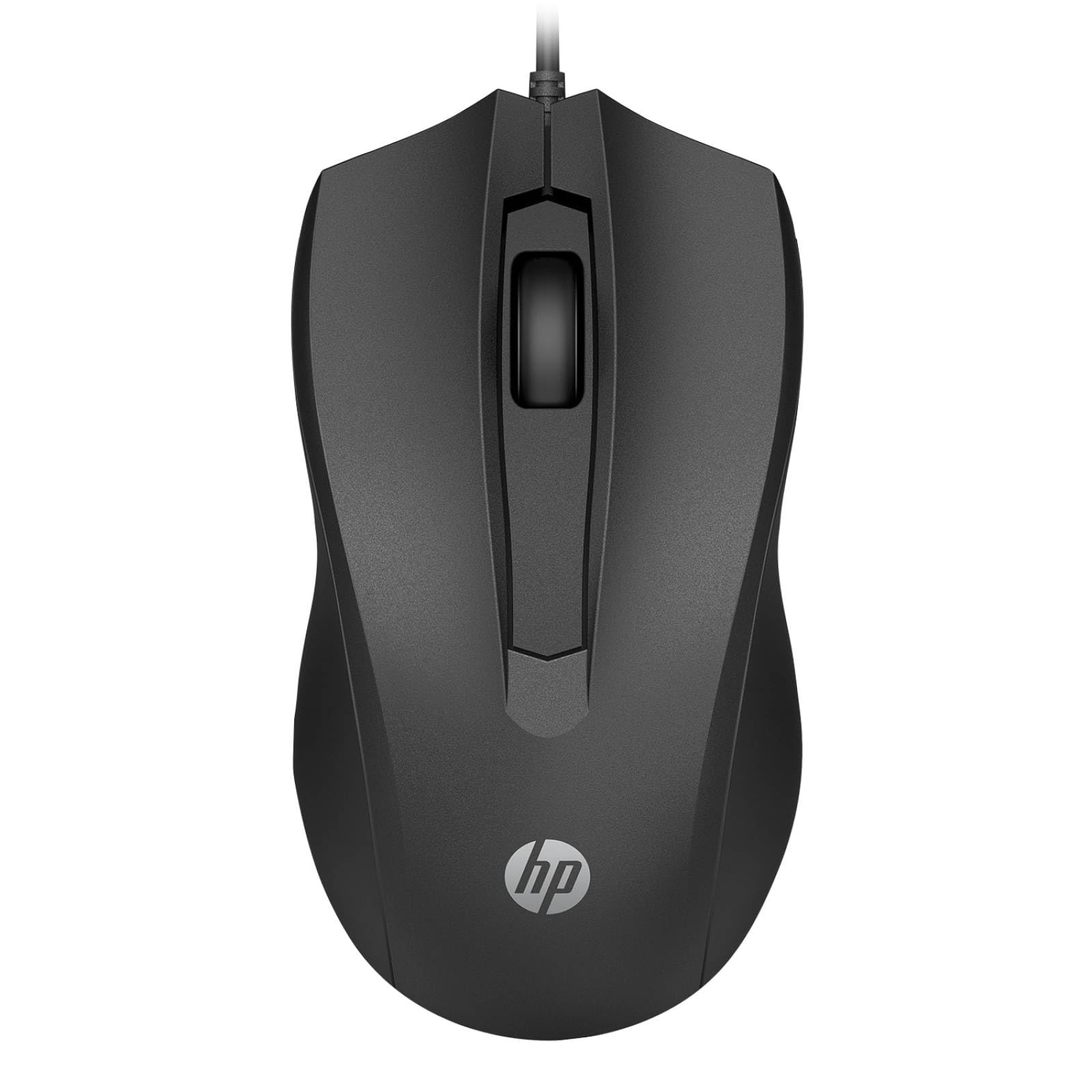
Image: The HP Wired Mouse 105 features a sleek black design and connects via a USB cable for reliable performance.
Bruksanvisning
The HP Wired Mouse 105 is a standard 3-button optical mouse, offering intuitive control for everyday computing tasks.
- Venstre knapp: Brukes til å velge elementer, åpne files, og utfører kommandoer.
- Høyre knapp: Used to open context-sensitive menus, providing quick access to options.
- Rullehjul (midtknapp):
- Rulling: Roll the wheel up or down to navigate through documents and web sider.
- Midtklikk: Pressing the scroll wheel can open links in new tabs or activate other functions depending on the application.
- Optisk sensor: The 1600 DPI optical sensor provides precise and responsive cursor tracking on most surfaces.
- Ambidextrous design: The symmetrical design ensures comfortable use for both left-handed and right-handed users.
Vedlikehold
To ensure optimal performance and longevity of your HP Wired Mouse 105, follow these simple maintenance guidelines:
- Rengjøring av musen:
- Bruk en myk, lofri klut litt dampSkyll med vann eller et mildt rengjøringsmiddel for å tørke av utsiden av musen.
- Unngå å bruke sterke kjemikalier eller slipende materialer, da disse kan skade overflaten.
- For the optical sensor, use a dry cotton swab to gently remove any dust or debris. Do not spray liquids directly onto the sensor.
- Kabelpleie:
- Avoid bending or twisting the USB cable sharply, as this can damage the internal wires.
- Do not pull the mouse by its cable; always grasp the USB connector when plugging or unplugging.
- Lagring: Når musen ikke er i bruk, oppbevar den på et rent og tørt sted, unna ekstreme temperaturer.
Feilsøking
If you encounter issues with your HP Wired Mouse 105, try the following troubleshooting steps:
- Musen svarer ikke:
- Sørg for at USB-kabelen er ordentlig koblet til en fungerende USB-port på datamaskinen.
- Prøv å koble musen til en annen USB-port.
- Start datamaskinen på nytt.
- Uregelmessig markørbevegelse:
- Rengjør den optiske sensoren på undersiden av musen for å fjerne støv og rusk.
- Sørg for at du bruker musen på en passende overflate. Sterkt reflekterende eller gjennomsiktige overflater kan forstyrre optisk sporing. En musematte anbefales.
- Knapper eller rullehjul fungerer ikke:
- Sjekk om det finnes fysiske hindringer rundt knappene eller rullehjulet.
- Test musen på en annen datamaskin for å finne ut om problemet ligger i musen eller datamaskinens programvare/drivere.
Spesifikasjoner
| Produkttype | Mus |
| Merke | HP |
| Modellnummer | 105 (Manufacturer Part Number: 822M9UT#ABA) |
| Tilkoblingsteknologi | Cable (USB Type A) |
| Bevegelsesdeteksjon | Optisk |
| Bevegelsesoppløsning | 1600 dpi |
| Totalt antall knapper | 3 |
| Ergonomisk passform | Symmetrical, Ambidextrous |
| Dimensjoner (H x B x D) | 3.8 cm x 11.7 cm x 6.4 cm (1.5 x 4.6 x 2.5 tommer) |
| Vekt | 3.17 oz (90 g) |
| Operativsystemkompatibilitet | Windows 7, Windows 8, Windows 10, Windows 11, Mac OS |
| Plattform støttet | PC, Mac |
Garanti og støtte
The HP Wired Mouse 105 comes with an HP standard one-year limited warranty. For detailed warranty terms and conditions, please refer to the documentation included with your product or visit the official HP support website. If you require technical assistance or have questions not covered in this manual, please contact HP customer support.