

Brukerhåndbok for SpecFive-sporingsenhet
Overview
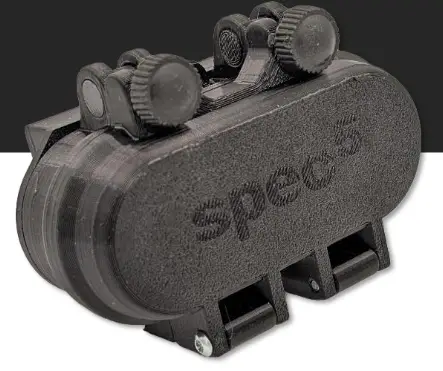
Denne veiledningen forklarer hvordan du konfigurerer og bruker SpecFive Trace-enheten din til å spore hunden din eller teammedlemmer. Enheten bruker GPS og mesh-nettverk for å gi posisjonsoppdateringer i sanntid. SpecFive Trace kan festes til et hundehalsbånd for å spore en hund, eller ved hjelp av Molle-festet, festes til taktisk utstyr for å spore et team.
Komme i gang
Hva er inkludert
- SpecFive Trace tracking device
- USB ladekabel
- Dog collar or Molle attachment
- Brukerhåndbok
Krav
- Smartphone or tablet with the Meshtastic app installed
- Access to Wi-Fi for initial setup and downloading offline maps
- Optional: Additional Meshtastic devices for network expansion
Sette opp enheten
Trinn 1: Lad enheten
- Loosen the 2 Thumb screws on the housing enough to rotate them 90deg away from the housing. Open the housing to expose the radio and USB-C connector
- Use the provided USB cable to fully charge the device.
- An Orange LED indicates the device is charging. The Green LED will illuminate indicating the device is running. The Orange LED will turn off when the device is fully charged.
- Press and hold the USER button(closest to the hinge) for 6 seconds to turn off the device. The Green LED will switch to solid for a few seconds as the device shuts down and then remains off. If the Green LED is blinking the device is on.

Trinn 2: Installer Meshtastic-appen
- Download the Meshtastic app from the Google Play Store or Apple App Store.
- Open the app and follow the prompts for general user instructions
Trinn 3: Koble enheten til appen
- Turn on the device by pressing the RESET button. The Green LED will illuminate and begin flashing steadily.
- Open the Meshtastic app

- Select your device from the list of available devices. The Trace will show up as S5TC- ####(the last 4 digits are randomized).

- Enter the device’s pin when prompted, which is by default set to: 123456
- Your Device is now paired to the app for further configuration

Trinn 4: Endre enhetsnavnet
- If you’re tracking multiple devices, it’s recommended to change the default device name to easily distinguish between them.
- Find the Radio Configuration/Setting Tab on your app
a. Android: Click the 3 vertical dots on the top right and select Radio Configuration
b. iOS: Select the Settings tab

- Gå til Bruker-fanen
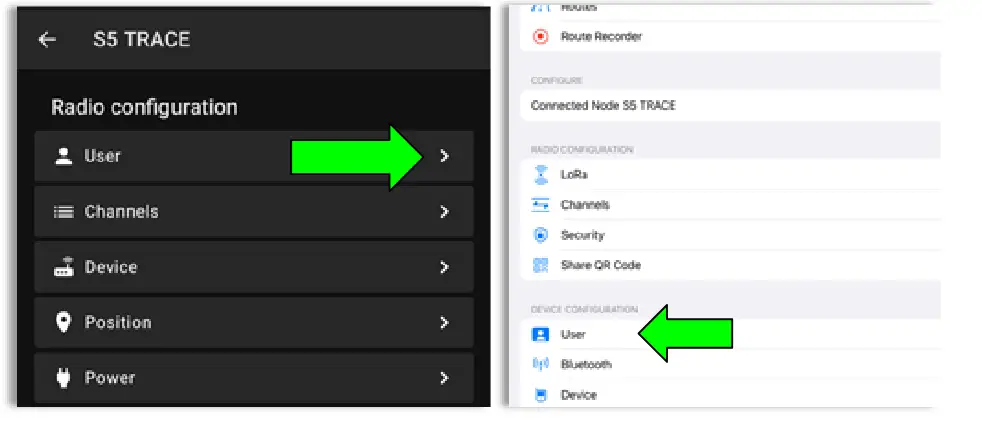
- Update the Long and Short name of your Trace to the name of your dog or Team Member. Long Name can be up to 30 characters including emojis. Short Name can be up to 4 characters, numbers and letters only.

- Once you have updated the device name to your desired name, click Send(Android) or Save(iOS) and the device will reboot.
Trinn 5: Opprett en privat kanal
The SpecFive Trace comes pre-programmed to communicate on Meshtastic’s public channel, “LongFast.” This means that any nearby Meshtastic user will be able to see your Trace’s location. If you intend to use your Trace within a mesh network with other Meshtastic users and want to share its location, you can keep the default LongFast channel.
However, if you prefer a private network, the instructions in the next section will guide you through creating a private channel for your Trace and sharing access with specific Meshtastic devices.
- Gå til fanen Radiokonfigurasjon og velg Kanal.
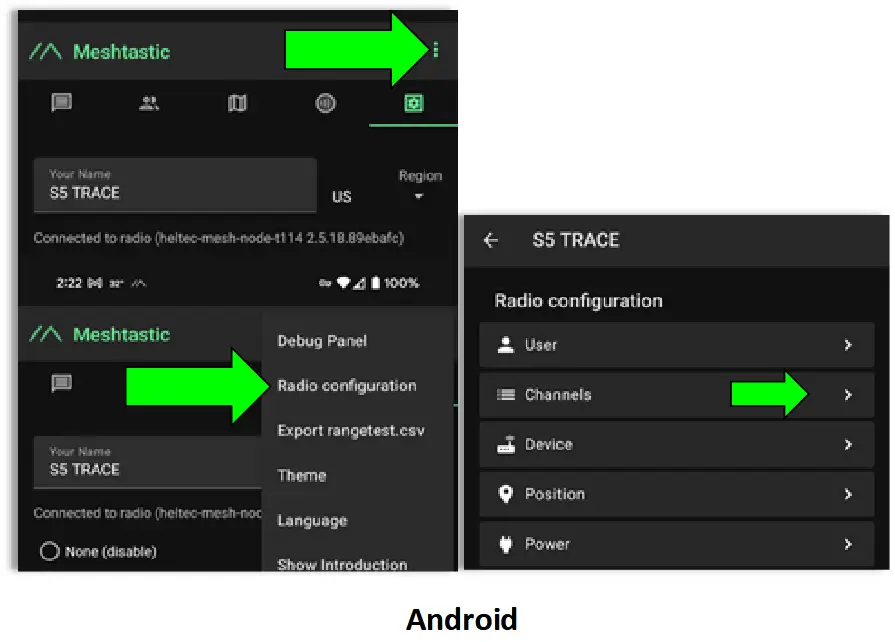
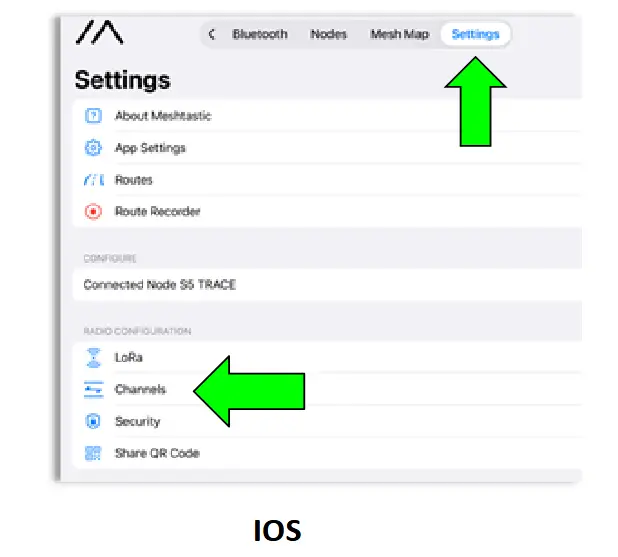
- On Android delete the public channel “LongFast”. On iOS you cannot delete the primary channel but you can edit it.

- Add a new Channel by clicking the “+” button

- Create the Custom Channel on Android. Edit the Primary channel on iOS.
a. Gi den nye kanalen et navn du liker.
b. Click the Refresh Button on the PSK to create a new randomized pre-shared key.
c. Turn on “Position Endabled” and “Precise Location”.
d. Click Save and then Send to update the channel on the device. The device will reboot.

Trinn 6: Dele den tilpassede/private kanalen med de andre enhetene dine
- Navigate to the Channels tab on the Meshtastic app. Your phone needs to be connected via bluetooth to your Trace to share the channels
- Select your custom channel. The QR code and URL vil oppdateres når valgene endres.
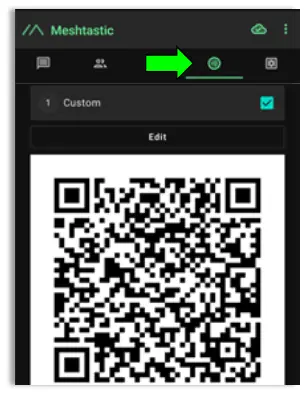
a. Hvis du legger til denne kanalen på en annen enhet med samme telefon/nettbrett, bør du kopiere URL og lagre den på utklippstavlen eller i en tekstfil file.
b. Hvis du deler denne kanalen med en enhet som er koblet til en annen telefon eller et annet nettbrett, kan du ganske enkelt skanne QR-koden ved hjelp av Meshtastic-appen på den andre telefonen/nettbrettet.
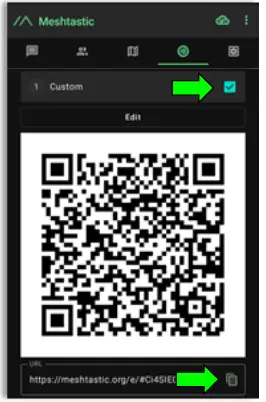
You are now done with the configuration of your Trace. Follow these same instructions for multiple Trace devices. - Add the Custom/Private Channel on your personal mesh radio.This will be the device you keep on your person while the Trace is attached to your dog/pet.
a. Connect your second device to the Meshtastic app.
b. Under the Channels tab on the app you will erase the hyperlink under “URL" og lim inn hyperkoblingen du lagret i forrige trinn.
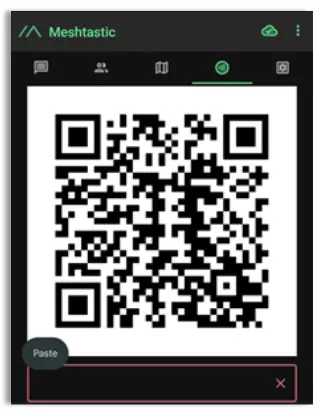
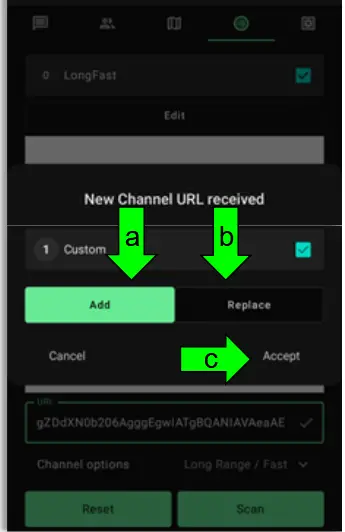
- A window will appear giving you 2 options
a. Legg til: Dette legger til den egendefinerte kanalen som en sekundær kanal på din personlige enhet. Dette er et godt alternativ når du vil beholde den offentlige kanalen «LongFast» på enheten din for å kommunisere med andre Meshtastic-brukere.
b. Erstatt: Dette vil erstatte standard offentlige kanal «Longfast» med din egendefinerte kanal, slik at du bare kan se og kommunisere med enhetene på den egendefinerte kanalen din.
c. Klikk på Godta for å sende den nye kanalen til enheten.
Trinn 7: Koble til enheten
- For Dog Tracking: Secure the device using the provided collar attachment. Ensure the Trace is on the back of the neck of your dog so that the internal GPS antenna faces the sky for optimal signal reception.
- For Team Tracking: Use the Molle mount to attach the device securely to tactical gear, with the “S” in “spec5” pointing up so that the internal GPS antenna faces towards the sky for optimal signal reception.
Bruke sporingsfunksjonene
Last ned kart for bruk uten nett (Android)
- Open the Meshtastic app and navigate to the map tab while connected to WIFI or your Cellular network.
- Move your map to locate the area to anticipate needing offline maps for.
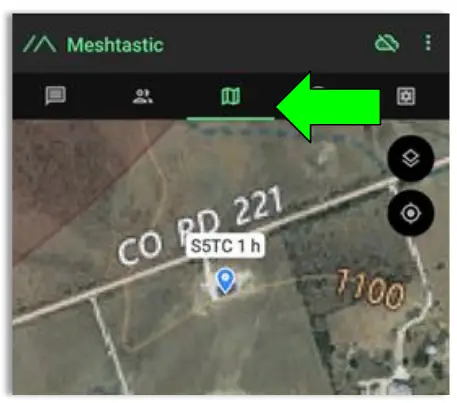
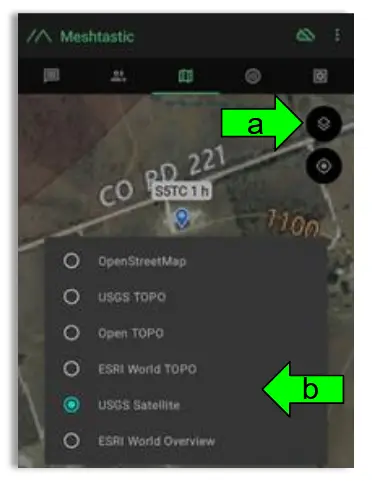
- Select the Map Type you wish to use
a. Click the Map options button
b. Select your preferred Map
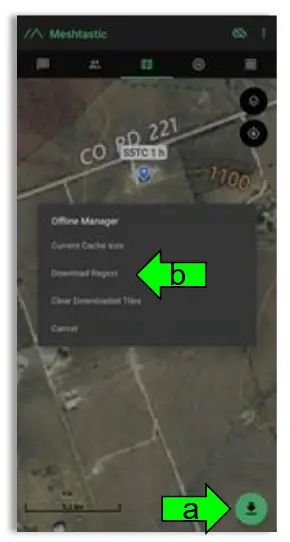
- Download the Map region
a. Click the Download Button
b. Click “Download Region” to download the current map region your map is zoomed to. Use the “Current Cache Size” to see how much storage your current offline maps are using. “Clear Downloaded Tiles” to remove map data for regions you are no longer using.
Sanntids posisjonssporing
- Open the Meshtastic app and connect to your personal device.
- Go to the map tab to see the locations of all of the devices in your mesh including your Trace.
- To see the present and past locations of your Trace
a. Go to the nodes list
b. Select you Trace by clicking on the Short name
c. Select More Details
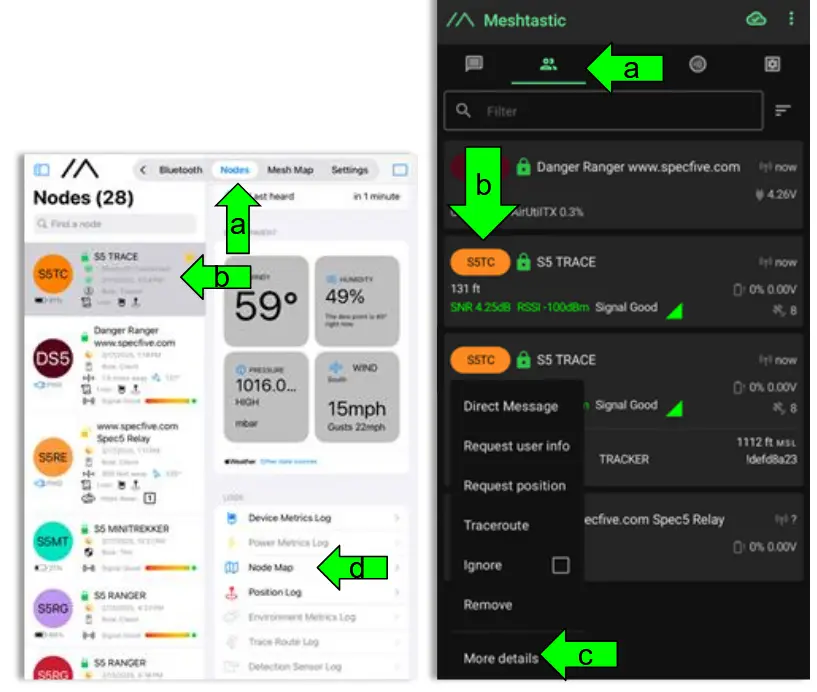
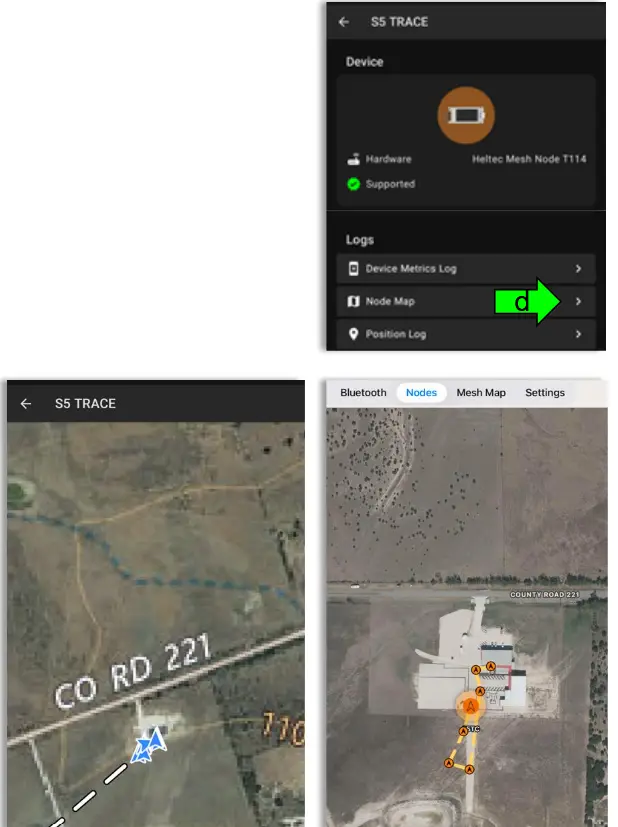
d. Velg «Nodekart» for å view tidligere og nåværende GPS-posisjoner for din Trace
Støtte og kontaktinformasjon
If you experience issues or have questions, contact us at:
• E-post: general@specfive.com
• Webnettsted: www.specfive.com
With your SpecFive Trace device, you can track your dog or team members confidently and stay connected no matter where your adventures take you!
© 2024, SpecFive LLC Med enerett
specfive.com
Dokumenter / Ressurser
 | Sporingsenhet |
Referanser
- Brukerhåndbokmanual.tools